Hurricane Safety: Smoke Leaks, Water Temp Alarm
← All Hurricane troubleshooting
Smoke leaks, safety detection or extinguishing fails, alarms occur, or the lid is off-center or unsupported.
Power off before inspecting the mirrors. Disconnect power before removing the rear cover to inspect the laser tube or opening the side and upper covers to inspect laser power supply terminals. The laser tube contains high voltage; do not touch it while powered on. Always closely monitor the machine during operation. Do not operate under freezing conditions; add antifreeze to the water tank when the working environment is below 5°C.
¶ Smoke Leaks Out
What you see: Smoke is not discharged from the enclosure in time and leaks out through the gaps.
Check in this order:
-
Check the purifier working status: if the purifier's performance is weak, smoke exhaust will be affected. You can remove the exhaust hose and discharge the smoke directly outdoors to check whether the enclosure exhaust is normal. If direct exhaust works properly, the purifier may have insufficient performance or the filter cartridge needs replacement.
-
Check that the enclosure fan is free of dust buildup: excessive dust accumulation will reduce exhaust efficiency. Please refer to the Hurricane Enclosure Cleaning and Maintenance video to clean the enclosure and fan. If neither direct exhaust nor cleaning resolves the problem, the fan may be faulty. Please provide a clear photo of the Serial Number (see Figure 67) to customer service, and refer to the Hurricane Enclosure Fan Replacement video.

Figure 67
Still not fixed? Contact support with the details listed in What to send support.
Related problems: False Flame Alarms · LED Strip Stays Dark
¶ Flame Alarm Not Working
What you see: Flame detection fails to trigger an alarm even when a fire occurs.
Check in this order:
-
Check that the flame detection function is enabled in the software: in AtomStack Studio software or AtomStack APP, verify whether the "Flame Detection" function is turned on (see Figure 68).

Figure 68 -
Check the flame detection sensitivity: in AtomStack Studio or AtomStack APP, reselect the flame detection sensitivity level (three levels: Low, Medium, High) as shown in Figure 68. Alternatively, in LightBurn or LaserGRBL, adjust the flame detection sensitivity via the Console command: $fire_alarm/overflow_value=15 (adjusts the number of triggers exceeding the threshold), $fire_alarm/threshold_value=74 (flame threshold; higher values make triggering harder), see Figure 69. If lowering the threshold to the minimum does not resolve the issue, the flame detection board may be faulty. Please refer to the Hurricane Flame Detection Board Replacement video for replacement. Note: while these adjustments can be useful, they do not replace careful operation. Always closely monitor the machine during operation; safety should always be your top priority.

Figure 69
Still not fixed? Contact support with the details listed in What to send support.
Related problems: False Flame Alarms · Auto Extinguish Fails
¶ False Flame Alarms
What you see: Flame alarms are frequently triggered even without fire.
Check in this order:
- Confirm that the material is not MDF, balsa, or similar: when engraving or cutting MDF or balsa wood, it is recommended to turn off the flame detection function (see Figure 70). Note: someone should always monitor the machine to prevent fire hazards.
- Check whether the cutting file lines are very dense: dense line patterns can easily trigger the flame detection alarm. It is recommended to increase the cutting speed and perform multiple passes.
- Test other materials to see if alarms are triggered:
-
①If cutting the same file on plywood does not trigger the flame alarm, you can disable the flame detection function in AtomStack Studio or the APP when cutting the current material (see Figure 70). Note: always closely monitor the machine during operation; safety should always be your top priority.
Figure 70 -
②If alarms are still triggered on plywood, you can reselect the flame detection sensitivity level in AtomStack Studio or the AtomStack APP (see Figure 70). Alternatively, in LightBurn or LaserGRBL, adjust the flame detection sensitivity via the Console command: $fire_alarm/overflow_value=15 (adjusts the number of triggers exceeding the threshold), $fire_alarm/threshold_value=74 (flame threshold; higher values make triggering harder), see Figure 71. Note: while these adjustments can be useful, they do not replace careful operation. Always closely monitor the machine during operation; safety should always be your top priority.
Figure 71
-
Still not fixed? Contact support with the details listed in What to send support.
Related problems: Flame Alarm Not Working · Engraving Stops, Red LED · Auto Extinguish Fails
¶ Auto Extinguish Fails
What you see: Automatic fire extinguishing does not start after a flame alarm.
Check in this order:
-
Confirm that the automatic fire extinguishing function is enabled: in AtomStack Studio software or AtomStack APP, check whether the "Automatic Fire Extinguishing" function is turned on (see Figure 72).

Figure 72 -
Confirm that an external water tank is connected: the automatic fire extinguishing function requires an external water tank. Connect the supplied hose to the machine's active fire extinguishing water inlet (see Port No. 7 in the Hurricane Panel Introduction section).
-
If the above steps do not solve the issue, the automatic fire extinguishing pump may be faulty and needs replacement. Please refer to the Hurricane Automatic Fire Extinguishing Pump Replacement video.
Note: after the automatic fire extinguishing function is triggered, it is necessary to clean the nozzle and the focusing lens (see Figure 73). Please refer to the Hurricane Post-Fire-Extinguishing Cleaning video for guidance.

Figure 73
Still not fixed? Contact support with the details listed in What to send support.
Related problems: Flame Alarm Not Working · False Flame Alarms
¶ Water Temperature Alarm
What you see: An abnormal water temperature alarm occurs.
Check in this order:
-
Confirm that the software version is the latest: AtomStack Studio should be version 2.1.0.0 or above (see Figure 74).

Figure 74 -
Confirm that the firmware version is correct: please provide the current firmware version number along with a photo of the Serial Number (see Figure 75) and send them to customer service for confirmation.
Figure 75 -
Confirm that the water level is within the normal range: check the scale on the water tank (see Figure 76) to ensure the water level is above the minimum line. If the water level is close to or below the minimum line, refill the water tank.

Figure 76 -
Confirm the room temperature: it is recommended to operate the device within a temperature range of 5°C to 35°C. Do not operate under freezing conditions. When the working environment temperature is below 5°C, antifreeze must be added to the water tank. Please refer to the section "Should Antifreeze Be Added to the Hurricane Water Tank When the Temperature Is Below 0°C?". When the temperature is above 35°C, please cool down the indoor environment.
-
If both the room temperature and water level are normal, the water temperature sensor may be giving a false alarm. To confirm, insert the sensor into ice water and use AtomStack Studio software to monitor the real-time temperature changes. If the sensor is faulty, please refer to the Hurricane Temperature Sensor Replacement video for replacement.
Still not fixed? Contact support with the details listed in What to send support.
Related problems: Engraving Stops, Red LED · Cutting Power Abnormal
¶ Lid Open, Job Continues
What you see: Engraving does not stop when the enclosure lid is opened.
Check in this order:
-
Confirm that the lid opening detection function is enabled in the software: in LightBurn or LaserGRBL software, enter the following command in the Console: $door/enable=On (enable lid opening detection function), $door/enable=Off (disable lid opening detection function), see Figure 77.

Figure 77 -
Confirm that the lid limit switch cable is properly connected: carefully check whether the cable connector is loose, disconnected, or damaged. Unplug the terminal and reconnect it to test.
-
Confirm the voltage of the lid limit switch cable: after unplugging the connector, use a multimeter in DC mode to measure the voltage at the socket. The expected voltage should be 3.3V (see Figure 78). If the voltage is normal (3.3V), the lid limit switch is faulty. If the voltage is 0V, the connection cable is faulty.
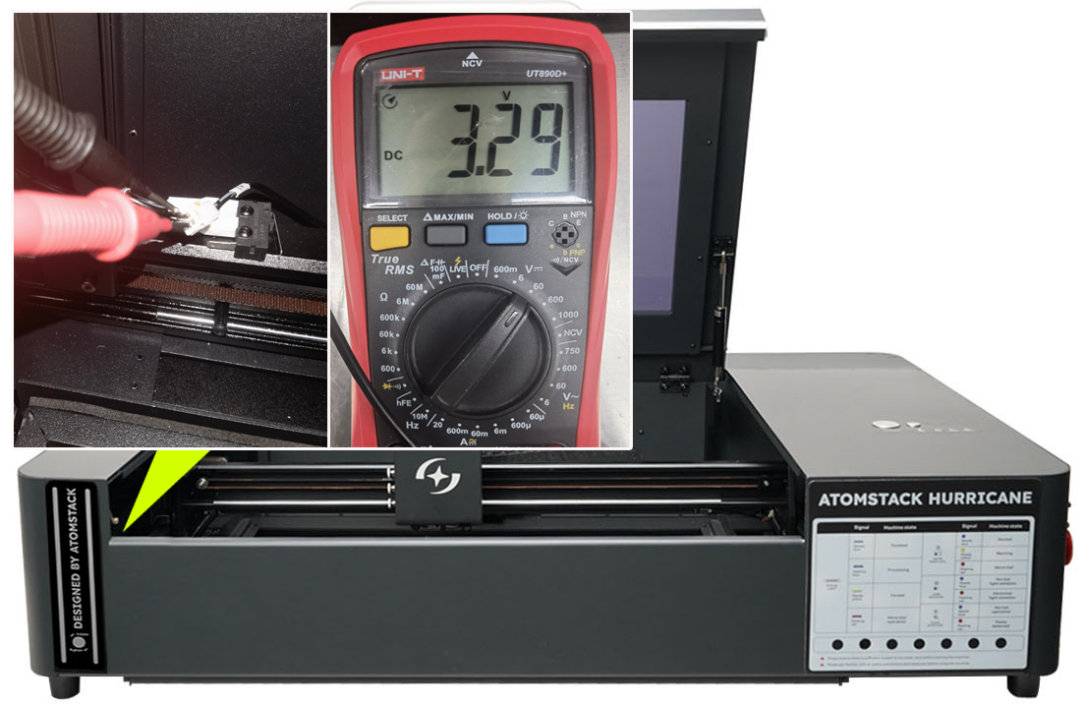
Figure 78
Still not fixed? Contact support with the details listed in What to send support.
Related problems: Engraving Stops, Red LED · Lid Is Off-Center · Tray Switch Inactive
¶ Lid Is Off-Center
What you see: The lid is not centered and is shifted left or right.
Check in this order:
-
Check the support rods for abnormalities: inspect that the support rod screws are intact and not deformed.
-
Confirm support strength: ensure the distances between the two support rods and the fixing parts are equal. If not, adjust by turning the support rod adjustment blocks as shown in Figure 86.

Figure 86 -
Check that the acrylic glass on the lid is not skewed: carefully observe that the acrylic glass aligns with the frame without tilt, as shown in Figure 87.

Figure 87 -
If all the above are normal: adjust the angle of the lid hinge to correct the alignment. Please refer to the Hurricane Lid Alignment Adjustment Video.
Still not fixed? Contact support with the details listed in What to send support.
Related problems: Lid Support Rod Broken · Lid Open, Job Continues
¶ Lid Support Rod Broken
What you see: The lid support rod is broken and cannot support the lid.
Check in this order:
If the lid support rod is broken and cannot support the lid, it must be replaced. Please provide a video of the malfunction and a photo of the Serial Number on the machine (as shown in Figure 88) to the customer service team for assistance. Refer to the Hurricane Support Rod Replacement Video for guidance.
Figure 88
Still not fixed? Contact support with the details listed in What to send support.
Related problems: Lid Is Off-Center · Lid Open, Job Continues
¶ Tray Switch Inactive
What you see: The limit switch fails to trigger when the bottom tray is inserted.
Check in this order:
-
Check the appearance of the machine and tray: inspect the machine and tray for any slight deformation caused during transport. If deformation is found, provide a photo of the Serial Number and the deformed area to customer service for assistance.
-
Inspect the limit switch: examine the limit switch at the position shown in Figure 89 for any visible damage. Press it by hand and temporarily secure it with tape, then reconnect to see if it operates normally. If it works with tape, the tray may not be fully inserted or there may be debris in the tray's guide slot. Inspect carefully.

Figure 89 -
If the machine and tray appear fine but the limit switch still fails to trigger, the tray limit switch may be faulty. You can temporarily disable tray detection in LightBurn by entering the command $drawer_alarm/enable=off, as shown in Figure 90 (to re-enable, use $drawer_alarm/enable=on). Provide a fault video and a photo of the Serial Number (see Figure 91) on the machine to customer service for replacement. Refer to the Hurricane Limit Switch Replacement Video for guidance.
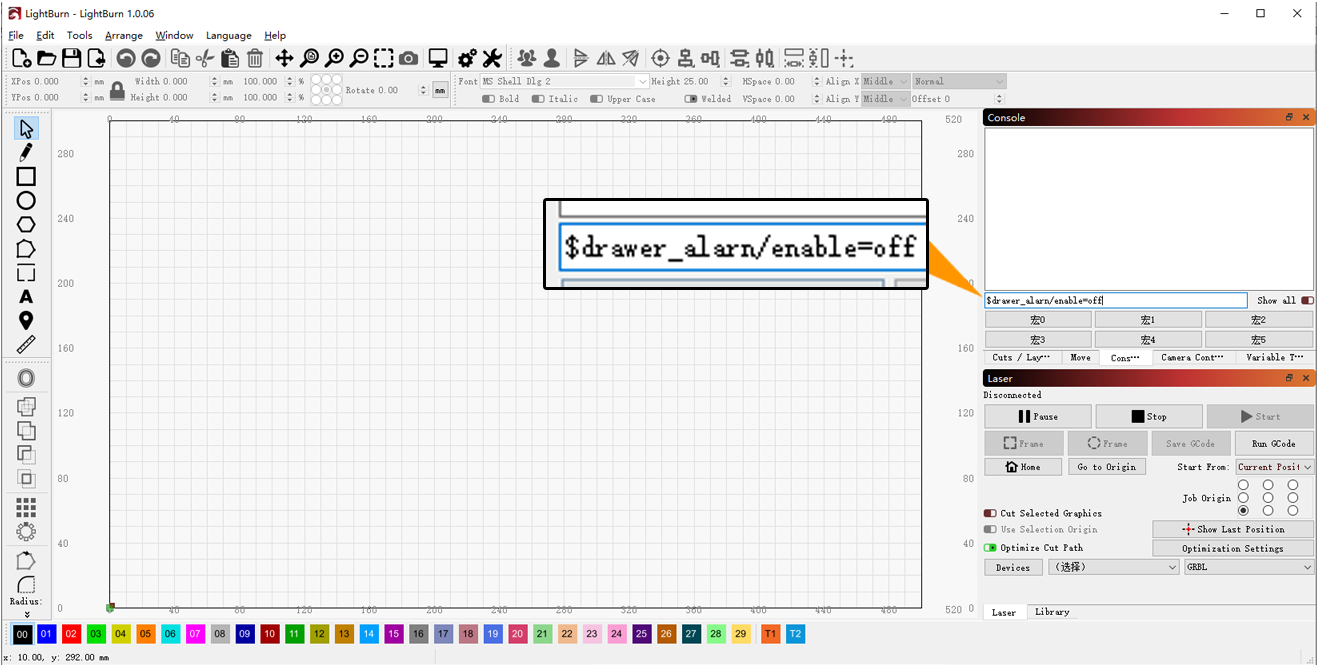
Figure 90
Figure 91
Still not fixed? Contact support with the details listed in What to send support.
Related problems: Homing Fails · Lid Open, Job Continues