Hurricane Power & Connection: No Power, PC Fails
← All Hurricane troubleshooting
The machine does not respond, connect, read a USB drive, or upgrade firmware, or it stops engraving with a red indicator.
Power off before inspecting the mirrors. Disconnect power before removing the rear cover to inspect the laser tube or opening the side and upper covers to inspect laser power supply terminals. The laser tube contains high voltage; do not touch it while powered on. Always closely monitor the machine during operation. Do not operate under freezing conditions; add antifreeze to the water tank when the working environment is below 5°C.
¶ No Response at Power-On
What you see: The machine does not respond after being powered on.
Check in this order:
- Check if the power indicator light turns on after switching on the power: if the light is on but there is no beep and the fan does not run, the 24V power supply may be faulty. Refer to the Hurricane 24V Power Supply Troubleshooting and Replacement video. If the light is off after switching on the power, follow the steps below to troubleshoot.
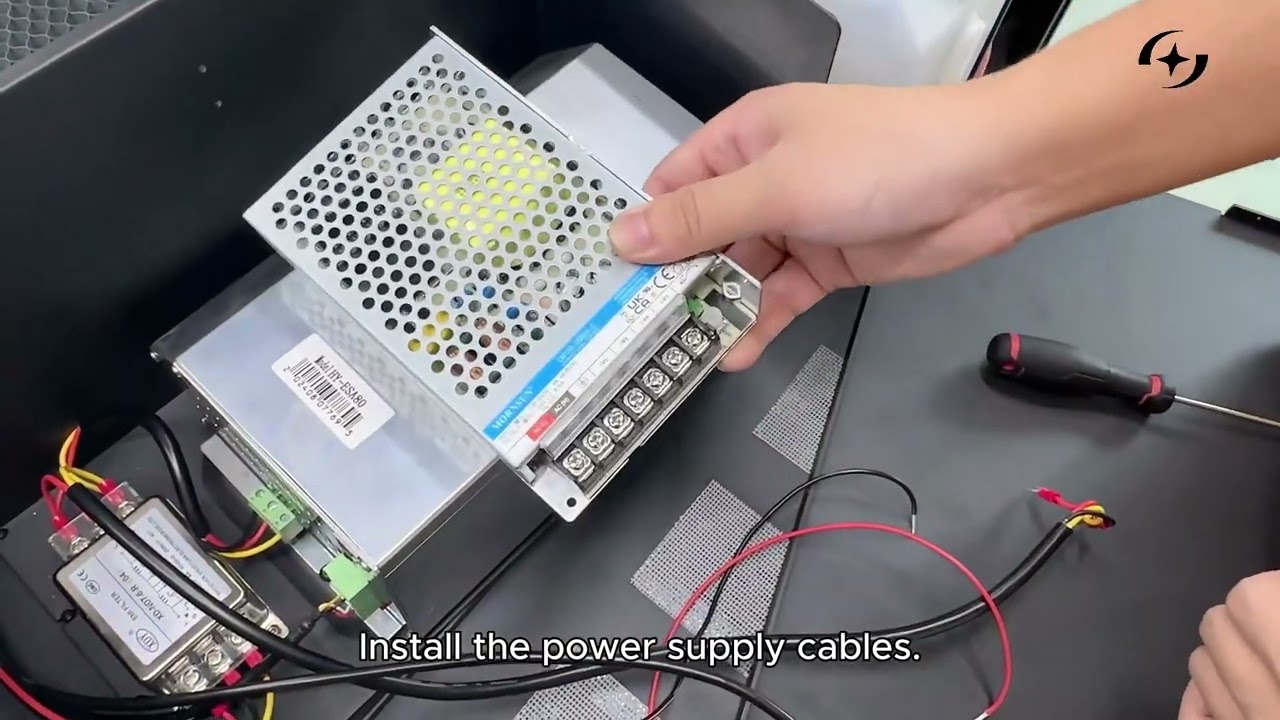
Click to play video on YouTube
- Check the power cable connection: ensure the power cable is fully inserted and that the power strip is functioning properly.
- Check that the key switch is turned on and fully engaged: turn the key switch several times to see if there is any sign of poor contact or incomplete engagement. If poor contact is detected, the key switch should be replaced. See item ⑤ in the panel description. Refer to the Hurricane Key Switch Replacement video.
- Check that the emergency stop switch is released: press the emergency stop switch and rotate it; after releasing, see if it pops back automatically. If it does not pop up, the switch is faulty. See item ④ in the panel description. Refer to the Hurricane Emergency Stop Switch Replacement video.
- Check whether the fuse is blown: pry open the fuse cap and check whether the fuse is intact (you can also measure continuity with a multimeter in diode mode). See item ⑥ in the panel description. Refer to the Hurricane Fuse Inspection video.
Still not fixed? Contact support with the details listed in What to send support.
Related problems: Software Won’t Connect · Start Engraving Ignored
¶ Software Won’t Connect
What you see: The machine cannot connect to the software.
Check in this order:
- Check the baud rate: the baud rate of the Hurricane is 460800. When using AtomStack Studio, no setting changes are required. When using LightBurn or LaserGRBL (unstable, not recommended), you need to change the baud rate in the software settings (see Figure 23). If LightBurn does not display the baud rate option, import the LightBurn configuration file provided on the USB drive included with the machine. Refer to the LightBurn Configuration File Import video.

Click to play video on YouTube

Figure 23
-
Check the TYPE-C cable connection: make sure the cable is plugged into the correct port (see Figure 24). For Mac operating systems, you cannot directly connect to the C port on the TYPE-C cable. You need to use a docking station to connect to the A port of the TYPE-C cable (see Figure 25).

Figure 24
Figure 25 -
Check if the serial port is occupied: make sure no other software is currently connected to the Hurricane.
-
Check if the serial port is recognized: open This PC → Manage → Device Manager and look for a serial port such as CH340 (see Figure 26). If it is not listed, install the serial port driver first. Contact customer service to obtain the driver. Refer to the Serial Port Driver Installation video.

Figure 26 -
Check if the TYPE-C cable is damaged: try using another TYPE-C cable with data transmission capability. If the problem is resolved after replacement, the original cable is considered faulty.
-
Check the computer settings: try connecting the Hurricane to another computer. If it works on the other computer, the original computer may have some disabled functions. It is recommended to install a professional edition of the operating system or contact computer support for assistance.
-
If the above steps do not resolve the issue: provide the machine's Serial Number (see Figure 27) to customer service for further assistance.

Figure 27
Still not fixed? Contact support with the details listed in What to send support.
Related problems: No Response at Power-On · Engraving Stops, Red LED · Start Engraving Ignored
¶ Engraving Stops, Red LED
What you see: The machine stops during engraving and the panel indicator turns red.
Check in this order:
-
If the software shows a prompt:
-
①Prompt: Connection lost — check whether the Type-C cable has been touched, whether the mains voltage fluctuates excessively, try another USB port on the computer, or switch to another software (AtomStack Studio or LightBurn) to test. If none of these resolves the problem, replace the mainboard. Refer to the Hurricane Mainboard Replacement Video for instructions.
-
②Prompt: ALARM 1 — Alarm 1 indicates that a limit switch has been triggered. Check whether the engraving file size exceeds the engraving range or if there are other design elements outside the engraving area. If using AtomStack Studio, it will directly indicate which axis triggered the alarm. If using LightBurn, enter the command "?" in the command bar below the alarm message (as shown in Figure 51) to determine which axis limit switch was triggered.

Figure 51 -
③Prompt: ALARM 12 — Flame alarm. Check whether the engraving material is MDF or balsa wood, and whether there is visible smoke or fire. If the material is not MDF, balsa wood, or similar, and there is no smoke or fire, the alarm may be a false trigger. Refer to the "Hurricane Flame Detection Function Is Too Sensitive — Alarms Are Frequently Triggered Even Without Fire" section for the solution.
-
④Prompt: ALARM 13 — Enclosure lid opening alarm. Check whether the enclosure lid is open or if there is a fault with the limit switch. Observe the LED strip color on the enclosure: red indicates an alarm state. You can open the lid and manually press one of the two enclosure door limit switches (as shown in Figure 52) to check whether the LED strip returns to normal blue color. Refer to the "Hurricane Lid Opening Detection Function Fails — Engraving Does Not Stop When the Enclosure Lid Is Opened" section for the solution.

Figure 52 -
⑤Prompt: Water temperature abnormal — check whether the water temperature is too low or too high (an alarm message will pop up and the enclosure LED strip will turn red). If the temperature is too low, increase the room temperature. If the temperature is too high, add water and lower the room temperature.
-
-
If the software shows no prompt: reconnect or replace the Type-C cable. Try using AtomStack Studio or LightBurn. Try a different USB port on the computer. If the same problem persists, reflash the firmware (note: the same firmware version cannot be reflashed; a different firmware version is required — contact customer service to obtain it). If the problem still occurs, it is likely a mainboard failure, and the mainboard needs to be replaced. Refer to the Hurricane Mainboard Replacement Video.
Still not fixed? Contact support with the details listed in What to send support.
Related problems: Start Engraving Ignored · False Flame Alarms · Water Temperature Alarm
¶ Start Engraving Ignored
What you see: The machine does not respond when Start Engraving is clicked in the software.
Check in this order:
-
Check connections and structure: ensure the Type-C cable is properly connected. Confirm that the enclosure lid is properly closed.
-
Check for software prompts: observe whether the software displays any relevant prompts. If prompts appear, follow the instructions for troubleshooting. Refer to the "Software Alarm Prompts and Solutions for Hurricane" section. If no prompts appear, restart the Hurricane power, restart the software, and reconnect the machine.
-
Test with other software: try using AtomStack Studio or LightBurn. If neither software works, try replacing the Type-C cable, switching USB ports, and updating drivers (refer to the Serial Port Driver Installation Video).
-
If the above steps do not resolve the issue: reflash the firmware (refer to the Software, Firmware, and APP Update Tutorial Video). Note: the same firmware version cannot be reflashed; contact customer service to obtain the correct version. If reflashing the firmware does not fix the problem, replace the mainboard. Provide the machine's Serial Number (as shown in Figure 53) to customer service. Refer to the Hurricane Mainboard Replacement Video for guidance.
Figure 53
Still not fixed? Contact support with the details listed in What to send support.
Related problems: Software Won’t Connect · Engraving Stops, Red LED · Laser Tube Not Firing
¶ USB Drive Not Recognized
What you see: The machine cannot recognize the USB drive.
Check in this order:
- Restart the machine: reinsert the USB drive and restart the machine to try again.
- Check whether the USB drive is damaged: insert the USB drive into a computer to see if it can be read normally. If the files can be accessed, the USB drive is not faulty.
- Ensure the USB drive is inserted into the correct port: make sure the USB drive is plugged into the USB DRIVE port of the machine. Do not insert it into the USB KEY port.
- Check whether the USB port is functional: ensure the USB DRIVE port is intact and undamaged.
- If all the above checks are normal but the issue persists: the mainboard may need to be replaced. Refer to the Hurricane mainboard replacement video.
Still not fixed? Contact support with the details listed in What to send support.
Related problems: Firmware Upgrade Fails · Software Won’t Connect
¶ Firmware Upgrade Fails
What you see: The machine cannot upgrade its firmware.
Check in this order:
-
Check the USB drive: verify on a computer whether the USB drive can be read and written normally. If it cannot, the USB drive is faulty.
-
Check the file location: when copying the firmware, make sure it is placed in the root directory of the USB drive. Do not put it inside any folder.
-
Upgrade through AtomStack software: please upgrade the machine firmware through AtomStack Studio or AtomStack APP.
-
Check whether the firmware is correct: the firmware file must have a .bin extension. For Hurricane models, depending on the Serial Number: products with Serial Numbers earlier than 20250224 should use firmware C10-0162.bin. Products with Serial Numbers later than 20250224 should use firmware 16C10-0162.bin. If you are unsure, take a screenshot of the current firmware version (as shown in Figure 84) and a photo of the Serial Number (as shown in Figure 85) and send them to customer service for confirmation.

Figure 84
Figure 85 -
If all the above steps show no issues: the problem is likely caused by a faulty mainboard. The mainboard needs to be replaced. Please refer to the Hurricane Mainboard Replacement Video.
Still not fixed? Contact support with the details listed in What to send support.
Related problems: USB Drive Not Recognized · Software Won’t Connect · Engraving Is Distorted