Hurricane Motion: Homing Fails, Mirrored Output
← All Hurricane troubleshooting
Engraving is distorted or has open lines, homing fails, or rotary output is mirrored or distorted.
Power off before inspecting the mirrors. Disconnect power before removing the rear cover to inspect the laser tube or opening the side and upper covers to inspect laser power supply terminals. The laser tube contains high voltage; do not touch it while powered on. Always closely monitor the machine during operation. Do not operate under freezing conditions; add antifreeze to the water tank when the working environment is below 5°C.
¶ Engraving Is Distorted
What you see: Engraving output is distorted.
Check in this order:
-
Confirm that the workpiece did not move during engraving: thin materials may be blown by the enclosure exhaust fan or air assist, causing distortion.
-
Confirm that the software speed setting is appropriate: excessive speed may cause abnormal movement, leading to distorted output. Please follow the parameter table for correct settings.
-
Confirm that the X-axis and Y-axis dual shafts are clean and undamaged: carefully inspect the guide rails and dual shafts to ensure there is no dirt, damage, or other abnormalities, as shown in Figure 38.
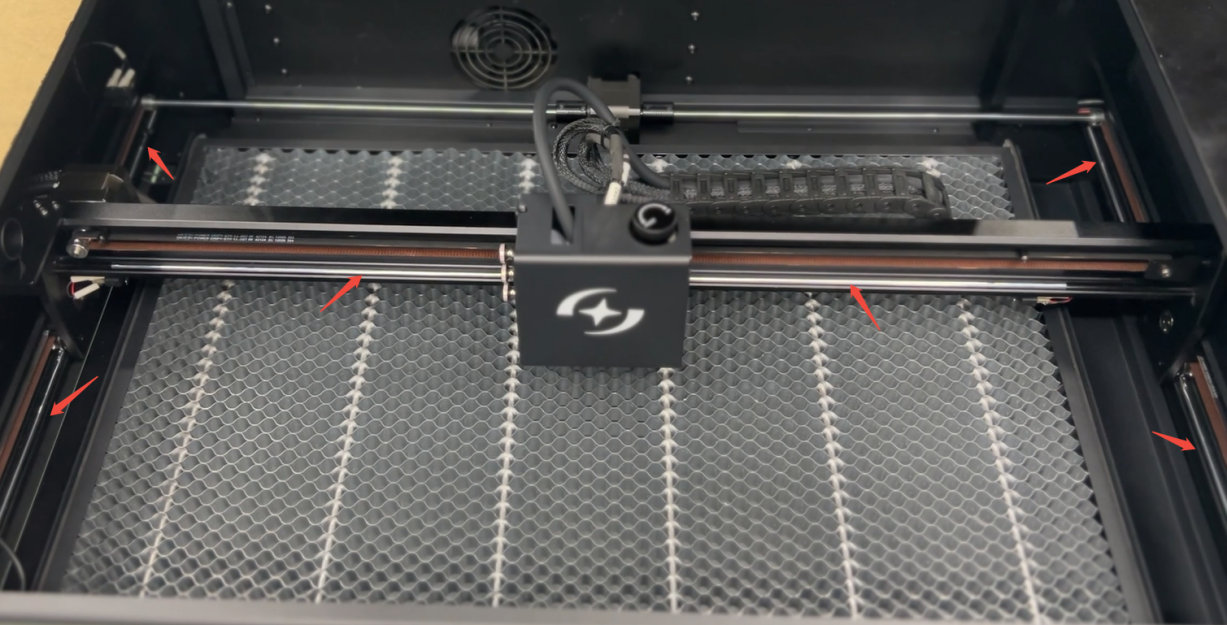
Figure 38 -
Check that the X-axis and Y-axis timing belts are not loose or damaged: carefully inspect the timing belts for looseness, overtightening, or damage. If any belts are broken or damaged, they need to be replaced. Please send clear photos of the damaged belts along with the Serial Number (as shown in Figure 39) to customer service. Refer to the Hurricane Timing Belt Replacement Video for replacement instructions.

Click to play video on YouTube

Figure 39
-
Check whether the X-axis and lower beam are parallel: if the straight line is only skewed without ripples or bending, primarily check whether the X-axis and the lower beam are parallel. If they are not parallel, adjust the X-axis to make it parallel. Please refer to the Hurricane Structural Adjustment Video.
-
Check whether the step size has been modified: in LightBurn or LaserGRBL, go to machine settings and check whether the values of $100 and $101 are 100 (as shown in Figure 40). Note: for older models produced before January 9, 2025 (Serial Number starting with 20250109V), the step size is 133.33. If you cannot determine the model, please provide the Serial Number on the machine to customer service for confirmation.

Figure 40 -
Check whether the screws of the X-axis motor synchronous wheel and the Y-axis motor synchronous wheel are loose: use an L1.5 wrench to check whether the fixing screws on the X-axis motor synchronous wheel and the Y-axis motor synchronous wheel (as shown in Figure 41) are loose. If they are loose, please tighten them. Note: when checking the X-axis motor synchronous wheel, you need to disassemble the motor for inspection.
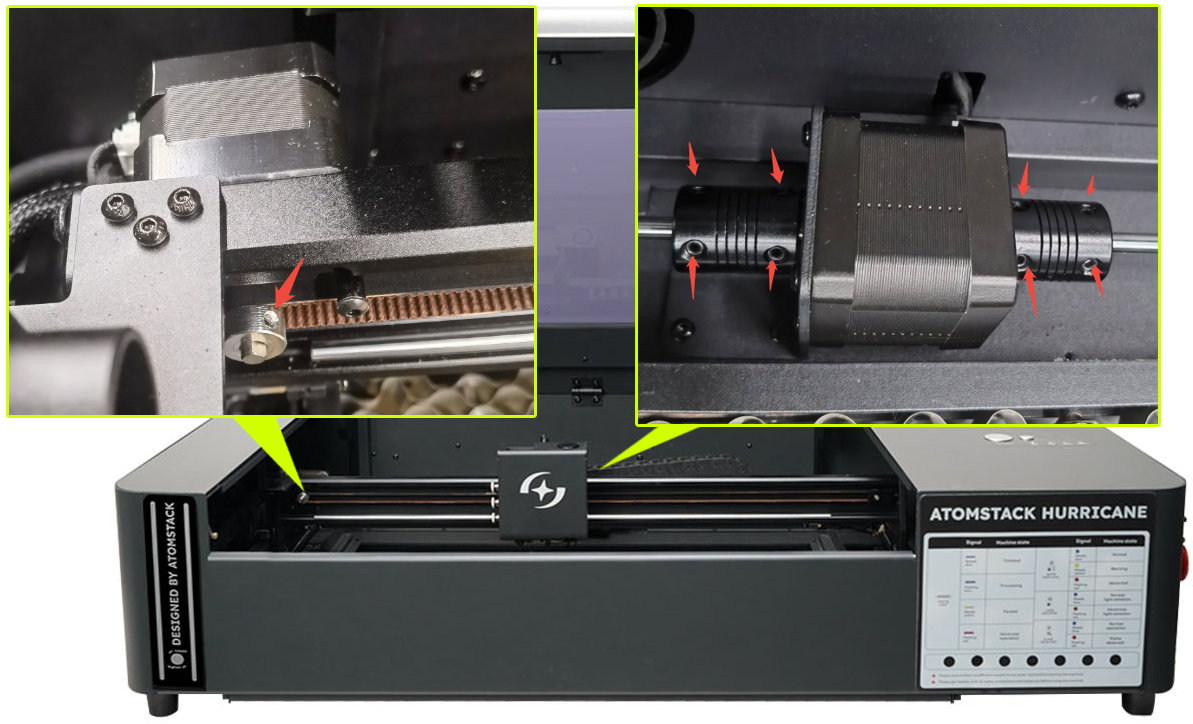
Figure 41 -
Check whether the machine firmware parameters have been modified: determine if any parameters in Machine Settings have been changed. If changes were made, revert to the original values or update the firmware. You can also provide the current firmware version (as shown in Figure 42) and a photo of the Serial Number to send to customer service for confirmation and request the corresponding firmware. Firmware updates can be performed in both AtomStack Studio and the AtomStack APP. Please refer to the Software, Firmware, and APP Update Tutorial Video for guidance.

Figure 42 -
If none of the above steps resolve the issue, the mainboard may be faulty: please record a video of the troubleshooting steps and provide a photo of the Serial Number to customer service for assistance. Refer to the Hurricane Mainboard Replacement Video for guidance.
Still not fixed? Contact support with the details listed in What to send support.
Related problems: Engraving Lines Open · Rotary Output Distorted · Camera Position Is Wrong
¶ Engraving Lines Open
What you see: Engraving lines are not closed.
Check in this order:
-
Check the laser focus: after changing materials of different thicknesses, refocus is required. Press the auto-focus button to complete this. Alternatively, manually measure the distance from the bottom of the laser to the material surface; it should be 8 mm, as shown in Figure 43.

Figure 43 -
Check the software power settings: if the engraving power is too low, increase the power or reduce the engraving speed.
-
Check whether constant power is enabled: in AtomStack Studio (as shown in Figure 44) and LightBurn (as shown in Figure 45).

Figure 44
Figure 45 -
Adjust the minimum power value: if enabling constant power does not solve the problem, open the machine settings in LightBurn or LaserGRBL and adjust the $31 value. Gradually increase the value until the lines are closed, as shown in Figure 46. Note: if enabling constant power resolves the issue, do not modify the $31 value.

Figure 46
Confirm the fix: Check that the engraved lines are closed.
Still not fixed? Contact support with the details listed in What to send support.
Related problems: Cutting Power Abnormal · Engraving Is Distorted
¶ Homing Fails
What you see: Reset (homing) fails.
Check in this order:
-
Check the software prompt message: if the message indicates maximum travel reached, it may be due to an X-axis or Y-axis limit switch failure. Manually press all limit switches (as shown in Figure 47) to check if each can trigger a "beep" sound and prompt. If there is no prompt, the limit switch is faulty. If there is a prompt, it is functioning normally.
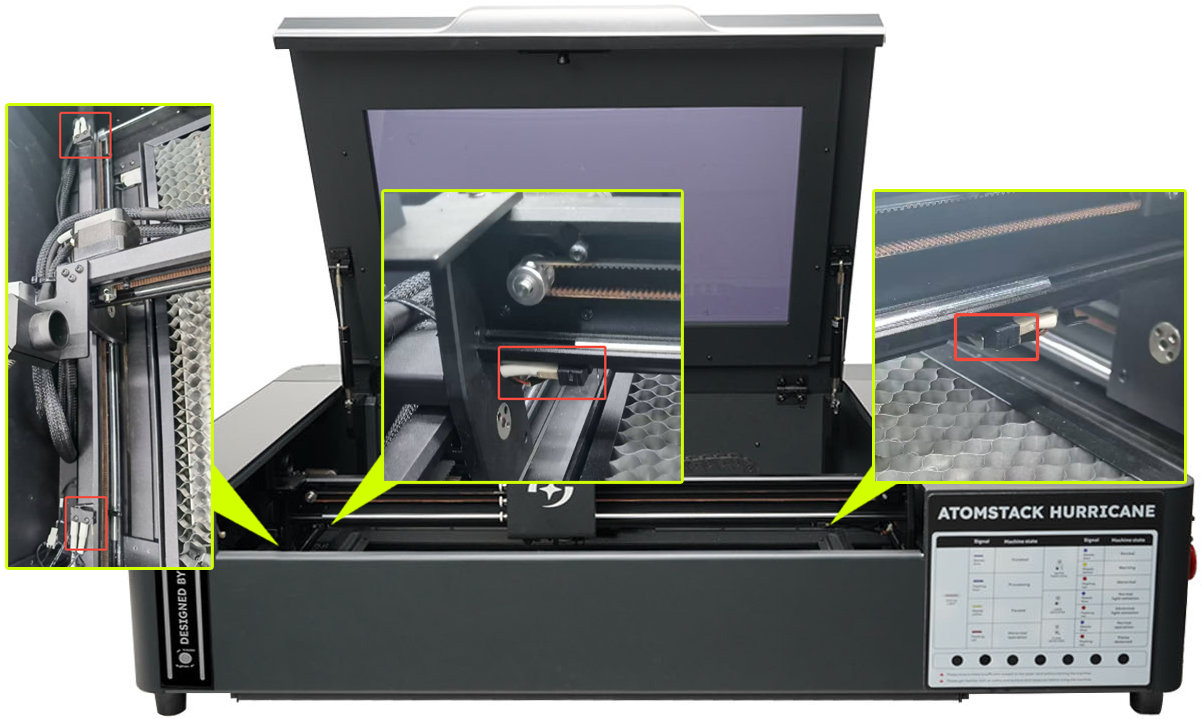
Figure 47 -
Confirm whether a rotary device is in use: if a rotary device is connected, the reset will fail because the rotary device has no limit switches.
-
Confirm that the X-axis and Y-axis move normally: during reset, observe whether both the X-axis and Y-axis can move and return to the home position. If movement is abnormal, check whether the motor cables are properly connected (as shown in Figure 48) and whether the step size settings have been modified (as shown in Figure 49). If the issue persists, please provide a fault video, software error prompt, and a photo of the Serial Number (as shown in Figure 50) to customer service for assistance.

Figure 48
Figure 49
Figure 50
Confirm the fix: During reset, check that both the X-axis and Y-axis move and return to the home position.
Still not fixed? Contact support with the details listed in What to send support.
Related problems: Auto Focus Fails · Tray Switch Inactive · Engraving Stops, Red LED
¶ Rotary Output Mirrored
What you see: The engraving result is mirrored when using the rotary attachment.
Check in this order:
-
Confirm whether the engraving pattern itself is mirrored: if it is mirrored, check the software settings to see whether the Mirror function is enabled. If it is enabled, disable it; if it is disabled, enable it (AtomStack Studio: see Figure 79; LightBurn: see Figure 80).

Figure 79
Figure 80 -
Confirm whether the engraving pattern is reversed: if it is reversed, try enabling Y homing direction invert in the machine settings (see Figure 81).

Figure 81 -
If the above steps do not resolve the issue: please upgrade the machine firmware through AtomStack Studio or AtomStack APP. If you cannot click the update button on the software, please provide a photo of the Serial Number (as shown in Figure 82) to customer service to request the corresponding version of the firmware to be burned into the USB flash drive. For upgrade instructions, please refer to the Software, Firmware, and APP Update Tutorial videos.
Figure 82
Still not fixed? Contact support with the details listed in What to send support.
Related problems: Rotary Output Distorted · Engraving Is Distorted
¶ Rotary Output Distorted
What you see: The engraving result is distorted when using the rotary attachment.
Check in this order:
-
Check the motor steps: in LightBurn software, go to Edit → Machine Settings → Outputs Setup and check whether the value of $101 is 80 (see Figure 83). Note: the Hurricane has an automatic detection feature, so normally there is no need to manually adjust the steps.

Figure 83 -
Confirm the object shape: if the material is an irregular circle, cylinder, or curved surface, the output may be distorted. Try engraving a regular-shaped object, such as a thermos, to verify.
-
Check parameter settings: refer to the "How to Use the Rotary on Hurricane" section for recommended settings.
-
If the above steps do not resolve the issue: the motor may be faulty and need replacement. Refer to the R6/R8/R8 PRO rotary motor replacement video.
Still not fixed? Contact support with the details listed in What to send support.
Related problems: Rotary Output Mirrored · Engraving Is Distorted