Hurricane Laser & Focus: Weak Cutting, Focus Fails
← All Hurricane troubleshooting
Cutting power is abnormal, the laser tube does not fire, or Auto Focus fails or leaves the wrong distance.
Power off before inspecting the mirrors. Disconnect power before removing the rear cover to inspect the laser tube or opening the side and upper covers to inspect laser power supply terminals. The laser tube contains high voltage; do not touch it while powered on. Always closely monitor the machine during operation. Do not operate under freezing conditions; add antifreeze to the water tank when the working environment is below 5°C.
¶ Cutting Power Abnormal
What you see: Laser power is abnormal and materials cannot be cut.
Check in this order:
-
Confirm that parameter settings are correct: please refer to the parameter table at https://atomstack.com/pages/material-setting for software parameter settings. If using LightBurn, note that the S-value max must be set to 1000 and cannot be changed, as shown in Figure 34.

Figure 34 -
Check whether the mirrors are clean: inspect mirrors No. 1, No. 2, and No. 3 to ensure they are free from dust and damage. Note: please perform this inspection only after the machine has been powered off, as shown in Figure 35. Refer to the Hurricane optical path calibration and adjustment video.

Click to play video on YouTube

Figure 35
-
Confirm correct focusing: after auto-focusing, the distance should be 8 mm. When replacing the workpiece, re-focus as shown in Figure 36.

Figure 36 -
Check that the honeycomb panel is placed flat: ensure the honeycomb panel is level and free from foreign objects so that the workpiece remains horizontal when placed on it.
-
Check that the nozzle air outlet is clean: the outlet can easily become blocked by debris, which may affect power output. Please clean it regularly, as shown in Figure 37.

Figure 37 -
Confirm the optical path is normal: please refer to the "Hurricane Optical Path Calibration" section.
-
Confirm usage time: the CO₂ laser tube will naturally experience power attenuation over time. Increase the power or reduce the speed to complete the job.
-
If none of the above steps solve the issue, the laser tube may be faulty. Please record a video of the above troubleshooting steps and provide a photo of the Serial Number to customer service. If replacement is required, refer to the Hurricane Laser Tube Replacement Video.

Click to play video on YouTube
Still not fixed? Contact support with the details listed in What to send support.
Related problems: Laser Tube Not Firing · Focus Distance Not 8mm · Engraving Lines Open
¶ Laser Tube Not Firing
What you see: The laser tube does not emit light during operation.
Check in this order:
-
Check the laser tube for damage: disconnect the power and remove the rear cover. Carefully inspect the laser tube for any damage and ensure that water is flowing properly inside. Warning: the laser tube contains high voltage; do not touch it while powered on. If there is any damage, provide clear photos of the damage and the Serial Number (as shown in Figure 54) to customer service. Refer to the Hurricane Laser Tube Replacement Video for inspection and replacement instructions.

Figure 54 -
Check the laser tube's positive and negative electrode connections for looseness or disconnection: first, inspect the tube for any physical damage. Then check the wires connected to the laser tube. If any wires are loose or disconnected, tighten the screws as shown in Figure 55.

Figure 55 -
Check the laser power supply wiring terminals: disconnect the power, open the right side panel and the upper right cover. Inspect the laser power supply terminals for looseness. If loose, reconnect securely and then power on again. Normal power supply indicators: standby — WF indicator shows yellow, TL indicator off; emission — WF indicator shows yellow, TL indicator shows green (as shown in Figure 56). If the indicators are abnormal, the laser power supply needs to be replaced. Refer to the Hurricane Power Supply Replacement Video for guidance.
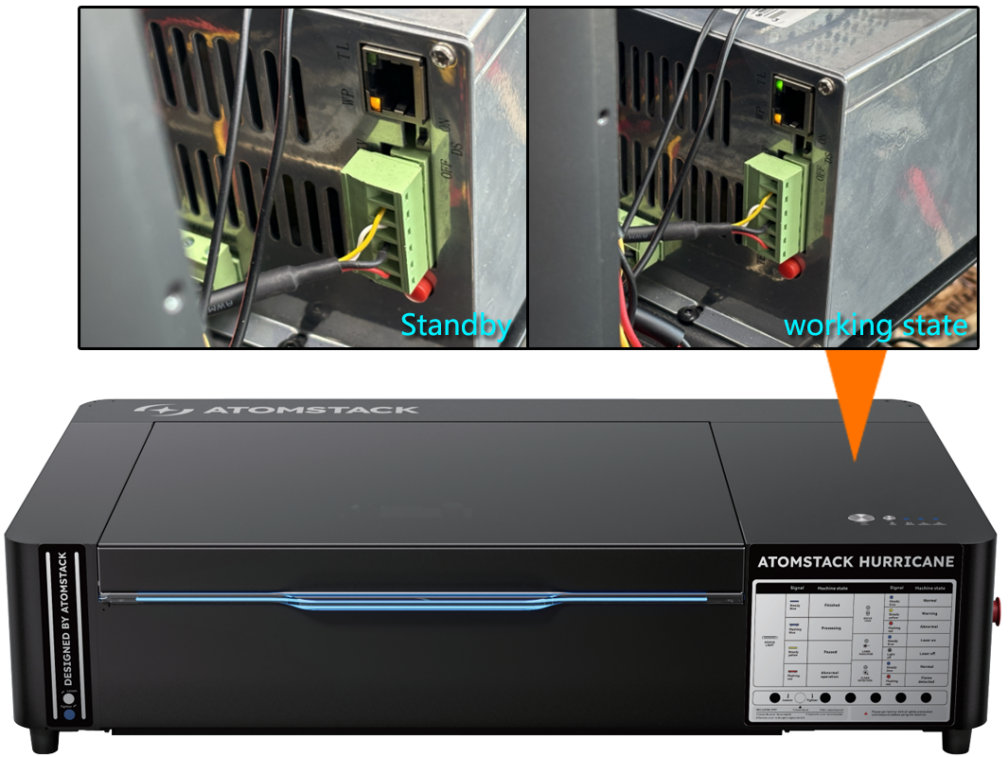
Figure 56
Still not fixed? Contact support with the details listed in What to send support.
Related problems: Cutting Power Abnormal · Start Engraving Ignored
¶ Auto Focus Fails
What you see: Auto Focus fails.
Check in this order:
-
Confirm material placement: if no material is placed, the focusing rod may insert into the honeycomb grid and fail to trigger the lower limit switch, resulting in focus failure.
-
Confirm the firmware version is correct: check the firmware version in AtomStack Studio software or the mobile APP, as shown in Figure 57.

Figure 57 -
Confirm that Auto Focus function is enabled: verify in AtomStack Studio software or the mobile APP that the Auto Focus function is turned on, as shown in Figure 57 ("Auto Focus").
-
Check the Z-axis adapter cable connection: carefully inspect the Z-axis connection cable (see Figure 58). If it is loose or disconnected, reconnect it. If it is broken, please provide a clear photo of the broken area and the Serial Number label (see Figure 59) to customer service for further assistance.
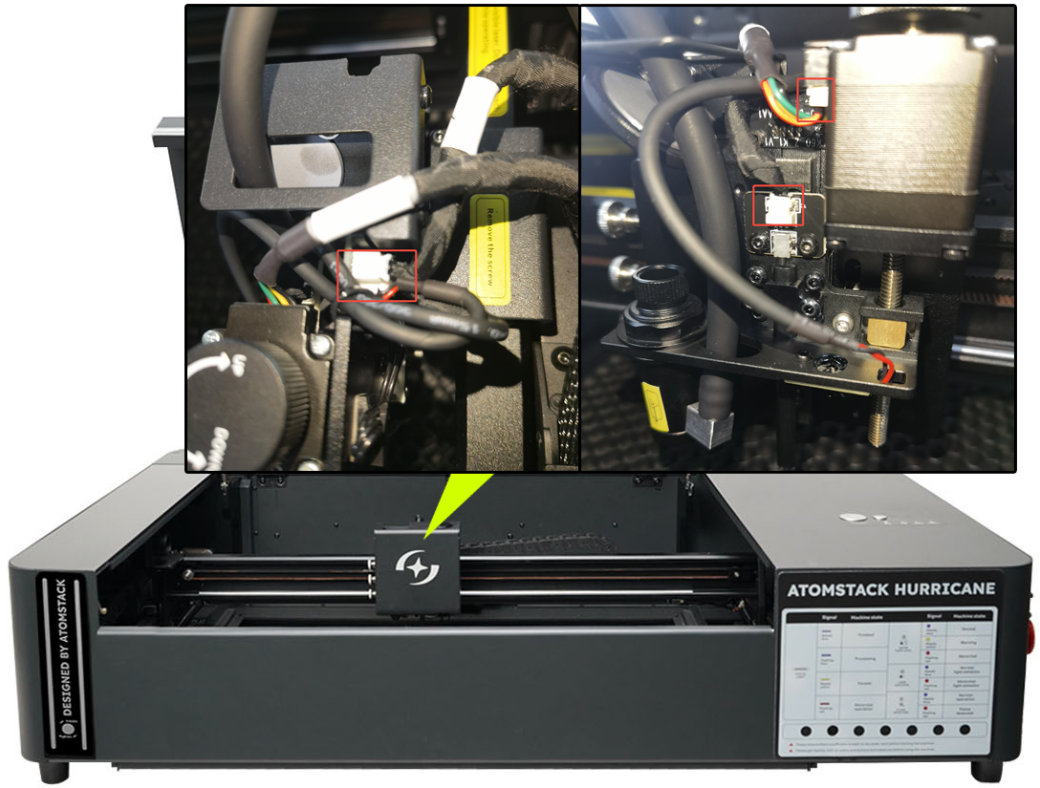
Figure 58
Figure 59 -
Check the Z-axis limit switch and cable connection: first, carefully check that the cable is not loose or broken (see Figure 60). While in standby mode, manually press the limit switch at the red-marked area to see if an alarm is triggered (including a beep sound or software prompt). If no alarm is triggered, the limit switch or the adapter board may be damaged and needs to be replaced. Please refer to the Hurricane limit switch replacement video.
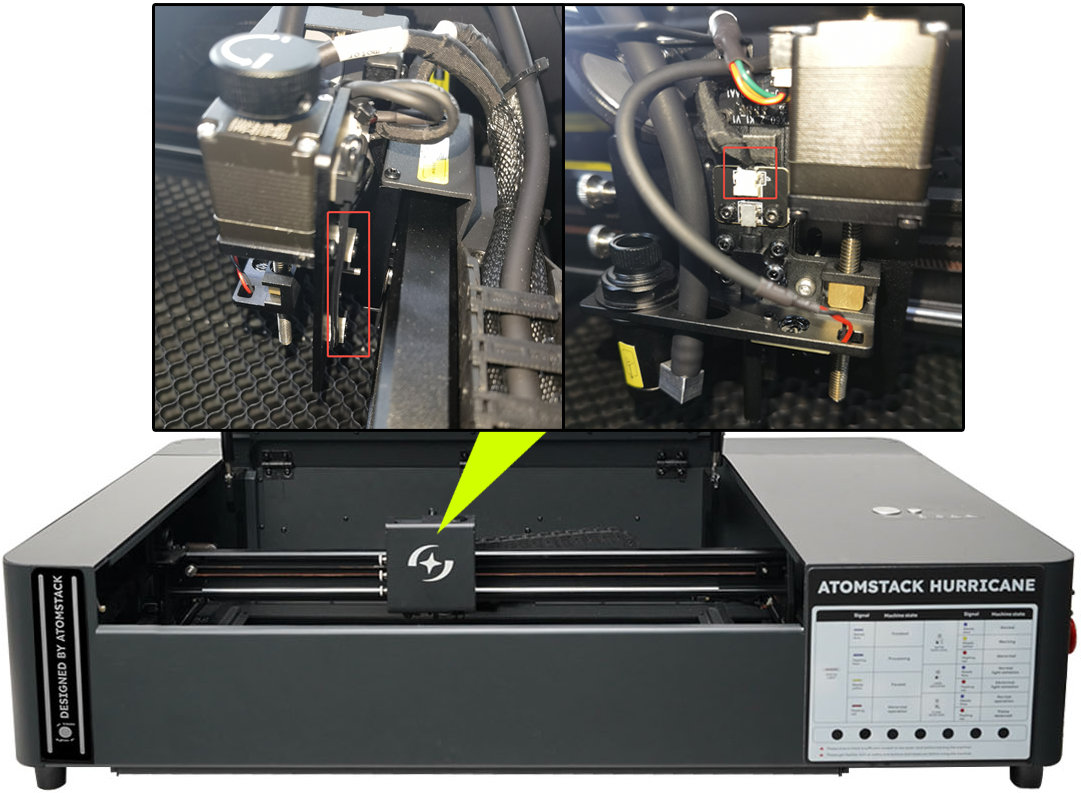
Figure 60 -
Confirm normal Z-axis movement via software control: use the direction keys in the software (AtomStack Studio, see Figure 61; LightBurn, see Figure 62) to control the Z-axis up and down movement and check whether it operates normally. If the Z-axis can only move up but not down, or only down but not up, while manual adjustment encounters no obstruction, the mainboard may be faulty and needs to be replaced. Please refer to the Hurricane mainboard replacement video.

Figure 61
Figure 62
Still not fixed? Contact support with the details listed in What to send support.
Related problems: Focus Distance Not 8mm · Homing Fails
¶ Focus Distance Not 8mm
What you see: The distance after Auto Focus is not 8mm.
Check in this order:
-
Confirm material is placed during Auto Focus: if no material is placed, the focusing rod may not be triggered properly, which can lead to focusing errors.
-
Try adjusting the focus correction value: if the Auto Focus distance (see Figure 63) is not 8mm, you can modify the code in LightBurn or LaserGRBL software to adjust the Auto Focus distance. The default Auto Focus parameter value is 1.5. The correction value is calculated as 1.5 ± error value. If the actual measured value is greater than 8mm, correction = 1.5 - (actual value - 8). If the actual measured value is less than 8mm, correction = 1.5 + (8 - actual value). In LightBurn, enter the following command in the [Console] window (see Figure 64): $autoFocus/depth_max_mm=correction_value (1.5 ± error value), then press Enter to execute. Example: if the actual Auto Focus spacing is 9mm, then correction = 1.5 - 1 = 0.5. Refer to the "Hurricane Focusing" section of the usage guide for details.
Figure 63
Figure 64 -
If the above steps do not solve the issue, please send the fault video, the screenshot of the focus correction value adjustment, and the actual distance value after focusing to customer service.
Confirm the fix: After Auto Focus, measure the distance and confirm that it is 8 mm.
Still not fixed? Contact support with the details listed in What to send support.
Related problems: Auto Focus Fails · Cutting Power Abnormal · Engraving Lines Open