P1 Results & Add-ons: Poor Engraving, Fumes
You are seeing inconsistent or poor engraving, moving or warped material, poor smoke extraction, or mirrored rotary results.
Power off before removing the laser module to inspect the window lens or unplugging and reinserting the USB drive. If engraving reflective material, first coat its surface black to avoid damaging the laser module. Frame before engraving to check for frame collisions.
¶ Inconsistent Results
What you see: Engraving results are inconsistent despite using the same parameters and materials.
Check in this order:
- Check the focus is consistent: Readjust the focus after switching materials.
- Check the material is flat: Check whether the base plate is level and whether the material itself is flat.
- Check material grain/texture: Wood grain and texture can cause result differences — try a different piece, or test with MDF board instead.
- Check the window lens: A dirty lens will affect results — refer to the window lens cleaning section.
- Check for engraving distortion: Check whether the synchronization pulley set screws are loose, and whether the timing belt is properly seated in the guide pulleys.
- If the issue persists, please provide customer service with your settings/parameters, a description of the material's surface condition, a video of the engraving results, and a Serial Number photo.


Still not fixed? Contact support with the details listed in What to send support.
Related problems: Poor Engraving Quality · Irregular Engraving · Lens Stained or Damaged
¶ Poor Engraving Quality
What you see: The engraving result is unsatisfactory.
Check in this order:
- Check software parameters: Verify that appropriate engraving parameters have been set (see item 4 in the FAQ for how to access the P1 parameter table).
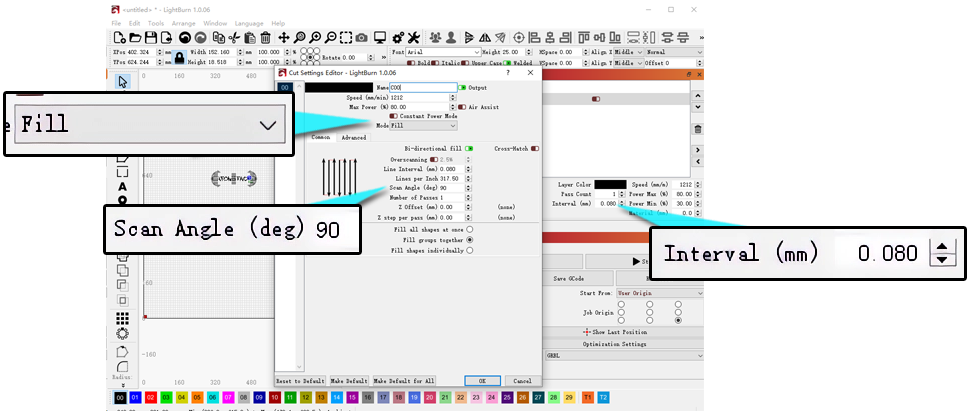
- Check the maximum S-value: LightBurn's maximum S-value should remain at 1000 and not be modified.
- Check the window lens: Power off and remove the laser module to check whether the window lens is dirty or damaged — clean if dirty, or replace the laser module if damaged.
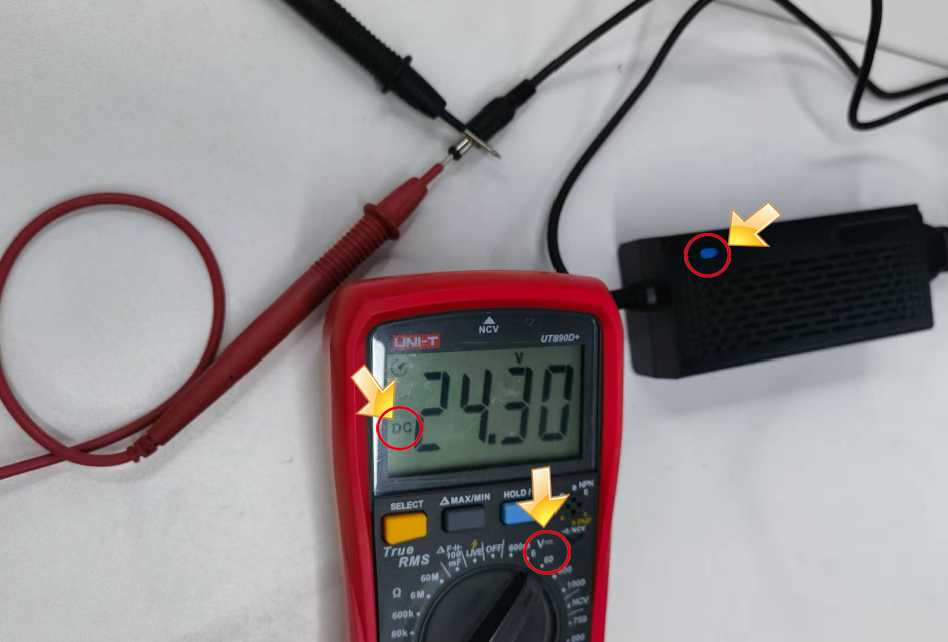
- Check the voltage: Use a multimeter (DC mode) to check whether the power adapter output is 20V–25V.
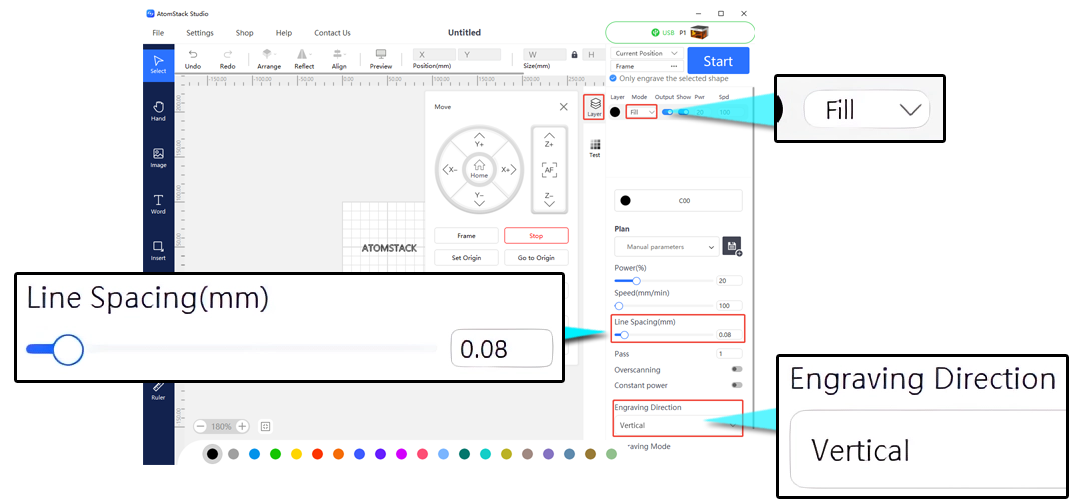
- Check line spacing and scan mode: If fill areas show horizontal banding, try reducing the line spacing to 0.08 and switching to vertical scan mode (available in both AtomStack Studio and LightBurn).
- Check for power degradation: Cut a piece of 3mm plywood once at 100% power, 200mm/min speed, and check for noticeable power degradation — replace the laser module if degradation is significant.
- If the issue is irregular patterns rather than poor quality, please refer to the "P1 engraving output is irregular" section.
Still not fixed? Contact support with the details listed in What to send support.
Related problems: Faint Engraving · Inconsistent Results · Irregular Engraving
¶ Material Warps or Shifts
What you see: Thin or lightweight materials may warp or shift during processing.
Check in this order:
Solution: The enclosure fan's airflow may be too strong, causing the material to shift or warp upward. We recommend using the supplied magnets or other weights to secure the four corners or edges of the material.
Still not fixed? Contact support with the details listed in What to send support.
Related problems: Inconsistent Results · Poor Smoke Extraction
¶ Poor Smoke Extraction
What you see: The enclosure fan has poor smoke extraction performance.
Check in this order:
- Check that the fan is clean: Excessive dust buildup requires cleaning first — see the enclosure cleaning & maintenance tutorial video.
- Check smoke extraction capability: If a purifier is connected, check whether the exhaust hose is kinked; try venting directly without the hose — if it works normally when venting directly, the purifier's filtration capacity has degraded and the filter should be replaced.
- Check whether the fan itself is faulty: If the fan speed remains too slow or it doesn't spin after cleaning, it needs to be replaced — see the enclosure fan replacement tutorial video.
Still not fixed? Contact support with the details listed in What to send support.
Related problems: Material Warps or Shifts · Poor Engraving Quality
¶ Rotary Output Mirrored
What you see: Engraving is mirrored when using rotary attachments.
Check in this order:
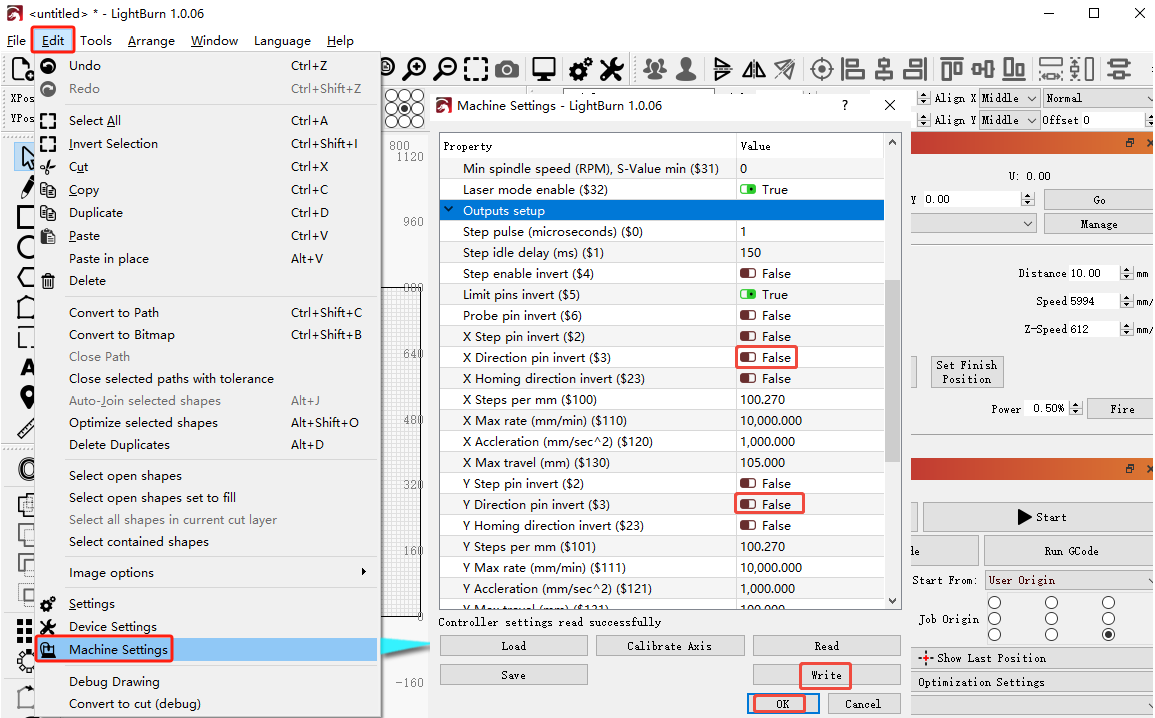
- Check the movement direction: Click the directional buttons and observe whether the movement direction is correct — if reversed, you can toggle the reverse axis $3 setting in LightBurn's machine settings.
- Check the firmware: If changing the parameter doesn't resolve it, reflash the motherboard firmware.
- Check the software settings: You need to configure the rotary parameters and toggle the mirror function on or off (available in both AtomStack Studio and LightBurn).
- If none of the above resolves the issue, a motherboard and X/Y-axis motor replacement may be needed.
Still not fixed? Contact support with the details listed in What to send support.
Related problems: Irregular Engraving · Clicking, Wrong Motion