P1 Motion: Homing Fails, Head Hits Frame
You are seeing door detection failure, irregular lines, limit warnings, frame collisions, abnormal motion, homing failure, or friction noise.
Power off before removing the laser module to inspect the window lens or unplugging and reinserting the USB drive. If engraving reflective material, first coat its surface black to avoid damaging the laser module. Frame before engraving to check for frame collisions.
¶ Door Detection Fails
What you see: The door-opening detection function fails.
Check in this order:
- Check the cable: The hall sensor board cable at the enclosure door may not be plugged in properly — unplug and reconnect it.
- Check the door is fully closed: Close the enclosure door again and retest.
- Check the door detection function is enabled: In AtomStack Studio or the mobile app, check whether "Door Detection" is turned on.
- Check the hall sensor: Bring a magnet close to the hall sensor at the enclosure door and observe whether the indicator changes from red to green. If the magnet triggers it but the door's own magnet does not, the door's magnetic strength is insufficient and it needs replacement. If it still doesn't trigger, the hall sensor itself is faulty and the hall sensor board needs replacement. See the P1 hall sensor board replacement video and the door detection on/off tutorial video (while waiting for a replacement part, you can temporarily disable door detection in the software/app).

Click to play video on YouTube

Click to play video on YouTube


Still not fixed? Contact support with the details listed in What to send support.
Related problems: Power-On Fails · PC Connection Fails
¶ Irregular Engraving
What you see: The engraving output is irregular.
Check in this order:
- Check movement direction: Click the directional movement buttons in the software to move the machine and observe whether the direction matches; if abnormal or moving at a 45-degree angle, this may indicate a fault with a motor or the motherboard's motor driver — swap motor cables to determine which side the fault transfers to. See the P1 motor cable swap tutorial video and the motor replacement tutorial video.

Click to play video on YouTube

Click to play video on YouTube
- Check circle and square accuracy: Engrave a circle and a square in line mode, and observe whether the circle is fully closed and whether the square's four sides are equal in length.
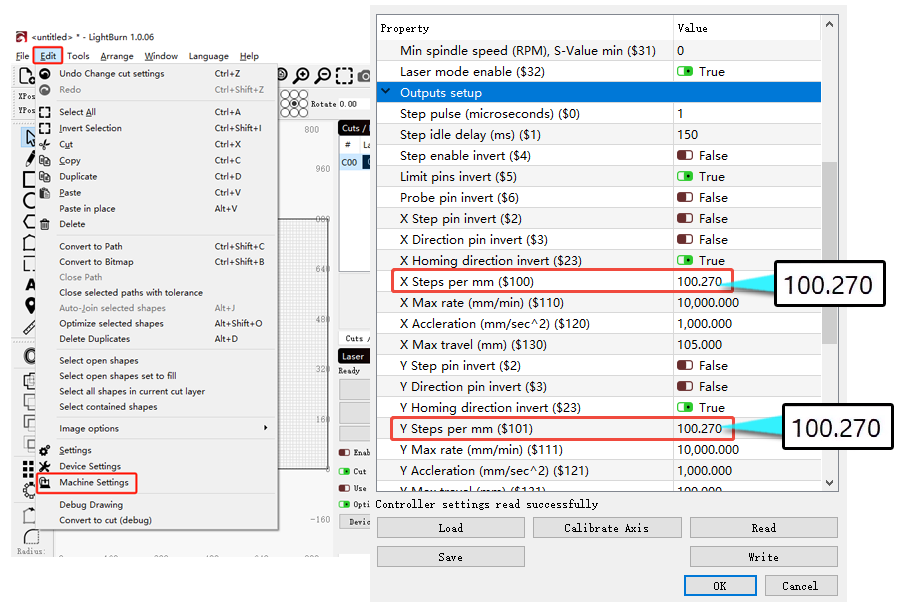
- If the lengths are inconsistent but the lines themselves are otherwise normal, the step-length parameter may have been changed — check $100 (should be 100.270) and $101 (should be 100.270) in LightBurn's Machine Settings.
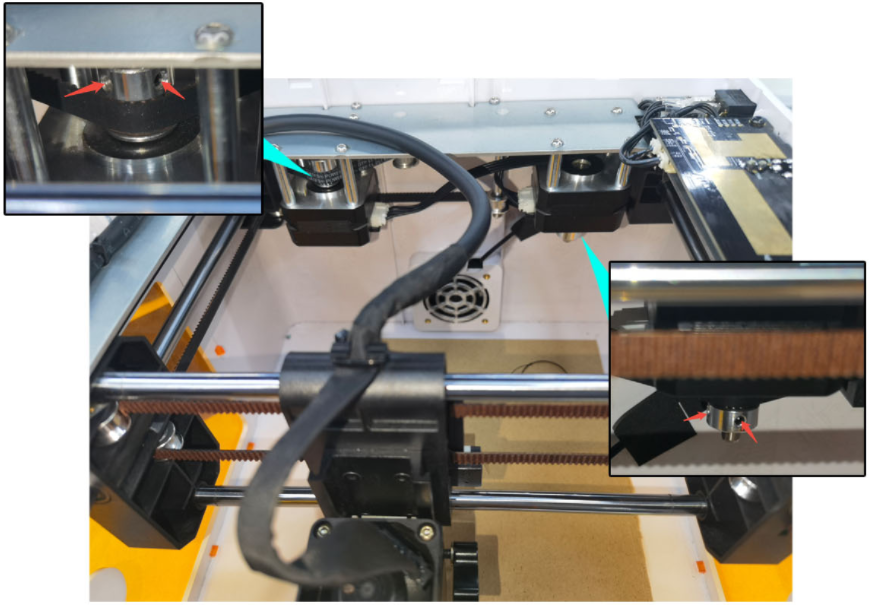
- If the lines are wavy, uneven, or irregular, perform a structural adjustment first: check whether the timing belt is loose, whether it is properly seated in all guide pulleys, whether the X-axis is parallel to the top and bottom frame, and whether the motor pulley screws are tight. See the P1 structure adjustment tutorial video.

Click to play video on YouTube
- Check the firmware: If the structure and parameters are both normal, try reflashing the firmware. If this still doesn't resolve the issue, please provide a troubleshooting video, parameter screenshots, and the machine's Serial Number to customer service — a motherboard replacement may be needed.
Confirm the fix: Engrave a circle and a square in line mode again: the circle is fully closed and all four sides of the square are equal in length.
Still not fixed? Contact support with the details listed in What to send support.
Related problems: Vector Lines Not Closed · Clicking, Wrong Motion · Inconsistent Results
¶ Limit Warning
What you see: The machine keeps displaying "Warn! Hit the limit." during operation.
Check in this order:
- Check the laser module type: The infrared laser module has an engraving area of 105mm×100mm×50mm.
- Check the engraving file size: Verify it fits within P1's working area — adjust the file size if it exceeds this.
- Check the file coordinates: The file should not contain negative coordinates — reopen the software and re-import the file to test.
- Check the movement distance: Set up a 20×20mm square test engraving; if the actual dimensions don't match, the motor step length may have been changed (check $100/$101 in LightBurn — the standard value for both is 100.270) or there may be a motherboard control fault (try reflashing the firmware first; if this doesn't resolve it, it's a motherboard fault).
Still not fixed? Contact support with the details listed in What to send support.
Related problems: Engraving Hits Frame · Software Alarms
¶ Crosshair Hits Frame
What you see: Framing is normal, but the machine crashes into the frame during crosshair alignment.
Check in this order:
- First perform crosshair calibration, then run framing and engraving again to see if the issue is resolved (only the infrared laser module has a crosshair).
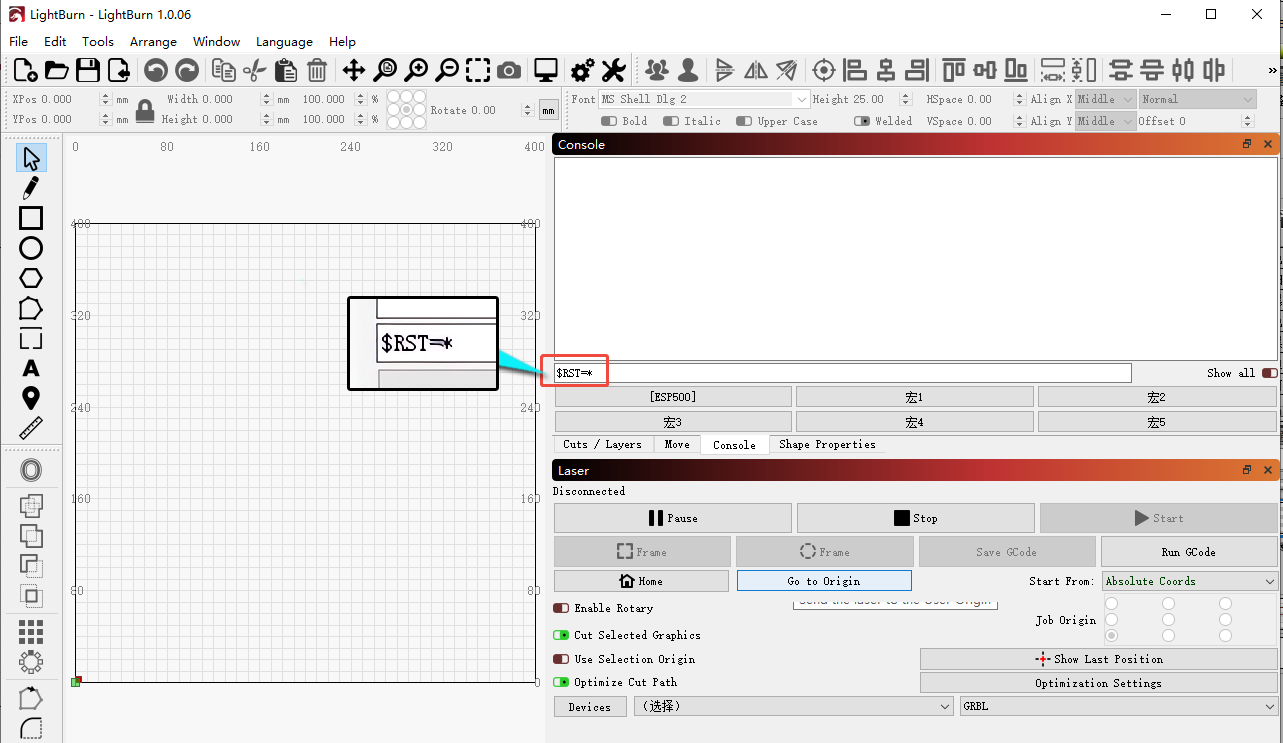
- If this doesn't work, enter
$rst=*in the LightBurn console, then perform crosshair calibration again. - If it still doesn't work, enter
$aux_red_light/offset_y_mm=0and$aux_red_light/offset_x_mm=0(or[ESP312]/X0/Y0) in the LightBurn console in sequence to reset the red crosshair offset, then calibrate again.
Confirm the fix: After crosshair calibration, run framing and engraving again to confirm the crosshair alignment collision is resolved.
Still not fixed? Contact support with the details listed in What to send support.
Related problems: Infrared Framing Offset · Engraving Hits Frame
¶ Engraving Hits Frame
What you see: The machine collides with the frame during engraving.
Check in this order:
- Check the file size: Verify it doesn't exceed the engraving area (blue laser 110mm×110mm, infrared laser 105mm×100mm).
- Check that framing is normal: You must frame before engraving — if the framing itself exceeds the frame boundary, engraving will also collide with the frame.
- Check the coordinates used: When using "Current Position," you must frame first to ensure there's enough space reserved for engraving; when using "Absolute Coordinates," as long as the file is smaller than the engraving area, collisions generally won't occur.
- Check the laser module type: The blue laser's engraving area is 110mm×110mm, with the origin point (0,0) at the homed position; the infrared (1064nm) laser's engraving area is 105mm×100mm, with the origin point (0,0) at the crosshair's center point.
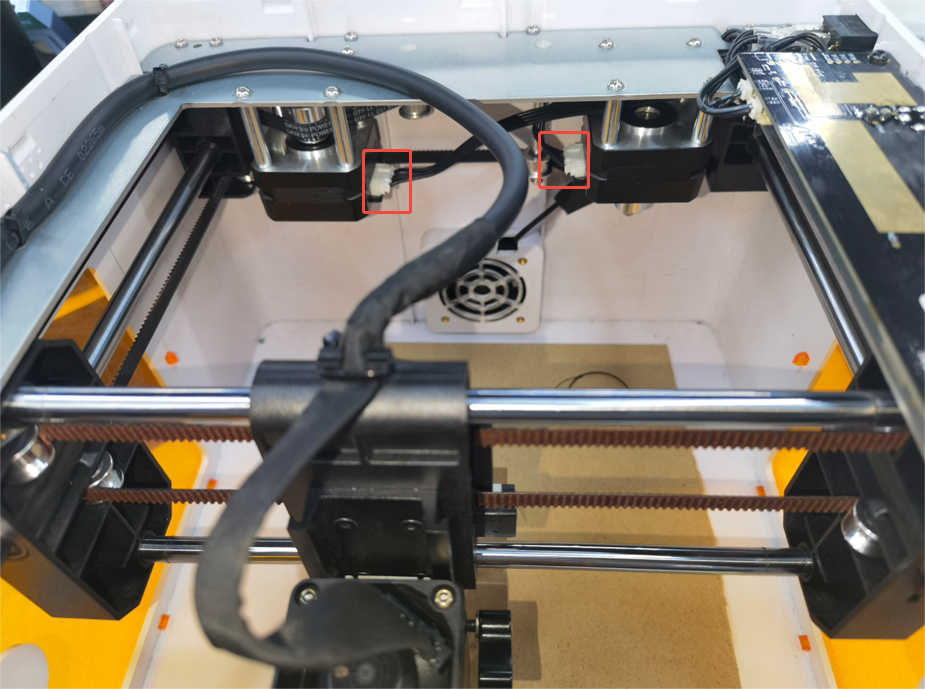
- Check motor movement: Click the directional buttons to check whether movement is normal — if it only moves diagonally or triggers an alarm during engraving, check that the motor cables are properly connected.
- If none of the above resolves the issue, first check whether the firmware is up to date and update it; if already on the latest version, contact customer service for a previous version to try; if this still doesn't work, a motherboard and motor replacement may be needed.
Still not fixed? Contact support with the details listed in What to send support.
Related problems: Limit Warning · Crosshair Hits Frame
¶ Clicking, Wrong Motion
What you see: The machine makes a clicking noise during operation and moves at a 45-degree angle or fails to move.
Check in this order:
- Check the motor cables: Unplug and reconnect the motor cables to check they are properly seated.
- Check the motors: Unplug each motor individually to identify the faulty one, then swap motor cables to determine whether it's a motor fault or a motherboard driver fault — if the fault transfers with the cable swap to the other motor, it's a motherboard driver fault; if it doesn't transfer, it's a motor fault. See the P1 motor replacement and motherboard replacement tutorial videos.

Click to play video on YouTube
Still not fixed? Contact support with the details listed in What to send support.
Related problems: Irregular Engraving · Homing Fails · Friction Noise
¶ Homing Fails
What you see: The machine fails to reset (homing failure).
Check in this order:
- Check the limit switches: Manually press the X-axis and Y-axis limit switches and observe whether both trigger an alarm. If not, check the cable connections first; if this doesn't resolve it, the limit switch needs replacement.
- Check the motors: Click the directional buttons to move the X/Y axes and check whether movement is normal; if there's abnormal noise or no movement, refer to the "clicking noise" section above.
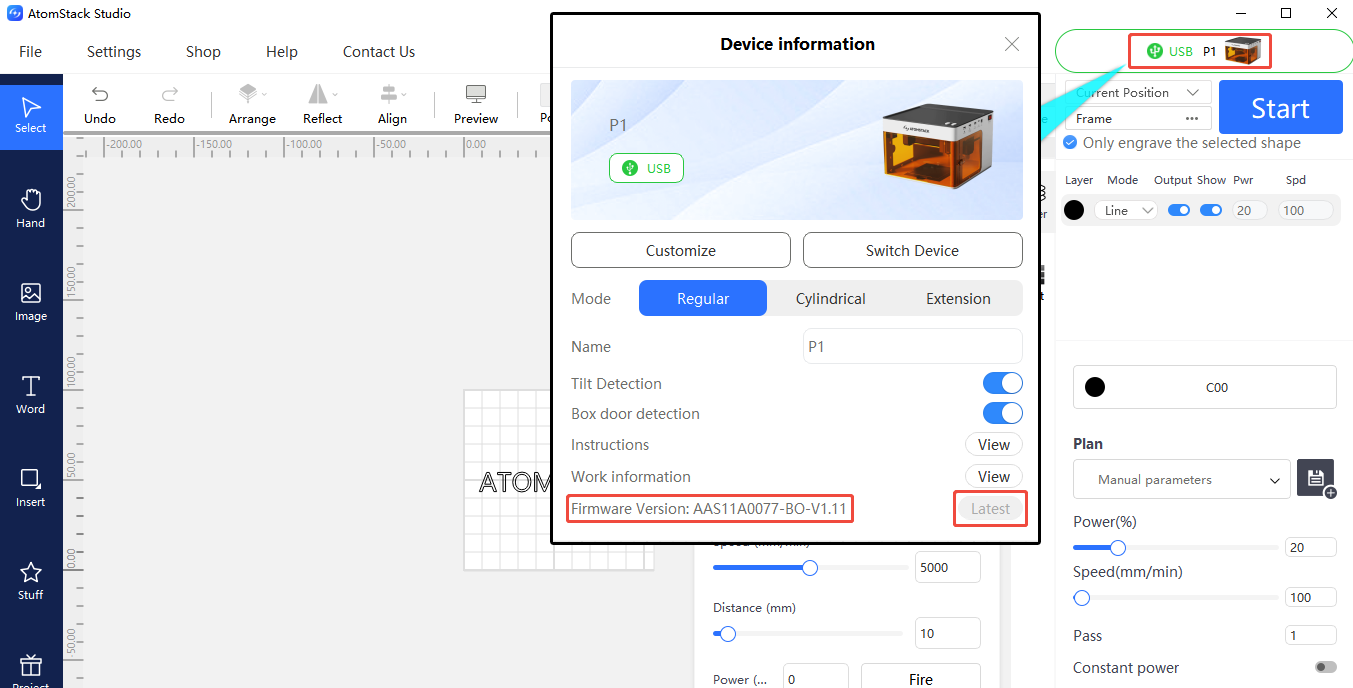
- Check the firmware: Check and update the firmware version via AtomStack Studio or the app (a USB drive must be inserted for the update).
- Check the synchronization pulley tightness: Check whether both motors' synchronization pulley screws are tight, using the supplied 1.5mm hex wrench.
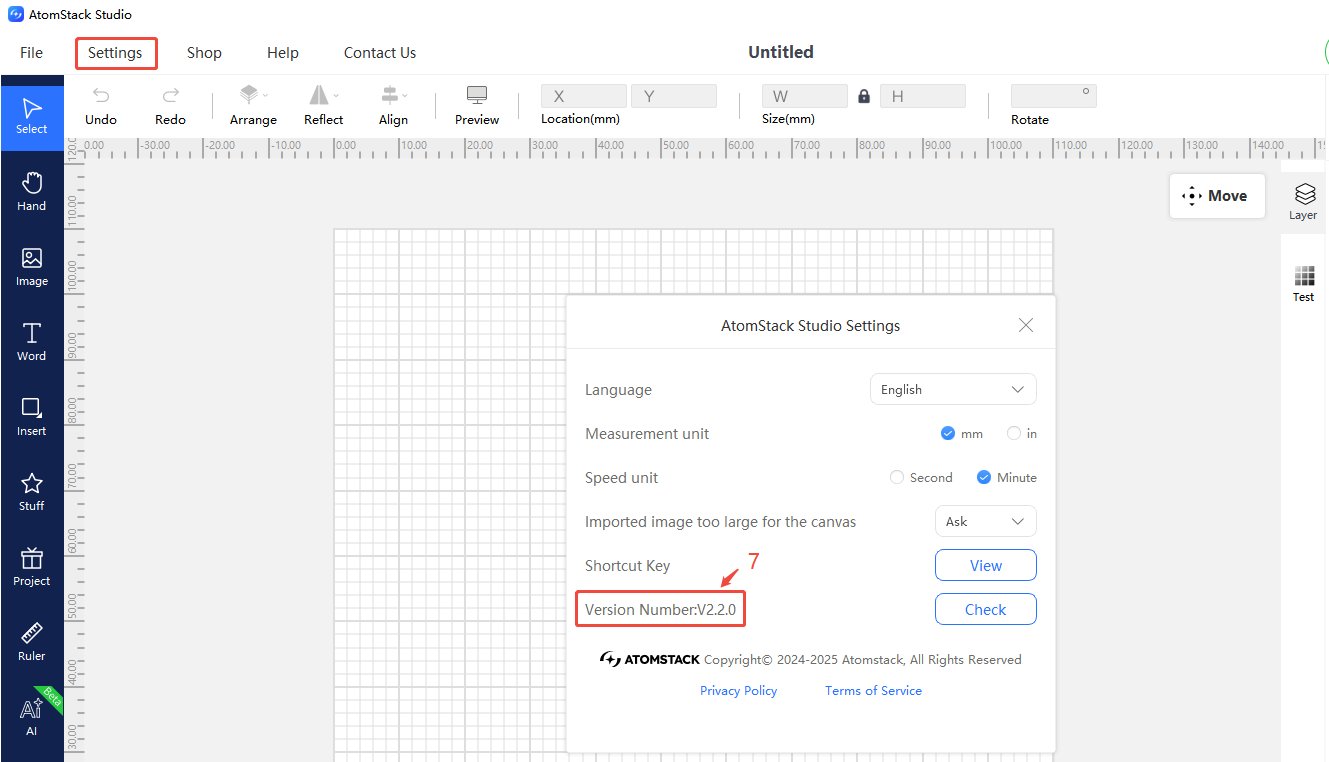
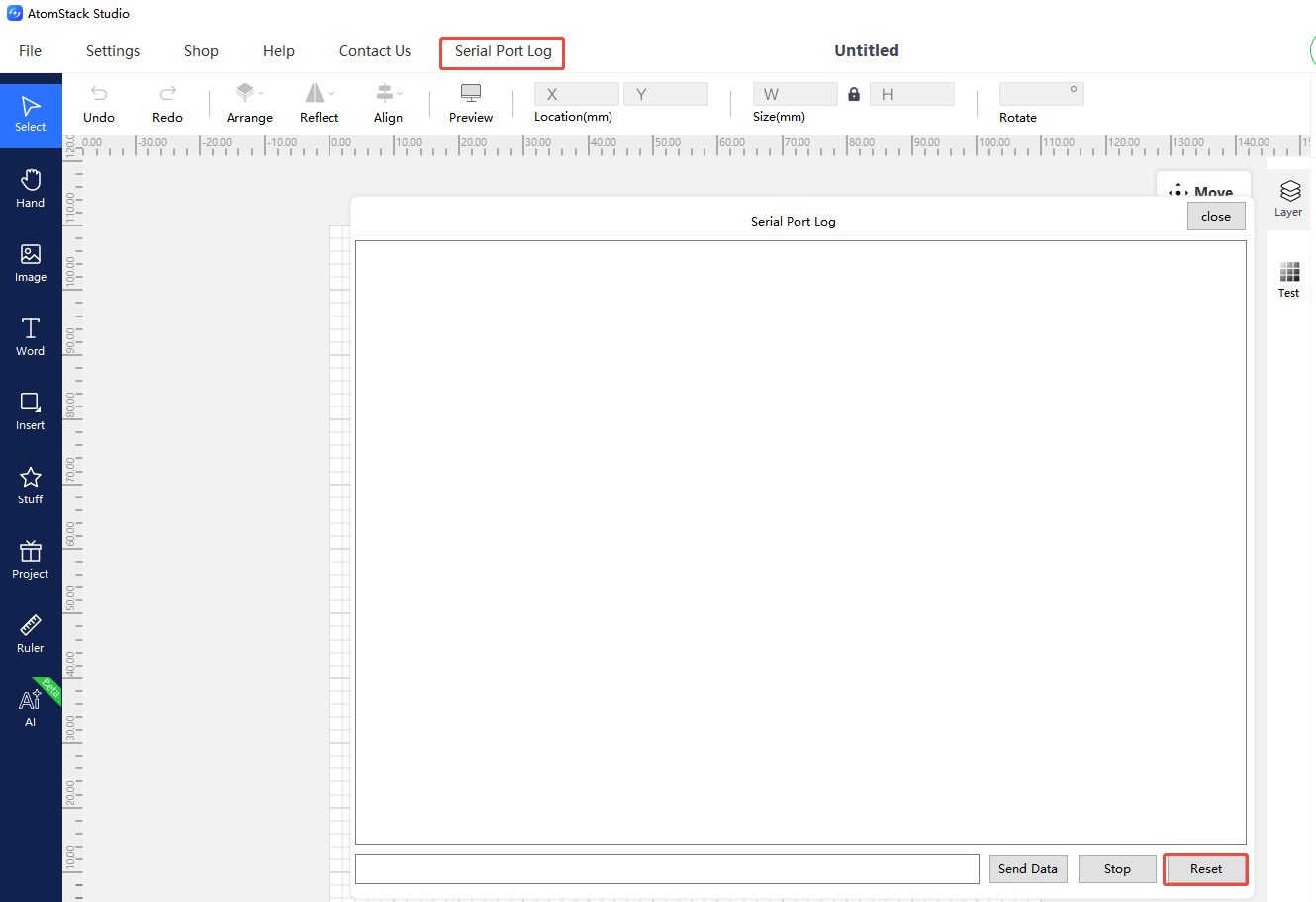
- Restore factory settings: If none of the above resolves the issue, you can restore factory settings via AtomStack Studio (version 2.20 or above — click the version number 7 times in a row to enter Developer Mode → Serial Port Log → Reset) or by entering
$RST=*in the LightBurn console.
Still not fixed? Contact support with the details listed in What to send support.
Related problems: Clicking, Wrong Motion · Software Alarms
¶ Vector Lines Not Closed
What you see: Vector lines are not fully closed at both ends during engraving.
Check in this order:
- Check the focus: Loosen the L-shaped thumb screw securing the laser module, lower the focus rod until it touches the material surface, then re-tighten the L-shaped thumb screw.
- Check the power: If the engraving energy is too low, increase power or reduce speed.
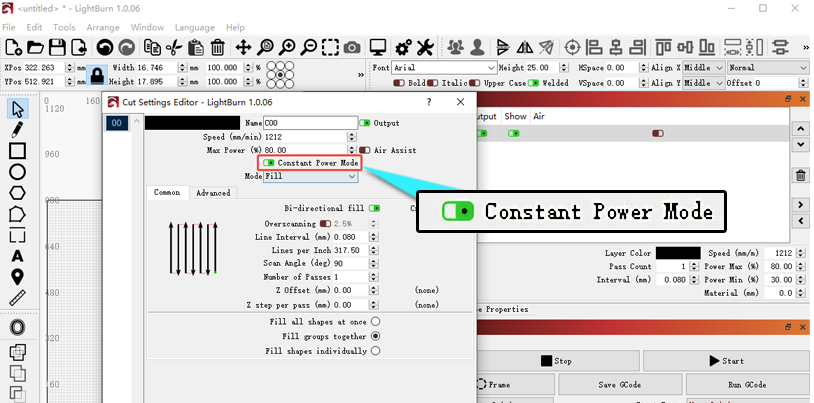
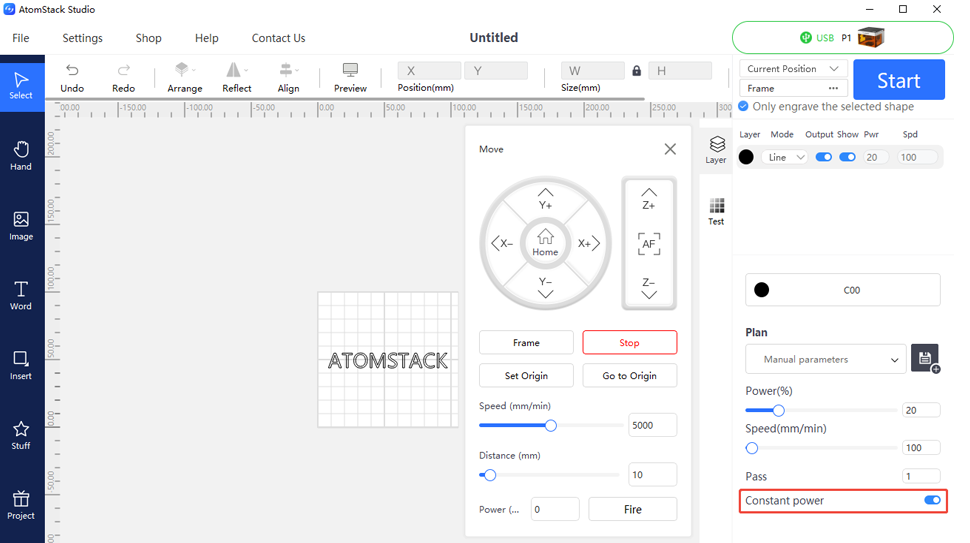
- Check constant power mode: Enable the "constant power" function in the software (available in LightBurn).
Still not fixed? Contact support with the details listed in What to send support.
Related problems: Irregular Engraving · Faint Engraving
¶ Friction Noise
What you see: The machine makes unusual friction noise during operation.
Check in this order:
- Check the linear guide rails: If the rail surface has become dry and lost its smoothness, apply lubricant.
- Check the timing belt: Check whether the timing belt is properly seated in each guide pulley's groove — if misaligned, it may rub against the spacer posts. See the timing belt replacement and guide pulley adjustment tutorial videos to correct this.

Click to play video on YouTube
- Check the motor step length: In LightBurn's Machine Settings, check whether $100 and $101 are set to the standard value of 100.270.
- Check the synchronization pulley screws: Use a 1.5mm hex wrench to check whether the motor synchronization pulley screws are tight.
Still not fixed? Contact support with the details listed in What to send support.
Related problems: Clicking, Wrong Motion · Irregular Engraving