P1 Laser: No Laser Output, Faint Engraving
You are seeing lens damage, faint marks, weaker cutting, no laser output, or an infrared framing offset.
Power off before removing the laser module to inspect the window lens or unplugging and reinserting the USB drive. If engraving reflective material, first coat its surface black to avoid damaging the laser module. Frame before engraving to check for frame collisions.
¶ Lens Stained or Damaged
What you see: The laser window lens is stained or damaged.
Check in this order:
- If stained: Wipe with 99% anhydrous ethanol or a professional optical lens cleaner (avoid cleaners containing ammonia or acetone), wiping gently in a single direction (e.g., from the center outward in a spiral) to avoid back-and-forth wiping that may cause scratches. After cleaning, inspect the lens surface under strong side lighting to confirm no residue remains. High-frequency users should clean once daily; low-frequency users once a week. See the P1 laser window lens & fan cleaning video.

Click to play video on YouTube
- If damaged: The window lens cannot be replaced separately — only the entire laser module can be replaced. Please provide customer service with clear photos of the damage, the machine's Serial Number, and the laser module's engraving code.


Confirm the fix: Inspect the cleaned lens under strong side lighting: no residue remains.
Still not fixed? Contact support with the details listed in What to send support.
Related problems: Faint Engraving · Weaker Cutting
¶ Faint Engraving
What you see: Engraving marks become faint.
Check in this order:
- Check focus: Refocus after placing the material — see the P1 laser focus adjustment tutorial video.
- Check material placement: The material must be placed flat; any dents, warping, or deformation can cause uneven depth.
- Check material type: Only opaque materials can be fully engraved — refer to the P1 parameter table to confirm whether the material can be engraved.
- Check software parameters: Set parameters according to the recommended parameter table; for materials without a recommended parameter, test multiple times yourself (you can reference parameters for similar materials).
- Check that the window lens is clean: Follow the same cleaning method described above (for a stained window lens).
- If the issue persists after these checks, please provide a screenshot of your settings, a video, a clear photo of the window lens, the machine's Serial Number, and the laser module's engraving code to customer service.
Still not fixed? Contact support with the details listed in What to send support.
Related problems: Lens Stained or Damaged · Weaker Cutting · Poor Engraving Quality
¶ Weaker Cutting
What you see: Laser cutting performance has significantly degraded.
Check in this order:
- Check usage duration: The laser module naturally loses power with extended use — this can be addressed by increasing power or reducing speed.
- Check focus: Refocus after switching to a material of a different thickness.
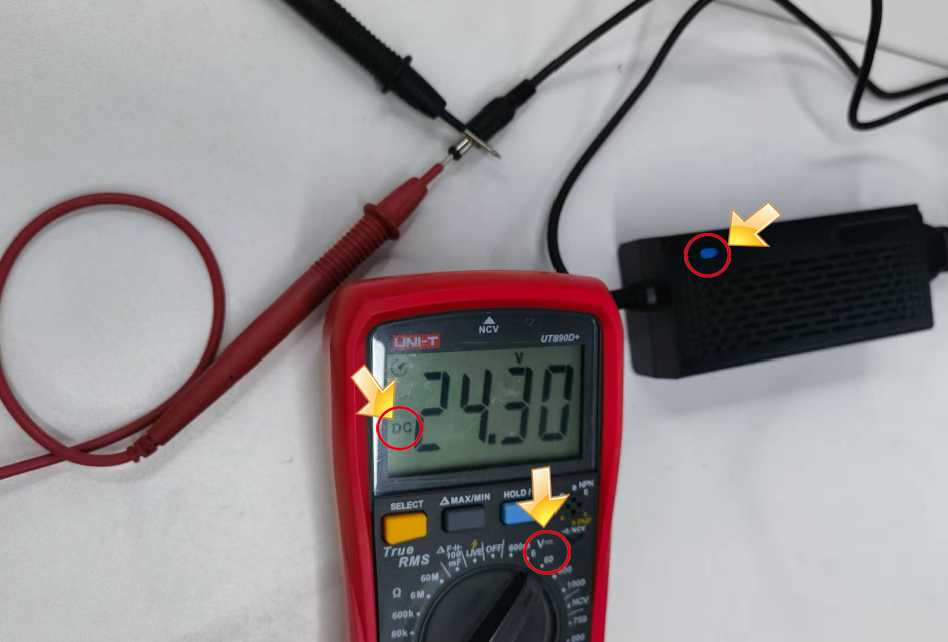
- Check adapter output: Use a multimeter (DC mode) to check whether the adapter outputs 20V–25V.
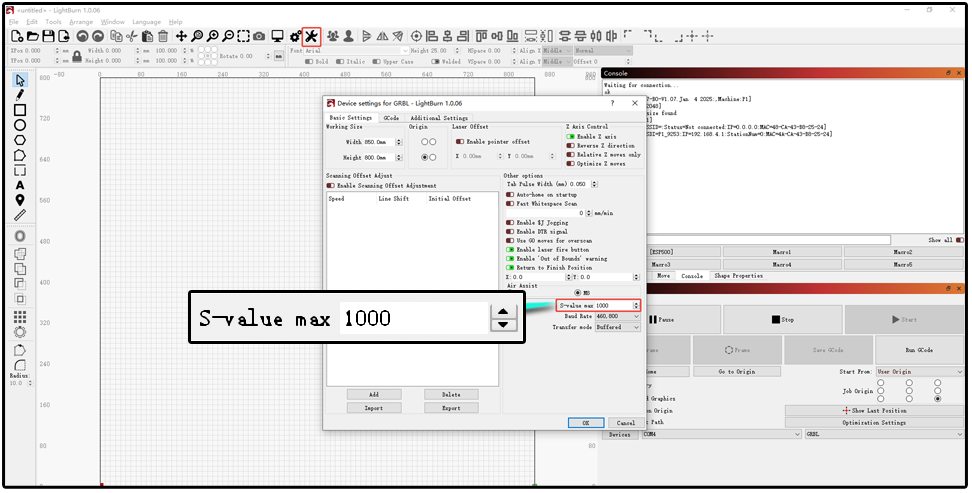
- Check software parameters: Verify your engraving parameters match the parameter table; LightBurn's maximum S-value of 1000 should not be modified.
- Check the window lens: Power off, remove the laser module, and check whether the window lens is dirty or damaged — clean if dirty, or replace the laser module if damaged.
- If none of the above resolves the issue, this indicates a laser module fault. Record a video of your troubleshooting process and provide it along with the machine's Serial Number and the laser module's engraving code to customer service for a replacement.

Still not fixed? Contact support with the details listed in What to send support.
Related problems: Lens Stained or Damaged · Faint Engraving · Moves but No Laser
¶ Moves but No Laser
What you see: The laser module moves during operation, but no laser is emitted.
Check in this order:
- Confirm you are not engraving a reflective material: If you need to engrave a reflective material, first coat the surface black, otherwise the laser module may be damaged.
- Check adapter output: Use a multimeter (DC mode) to check whether the adapter outputs 20V–25V.
- Check the laser connector: Unplug and reconnect the laser module's cable.
- Check recognition: AtomStack Studio automatically detects the laser module during operation. If it reports that no laser module is installed during framing or engraving, this may indicate a fault with the laser module or its cable — use a multimeter to check the cable for continuity. See the P1 laser cable measurement tutorial video.

Click to play video on YouTube
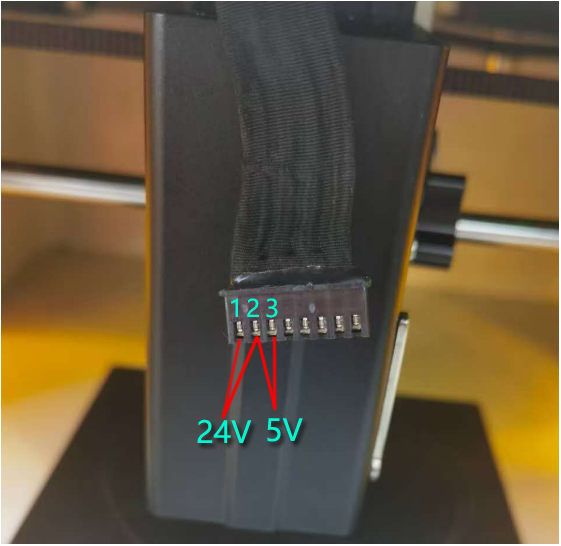
- Check the connector voltage: Run a cutting job at 100% power and 1mm/min, then use a multimeter to measure Pins 1-2 (should be 20V–25V) and Pins 2-3 (should be greater than 1V–6V). If normal, this indicates a laser module fault requiring replacement. Please provide a troubleshooting video, the machine's Serial Number, and the laser module's engraving code to customer service to arrange a replacement.
Still not fixed? Contact support with the details listed in What to send support.
Related problems: Weaker Cutting · Power-On Fails
¶ Infrared Framing Offset
What you see: When using the 1.2W infrared laser, the engraving position differs from the framing position.
Check in this order:
First perform crosshair calibration, then run framing and engraving again to see if the issue is resolved (see the P1 infrared laser crosshair calibration tutorial video — note that only the infrared laser module has a crosshair). If this doesn't resolve it, please refer to the "P1 frames normally, but crashes into the frame during engraving" section.
Confirm the fix: After crosshair calibration, run framing and engraving again: the engraving position matches the framing position.
Still not fixed? Contact support with the details listed in What to send support.
Related problems: Crosshair Hits Frame · Engraving Hits Frame