¶ AtomStack Studio Software Center
The official control software for AtomStack machines. Find downloads, PC and mobile connection guides, project workflows, troubleshooting checks, and multilingual manuals in one place.
¶ PC guide: install, connect, and create
AtomStack Studio provides device discovery, design tools, material presets, framing, camera alignment, accessory modes, and direct job control in one desktop workspace.
¶ Recommended for
- First-time setup and automatic model selection
- Image, vector, shape, and text design
- Official material presets and parameter tests
- Compatible cameras, rotary tools, extension kits, and dual-laser models
¶ Connection checklist
- Use a USB data cable, not a charge-only cable
- Try another USB port if the serial connection is not detected
- Close LightBurn and other programs using the same port
- Update the USB driver when required
- Download AtomStack Studio from the official page and complete the installer for your operating system.
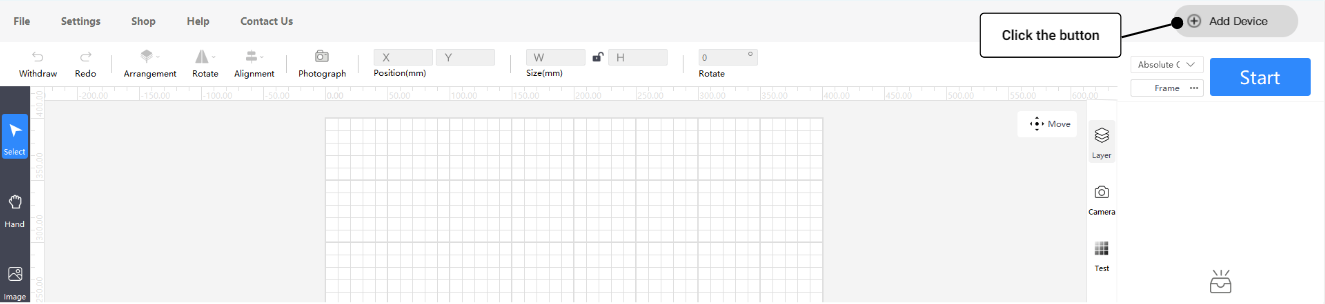
- Open the software and select Add Device in the upper-right corner.
- Connect the machine with the supplied USB cable, choose the matching model, and finish device setup.
- Insert an image, vector, shape, or text object, then arrange it on the canvas.
- Assign objects to layers, set power, speed, processing passes, line interval, and other supported options.
- Position the laser, run Frame, confirm the work area, and start the job.
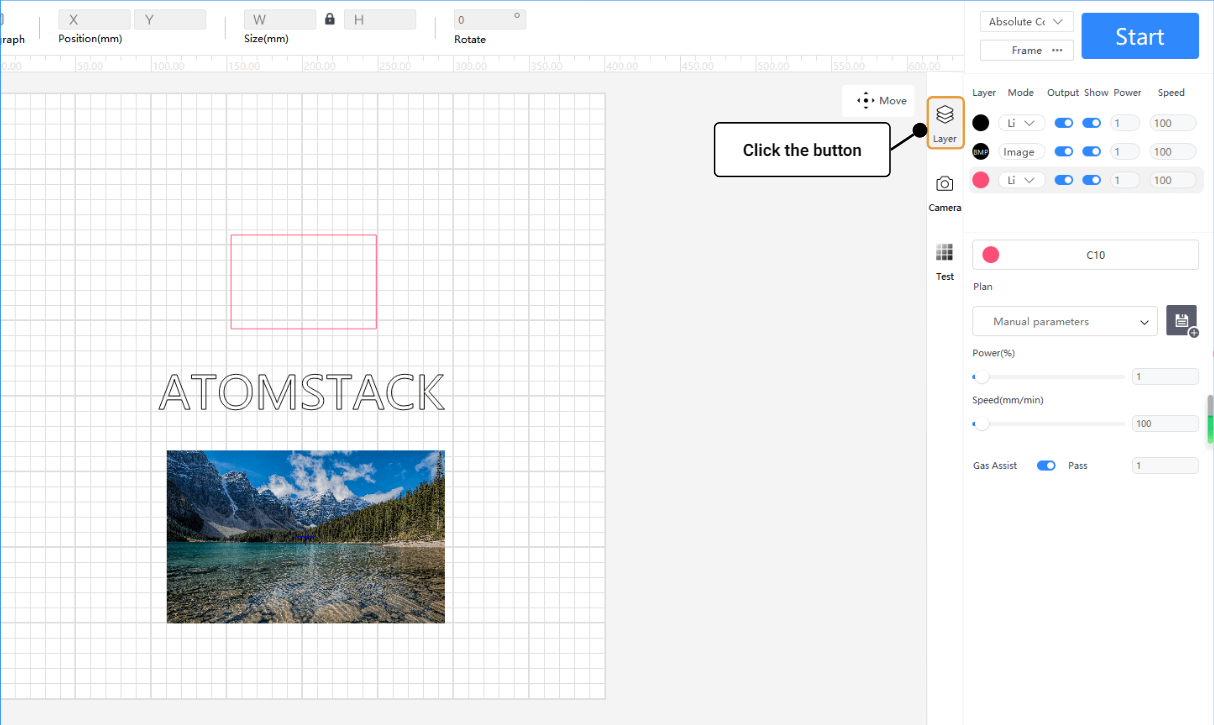
¶ Design workspace and layer parameters
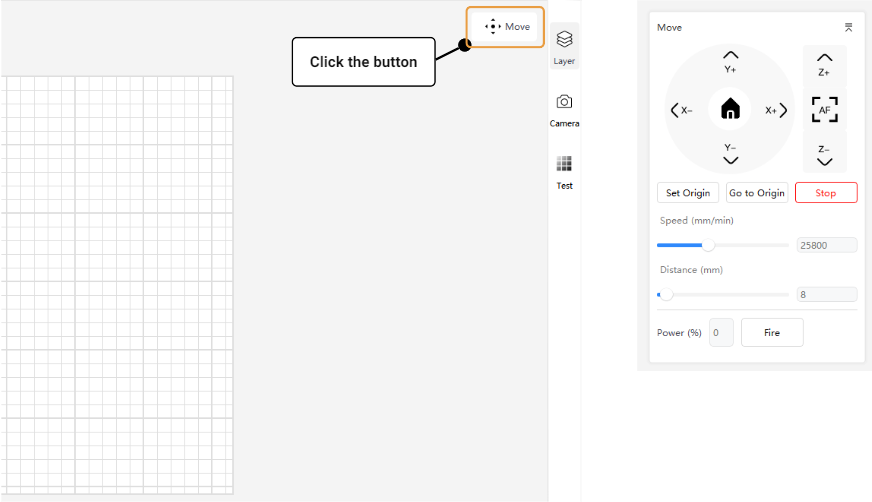
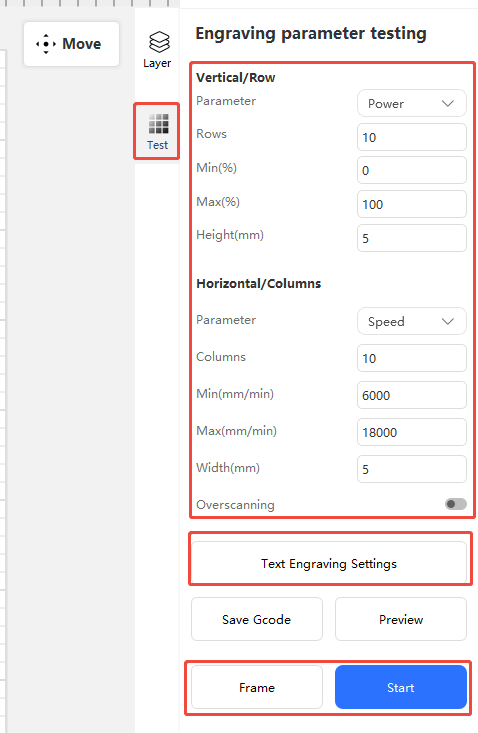
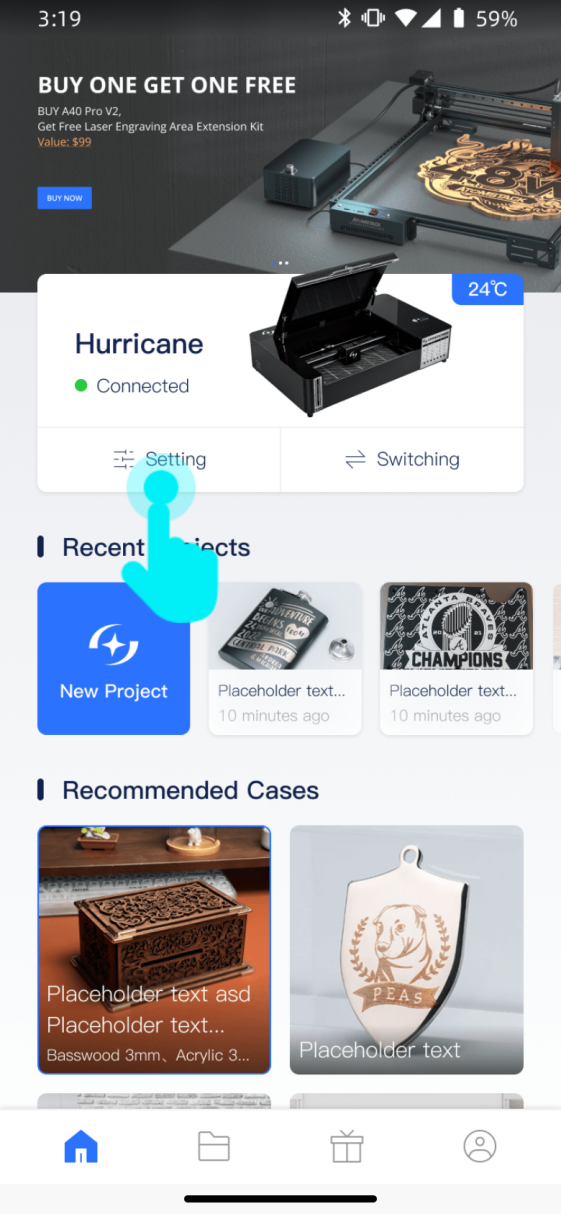
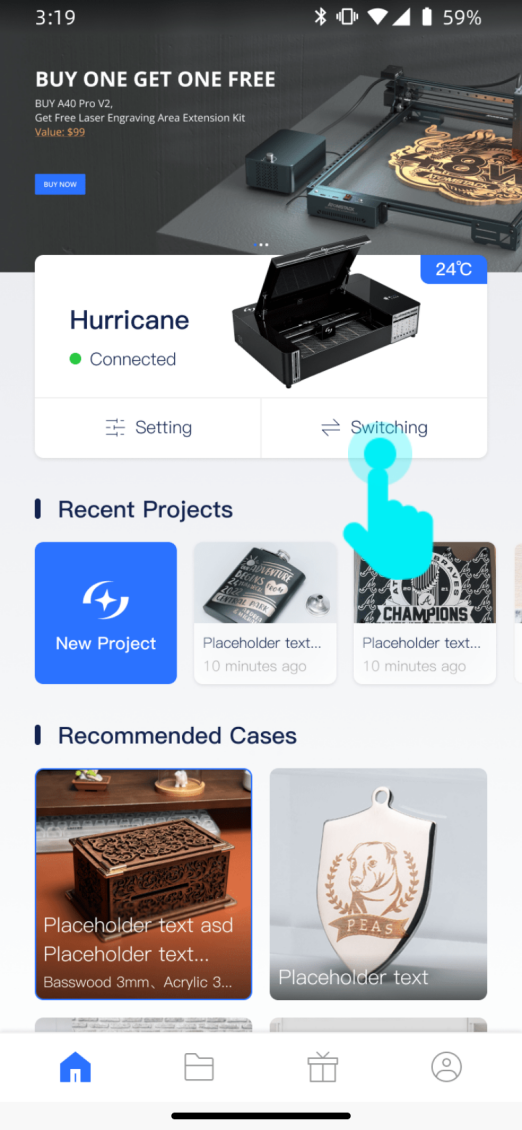
Device settings and supported safety functions
Camera calibration and alignment
Accessory mode, case library, AI, and batch engraving
¶ Mobile app guide: connect and control
The AtomStack mobile app supports compatible machines over Wi-Fi, a phone hotspot, or the machine hotspot, with mobile project creation and camera tools.
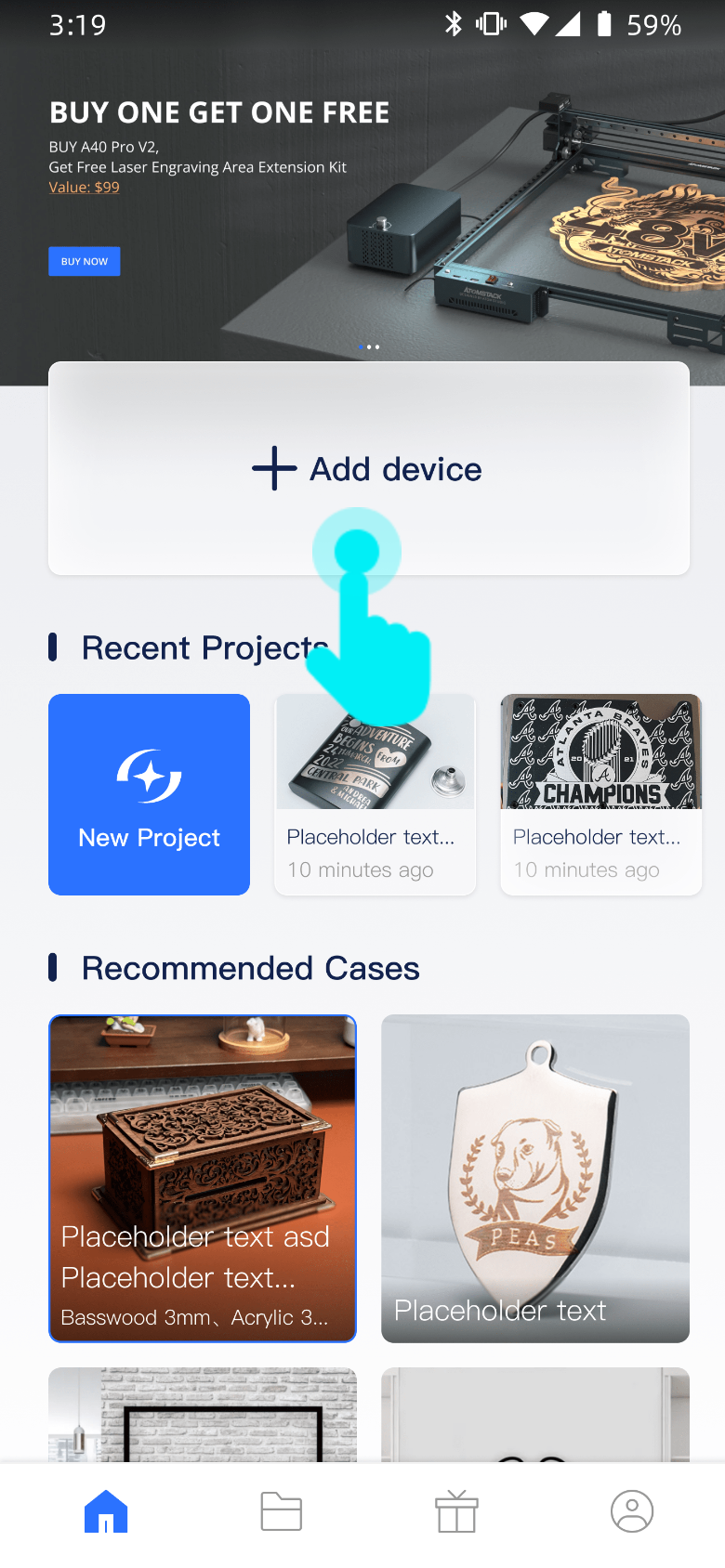
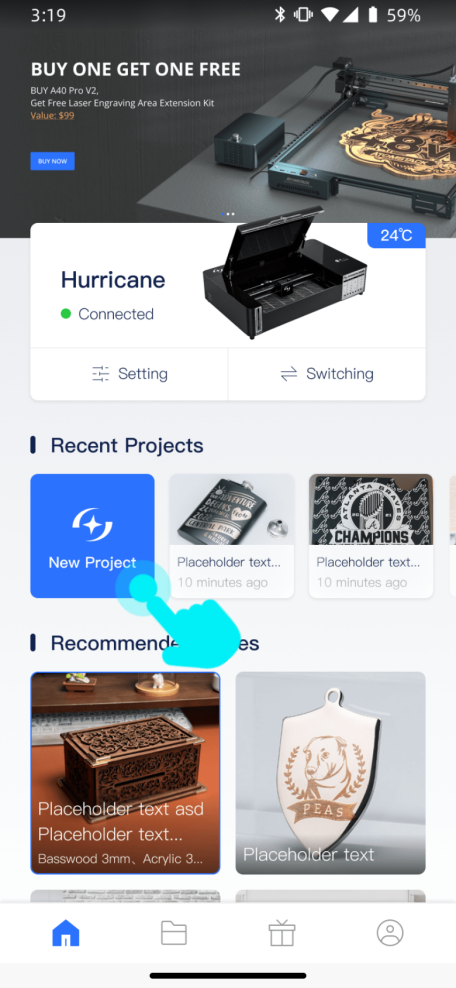
- Install the app, sign in if required, and tap Add Device.
- For router Wi-Fi, enable device pairing, select the nearby machine, and enter a 2.4 GHz network name and password.
- For a phone hotspot, use a 2.4 GHz band and enable maximum compatibility on iOS when available.
- For the machine hotspot, select the model and follow the on-screen WLAN connection steps; disconnect the machine from other phones first.
- Create a project, add text, images, materials, hand drawings, or barcodes, then set the engraving parameters.
- Frame the work, confirm the start position and focus, then monitor the job until it finishes.
¶ Connection troubleshooting
¶ USB connection
- Reconnect the cable and try another port.
- Close LightBurn or other serial-port software.
- Restart the machine and AtomStack Studio.
- Windows driver · Mac driver
¶ Wi-Fi connection
- Use a 2.4 GHz network.
- Confirm network name and password.
- Move the machine closer to the router.
- Disable mobile data temporarily if setup redirects incorrectly.
¶ Before running a job
- Confirm the correct device and accessory mode.
- Focus the laser and run Frame.
- Verify power, speed, units, and work origin.
- Use adequate ventilation and supervise the laser.
¶ Manual downloads
Choose the PDF that matches your language and platform. Full online guides are maintained in English and Simplified Chinese.
Software availability and supported functions can vary by model, operating system, region, and software version. Use the latest official download and the machine-specific safety manual.