Atelier Laser: Weak Cutting, Poor Engraving
The lens is dirty or damaged, cutting weakens, engraving quality drops, output distorts, or vector lines remain open.
Unplug the adapter before disconnecting the power switch wiring. Turn off the machine before reconnecting the Type-C cable or opening the top cover to reinsert a USB drive or TF card. Avoid lens cleaners containing ammonia or acetone and back-and-forth rubbing that could scratch the lens; keep dust out of the galvo scanner assembly.
¶ Lens Dirty or Damaged
What you see: The focusing lens is dirty or damaged.
Check in this order:
When there is a significant drop in power or a large change in the laser spot, the laser lens needs to be checked.
-
Dirt/Contamination: first, clean the lens using 99% pure anhydrous ethanol or a professional optical lens cleaner (avoid solvents containing ammonia or acetone). When wiping, use a lint-free cloth and wipe in a single direction (e.g., from the center outward in a spiral), avoiding back-and-forth rubbing that could scratch the lens. After cleaning, inspect the lens under strong side light to ensure no water stains or fibers remain. Please refer to the Atelier laser lens cleaning guide.
-
Damage: if the lens is damaged, the entire laser module must be replaced because it is a sealed structure. The probability of the focusing lens being damaged is very low. Unless there is a significant change in the laser spot, it is not recommended to disassemble the laser to check the focusing lens. Please refer to the Atelier laser replacement guide.
Confirm the fix: After cleaning, inspect the lens under strong side light to ensure no water stains or fibers remain.
Still not fixed? Contact support with the details listed in What to send support.
Related problems: Weaker Cutting Power · Poor Engraving Quality
¶ Weaker Cutting Power
What you see: Laser cutting capability has significantly decreased.
Check in this order:
-
Normal power attenuation: as the laser is used over time, normal power attenuation will occur. This can be compensated by increasing the power or reducing the cutting speed.
-
Check the fixed focal distance of the laser: refocus the laser using the focusing knob on top of the machine so that the two red dots overlap on the surface of the material. The fixed focal height is 151 mm (distance from the galvo platform to the material surface).
-
Check parameter settings: confirm whether the parameters are correctly set according to the recommended parameter table. Note that the speed unit must be mm/min. How to view the Atelier parameter table:
- ① scan the QR code on the machine to view it;
- ② visit the official website: https://atomstack.com/pages/product-support;
- ③ request it from customer service.
-
Confirm the S-value max setting in the software: if you are using LightBurn, check whether the S-value max has been modified. Make sure it remains at 1000, as this value should not be changed (see Figure 22).

Figure 22 -
Check the sealed glass: check whether the sealed glass at the galvo scanner area is clean, as shown in Figure 23. If there are stains, clean it with alcohol and a lint-free cloth. Please refer to the "Enclosure Cleaning" section for the correct cleaning method. If the glass has stains that cannot be cleaned or if it is damaged, it needs to be replaced. Please refer to the Atelier sealed glass replacement guide.
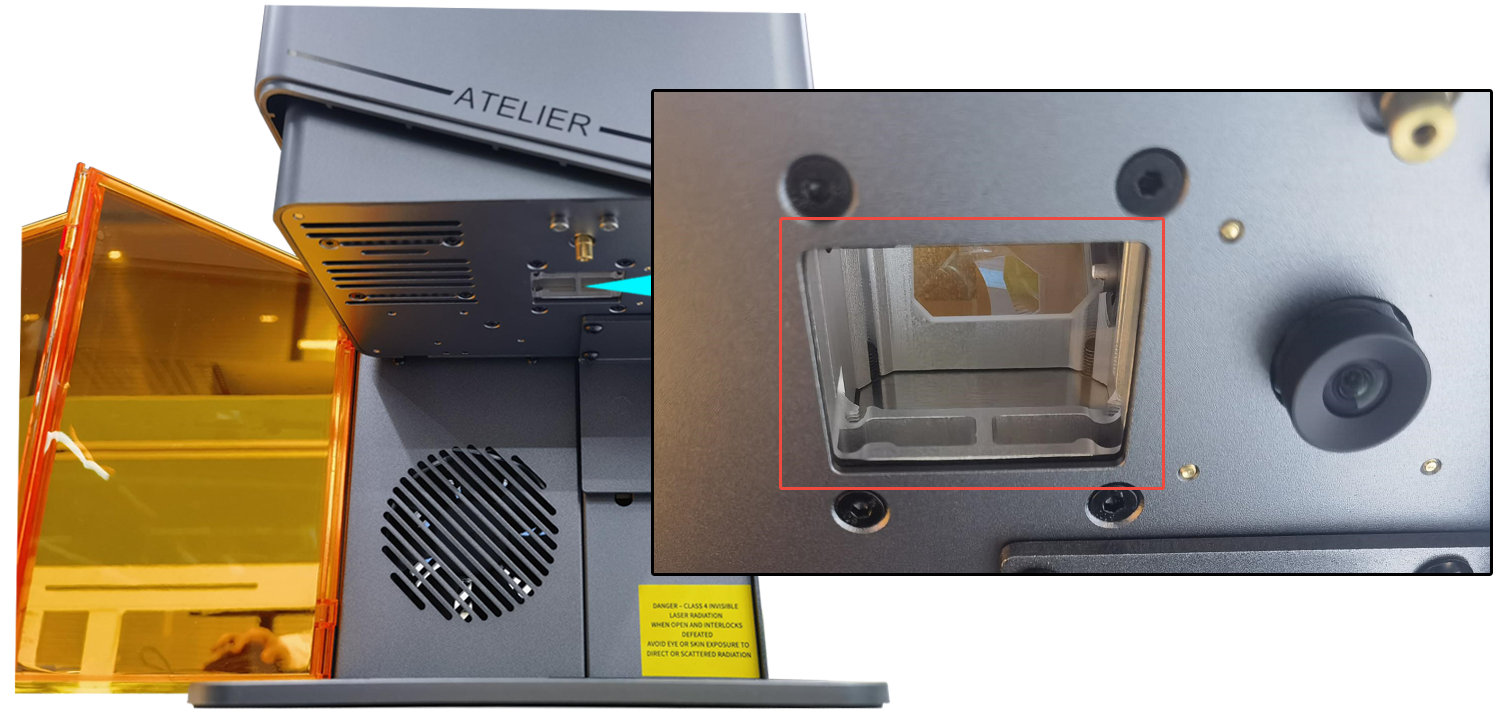
Figure 23 -
Test the power adapter output: use a multimeter set to DC mode to measure whether the adapter output is 24V. If the output is abnormal, please provide a test video and the device Serial Number and send them to customer service for further handling.
-
Test the laser module status: use 100% power and a speed of 200 mm/min to make one cutting pass on 3 mm plywood to determine whether there is power attenuation. If it does not cut through and there is no visible mark on the back of the plywood, the laser module needs to be checked. Open the top cover of the Atelier and remove the laser module according to the Atelier laser lens cleaning video. Be careful not to let dust enter the galvo scanner assembly.

Click to play video on YouTube
- Check the laser lens: check whether the laser lens is clean. If it is dirty, clean it first using 99% pure anhydrous ethanol or a professional optical lens cleaner (avoid solvents containing ammonia or acetone). When wiping, use a lint-free cloth and wipe in a single direction (e.g., spiral from the center outward), avoiding back-and-forth rubbing to prevent scratches. After cleaning, inspect the lens under strong side lighting to make sure there is no remaining water stain or fiber. If the lens is damaged, the laser module must be replaced. Please provide clear photos of the damage and the device Serial Number to customer service.
- Test the laser spot: if the lens is clean, point the laser module toward the ceiling and fire it to check whether the laser spot is diffused or shows other abnormalities. If any abnormality is observed, please take clear photos of the laser spot and send them to customer service. Please refer to the Atelier laser spot inspection guide.
-
If none of the above shows any abnormalities, it is considered a laser module failure: please provide a cutting test video (clearly showing the parameter settings, cutting process, cutting result, and device Serial Number, as shown in Figure 24) and send it to customer service for further handling.

Figure 24
Still not fixed? Contact support with the details listed in What to send support.
Related problems: Lens Dirty or Damaged · Poor Engraving Quality · Red Dots Don’t Overlap
¶ Poor Engraving Quality
What you see: Engraving quality is poor.
Check in this order:
-
Check the fixed focal distance of the laser: refocus the laser using the focusing knob on top of the machine so that the two red dots overlap on the surface of the material. The fixed focal height is 151 mm (distance from the galvo platform to the material surface).
-
Check parameter settings: confirm whether the parameters are correctly set according to the recommended parameter table. Note that the speed unit must be mm/min. How to view the Atelier parameter table:
- ① scan the QR code on the machine to view it;
- ② visit the official website: https://atomstack.com/pages/product-support;
- ③ request it from customer service.
-
Confirm the S-value max setting in the software: if you are using LightBurn, check whether the S-value max has been modified. Make sure it remains at 1000, as this value should not be changed (see Figure 25).

Figure 25 -
Normal power attenuation: as the laser is used over time, normal power attenuation will occur. This can be compensated by increasing the power or reducing the cutting speed.
-
Check the sealed glass: check whether the sealed glass at the galvo scanner area is clean, as shown in Figure 26. If there are stains, clean it with alcohol and a lint-free cloth. Please refer to the "Enclosure Cleaning" section for the correct cleaning method. If the glass has stains that cannot be cleaned or if it is damaged, it needs to be replaced. Please refer to the Atelier sealed glass replacement guide.
Figure 26 -
Check the material: make sure the material is suitable for engraving with a diode blue laser. The surface of the material should have no coating or paint layer. If there is a paint layer, try engraving it one more time.
-
Test the laser module status: use 100% power and a speed of 200 mm/min to make one cutting pass on 3 mm plywood to determine whether there is power attenuation. If it does not cut through and there is no visible mark on the back of the plywood, the laser module needs to be checked. Open the top cover of the Atelier and remove the laser module according to the Atelier laser lens cleaning video. Be careful not to let dust enter the galvo scanner assembly.
- Check the laser lens: check whether the laser lens is clean. If it is dirty, clean it first using 99% pure anhydrous ethanol or a professional optical lens cleaner (avoid solvents containing ammonia or acetone). When wiping, use a lint-free cloth and wipe in a single direction (e.g., spiral from the center outward), avoiding back-and-forth rubbing to prevent scratches. After cleaning, inspect the lens under strong side lighting to make sure there is no remaining water stain or fiber. If the lens is damaged, the laser module must be replaced. Please provide clear photos of the damage and the device Serial Number to customer service.
- Test the laser spot: if the lens is clean, point the laser module toward the ceiling and fire it to check whether the laser spot is diffused or shows other abnormalities. If any abnormality is observed, please take clear photos of the laser spot and send them to customer service. Please refer to the Atelier laser spot inspection guide.
-
If none of the above shows any abnormalities, it is considered a laser module failure: please provide a cutting test video (clearly showing the parameter settings, cutting process, cutting result, and device Serial Number, as shown in Figure 27) and send it to customer service for further handling. Please refer to the Atelier laser replacement guide.
Figure 27
Still not fixed? Contact support with the details listed in What to send support.
Related problems: Lens Dirty or Damaged · Weaker Cutting Power · Vector Lines Stay Open
¶ Engraving Is Distorted
What you see: The engraving result is distorted.
Check in this order:
-
Confirm the material weight: lightweight materials can be blown by the strong suction of the Atelier exhaust fan. When engraving lightweight materials, the material should be secured — you can use the provided masking tape to stick it to the base plate or use the supplied positioning strips to hold it down.
-
Confirm that the galvo is calibrated: create a square file in the software and perform an engraving to check whether the result is correct. If distortion is observed, follow the steps below to calibrate in AtomStack Studio or LightBurn.
- Calibration in AtomStack Studio: open the software, click "Settings" → "Calibration" to enter the calibration interface (see Figure 28). Place the engraving material inside the machine and focus it properly. Click "Start" to engrave a 100 mm × 100 mm square. Measure the actual side lengths in the X-axis and Y-axis, then input these values into the "Galvo Calibration" interface in the "size coefficient calculation" section. For example, if the actual square measures 112 mm × 117 mm, input these values to obtain an X-axis ratio of 0.893 (see Figure 29). Repeat the same for the Y-axis. Please refer to the Atelier galvo calibration video.

Click to play video on YouTube

Figure 28

Figure 29
-
Y-axis of the frame is curved: in this case, the "Curve" parameter needs to be adjusted. The default Y-axis curve value is 1.060 (see Figure 28).
-
Calibration in LightBurn: please refer to the Atelier galvo calibration video. Note: when using LightBurn, go to "Device Settings" and set the "Origin" to the top-left corner (see Figure 30).

Figure 30
Still not fixed? Contact support with the details listed in What to send support.
Related problems: Light Material Distorts · Vector Lines Stay Open · Camera Misaligned
¶ Light Material Distorts
What you see: When processing lightweight materials, the output may show missing or distorted lines.
Check in this order:
The cause is that the strong airflow from the exhaust fan can move lightweight materials.
-
Use the provided masking tape to secure the material to the base plate.
-
Use the provided positioning strips to hold the material in place. The positioning strips have limitations, so the method of securing should be determined based on the size of the material.
Still not fixed? Contact support with the details listed in What to send support.
Related problems: Engraving Is Distorted · Vector Lines Stay Open · Smoke Fills Enclosure
¶ Vector Lines Stay Open
What you see: Vector lines do not close during engraving.
Check in this order:
-
Check the engraving file: create a square or circular line file in the software and perform a test engraving. If the lines close correctly, the issue is caused by the original engraving file.
-
Check the focus: refocus the laser using the focusing knob on the side top of the laser so that the two red dots overlap on the material surface. The fixed focal height is 151 mm (distance from the galvo platform to the material surface).
-
Check the parameter settings: confirm whether the parameters are correctly set according to the recommended parameter table. Note that the speed unit must be mm/min. How to view the parameter table:
- ① scan the QR code on the machine to view it;
- ② visit the official website: https://atomstack.com/pages/product-support;
- ③ request it from customer service. If the parameter settings are correct, try reducing the speed or increasing the power.
-
Enable "Constant Power": in AtomStack Studio, see Figure 37; in LightBurn, see Figure 38.

Figure 37
Figure 38 -
Increase the $31 minimum power value: use AtomStack Studio or LightBurn to send the command $31=* ("*" represents a specific value; you can gradually increase this value until the lines fully close). For example, if the lines do not close when $31 = 0, send $31 = 10. If the lines are still not closed, continue increasing the value and send $31 = 20, and so on until the lines fully close. For the operation steps, please refer to the Atelier tutorial video on adjusting the minimum power value.
Confirm the fix: Engrave again and confirm that the lines fully close.
Still not fixed? Contact support with the details listed in What to send support.
Related problems: Poor Engraving Quality · Engraving Is Distorted · Red Dots Don’t Overlap