Atelier Focus & Camera: Red Dots, Misalignment
The focusing red dots do not overlap, or the camera is misaligned or malfunctioning.
Unplug the adapter before disconnecting the power switch wiring. Turn off the machine before reconnecting the Type-C cable or opening the top cover to reinsert a USB drive or TF card. Avoid lens cleaners containing ammonia or acetone and back-and-forth rubbing that could scratch the lens; keep dust out of the galvo scanner assembly.
¶ Red Dots Don’t Overlap
What you see: The dual red lights do not overlap during focusing.
Check in this order:
-
Check the focusing distance: if the material has been placed but the distance has not been adjusted, readjust it. Make sure the overlap point aligns with the center point on the same horizontal line (see Figure 52).
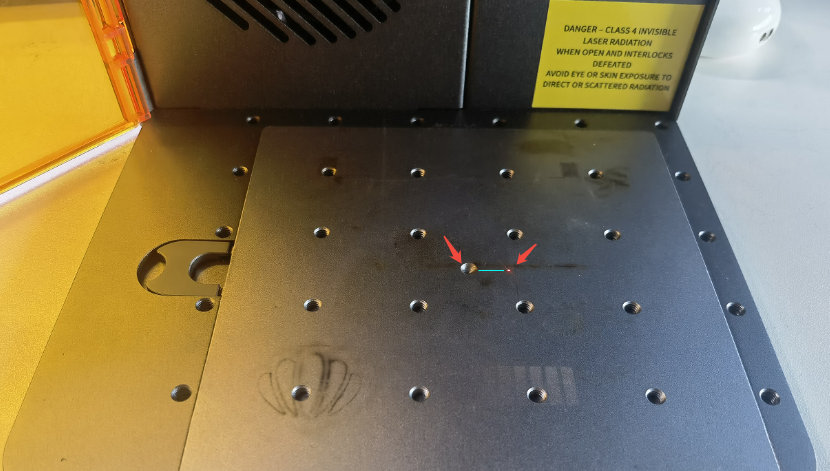
Figure 52 -
Adjust the red light angles: set the galvanometer platform to a height of 151 mm from the base plate. Then adjust the angle of one red light so that its red dot falls on the horizontal line to the right of the base plate center (recommended within 1–2 mm). Lock the screw, then adjust the angle of the other red light so that it overlaps with the first red dot. Refer to the Atelier Red Light Positioning Calibration video for guidance.

Click to play video on YouTube
Confirm the fix: Confirm that the two red dots overlap after adjusting the red light angles.
Still not fixed? Contact support with the details listed in What to send support.
Related problems: Weaker Cutting Power · Vector Lines Stay Open · Camera Misaligned
¶ Camera Misaligned
What you see: The camera is misaligned.
Check in this order:
-
Check the focusing distance: after placing the material, readjust the distance so that the two red dots overlap on the material surface and align horizontally with the center point.
-
Realign the camera: the camera is factory-calibrated before shipment. When using AtomStack Studio, the user only needs to perform camera alignment. Since there is no built-in illumination in the enclosure, use a flashlight or other light source to illuminate the interior during capture. The smaller the captured values, the better. When using LightBurn, follow its default procedure for camera calibration. Refer to the Atelier AtomStack Studio Camera Calibration video and the Atelier LightBurn Camera Calibration video for guidance.

Click to play video on YouTube
Still not fixed? Contact support with the details listed in What to send support.
Related problems: Red Dots Don’t Overlap · Camera Malfunctions · Engraving Is Distorted
¶ Camera Malfunctions
What you see: The camera malfunctions.
Check in this order:
-
Check if the camera is disabled: open the Device Manager to see if the camera is restricted or disabled. Remove any restrictions and enable permissions as needed (see Figure 53).

Figure 53 -
Check the camera connection to the mainboard: if the camera cannot capture images, check whether the camera cable is loose (see Figure 54). Use tweezers or a similar tool to disconnect and reconnect the cable, then test the camera function again.
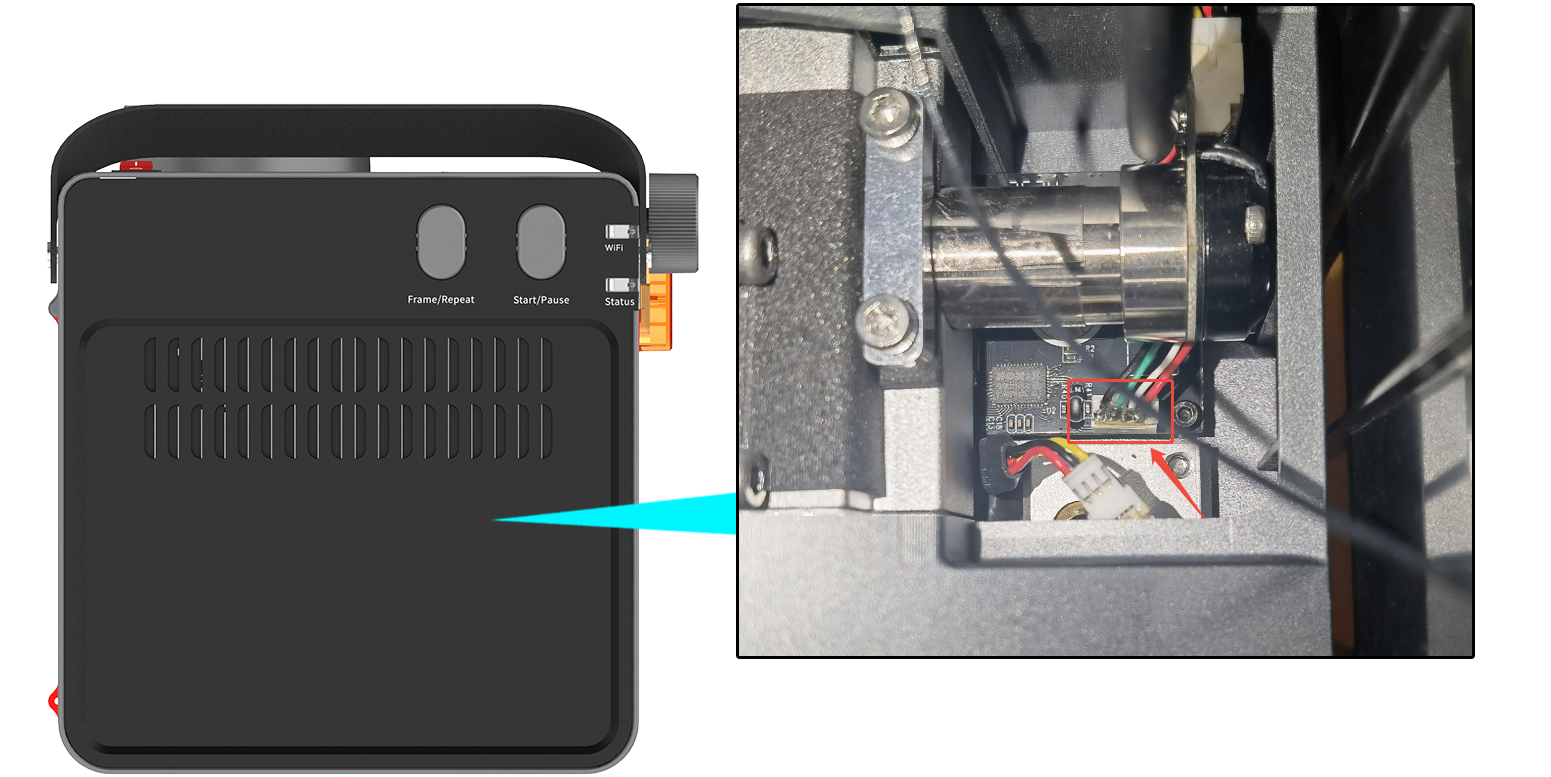
Figure 54 -
Replace the camera if necessary: if the above steps do not resolve the issue, the camera is considered faulty. Replace the camera following the Atelier Camera Replacement video instructions.
Still not fixed? Contact support with the details listed in What to send support.
Related problems: Camera Misaligned · Computer Won’t Connect