Swift Laser: No Laser Output, Weak Cutting
The laser cuts weakly, emits no light, has a stopped fan, overheats, or produces faint engraving.
Disconnect power before removing the laser module to inspect its lenses, and turn off the power before unplugging and reconnecting the laser connector. Always keep the machine under close supervision while it is running.
¶ Weaker Cutting Power
What you see: The laser module has severely reduced cutting performance.
Check in this order:
-
Normal power attenuation: Laser modules naturally lose power over time. This can be compensated by increasing power or reducing the cutting speed.
-
Check laser focus: Re-focus using the fixed-focus knob at the bottom of the laser module. The correct focus height is 4mm (distance from the laser module's bottom frame to the material).

-
Check parameter settings: Verify that your settings match the recommended parameter table. Ensure the speed unit is mm/min. To view the Swift parameter table: ① scan the QR code on the machine, ② visit https://atomstack.com/pages/product-support, or ③ contact customer service.
-
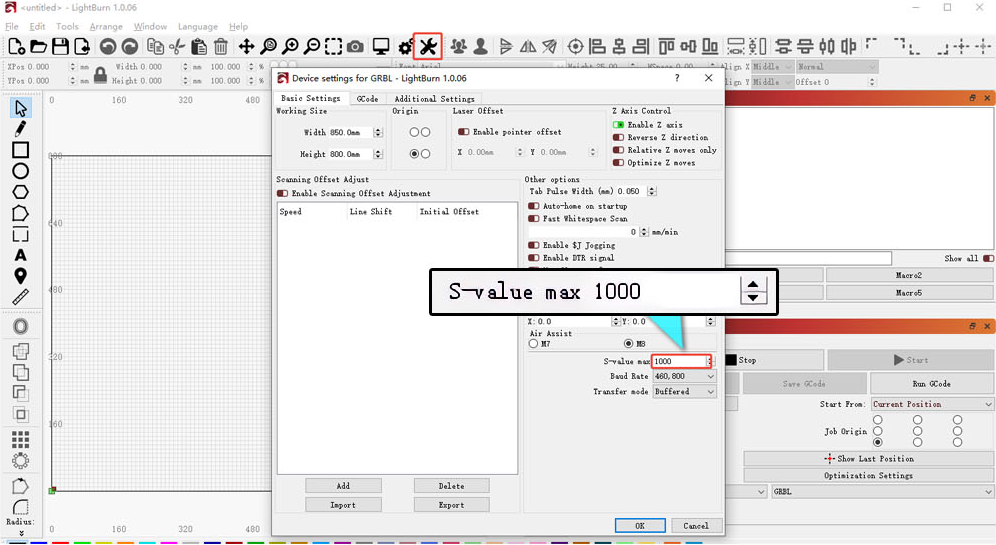
Check the maximum S-value in software: If using LightBurn, confirm the maximum S-value is set to 1000 and has not been modified.
- Check for air nozzle obstruction: If using the F40 air assist with the air guide, ensure the guide is installed correctly and not blocking the laser output.
- Check window and focus lenses for dirt or damage: Disconnect power, remove the laser module, and inspect the lenses. If dirty, refer to the "Cleaning Window Lens & Focus Lens" section.
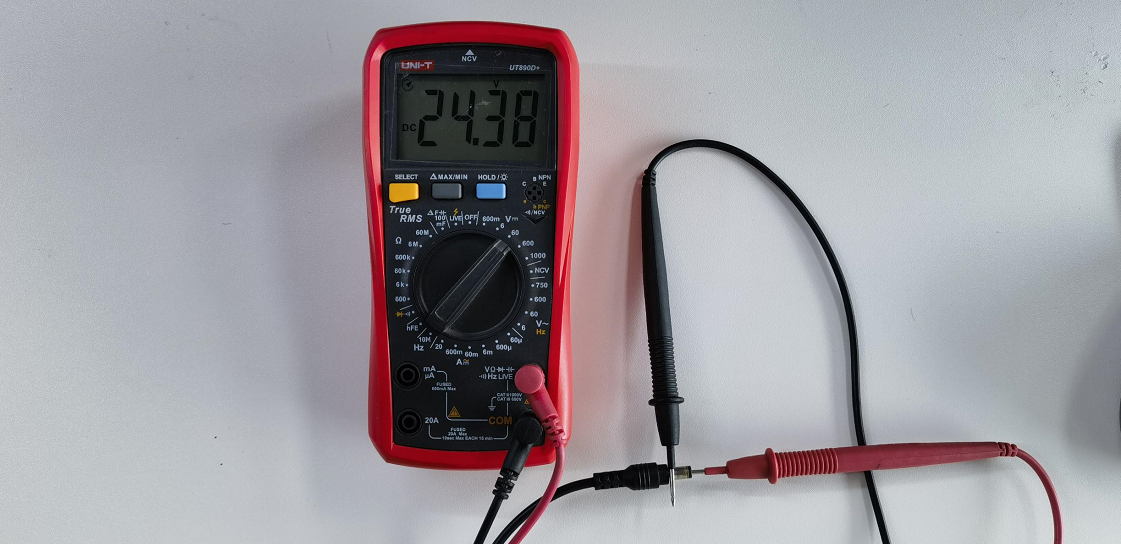
- Check the power adapter output: Use a multimeter (DC mode) to measure whether the adapter outputs 24V, 1.5A (7W) or 24V, 2A (12W).
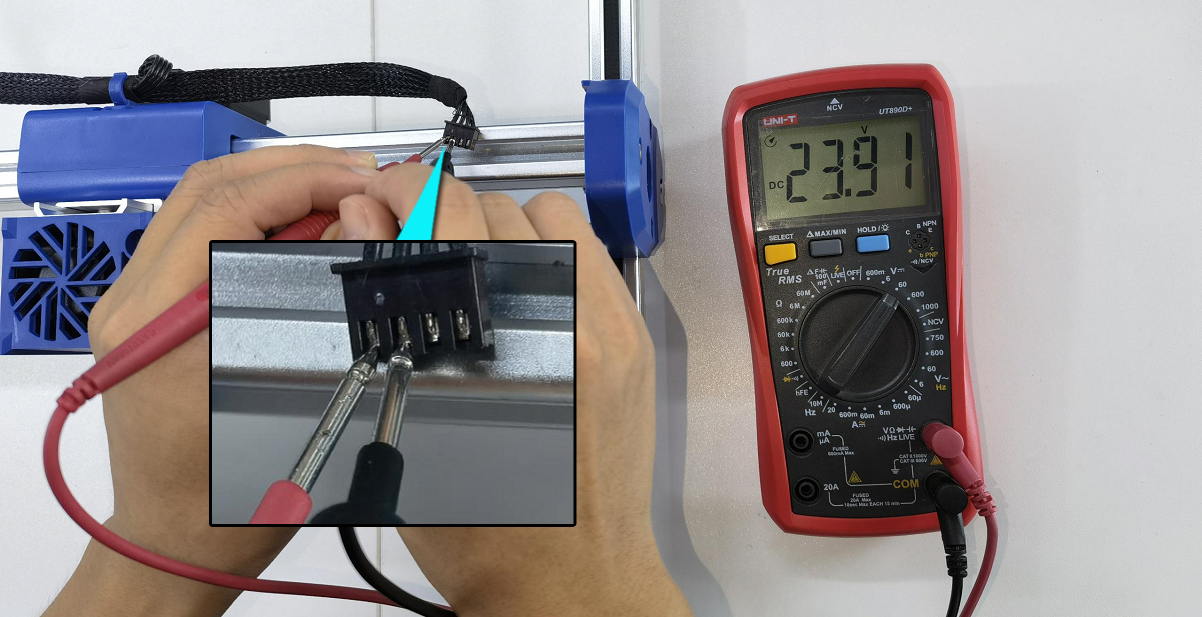
- Check the laser module connector voltage: Unplug the laser cable, run a cutting job at 100% power and 1mm/min, then measure the connector voltage — Pins 1-2 should be 24V, Pins 2-3 should be ≥1V. If Pins 1-2 read below 20V or 0V, or Pins 2-3 read below 1V or 0V, this indicates a motherboard or cable fault. Please send customer service a fault video, a voltage test video, and a photo of the machine's Serial Number. Refer to the laser connector voltage test video, Swift motherboard replacement video, and Swift motherboard cable replacement video.

Click to play video on YouTube

Click to play video on YouTube

Click to play video on YouTube
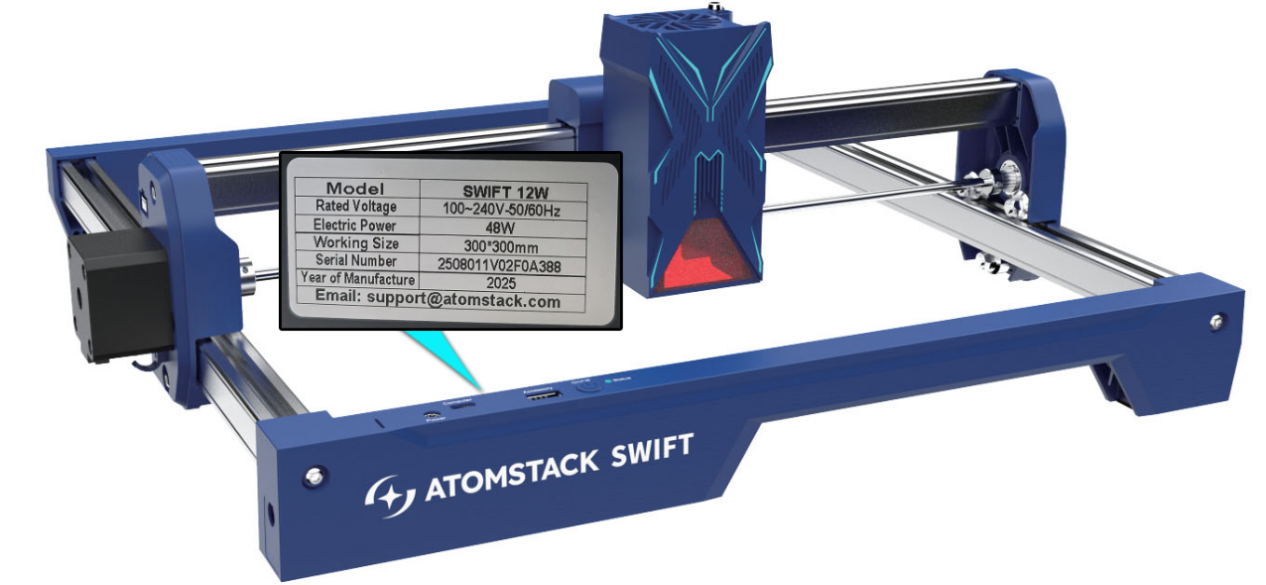
- Abnormal power degradation: If all checks are normal (Pins 1-2 ≥ 20V, Pins 2-3 ≥ 1V), the laser module is experiencing abnormal power degradation. Please provide customer service with a cutting video showing the parameters used, the cutting process, and the cutting results, along with the laser module's engraving code. Refer to the Swift Laser Module Replacement Video.

Click to play video on YouTube
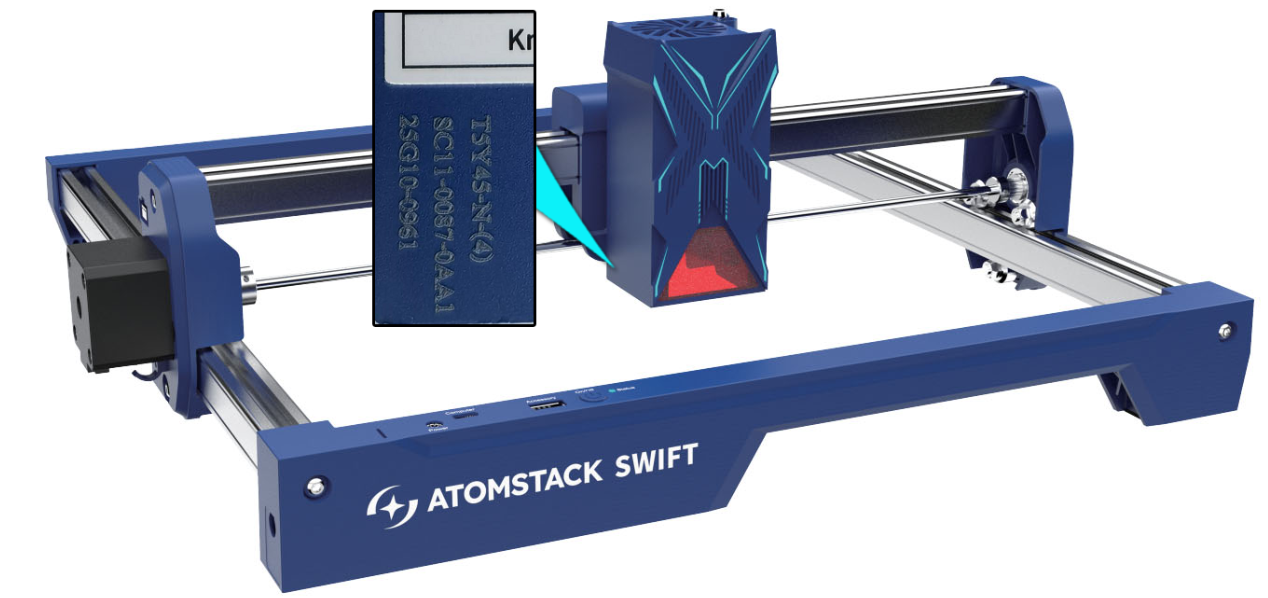
Still not fixed? Contact support with the details listed in What to send support.
Related problems: Laser Moves but No Light · Faint Engraving · Black or Yellow Edges
¶ Laser Moves but No Light
What you see: The laser moves but does not emit light.
Check in this order:
- Check the laser connector: Turn off the power, unplug the laser connector, then plug it back in and check if the issue is resolved.
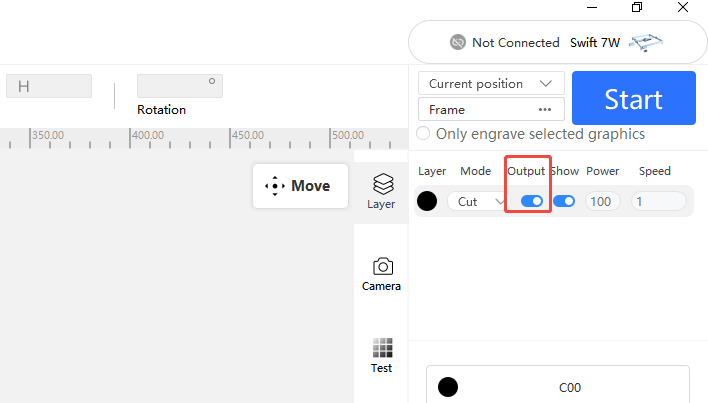
- Check software parameter settings: Set parameters according to the parameter table. Ensure the "Output" option for the layer is turned on.
- Check the adapter output: Measure the adapter output using a multimeter in DC mode; it should be 24V, 1.5A (7W) or 24V, 2A (12W).
- Check the laser connector voltage: Unplug the laser cable, run a cutting job at 100% power and 1mm/min, then measure the connector voltage — Pins 1-2 should be 24V, Pins 2-3 should be ≥1V. If Pins 1-2 read below 20V or 0V, or Pins 2-3 read below 1V or 0V, there may be a motherboard or cable fault. Refer to the laser connector voltage test video, Swift motherboard replacement video, and Swift motherboard cable replacement video.
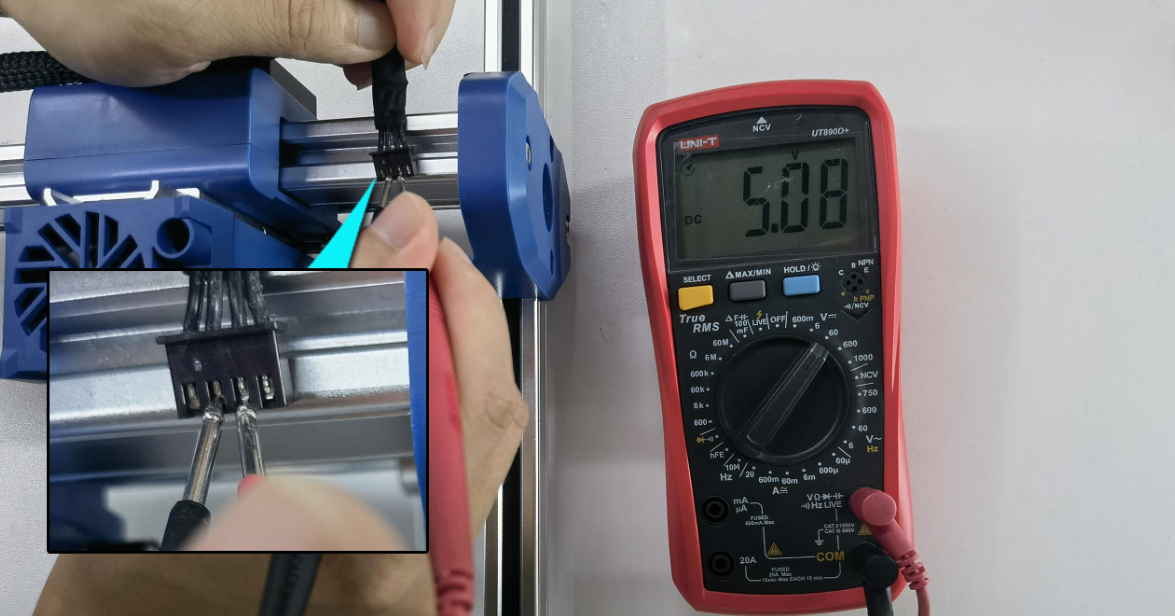
- Laser module fault: If the problem persists and the connector voltage is normal, the laser module may be faulty. Provide a fault video showing the set parameters, the cutting/engraving process, and the laser's serial engraving code to customer service for assistance.
Still not fixed? Contact support with the details listed in What to send support.
Related problems: Weaker Cutting Power · Machine Won’t Power On
¶ Fan Not Spinning
What you see: The laser emits light but the fan does not spin.
Check in this order:
Remove the 4 screws on the back of the laser, open the casing, take out the fan, and connect it to the adapter using two wires to test if it spins.
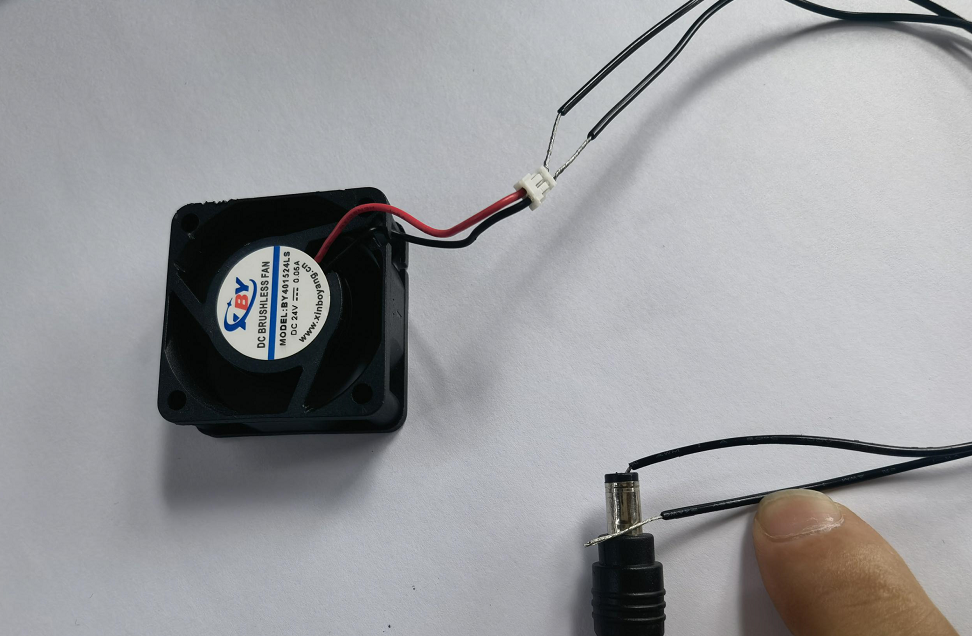
- If the fan still does not spin: The fan is faulty. Send the laser serial code and a troubleshooting video to customer service. Refer to the Swift Laser Fan Replacement Video for guidance.

Click to play video on YouTube
- If the fan spins normally: The laser driver board is faulty. Send the laser serial code and troubleshooting video to customer service.
Still not fixed? Contact support with the details listed in What to send support.
Related problems: Laser Overheating · Weaker Cutting Power
¶ Laser Overheating
What you see: Overheating occurs during engraving.
Check in this order:
- Check if the laser fan spins: During engraving, observe if the fan spins. If it does not spin while the laser fires normally, remove the 4 screws, take out the fan, and connect it to the adapter to test. If it spins with the adapter, the driver board is faulty. If it still does not spin, the fan is faulty. Send the serial code and a troubleshooting video to customer service. Refer to the Swift Laser Driver Board Replacement Video and Swift Laser Fan Replacement Video.
- Check if the fan is installed correctly: Observe the fan's center label. If the label is facing up, the fan is installed incorrectly — reinstall it with the label facing down toward the tube core, following the Swift Laser Fan Replacement Video.
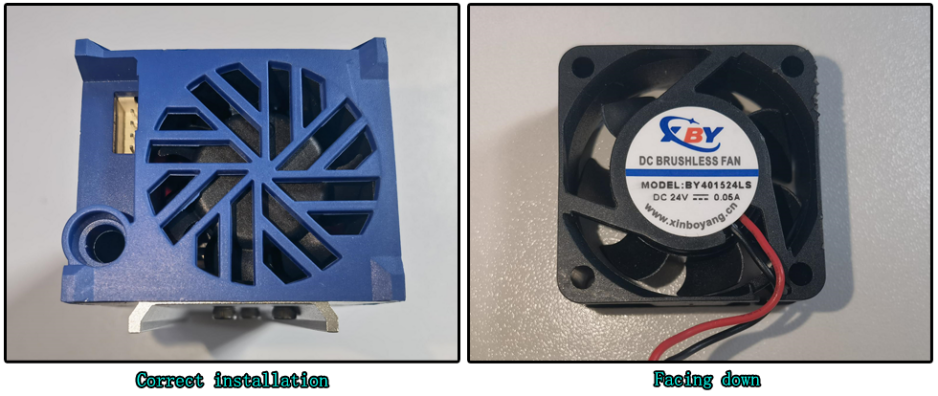
- Check window and focus lenses for dirt or damage: Dirty or damaged lenses can block laser energy, causing overheating and even burning out the laser. Clean or address per the "Cleaning Window Lens & Focus Lens" section immediately if found.
- Check internal cleanliness: Dust buildup inside the laser can hinder heat dissipation. Refer to the Swift Laser Internal Dust Cleaning Video.

Click to play video on YouTube
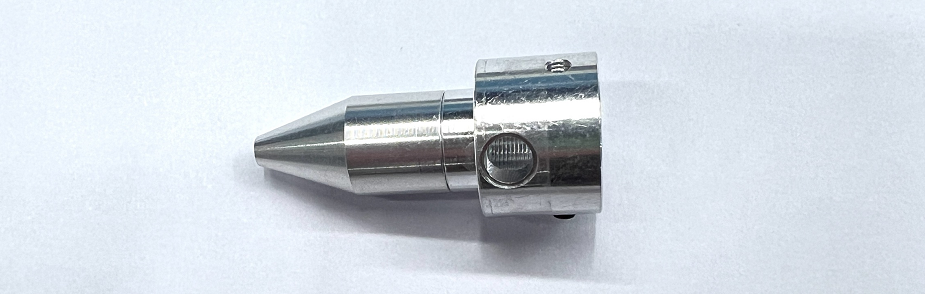
- Check air guide installation: Remove the air guide and test again — if overheating stops, the air guide was installed at an angle; reinstall it properly.
- If the problem persists after all checks, send a fault video and the laser serial code to customer service.
Still not fixed? Contact support with the details listed in What to send support.
Related problems: Fan Not Spinning · Weaker Cutting Power
¶ Faint Engraving
What you see: Engraving patterns are light or faint.
Check in this order:
-
Check for normal power attenuation: Laser power may decrease over time. Increase power or reduce speed to compensate.
-
Check laser focus: Re-focus using the knob at the bottom; focus height should be 4mm from the laser's bottom frame to the material.
-
Check parameter and material settings: Ensure settings match the recommended parameters for the material, with the speed unit in mm/min. View the parameter table via the QR code on the machine, https://atomstack.com/pages/product-support, or by contacting customer service.
-
Check software maximum S-value: For LightBurn, ensure the max S-value is 1000 and has not been modified.
-
Check lenses for dirt or damage: Disconnect power, inspect the window and focus lenses, and clean if needed per the "Swift Laser Cleaning" section.
-
Check air guide installation: Ensure the air guide does not block the laser output.

-
Check adapter output: DC 24V, 1.5A (7W) or 24V, 2A (12W).
- Check laser connector voltage: Unplug the laser cable, run a cutting job at 100% power and 1mm/min. Pins 1-2 should be ≥20V, Pins 2-3 should be ≥1V. Lower voltage indicates a motherboard fault — provide a fault video, voltage measurement video, and Serial Number photo to customer service. Refer to the laser connector voltage test video, Swift motherboard replacement video, and Swift motherboard cable replacement video.
- Abnormal power degradation: If all checks are normal but output is still weak, the laser power may be abnormally degraded. Provide a cutting video showing parameters, process, results, and the laser's serial code. Refer to the Swift Laser Replacement Video.
Still not fixed? Contact support with the details listed in What to send support.
Related problems: Weaker Cutting Power · Laser Moves but No Light