Swift Power & Connection: No Power, PC Fails
The machine stops, will not power on, shows a red light alarm, fails to connect or engrave from the app, stutters in LaserGRBL, or cannot read a TF card.
Disconnect power before removing the laser module to inspect its lenses, and turn off the power before unplugging and reconnecting the laser connector. Always keep the machine under close supervision while it is running.
¶ Engraving Stops Suddenly
What you see: The machine suddenly stops during engraving.
Check in this order:
- Ensure mains power is stable with no significant voltage fluctuations.
- Avoid touching the adapter or Type-C cable: Touching the adapter jack or Type-C cable during operation may cause a bad connection and stop the machine.
- Try different software: AtomStack Studio, the APP, or LightBurn. If the issue only occurs with computer software and not the APP, try a different USB port or Type-C cable.
- If the issue persists, check and update the firmware via AtomStack Studio or the APP.
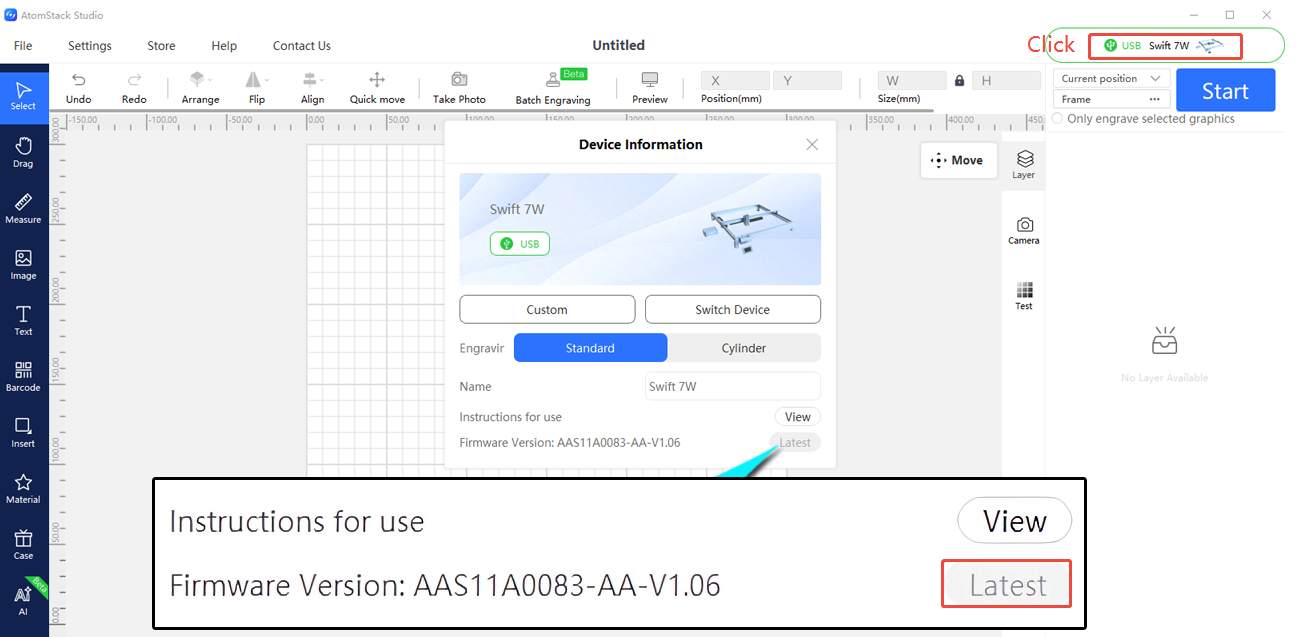
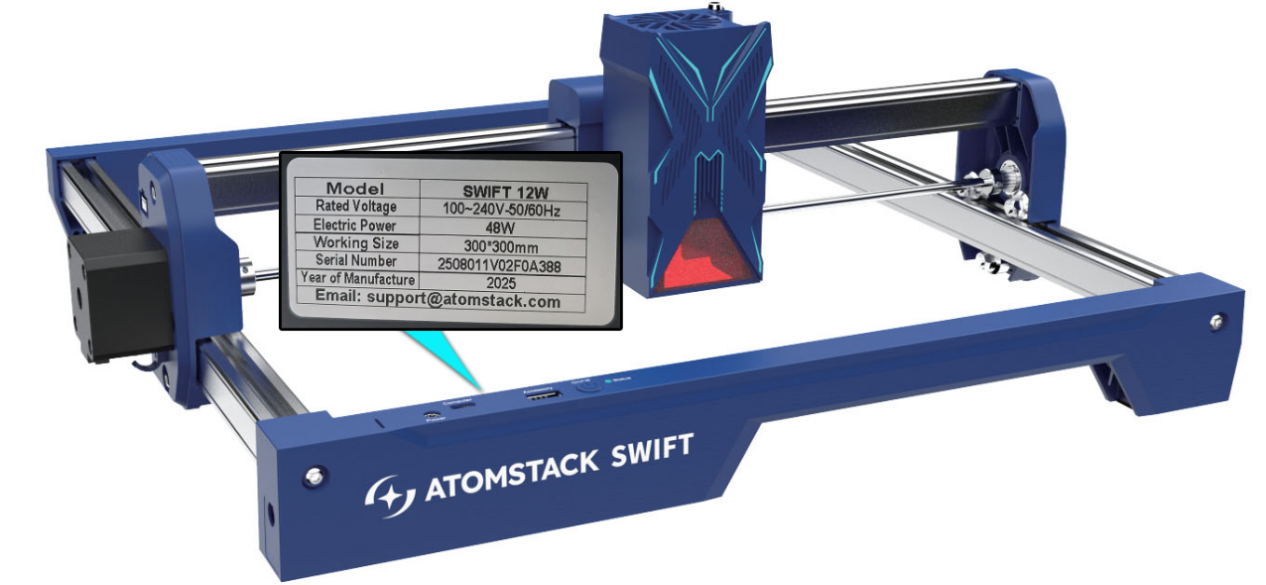
- If a firmware upgrade does not resolve it, provide the troubleshooting steps and a Serial Number photo to customer service.
Still not fixed? Contact support with the details listed in What to send support.
Related problems: PC Won’t Connect · Machine Won’t Power On · Motion Stutters
¶ Machine Won’t Power On
What you see: The machine will not power on.
Check in this order:
- Check adapter output: Use a multimeter (DC mode) to confirm the adapter outputs 24V, 1.5A (7W) or 24V, 2A (12W).
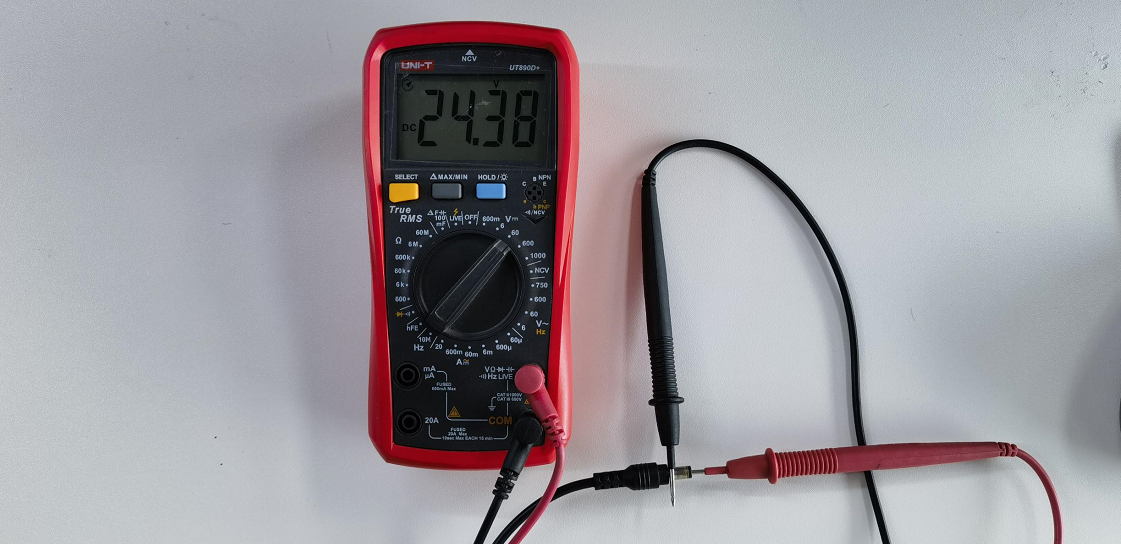
- Check for short circuits: Unplug all motherboard connectors (limit switches, motors, laser), then try powering on.
- If power-on succeeds, a short exists in one of the components — plug the connectors back in one at a time to identify the culprit, then send a troubleshooting video and Serial Number photo to customer service.
- If it still fails, it's likely a motherboard fault — send a troubleshooting video and Serial Number photo to customer service. Refer to the Swift motherboard replacement video and Swift motherboard cable replacement video.
Confirm the fix: After switching on, check whether the indicator light turns white.
Still not fixed? Contact support with the details listed in What to send support.
Related problems: Red Light at Power-On · PC Won’t Connect
¶ Red Light at Power-On
What you see: The machine powers on with a red light alarm.
Check in this order:
- Check connectivity: Try connecting via AtomStack Studio or LightBurn.
- If it cannot connect, this may indicate a motherboard fault — send a fault video and Serial Number photo to customer service. Refer to the Swift motherboard replacement video and Swift motherboard cable replacement video.
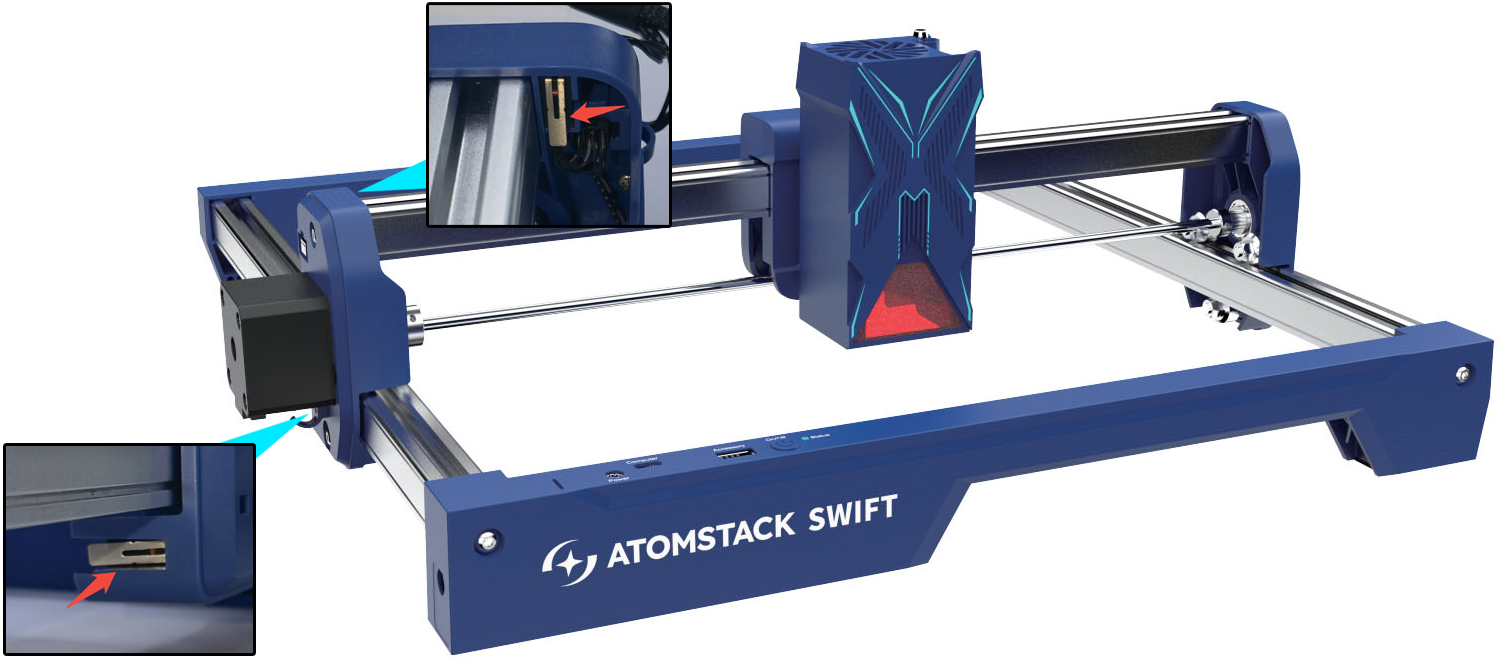
- If it connects but cannot be controlled, this may be an alarm state caused by limit switches — check whether either of the machine's two limit switches is stuck or damaged by unplugging its connector to test. If confirmed faulty, send a fault video and Serial Number photo to customer service. If not the limit switches, use LightBurn or LaserGRBL, enter
$iin the Console input box, and send it — review the returned error codes, or share a screenshot of them with customer service.
Still not fixed? Contact support with the details listed in What to send support.
Related problems: Machine Won’t Power On · Homing Fails · PC Won’t Connect
¶ PC Won’t Connect
What you see: The machine cannot connect to the computer.
Check in this order:
- Ensure the machine powers on normally: After switching on, check if the indicator light turns white. If not, follow the "Swift Won't Power On" or "Swift Power On with Red Light Alarm" sections.
- Verify the connection cable: Check the port used, per the "Swift Panel Introduction" section.
- Restart the software and try reconnecting.
- Check if the computer recognizes the COM port: Open Device Manager and see if the machine's serial port appears (plug/unplug the Type-C cable to see it appear or disappear). If not recognized, or shown with a warning icon, install the driver:
- Windows driver download: https://asa.atomstack.com/downloadWindowsDrivers.do3
- Mac driver download: https://asa.atomstack.com/downloadMacDrivers.do3
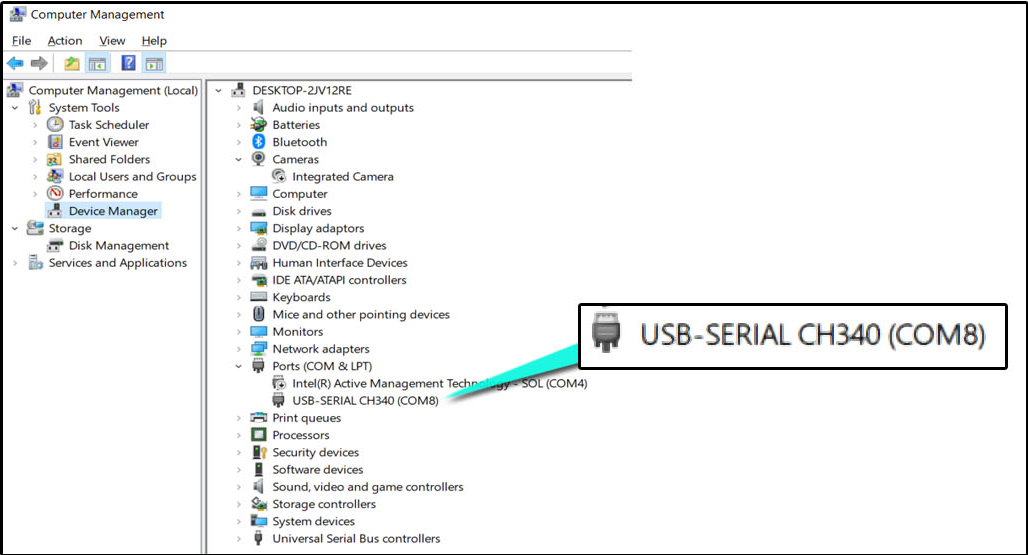
-
Ensure no other software is occupying the port: Close any other software connected to the machine's serial port.
-
Check the operating system: On Windows, connect directly via Type-C. On Mac, use a hub and connect via the Type-C A port.

-
Try different software: AtomStack Studio or LightBurn.
-
Check the cable: Try a different data-capable Type-C cable — if that works, the original cable was faulty. Provide a fault video and Serial Number photo to customer service.
- Try another computer: If the issue persists on another computer, it's likely a motherboard fault — provide the troubleshooting steps, a fault video, and a Serial Number photo to customer service. Refer to the Swift motherboard replacement video and Swift motherboard cable replacement video.
Still not fixed? Contact support with the details listed in What to send support.
Related problems: Red Light at Power-On · App Won’t Connect · Engraving Stops Suddenly
¶ App Won’t Connect
What you see: The machine cannot connect to the app.
Check in this order:
- Follow the connection steps: Refer to the Swift APP connection video.
- Check the APP version: Download the latest version from https://atomstack.com/pages/software-guide or by searching "AtomStack" in the app store.
- Stay close to the machine: Do not connect from too far away — stay near the machine's mainboard.
- Ensure the WiFi is not in use: Check whether another phone is already connected to the machine's WiFi, and disconnect it if so.
- Check the password: The default password for AtomStack machines is 12345678.
- Check WiFi signal strength: If the signal remains weak even close to the machine, the motherboard's WiFi module may be faulty — provide a fault video and Serial Number photo to customer service.
- If none of the above resolves the connection issue, try another phone. If the issue persists, provide a fault video and Serial Number photo to customer service. Refer to the Swift motherboard replacement video and Swift motherboard cable replacement video.
Still not fixed? Contact support with the details listed in What to send support.
Related problems: PC Won’t Connect · App Cannot Engrave
¶ App Cannot Engrave
What you see: The app is connected but cannot engrave.
Check in this order:
- Ensure the TF card is inserted: A TF card is required as storage when engraving via phone.
- Verify software controls: Check directional movement and controls work normally. If not, delete the machine profile in the software and reconnect, using the latest software version.
- Check the generated G-code file: The file should not be too large — files over 100MB may fail to transfer. Try engraving a few simple characters to test.
- Check the TF card: Read it on a computer to confirm files store correctly; reformat to FAT32 if needed.
- Try another phone: If the issue persists, send a fault video and Serial Number photo to customer service. Refer to the Swift motherboard replacement video and Swift motherboard cable replacement video if a motherboard swap is needed.
Confirm the fix: Try engraving a few simple characters and check that directional movement and controls work normally.
Still not fixed? Contact support with the details listed in What to send support.
Related problems: App Won’t Connect · TF Card Not Read
¶ LaserGRBL Stutters
What you see: Using LaserGRBL to connect and operate the machine may cause stuttering and other abnormal behavior.
Check in this order:
LaserGRBL is not recommended, because the machine's default baud rate is 460800. Using LaserGRBL to connect and operate the machine may cause stuttering and other abnormal behavior.
Still not fixed? Contact support with the details listed in What to send support.
Related problems: Motion Stutters · PC Won’t Connect
¶ TF Card Not Read
What you see: The machine cannot read the TF card.
Check in this order:
- Check that the TF card is inserted: Check the TF card slot on the bottom of the control box; remove and reinsert the card.
- Check TF card integrity: Remove the card and read it on a computer via a card reader to confirm files can be read and written normally.
- Try another TF card: Insert a different TF card into the machine.
- If none of the above resolves the issue, try replacing the motherboard — send a Serial Number photo and a fault video to customer service. Refer to the Swift motherboard replacement video and Swift motherboard cable replacement video.
Still not fixed? Contact support with the details listed in What to send support.
Related problems: App Cannot Engrave · Motion Stutters