Swift Add-ons: False Flame Alarms, Mirrored Rotary
Cut edges discolor, flame detection fails or gives false alarms, the rotary mirrors patterns or does not work, or plastic parts are damaged.
Disconnect power before removing the laser module to inspect its lenses, and turn off the power before unplugging and reconnecting the laser connector. Always keep the machine under close supervision while it is running.
¶ Black or Yellow Edges
What you see: Cutting edges turn black or yellow.
Check in this order:
-
Ensure air assist is enabled: Cutting requires air assist — if you haven't purchased one, get the AtomStack F40 Air Assist, which is the only one that comes with the required laser air nozzle. See the "Swift Air Assist Connection" section for details.

-
Check laser focus: Re-focus using the knob at the bottom of the laser; the correct focus height is 4mm from the laser's bottom frame to the material surface.

-
Use a honeycomb panel: Place a breathable honeycomb panel under the material when cutting — the dedicated AtomStack F2N (350mm × 350mm) is recommended if you don't already have one.
-
Check material thickness: Follow the recommended thickness and parameters — exceeding the recommended thickness may prevent a clean cut-through, causing black or yellow edges.
-
Check cutting parameters: Follow the recommended parameter table — power that's too high or speed that's too slow can burn the edges. View the parameter table via the QR code on the machine, https://atomstack.com/pages/product-support, or by contacting customer service.
-
Check the window and focus lens: Clean or repair the lenses (12W) if dirty or damaged, per the "Swift Laser Cleaning" section.
-
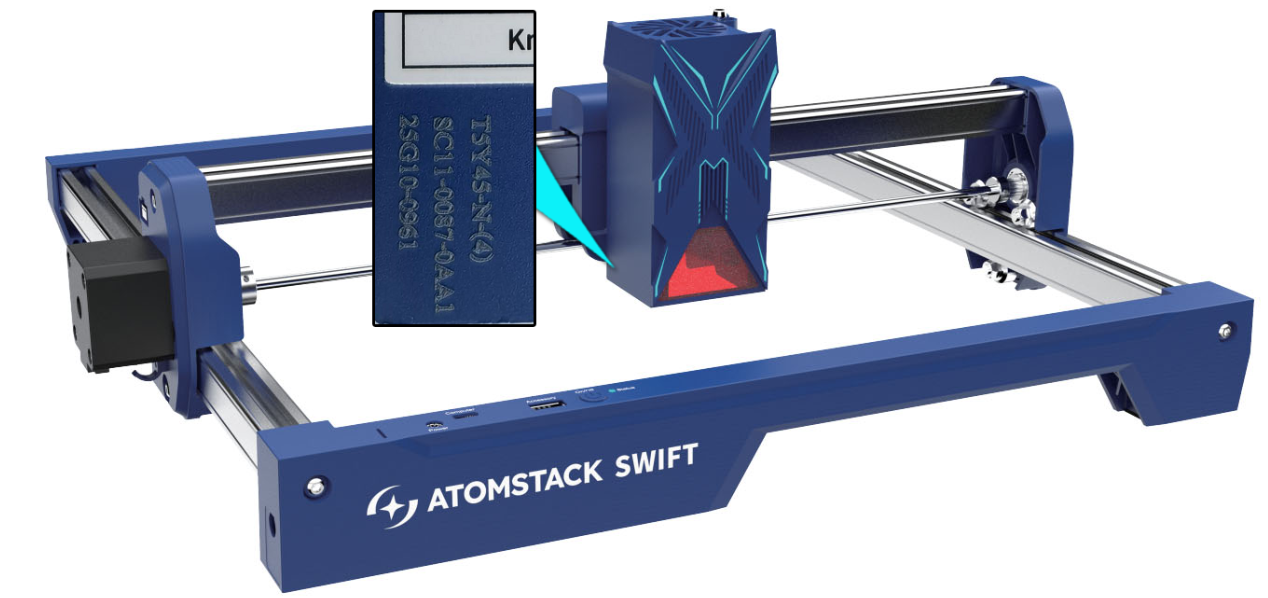
Check laser power: Test-cut per the parameter table — consider power decay if the laser has been used for a long time, and try increasing power or reducing speed. If it still cannot cut, or the cut lines are very rough, the laser may be faulty — provide a fault video and the laser's engraving code to customer service.
Still not fixed? Contact support with the details listed in What to send support.
Related problems: Weaker Cutting Power · Faint Engraving
¶ Flame Sensor Inactive
What you see: Flame detection is not working.
Check in this order:
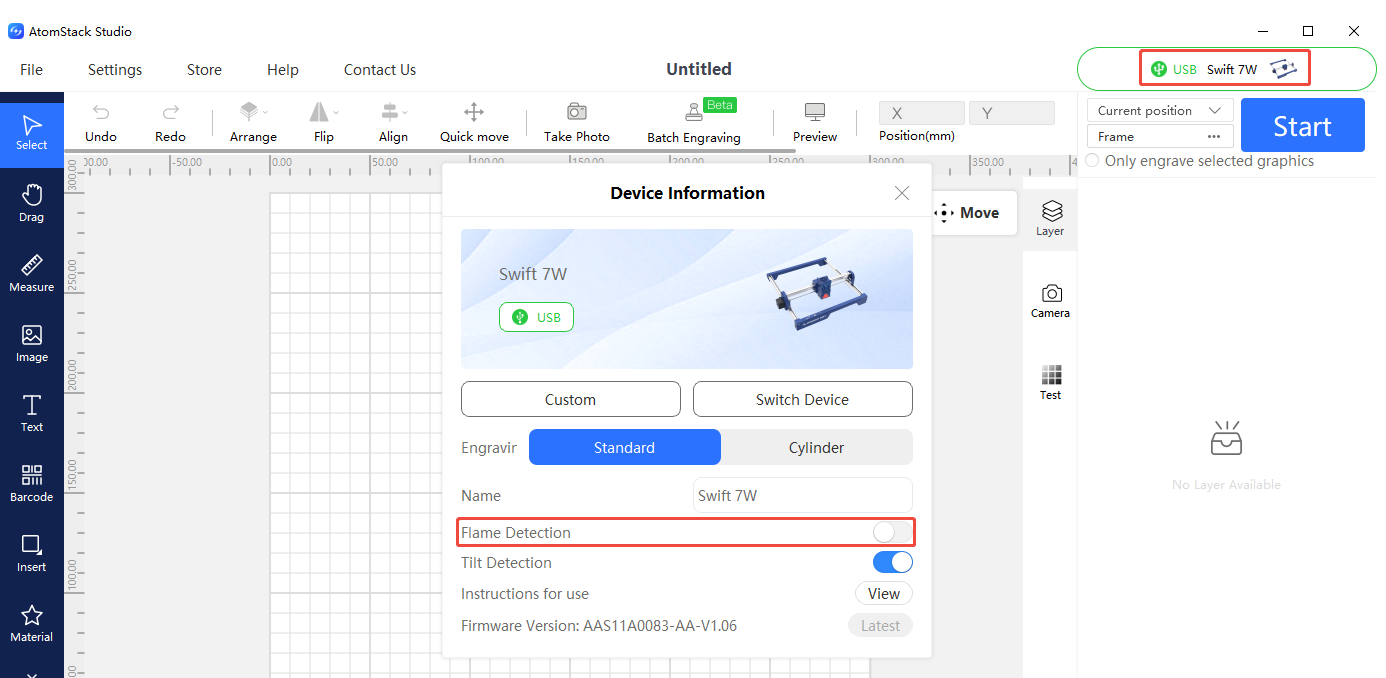
- Ensure flame detection is enabled: Check this setting in AtomStack Studio or the APP.
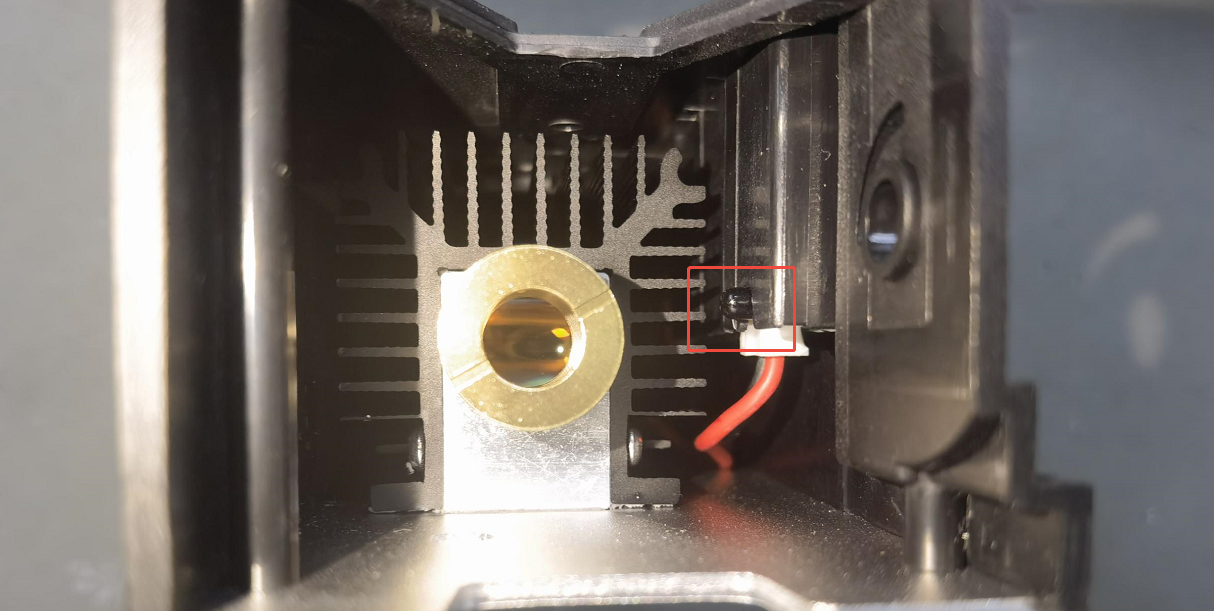
- Keep the sensor clean: After extended use, dust or smoke residue on the sensor can reduce sensitivity — wipe gently with a lint-free cloth dampened with anhydrous ethanol.
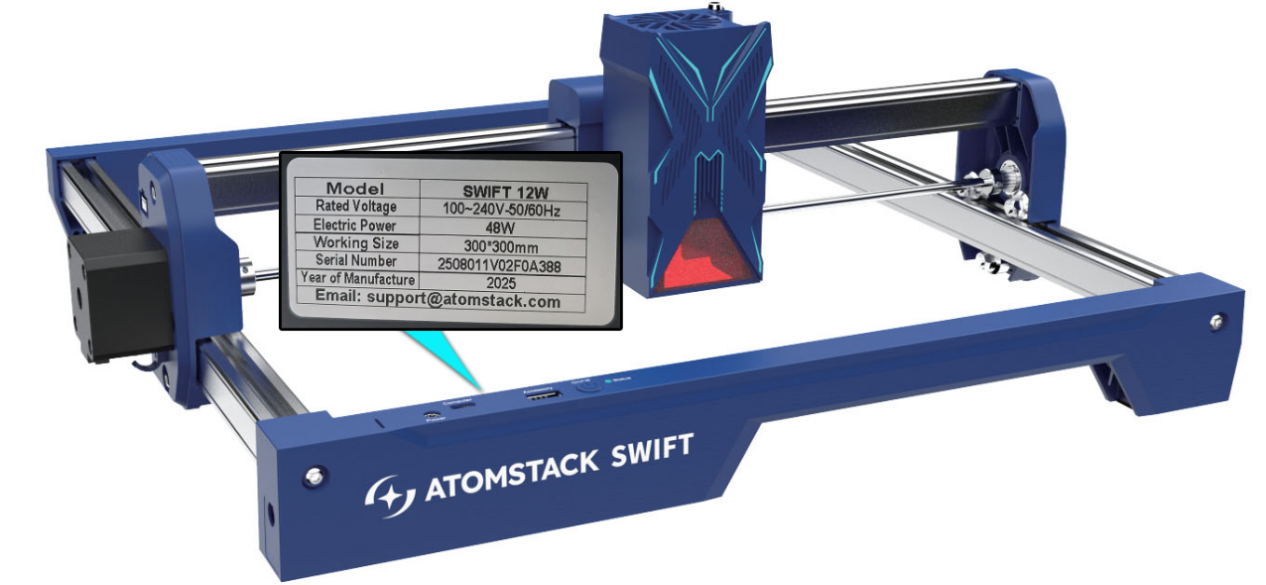
- If unresolved, the sensor may be damaged and the driver board may need replacement — provide the troubleshooting steps, a fault video, the laser's engraving code, and the machine's Serial Number photo to customer service.
Still not fixed? Contact support with the details listed in What to send support.
Related problems: False Flame Alarms
¶ False Flame Alarms
What you see: The machine gives false flame alarms.
Check in this order:
- Check line density: Dense line patterns when cutting wood may trigger false alarms — try increasing speed or reducing power and cutting in two passes.
- Check the material: Cutting MDF may trigger false alarms — disable flame detection in the software if this happens frequently.
- If false alarms occur frequently on plywood too, adjust flame detection sensitivity via LightBurn or LaserGRBL:
$fire_alarm/overflow_value=15(adjusts the trigger count above the threshold) and$fire_alarm/threshold_value=74(the flame threshold — the higher the value, the harder it is to trigger).
Note:
- While these techniques are useful, they are not a substitute for careful operation. Always keep the machine under close supervision while it is running — safety should always be your top priority.
Still not fixed? Contact support with the details listed in What to send support.
Related problems: Flame Sensor Inactive · Black or Yellow Edges
¶ Rotary Pattern Mirrored
What you see: The engraving pattern is mirrored when using the rotary.
Check in this order:
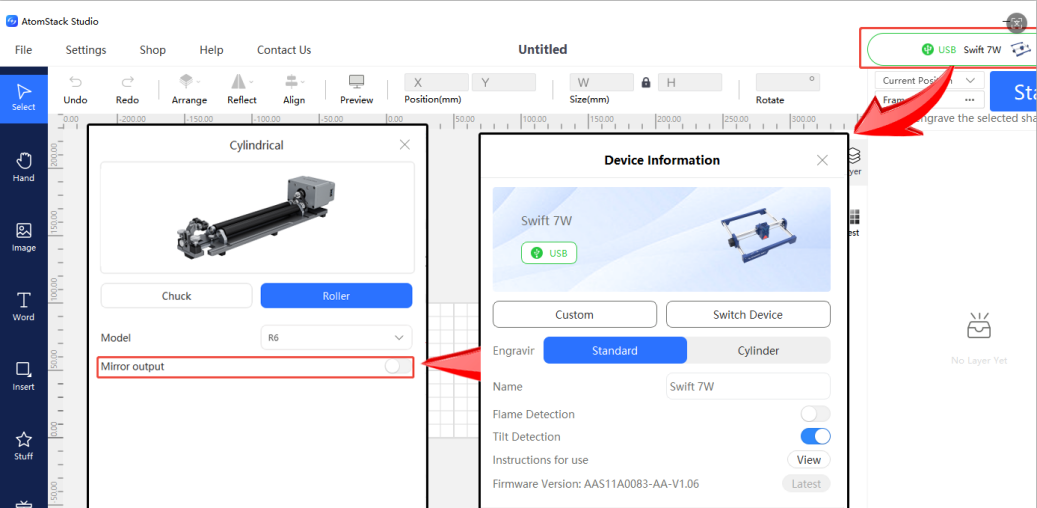
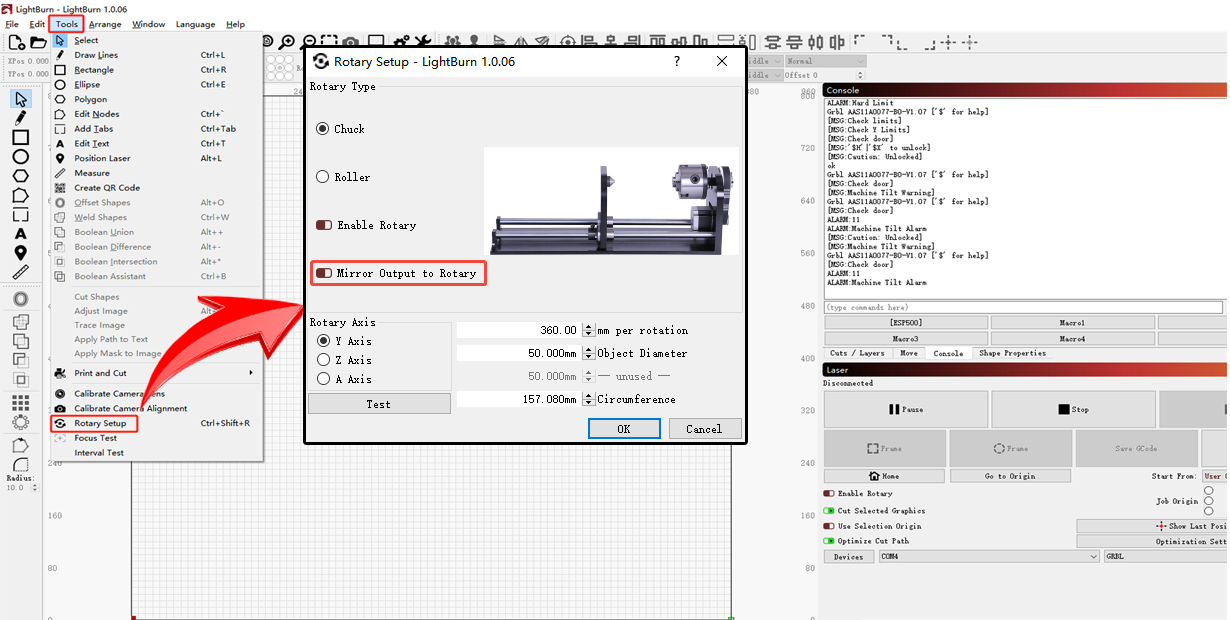
- Check if the pattern is mirrored: If so, check whether the mirror function is toggled on/off in the software, and switch it as needed (AtomStack Studio, LightBurn).
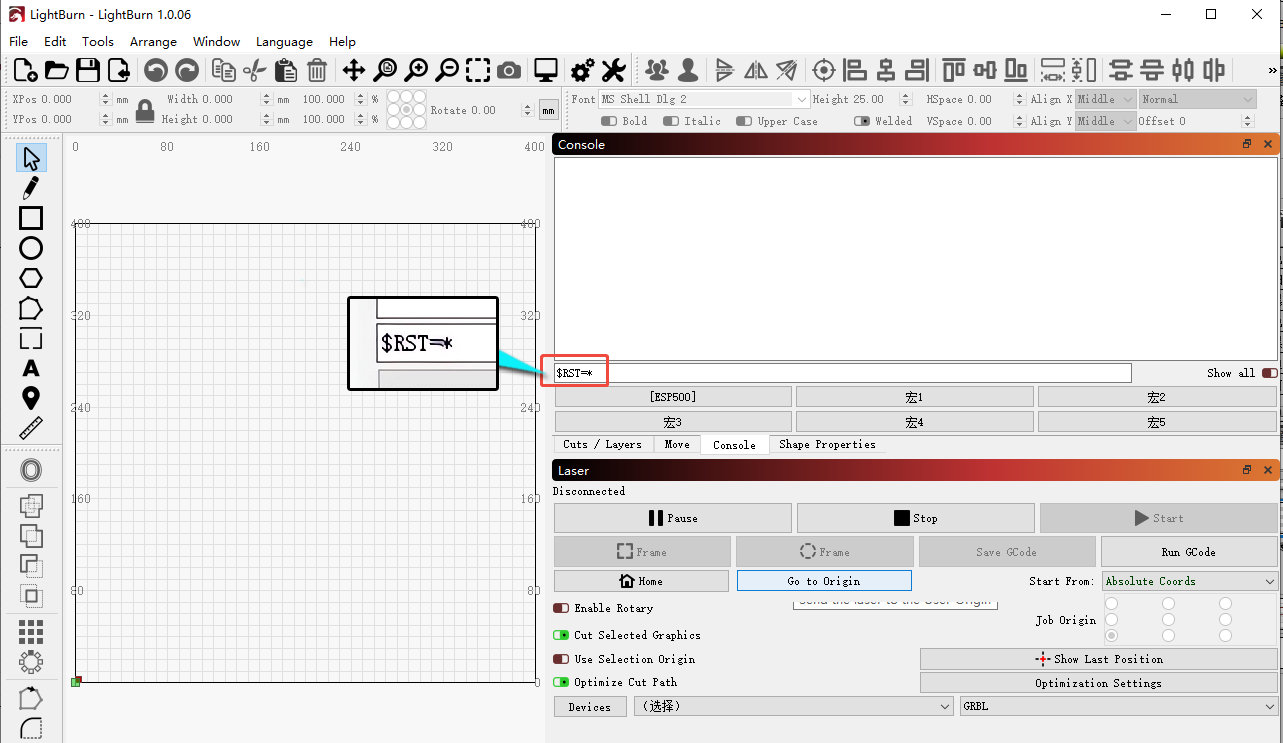
- If unresolved, perform a factory reset via
$RST=*in the LightBurn console, or reflash the firmware. Note that identical firmware cannot be reflashed twice — contact customer service to request it if needed.
Still not fixed? Contact support with the details listed in What to send support.
Related problems: Rotary Not Working · Patterns Deform or Open
¶ Rotary Not Working
What you see: The rotary connection cannot be used.
Check in this order:
-
Confirm the connection: For auto-recognized rotary units (R6, R8, R8 PRO), use the supplied USB cable. For first-generation rotary units (R1, R1 Pro, R2, R3 PRO, R1-B, etc.), use the sequential connection cable to link the rotary unit to the Swift's Y-axis motor connector.


-
Confirm the settings:
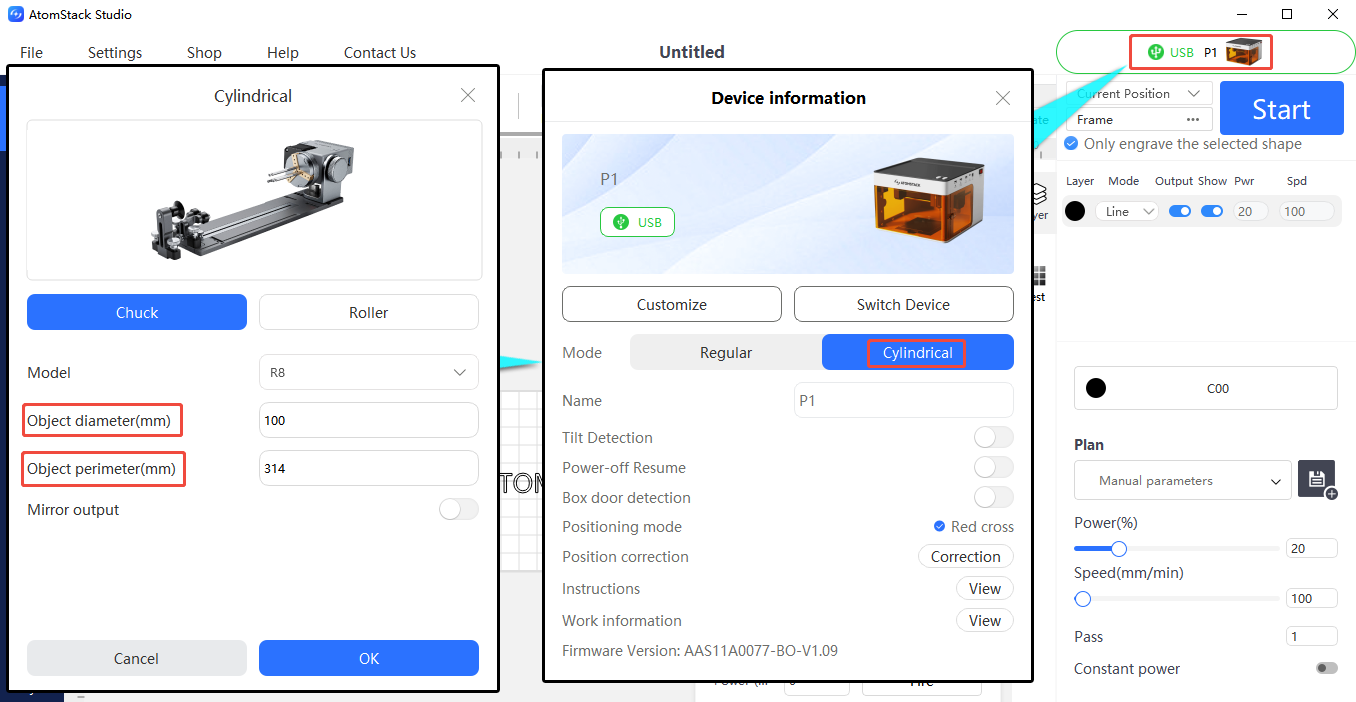
- In AtomStack Studio: the roller (R6) requires no parameter changes; the chuck (R8) requires entering the material's circumference or diameter.
-
In LightBurn: set the rotary type (Roller for R6, Chuck for R8), select the Y-axis, and enter the parameters — R8: 160mm/rotation (fixed), enter diameter or circumference; R6: 50mm/rotation (fixed), roller diameter 16mm (fixed), enter diameter or circumference.

-
Check movement: After connecting, move along the Y-axis to observe whether rotation is normal. If it stutters or spins uncontrollably, the rotary motor may be faulty — test by plugging the Y-axis motor cable directly into the rotary motor. If the issue persists there, but the Y-axis cable works normally when reconnected to the Swift's own Y-axis motor, this confirms a rotary motor fault. Provide a fault video and a photo of the rotary unit's model label (on the underside) to customer service. Refer to the R6/R8 Motor Replacement Video and R1/R3 Motor Replacement Video.

Click to play video on YouTube
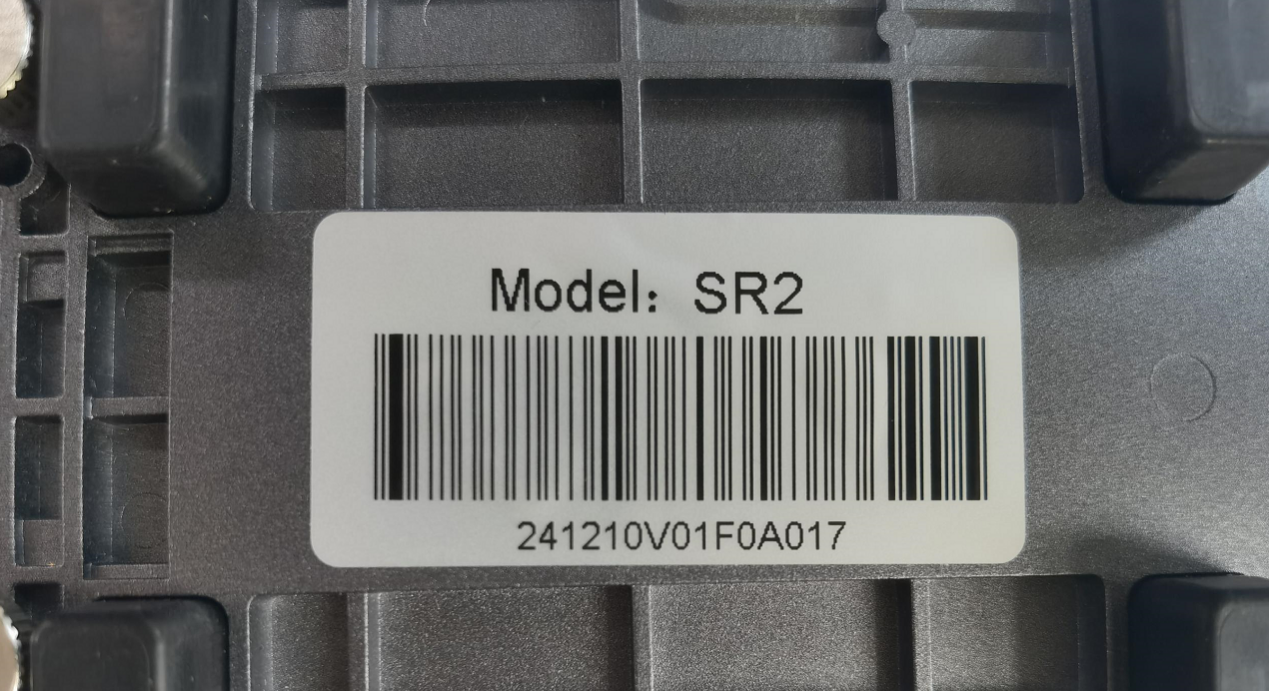
Confirm the fix: After connecting, move along the Y-axis and observe whether rotation is normal.
Still not fixed? Contact support with the details listed in What to send support.
Related problems: Rotary Pattern Mirrored · Axis Stuck or Noisy
¶ Plastic Parts Damaged
What you see: The plastic parts are damaged.
Check in this order:
Provide photos of the damage and a Serial Number photo to customer service, who will guide the replacement. Refer to the Swift Plastic Parts Replacement Video.
Still not fixed? Contact support with the details listed in What to send support.
Related problems: Rough Engraving · Vector Lines Shake