Swift Motion: Homing Fails, Shaking Lines
Lines shake, patterns deform, homing fails, motion stutters, sizes are wrong, axes stick or make noise, engraving is rough, or the frame is hit.
Disconnect power before removing the laser module to inspect its lenses, and turn off the power before unplugging and reconnecting the laser connector. Always keep the machine under close supervision while it is running.
¶ Vector Lines Shake
What you see: Vector lines shake during engraving.
Check in this order:
- Check that X and Y frame screws are tight.
- Ensure the vector speed is ≤ 1000mm/min — excessive speed can cause abnormal shaking.
- Inspect POM wheels on the X and Y axes for damage: If deformed, send clear photos plus a Serial Number photo to customer service. Refer to the Swift POM Wheel Replacement Video.

Click to play video on YouTube
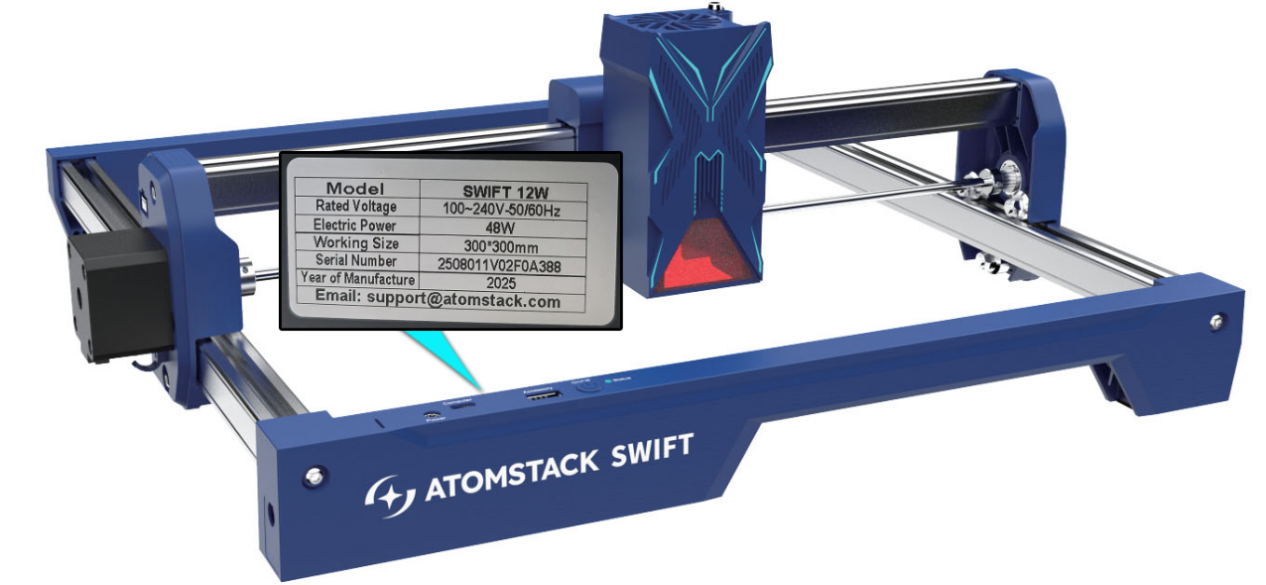
- Check eccentric nuts for proper tension: Gently shake the ends of the X-axis or the X-axis laser module — if there is play, the eccentric nuts may need adjusting. The correct standard is no play, while the axis or laser should still slide freely to the bottom when the machine is tilted 45°. Adjust per the Swift Structure Adjustment Video.

Click to play video on YouTube
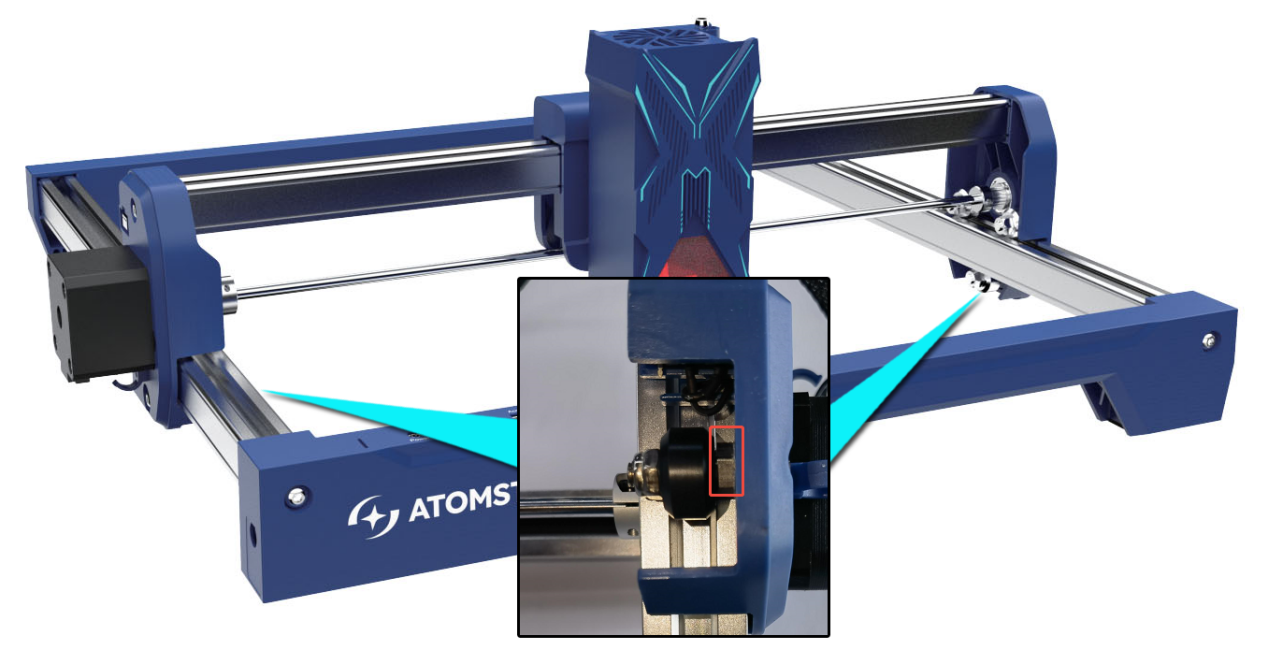
- Check timing belt tension: Press down on the belt between the POM wheel and the pulley — if too loose, adjust per the Swift Timing Belt Replacement Video.

Click to play video on YouTube
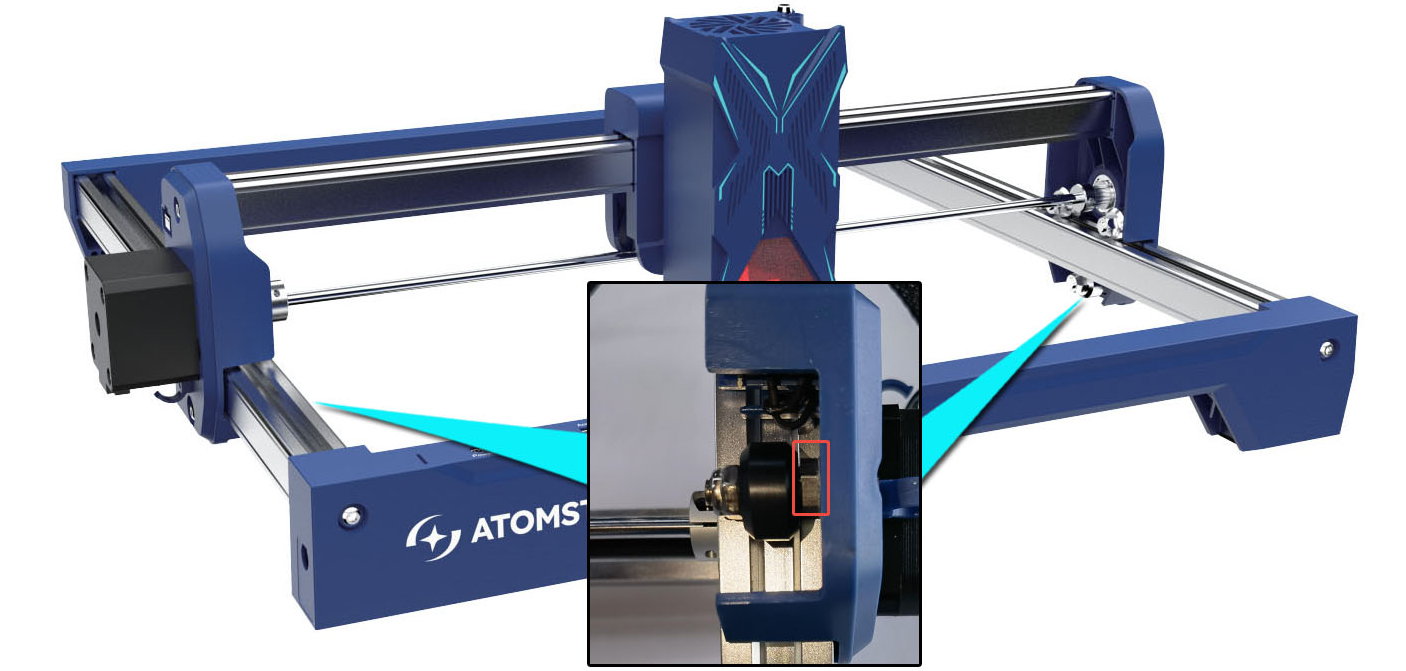
- Check motor pulley screws: Using an L1.5 hex wrench, ensure the pulley screws at both motors are tight; tighten if loose, keeping equal distance between the X-axis ends and the horizontal beams.
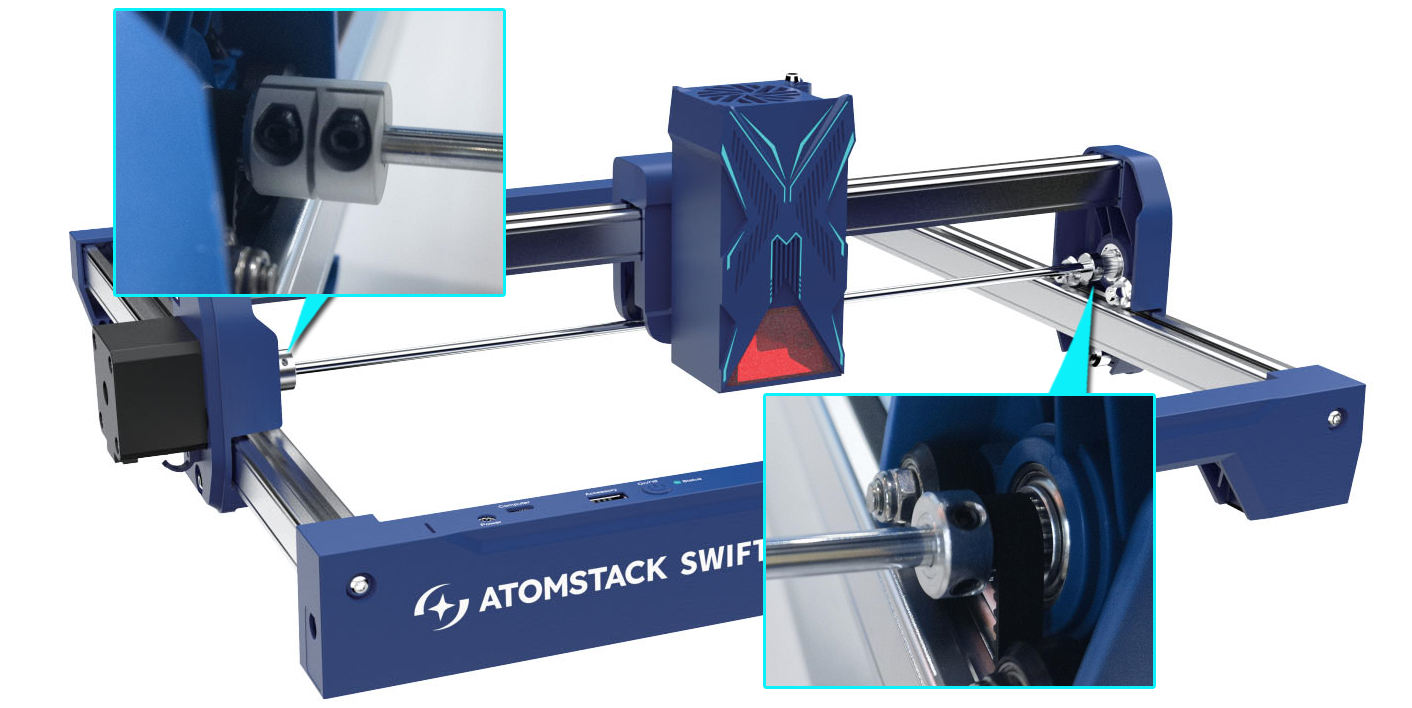
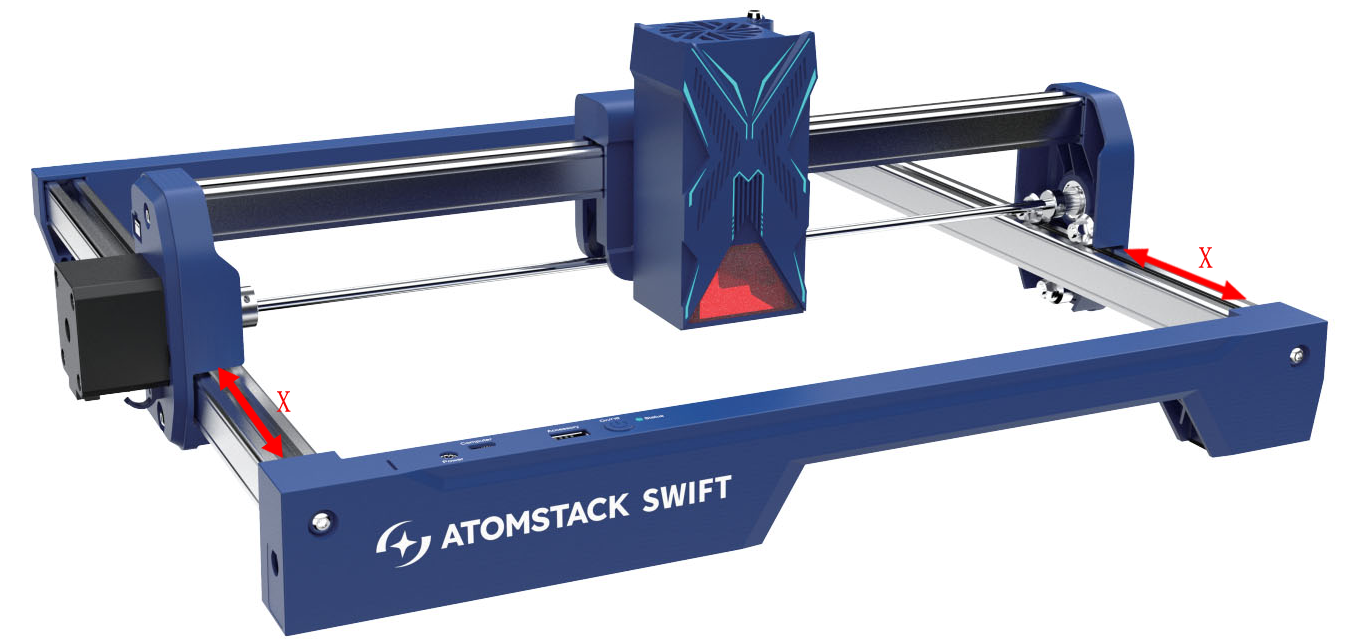
- Check that the X-axis is level with the horizontal beams: Measure the distance between both ends of the X-axis and the beams — if unequal, adjust per the Swift X-Axis Leveling Video.

Click to play video on YouTube
- If none of the above resolves the issue, send a troubleshooting video (showing the software settings, engraving status, and results), the steps already checked, and a Serial Number photo to customer service.
Confirm the fix: Check for no play while the axis or laser can still slide freely to the bottom when the machine is tilted 45°.
Still not fixed? Contact support with the details listed in What to send support.
Related problems: Patterns Deform or Open · Rough Engraving
¶ Patterns Deform or Open
What you see: Patterns are deformed or have open lines.
Check in this order:
- Check that X and Y frame screws are tight.
- Inspect POM wheels for damage: If deformed, send clear photos and a Serial Number photo to customer service. Refer to the Swift POM Wheel Replacement Video.
- Check eccentric nuts: Gently shake the ends of the X-axis or the X-axis laser module — adjust so there is no play, while the axis or laser can still slide freely to the bottom at a 45° tilt. Refer to the Swift Structure Adjustment Video.
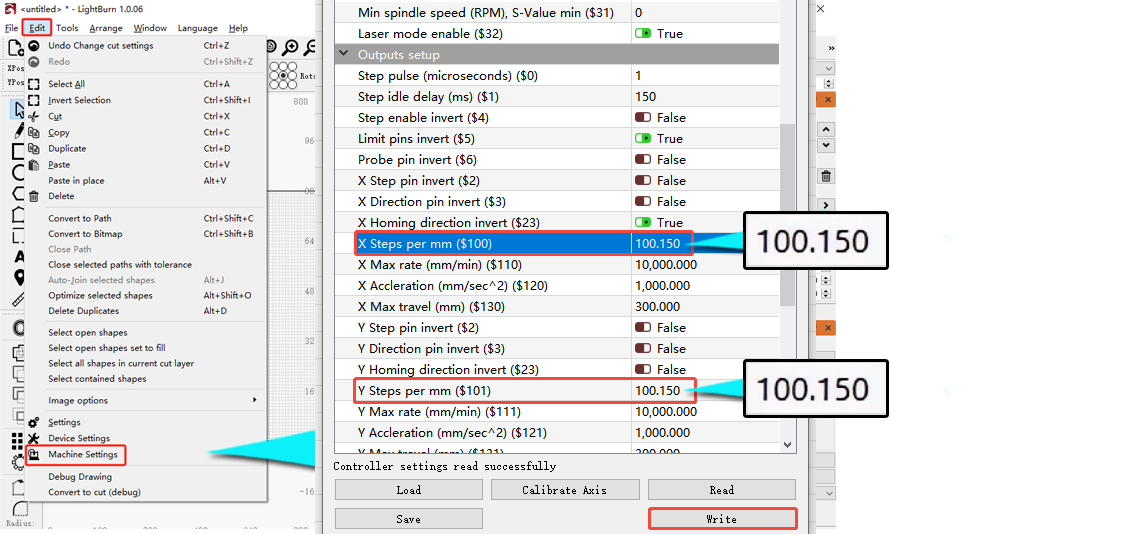
- Verify step length: Via LightBurn, check that motor steps $100 and $101 equal 100.15; correct if needed. After changing, click "Write" and then OK.
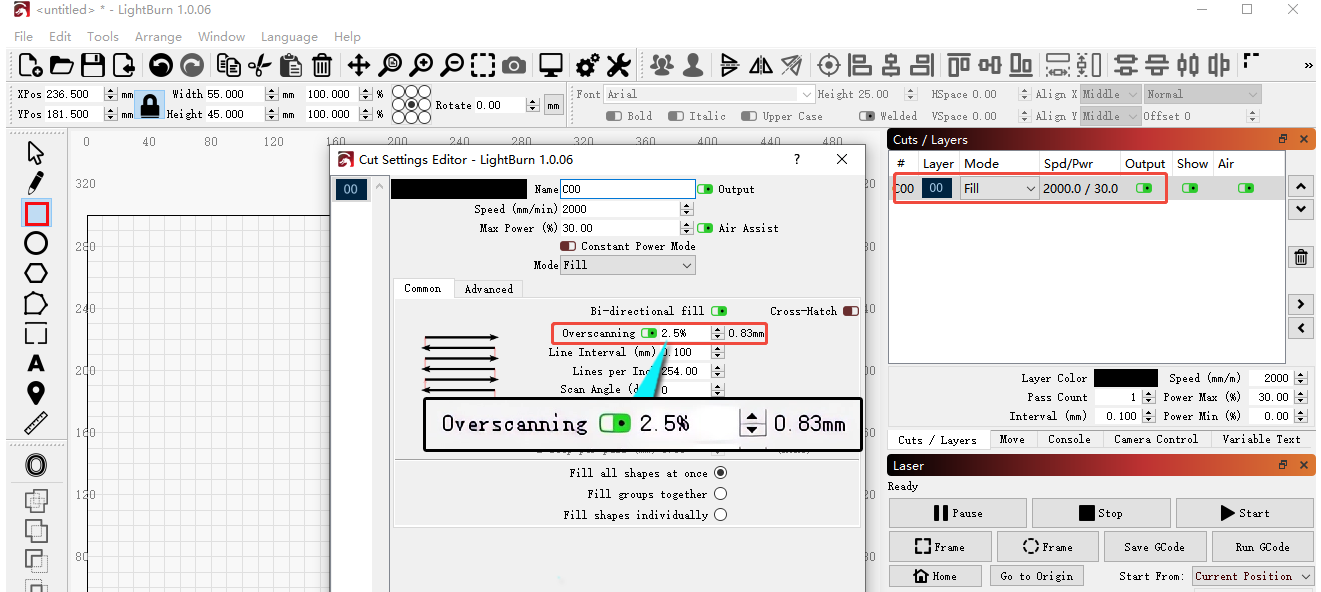
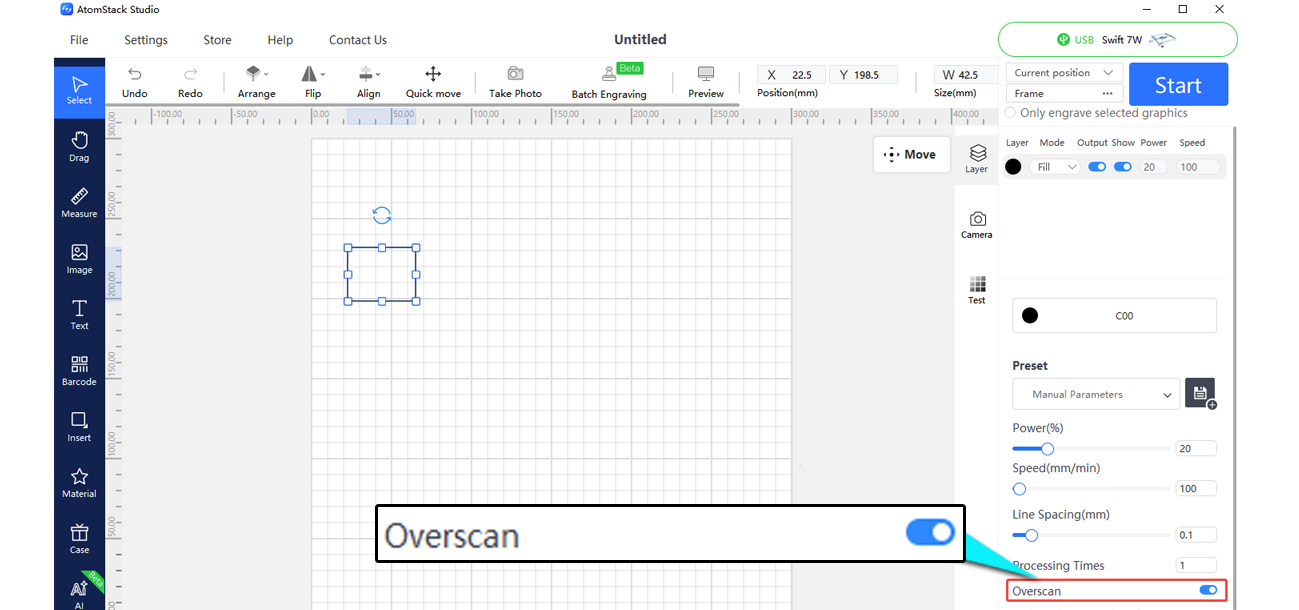
- Enable "Overscan" in the software (LightBurn or AtomStack Studio).
- Check motor pulley screws: Using an L1.5 hex wrench, ensure both motor pulley screws are tight; tighten if loose, keeping equal distance between the X-axis ends and the beams.
- Ensure X-axis and horizontal beams are level: Measure the distance on both ends; adjust per the Swift X-Axis Leveling Video if unequal.
- Check timing belt tension: Press down on the belt between the POM wheel and the pulley; adjust per the Swift Timing Belt Replacement Video if too loose.
- Test motor movement: Click the directional movement buttons in the software (AtomStack Studio, LightBurn) and check that the machine moves correctly.
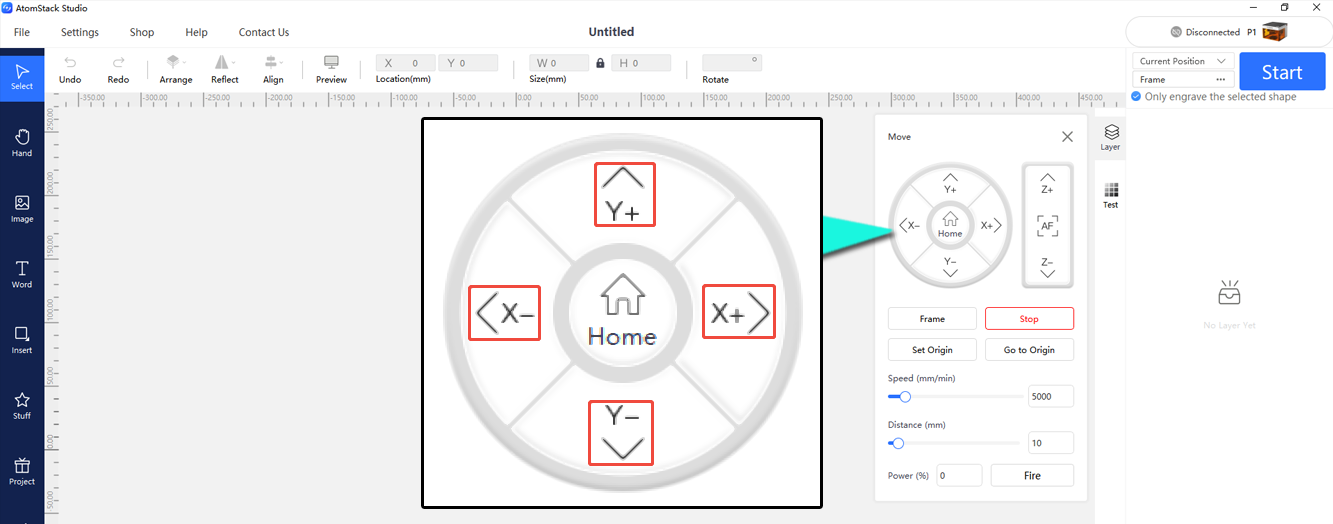
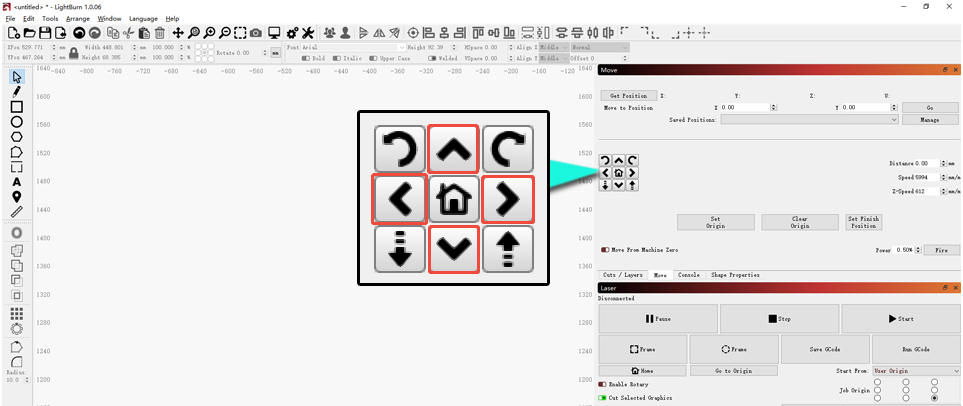
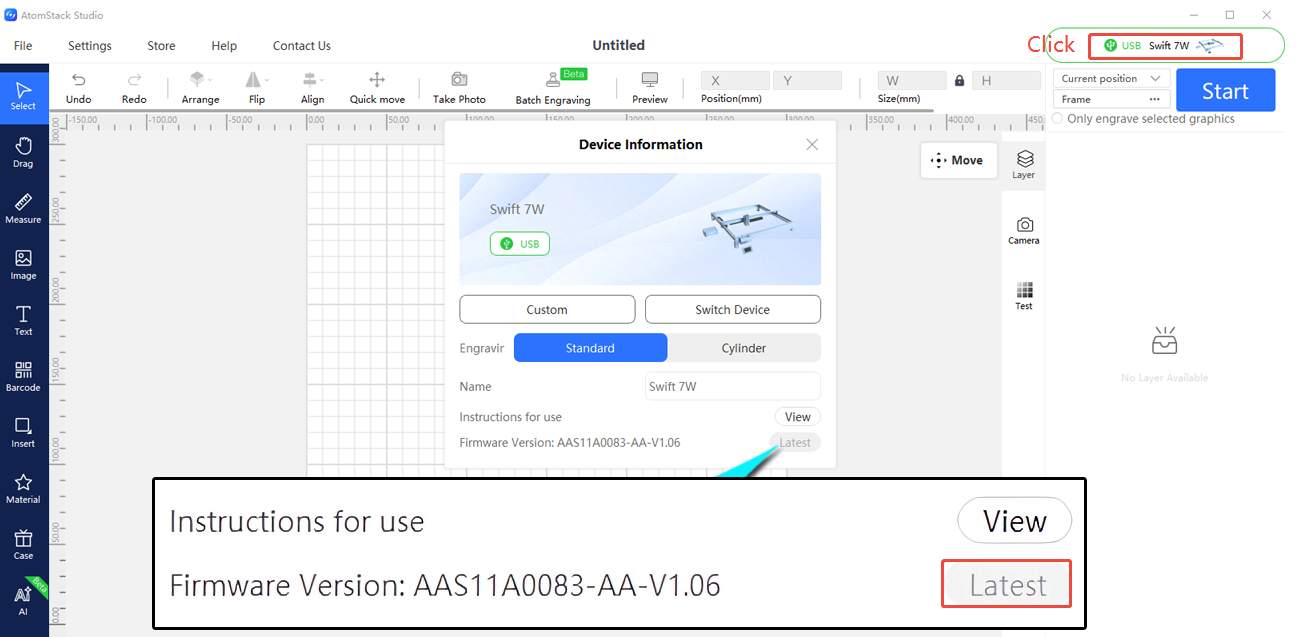
- If movement is normal, the firmware may be abnormal — update it via AtomStack Studio or the APP, or provide a Serial Number photo to request matching firmware for a TF card update. Refer to the Swift Firmware Upgrade Video.

Click to play video on YouTube
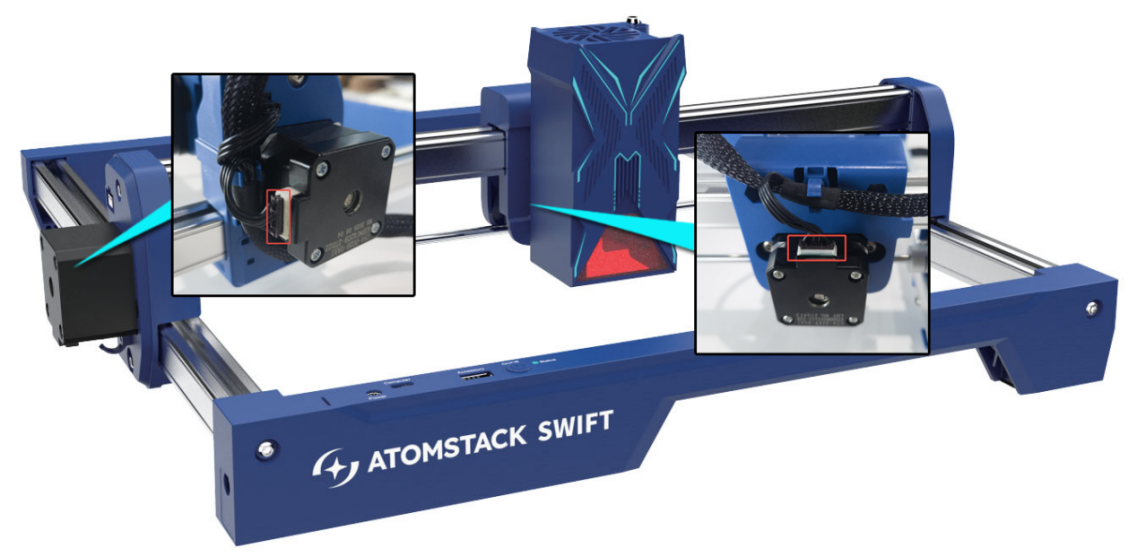
- If one axis does not move or vibrates, check the motor connectors (including those on the motherboard) — unplug and reconnect. If the problem persists, swap the connector of the working axis with the non-working one to see if the fault transfers: if it transfers, it's a motherboard/cable fault; if not, it's a motor fault. Provide a video of the issue, the swap test, and a Serial Number photo to customer service. Refer to the Swift motor connector swap video, Swift motherboard replacement video, Swift motor replacement video, and Swift motherboard cable replacement video.

Click to play video on YouTube

Click to play video on YouTube
- If unresolved, provide a troubleshooting video with settings, engraving status, results, and a Serial Number photo to customer service.
Confirm the fix: Click the directional movement buttons in AtomStack Studio or LightBurn and check that the machine moves correctly.
Still not fixed? Contact support with the details listed in What to send support.
Related problems: Vector Lines Shake · Engraving Size Is Wrong · Rough Engraving
¶ Homing Fails
What you see: Reset (homing) fails.
Check in this order:
- Check if motherboard cables are obstructing movement: Ensure all cables are routed through the cable holders and are not pulled during movement.
- If reset causes a collision with the frame: Usually due to a limit switch malfunction. Press the X and Y limit switches manually — a "click" sound should be heard and the software should show an alarm.
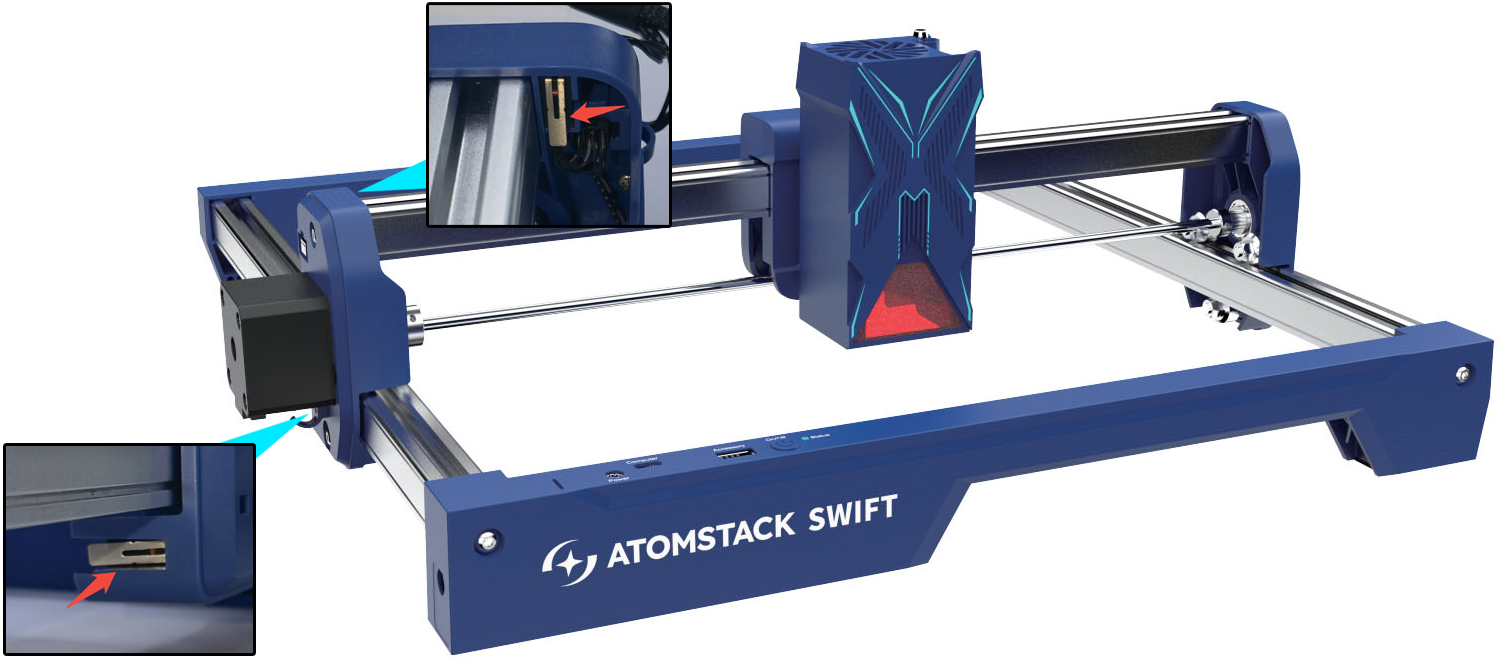
- If no click/alarm occurs, check the limit switch connector — unplug and reconnect. If still not working, record a video of the issue and provide the machine's Serial Number to customer service. Refer to the Swift Limit Switch Replacement Video.

Click to play video on YouTube
- If the click/alarm occurs but collisions persist, and pressing the limit switch mid-homing does not stop it, the firmware may be abnormal — update it via AtomStack Studio or the APP, or provide a Serial Number photo to request matching firmware for a TF card update. Refer to the Swift Firmware Upgrade Video.
- If an alarm shows without any movement: Test movement via the directional buttons in AtomStack Studio or LightBurn.
- If movement is normal, the firmware may be abnormal — update via AtomStack Studio or the APP, or request matching firmware via Serial Number. Refer to the Swift Firmware Upgrade Video.
- If one axis fails to move or vibrates, check the motor connectors, unplug/replug, and if the issue persists, swap connectors between the working and non-working axis to determine if it's a motherboard/cable fault or a motor fault. Provide the fault video, swap test video, and Serial Number photo to customer service. Refer to the Swift motor connector swap video, Swift motherboard replacement video, Swift motor replacement video, and Swift motherboard cable replacement video.
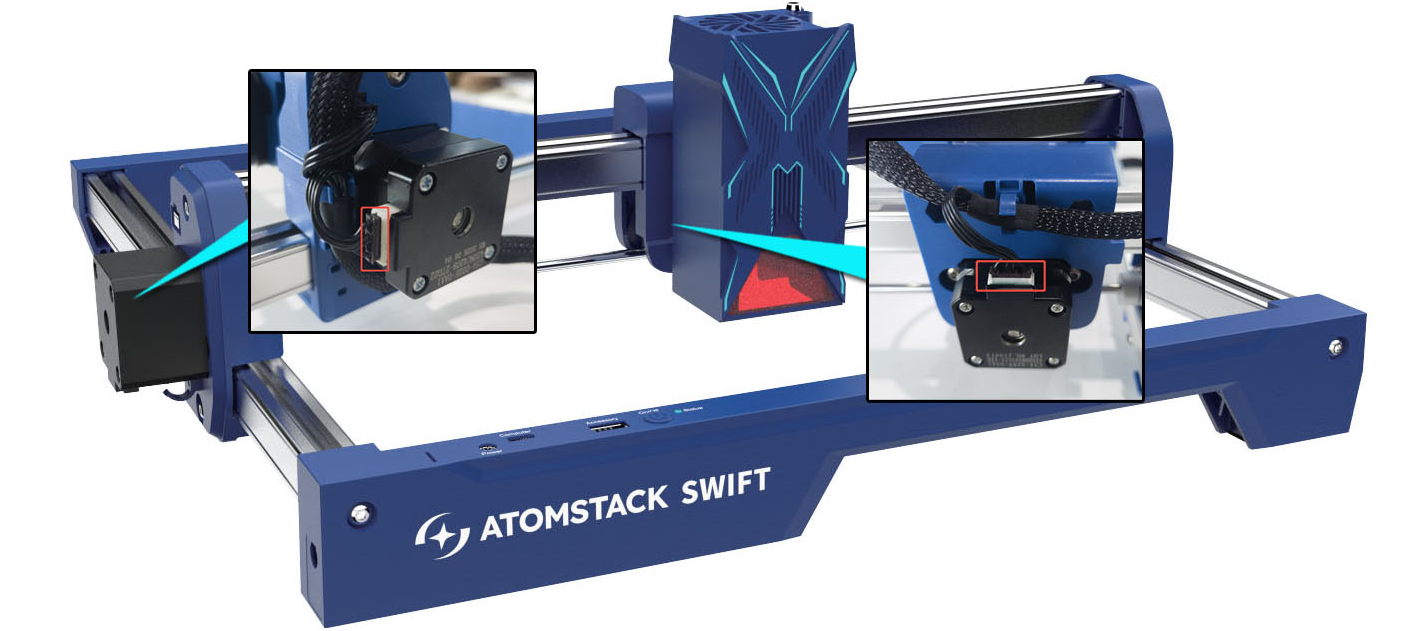
-
If both axes fail to move, try updating the firmware via AtomStack Studio or the APP, or request matching firmware via Serial Number. If it's still unresolved, it may be a motherboard or cable fault — provide the fault video and troubleshooting steps to customer service. Refer to the Swift motherboard replacement video and Swift motherboard cable replacement video.
-
Try a factory reset:
- Via AtomStack Studio (version ≥ 2.20): click the Version Number 7 times to enter Developer Mode, then open "Serial Port Log" in the menu and click "Reset".
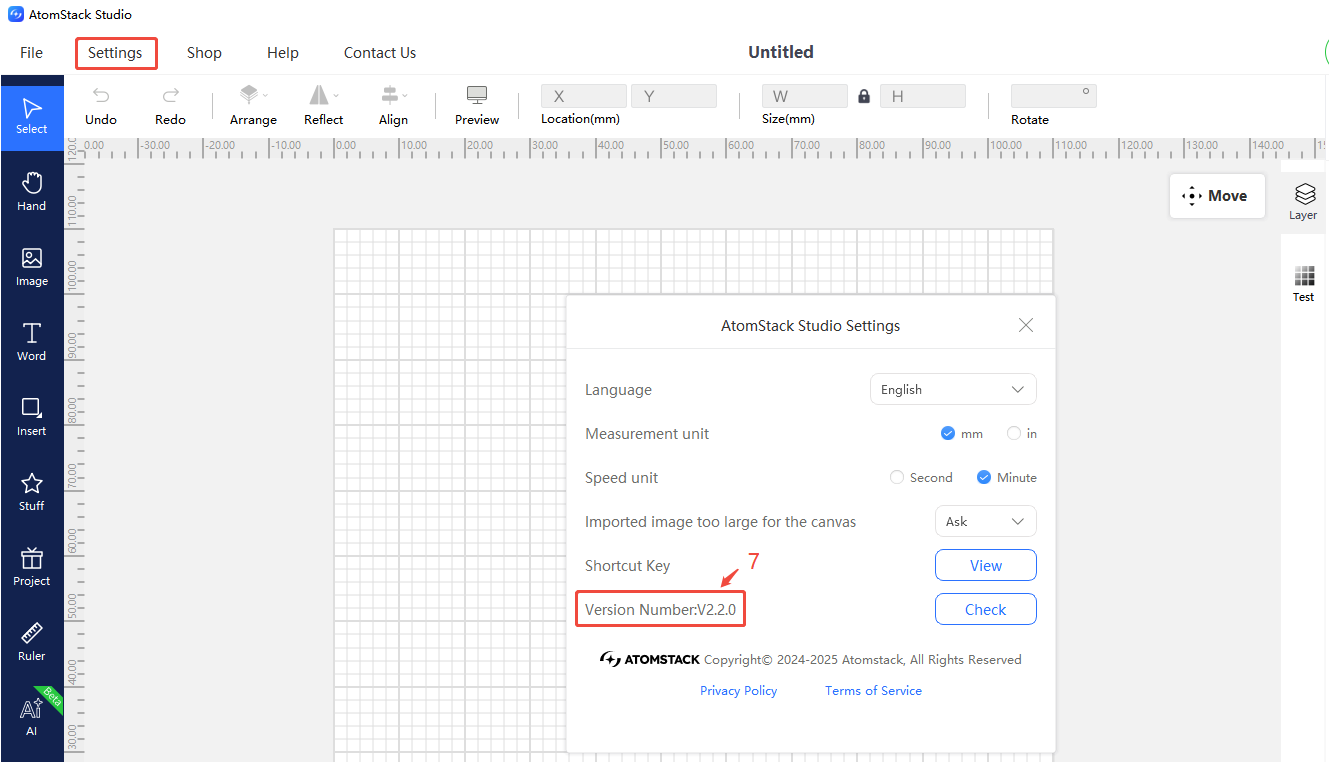
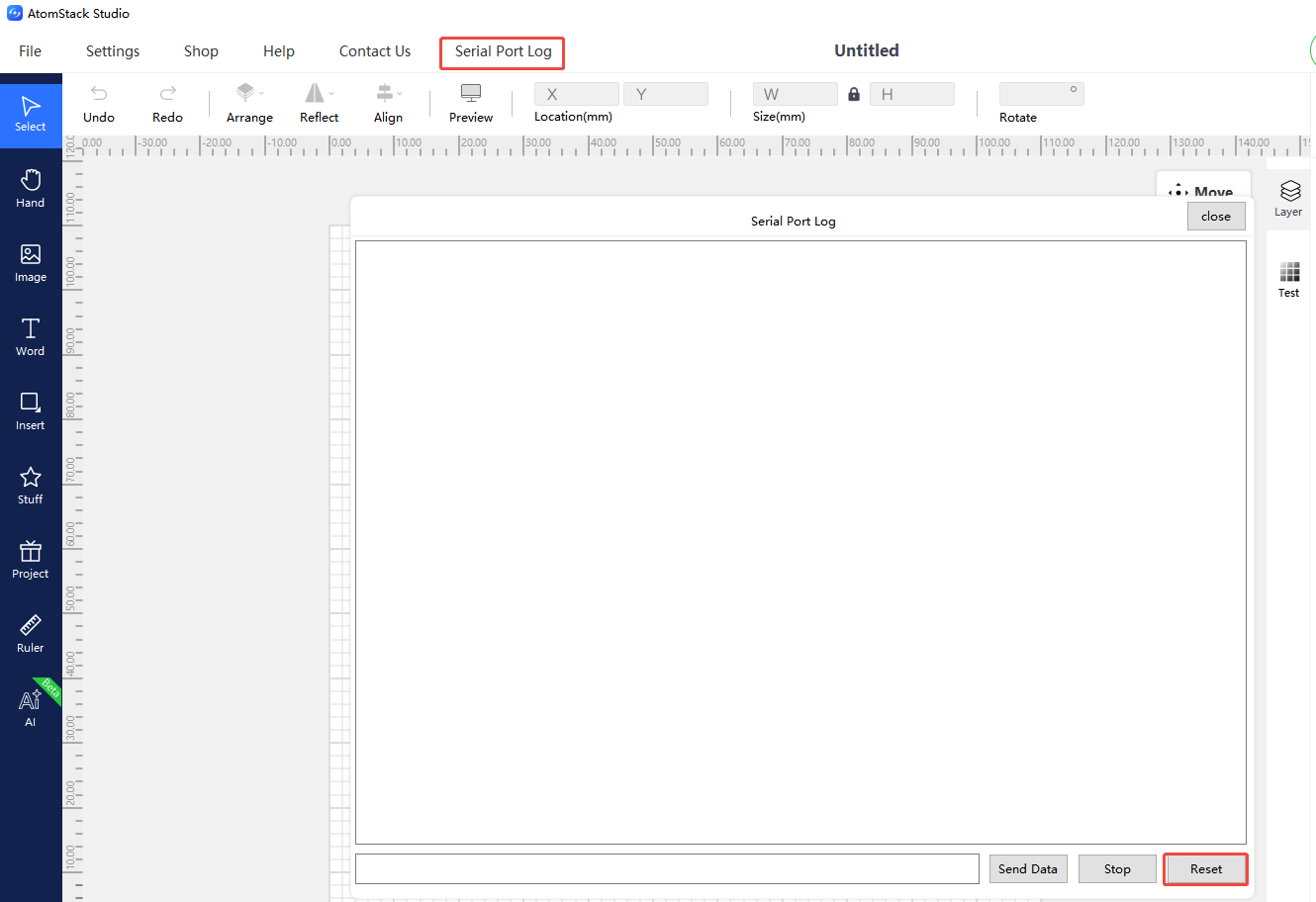
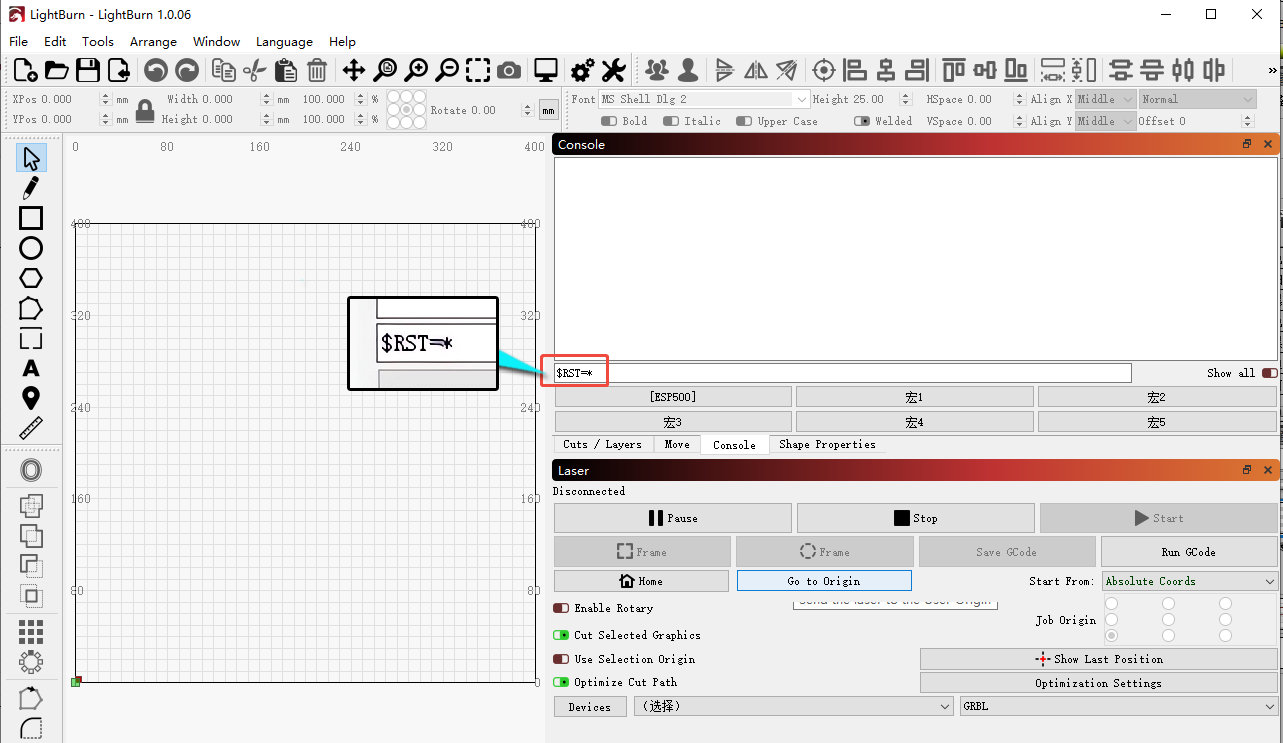
- Via LightBurn: enter
$RST=*in the console.
Still not fixed? Contact support with the details listed in What to send support.
Related problems: Head Hits the Frame · Axis Stuck or Noisy · Red Light at Power-On
¶ Motion Stutters
What you see: The machine stutters during engraving.
Check in this order:
- Check the TF card: Remove it and test again — if normal afterward, the TF card may be damaged.
- Try different software: Switch to AtomStack Studio or LightBurn.
- Test motor movement: Click the directional buttons in the software.
- If movement is normal, skip to the next check.
- If one axis fails or vibrates, check the motor connectors (including on the motherboard), unplug/replug, and if unresolved, swap connectors between the working and non-working axis to identify a motherboard/cable vs. motor fault. Send the fault video, swap test video, and Serial Number photo to customer service. Refer to the Swift motor connector swap video, Swift motherboard replacement video, Swift motor replacement video, and Swift motherboard cable replacement video.
- Factory reset:
- Via AtomStack Studio (version ≥ 2.20): click the Version Number 7 times to enter Developer Mode, open "Serial Port Log", and click "Reset".
- Via LightBurn: enter
$RST=*in the console.
- Firmware upgrade: If factory reset does not resolve the issue, upgrade the firmware via AtomStack Studio or the APP, or provide a Serial Number photo to request the matching firmware for a TF card update. Refer to the Swift Firmware Upgrade Video.
- If all checks pass but the problem persists, it may be a motherboard fault — send a troubleshooting video, steps checked, and Serial Number photo to customer service. Refer to the Swift motherboard replacement video and Swift motherboard cable replacement video.
Still not fixed? Contact support with the details listed in What to send support.
Related problems: Axis Stuck or Noisy · LaserGRBL Stutters · Engraving Stops Suddenly
¶ Engraving Size Is Wrong
What you see: Engraving dimensions are incorrect.
Check in this order:
- Check steps: In LightBurn, go to machine settings and check motor steps $100 and $101 — they should read 100.15. Correct if needed.
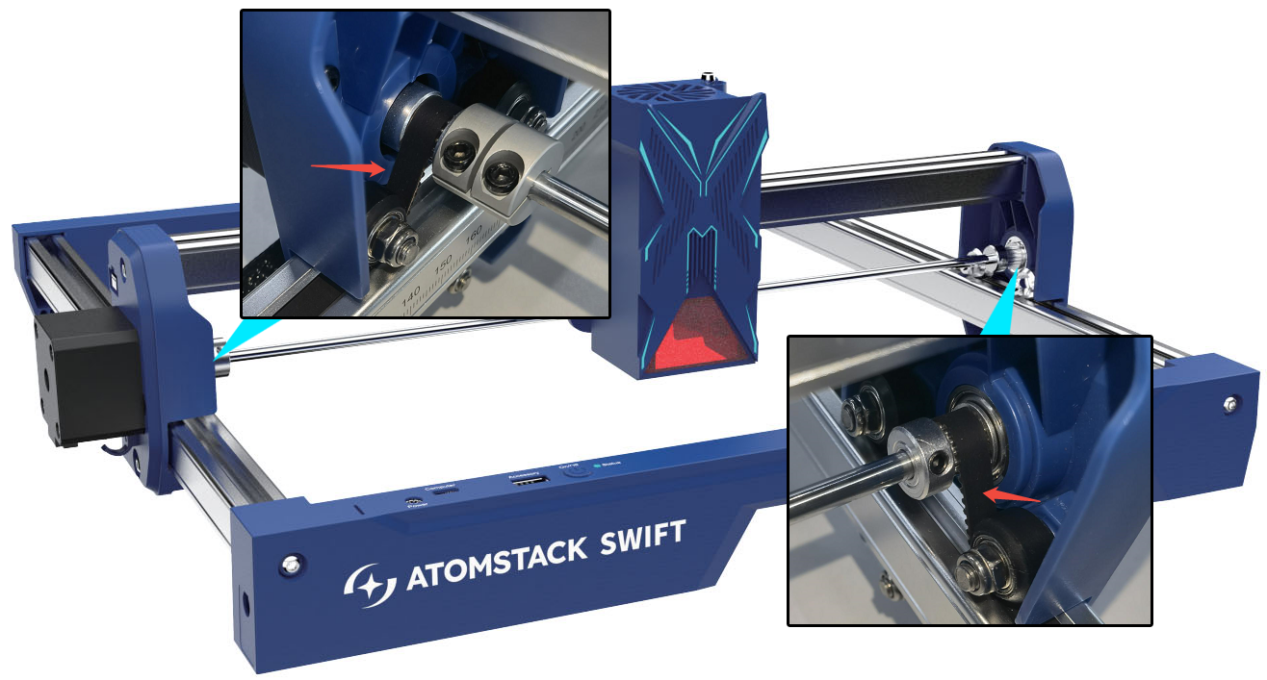
- Check motor pulley screws: Using an L1.5 hex wrench, ensure both motor pulleys are tight; when tightening, keep equal distance between the X-axis ends and horizontal beams.
- Structural adjustment: Follow the Swift Structure Adjustment Video, focusing on the timing belts and pulleys.
- Factory reset:
- Via AtomStack Studio (version ≥ 2.20): click the Version Number 7 times → Developer Mode → "Serial Port Log" → Reset.
- Via LightBurn console: input
$RST=*.
- Firmware update: Upgrade via AtomStack Studio or the APP, or provide the Serial Number to request the matching firmware via TF card. Refer to the Swift Firmware Upgrade Video.
- If unresolved, it's likely a motherboard fault — provide a troubleshooting video and Serial Number photo to customer service. Refer to the Swift motherboard replacement video and Swift motherboard cable replacement video.
Still not fixed? Contact support with the details listed in What to send support.
Related problems: Patterns Deform or Open · Head Hits the Frame
¶ Axis Stuck or Noisy
What you see: The X or Y axis cannot move or makes noise.
Check in this order:
Test movement via the directional buttons in the software (AtomStack Studio, LightBurn):
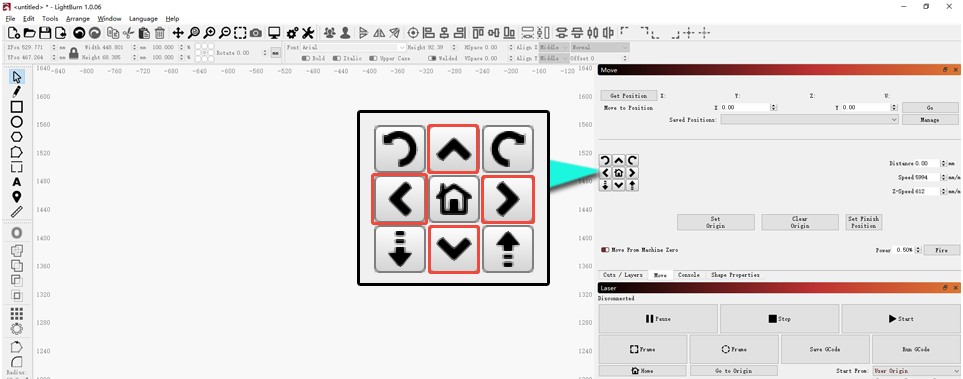
If one axis fails to move or vibrates, check the motor connectors (including on the motherboard) — unplug and reconnect. If the issue persists, swap the connector of the working axis with the non-working/noisy one to see if the fault transfers: transfer indicates a motherboard/cable fault, no transfer indicates a motor fault. Provide the fault video, swap test video, and Serial Number photo to customer service. Refer to the Swift motor connector swap video, Swift motherboard replacement video, Swift motor replacement video, and Swift motherboard cable replacement video.
Confirm the fix: Test movement via the directional buttons in AtomStack Studio or LightBurn.
Still not fixed? Contact support with the details listed in What to send support.
Related problems: Motion Stutters · Homing Fails · Patterns Deform or Open
¶ Rough Engraving
What you see: Engraving appears rough.
Check in this order:
- Check POM wheels: Inspect all 9 wheels on the frame for deformation or damage; if faulty, provide clear photos plus a Serial Number photo to customer service.
- Check X-axis end screws: Check the support bracket screws at both ends of the X-axis; tighten if loose.
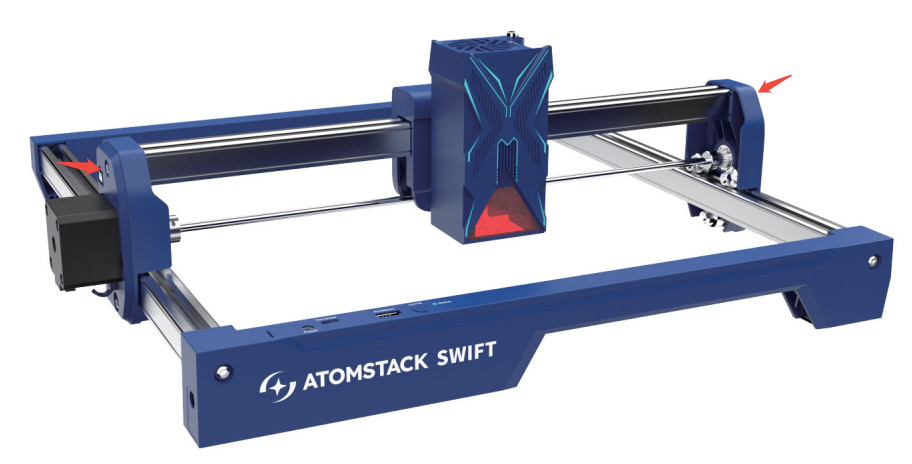
- Check X-axis bracket for play: Gently shake both ends of the X-axis and the laser bracket — if there is play, adjust the X-axis horizontal alignment and the eccentric nuts at the POM wheels per the Swift Structure Adjustment Video and Swift X-Axis Leveling Video.
- Check timing belt tension: Press down on the belt near the POM wheels — if too loose, adjust per the Swift Timing Belt Replacement Video.
Still not fixed? Contact support with the details listed in What to send support.
Related problems: Vector Lines Shake · Patterns Deform or Open
¶ Head Hits the Frame
What you see: The machine collides with the frame during edge detection or engraving.
Check in this order:
- Check file size: The Swift's engraving area is 300mm × 300mm — a file exceeding this range will inevitably cause a collision.
- Confirm coordinate selection: If using the current position, ensure the remaining space from the laser's current location is large enough for the file; alternatively, manually move the laser into range or use absolute coordinates.
- Check motor steps: After connecting via LightBurn or LaserGRBL, open "Edit — Machine Settings", double-click "Outputs Setup", and check whether $100 and $101 equal 100.150; correct if not.
- Try a factory reset:
- Via AtomStack Studio (version ≥ 2.20): click the Version Number 7 times → Developer Mode → "Serial Port Log" → Reset.
- Via LightBurn console: input
$RST=*.
Still not fixed? Contact support with the details listed in What to send support.
Related problems: Homing Fails · Engraving Size Is Wrong