Glacier Laser & Cooling: No Output, Weak Cutting
The lens is dirty or damaged, cutting is weak, the laser does not fire, flame alarms recur, air assist fails, or the chiller screen is cracked.
Power off before removing the laser module to inspect the lenses or unplugging and reconnecting the laser cable. With flame detection switched off, someone must watch the machine closely the whole time it is running.
¶ Dirty or Damaged Lens
What you see: The focusing lens or protective window is contaminated or damaged.
Check in this order:
Contamination: clean it first, following "Cleaning the Protective Window and Focusing Lens". If the stain will not come off, replace the protective window glass — two spare pieces are supplied with the machine.
Damage: a damaged protective window can be replaced from the spares. A damaged focusing lens means the whole laser module has to be replaced, so set your window-cleaning interval according to how hard you use the machine — a dirty or damaged window is what destroys the focusing lens behind it.
Still not fixed? Contact support with the details listed in What to send support.
Related problems: Weaker Cutting Power · Moves but No Laser
¶ Weaker Cutting Power
What you see: Cutting performance has dropped significantly.
Check in this order:
-
Normal power attenuation: after a period of use the laser module loses some power. Compensate by raising the power or lowering the speed.
-
Check the focal distance: measure between the bottom of the laser module and the material surface. It should be 16 mm, or 4 mm at the minimum focal distance.
-
Check the power level: the Glacier laser runs at several power levels — see "Glacier Laser Power Switching". Check the cutting capability for the level you selected against the parameter table.
-
Check the parameters: verify them against the parameter table for your material and power level. The speed unit is mm/min.
To get the parameter table: ① scan the QR code on the machine body, ② visit https://atomstack.com/pages/product-support, or ③ ask customer service for it.
-
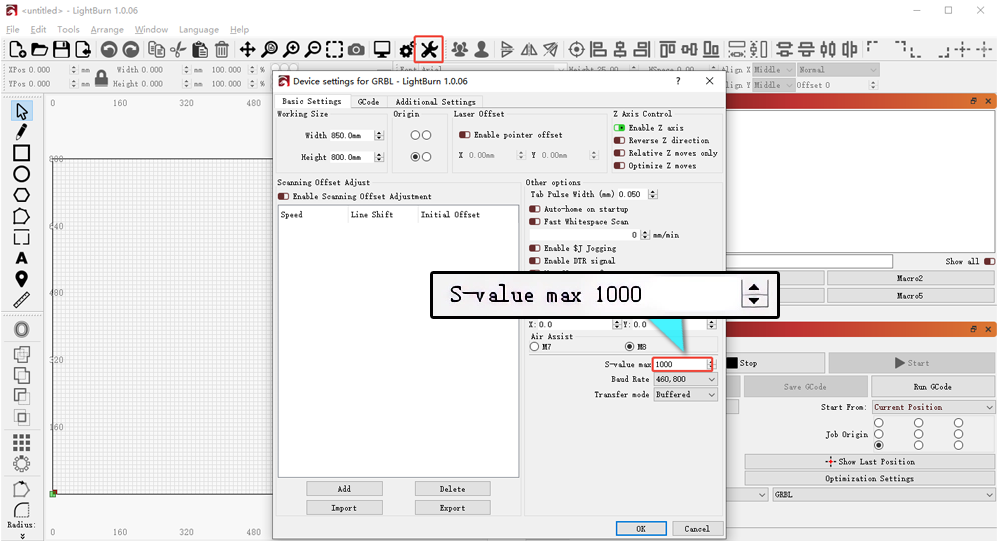
Check S-value MAX: in LightBurn, make sure it has not been changed.
-
Check the laser module: cut a 3 mm basswood board at 1200 mm/min and 100% power.
- Cuts through in one pass — power is normal.
- Does not cut through — carry on below.
Check the lenses: power off, remove the laser module and inspect the protective window and focusing lens for contamination or damage. Clean it per "Cleaning the Protective Window and Focusing Lens"; if the stain will not come off or the glass is damaged, fit one of the two spare windows. A damaged focusing lens means replacing the whole module. Send customer service clear photos and the laser module's engraved code.
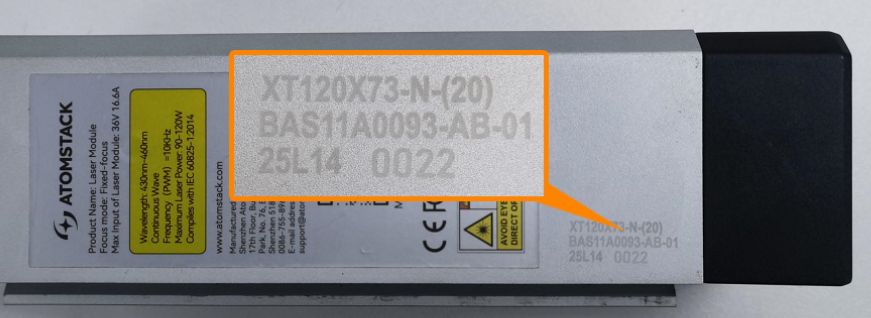
Check the laser spot: if the lenses are clean, aim the laser at a ceiling or wall 2–3 m away, fire it briefly and look at the spot. Check whether it is scattered or otherwise abnormal, photograph it clearly and send it to customer service. See the laser spot inspection video.

-
If nothing above explains it: record a video of the 3 mm basswood cut at 1200 mm/min and 100% power, clearly showing the software parameters, the cutting process, the result and the steps you have already tried. Send it with the laser module's engraved code to customer service.
Confirm the fix: Cut a 3 mm basswood board at 1200 mm/min and 100% power: it cuts through in one pass.
Still not fixed? Contact support with the details listed in What to send support.
Related problems: Dirty or Damaged Lens · Moves but No Laser
¶ Moves but No Laser
What you see: The laser module moves but no laser comes out.
Check in this order:
-
Check the laser wiring: power off, unplug the laser cable and plug it back in.
-
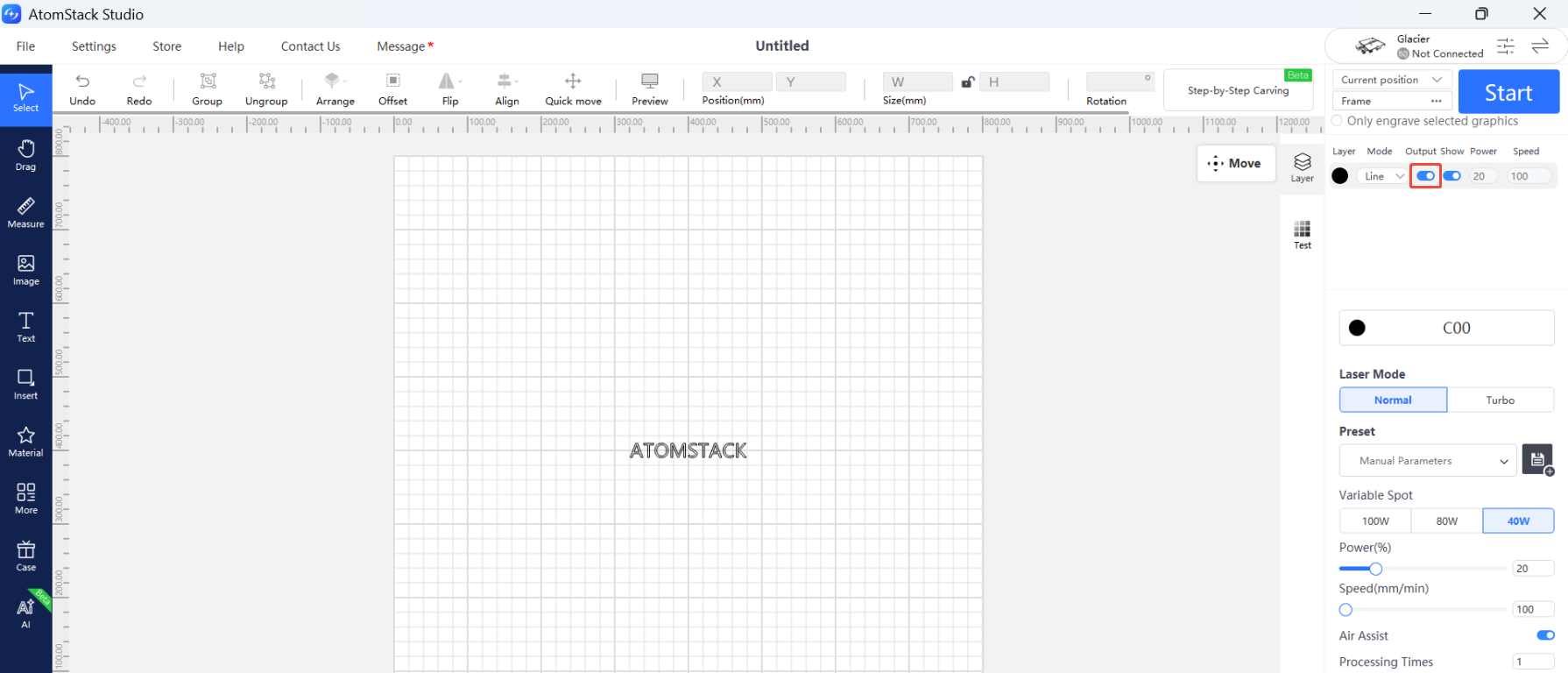
Check the software parameters: set them from the parameter table, and make sure Output next to the layer is switched on.
-
Check the laser indicator lights: watch both lights on top of the laser module while engraving or cutting.
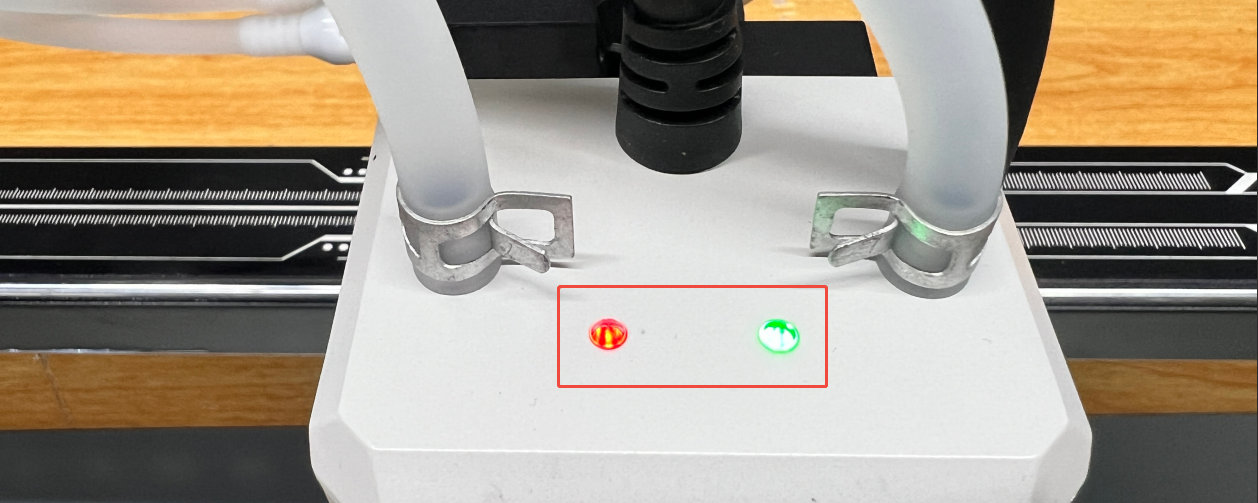
- Both lights on — the laser diode inside the module has failed.
- Both lights off — the fault is in the mainboard or the connection cable.
- Only the red light on — open the laser module housing and unplug the three diode cables on the driver board. Reconnect the two water-cooling tubes, run the engraving program and see whether the green light comes on. If it does, the diode is faulty; if it stays off, the driver board or the mainboard connection cable is at fault.
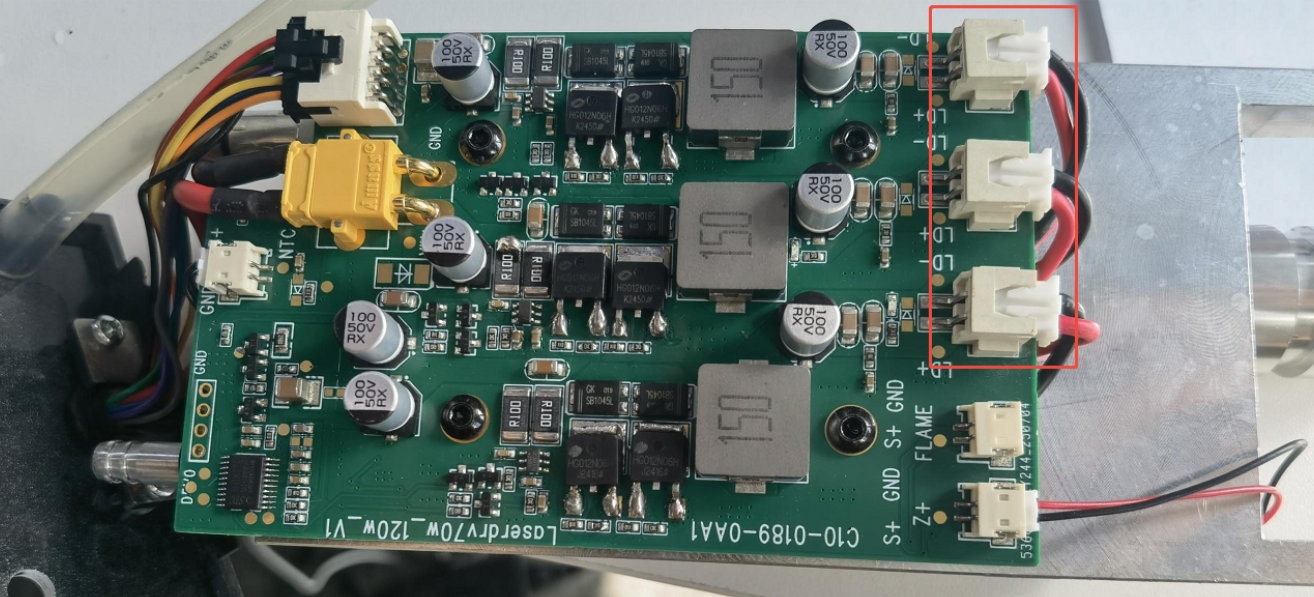
Send customer service a troubleshooting video, the machine's Serial Number and the laser module's engraved code. For replacement procedures see the mainboard connection cable replacement video and the laser module replacement video. For the driver board, contact customer service for the procedure.
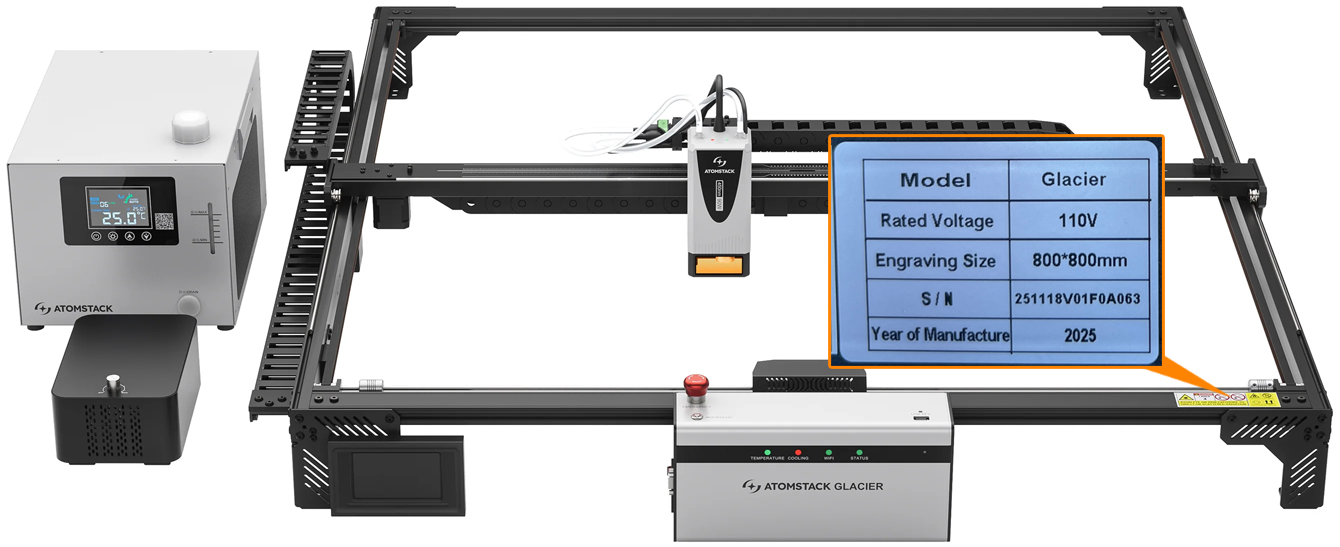
Still not fixed? Contact support with the details listed in What to send support.
Related problems: Weaker Cutting Power · Dirty or Damaged Lens
¶ Repeated Flame Alarms
What you see: Flame alarms keep triggering.
Check in this order:
-
Check the material: flammable materials such as MDF and balsa set off false alarms. You can switch the flame detection function off from the touchscreen, the mobile app or AtomStack Studio. When cutting thick material, raise the cutting speed and use several passes instead.
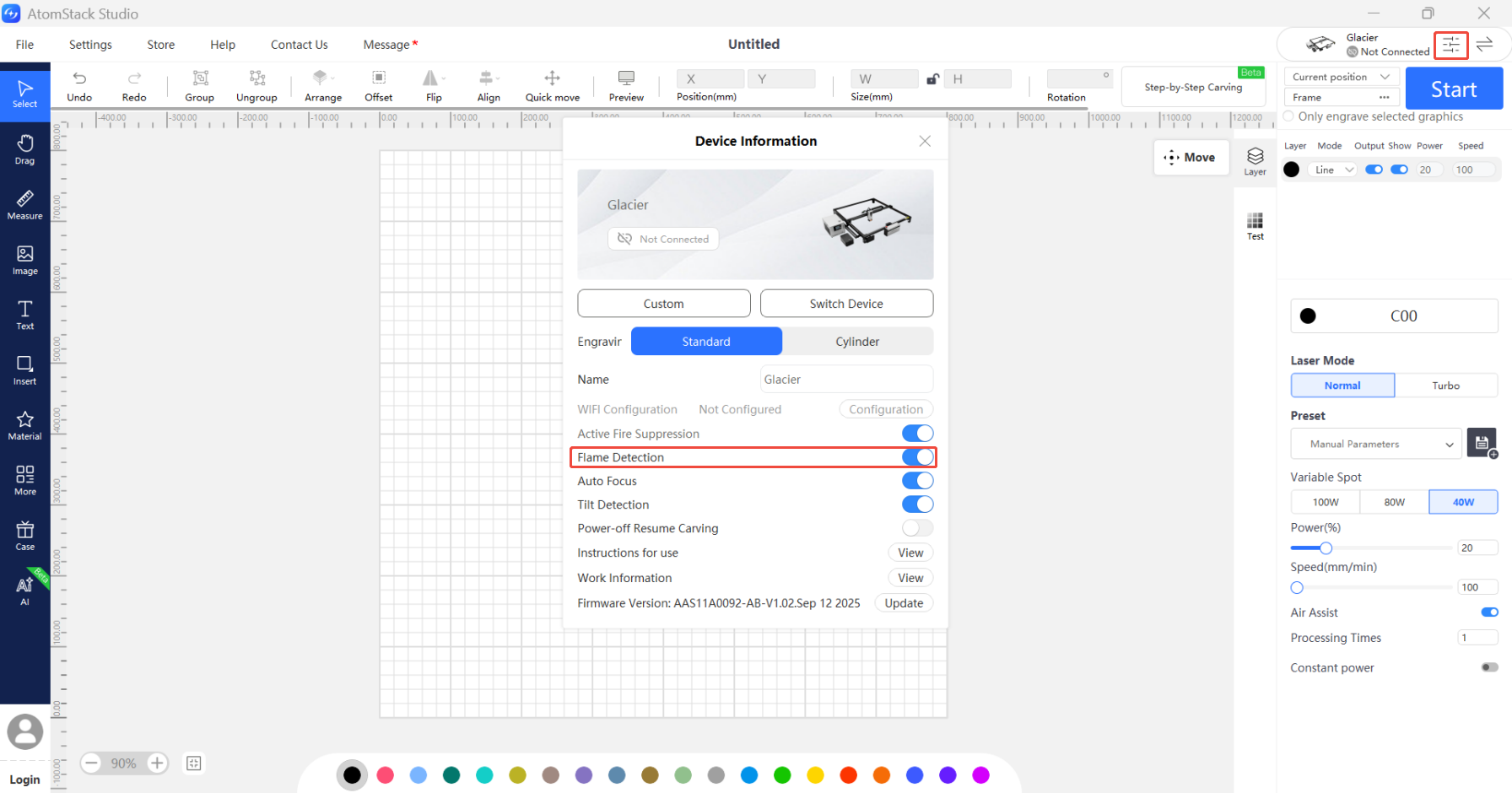
Warning: with flame detection switched off, someone must watch the machine closely the whole time it is running.
-
Check the design: a pattern with very dense lines can trigger false alarms. Increase the speed, add passes, or switch flame detection off — again, only under close supervision.
-
Check the flame detection board: run a job at a lower power. If the alarm still fires frequently at low power the board is probably faulty; see the flame detection board replacement video.
Still not fixed? Contact support with the details listed in What to send support.
Related problems: Stops Mid-Engraving · Air Assist Fails · Alarm Codes
¶ Air Assist Fails
What you see: Air assist malfunctions.
Check in this order:
-
Confirm the machine is running: air assist connected to the AIR ASSIST port only comes on during engraving or cutting.
-
Check the knob switch: make sure it is on. Turning the knob clockwise switches the air assist on and sets the airflow.
-
Check the power: feed the air assist from a DC 24V supply directly and see whether it starts. If it will not start from the mainboard during a job but does start on an external 24V supply, the fault is in the mainboard or the air pump power cable — test the cable for continuity with a multimeter and send the result to customer service.
-
Check what it does once running: start a job, or power the air assist separately, then turn the knob and feel whether the pump vibrates.
- Nothing at all — the knob switch is probably faulty. Send a video and the machine's Serial Number to customer service; see the air assist knob switch replacement video.
- Vibration but no airflow, or very weak airflow — the pump is probably faulty. Send a video and the Serial Number to customer service; see the air assist pump replacement video.
Confirm the fix: Start engraving or cutting: the air assist comes on, and turning the knob clockwise sets the airflow.
Still not fixed? Contact support with the details listed in What to send support.
Related problems: Repeated Flame Alarms · Weaker Cutting Power
¶ Chiller Screen Cracked
What you see: The chiller display screen is cracked.
Check in this order:
The screen assembly has to be replaced. Send customer service photos of the packaging, photos of the damage and the machine's Serial Number. See the chiller display screen replacement video.
Still not fixed? Contact support with the details listed in What to send support.
Related problems: Alarm Codes