Glacier Troubleshooting
Jump to your problem
- 1. Quick Fault Diagnosis Table
- 2. The Focusing Lens or Protective Window Is Contaminated or Damaged
- 3. Cutting Performance Has Dropped Significantly
- 4. The Laser Module Moves but No Laser Comes Out
- 5. The Glacier Will Not Connect to a Computer
- 6. The Glacier Will Not Connect to a Phone
- 7. The Glacier Stops During Engraving and Only Reconnects After a Restart
- 8. Z-axis Auto Focus Fails
- 9. The X-axis or Y-axis Moves Badly or Makes a Harsh Noise
- 10. The Engraved Output Is Distorted
- 11. Flame Alarms Keep Triggering
- 12. The Machine Hits the Frame While Framing or Engraving
- 13. The Laser Module Mounting Bracket Is Loose
- 14. Engraving From the App Reports That No USB Drive Is Inserted
- 15. The Machine Keeps Reporting That No USB Key Is Inserted
- 16. The Laser Module Cannot Be Moved by Hand After Power-on
- 17. Air Assist Malfunction
- 18. The Chiller Display Screen Is Cracked
- 19. With a Rotary Attachment Fitted, the Machine Turns Continuously at Startup
- 20. Firmware Upgrade
- 21. Alarm Codes
¶ 1. Quick Fault Diagnosis Table
| Symptom | Check first |
|---|---|
| Power attenuation | Protective window, focusing lens, software parameters, maximum S value in the software |
| Laser not emitting | Laser wiring, layer output setting, power setting, indicator lights on top of the laser module |
| Connection failure | Baud rate, Type-C cable and port, computer USB port, CH340 driver |
| Stops during engraving | Type-C cable, computer USB port, software running in the background on Windows 11, try other software |
| Flame alarm | Material, flame detection board, wiring, line density of the design |
| Auto focus failure | Laser module installed at the right height, Z-axis motor wiring, upper and lower limit switches and their wiring, motor operation |
| Distorted engraving output | Frame structure, X-axis parallelism, X/Y step settings, eccentric wheels, couplings |
| App connection failure | Wi-Fi mode enabled, Wi-Fi name visible, mobile data off, try another phone |
¶ 2. The Focusing Lens or Protective Window Is Contaminated or Damaged
Contamination: clean it first, following "Cleaning the Protective Window and Focusing Lens". If the stain will not come off, replace the protective window glass — two spare pieces are supplied with the machine.
Damage: a damaged protective window can be replaced from the spares. A damaged focusing lens means the whole laser module has to be replaced, so set your window-cleaning interval according to how hard you use the machine — a dirty or damaged window is what destroys the focusing lens behind it.
¶ 3. Cutting Performance Has Dropped Significantly
-
Normal power attenuation: after a period of use the laser module loses some power. Compensate by raising the power or lowering the speed.
-
Check the focal distance: measure between the bottom of the laser module and the material surface. It should be 16 mm, or 4 mm at the minimum focal distance.
-
Check the power level: the Glacier laser runs at several power levels — see "Glacier Laser Power Switching". Check the cutting capability for the level you selected against the parameter table.
-
Check the parameters: verify them against the parameter table for your material and power level. The speed unit is mm/min.
To get the parameter table: ① scan the QR code on the machine body, ② visit https://atomstack.com/pages/product-support, or ③ ask customer service for it.
-
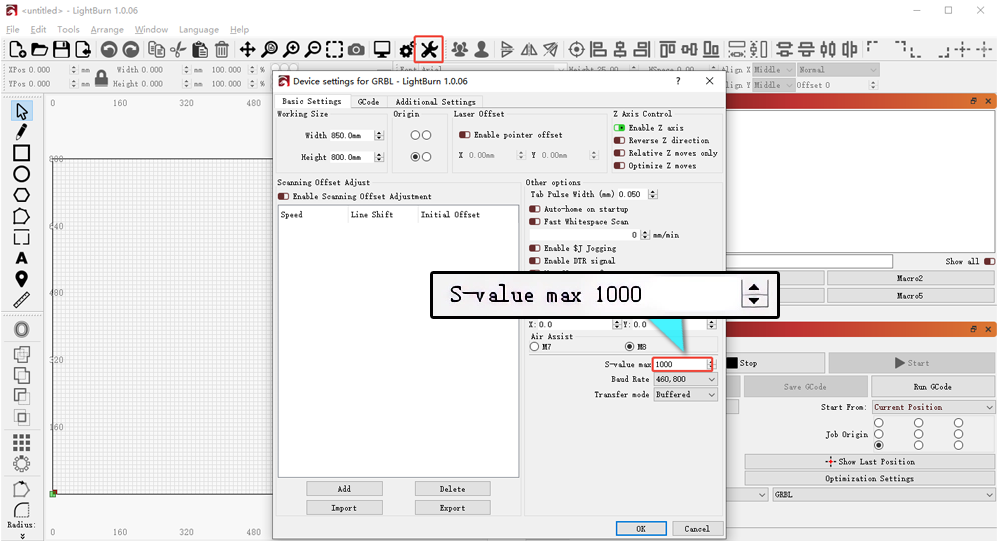
Check S-value MAX: in LightBurn, make sure it has not been changed.
-
Check the laser module: cut a 3 mm basswood board at 1200 mm/min and 100% power.
- Cuts through in one pass — power is normal.
- Does not cut through — carry on below.
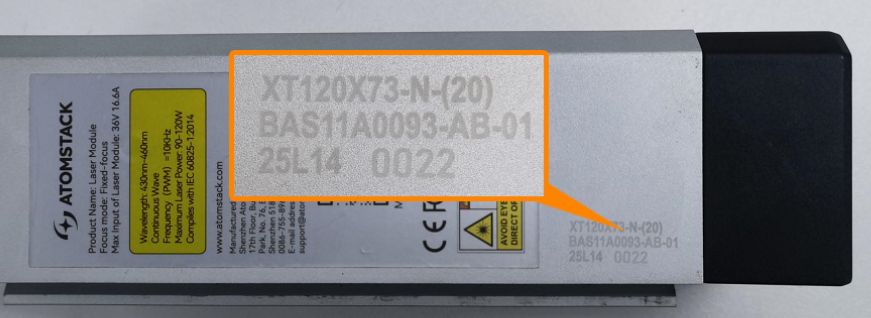
Check the lenses: power off, remove the laser module and inspect the protective window and focusing lens for contamination or damage. Clean it per "Cleaning the Protective Window and Focusing Lens"; if the stain will not come off or the glass is damaged, fit one of the two spare windows. A damaged focusing lens means replacing the whole module. Send customer service clear photos and the laser module's engraved code.
Check the laser spot: if the lenses are clean, aim the laser at a ceiling or wall 2–3 m away, fire it briefly and look at the spot. Check whether it is scattered or otherwise abnormal, photograph it clearly and send it to customer service. See the laser spot inspection video.

-
If nothing above explains it: record a video of the 3 mm basswood cut at 1200 mm/min and 100% power, clearly showing the software parameters, the cutting process, the result and the steps you have already tried. Send it with the laser module's engraved code to customer service.
¶ 4. The Laser Module Moves but No Laser Comes Out
-
Check the laser wiring: power off, unplug the laser cable and plug it back in.
-
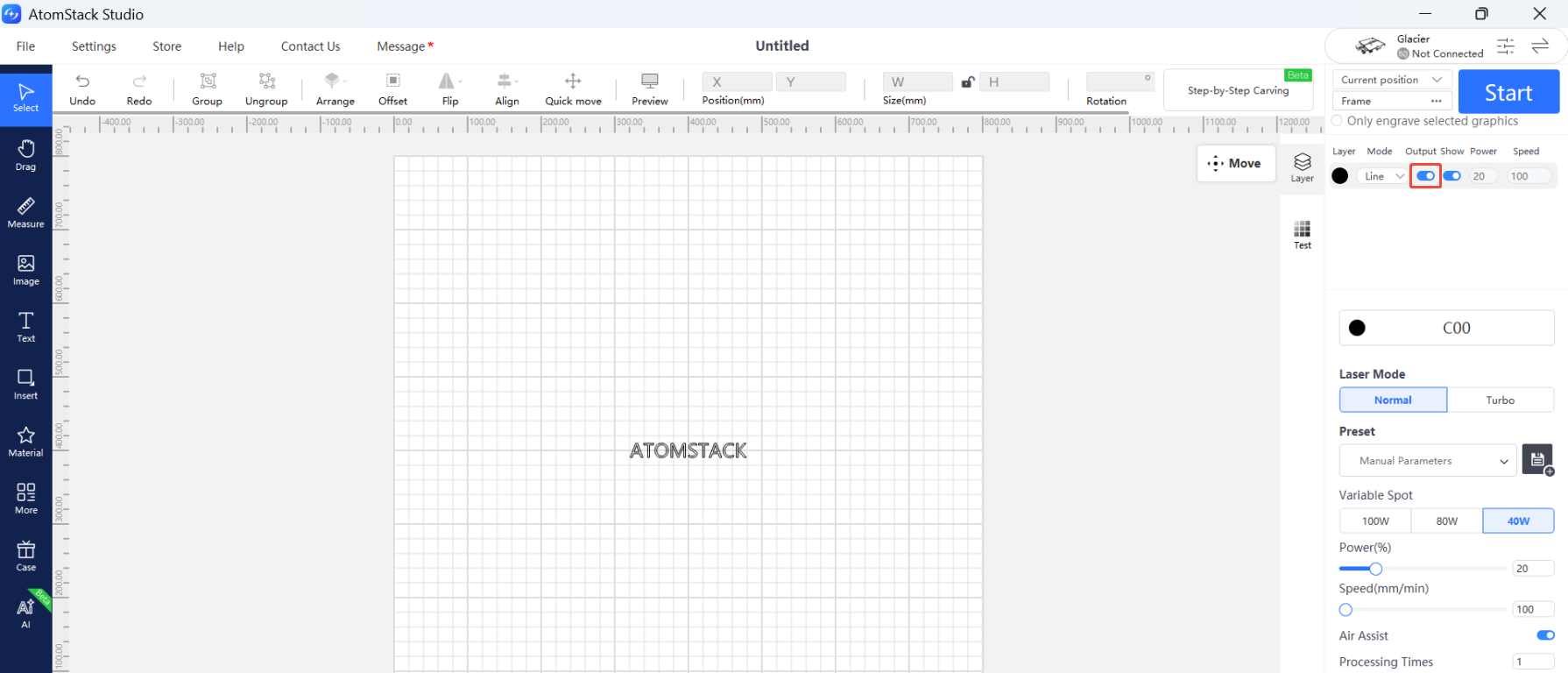
Check the software parameters: set them from the parameter table, and make sure Output next to the layer is switched on.
-
Check the laser indicator lights: watch both lights on top of the laser module while engraving or cutting.
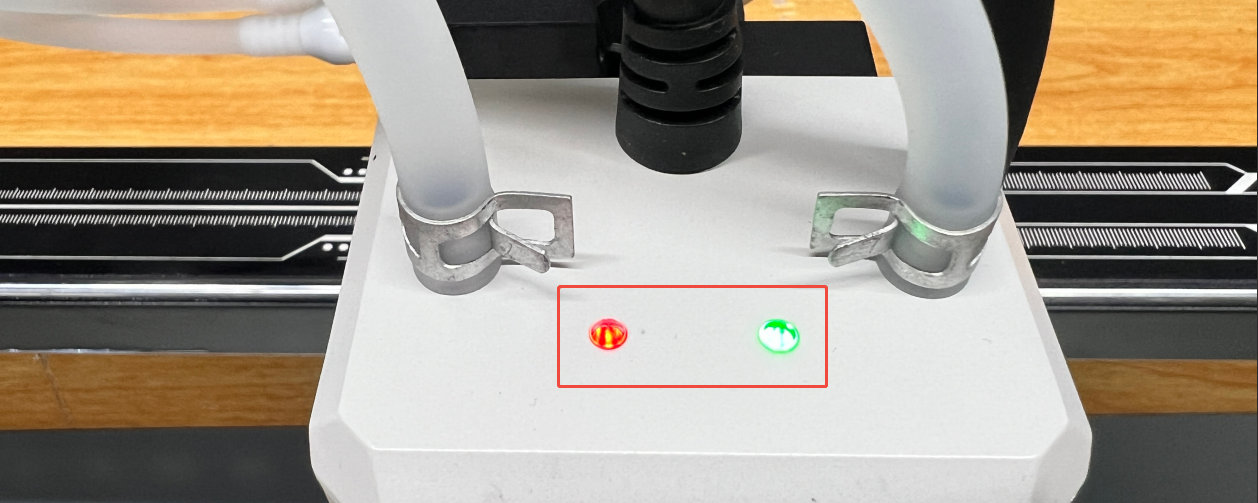
- Both lights on — the laser diode inside the module has failed.
- Both lights off — the fault is in the mainboard or the connection cable.
- Only the red light on — open the laser module housing and unplug the three diode cables on the driver board. Reconnect the two water-cooling tubes, run the engraving program and see whether the green light comes on. If it does, the diode is faulty; if it stays off, the driver board or the mainboard connection cable is at fault.
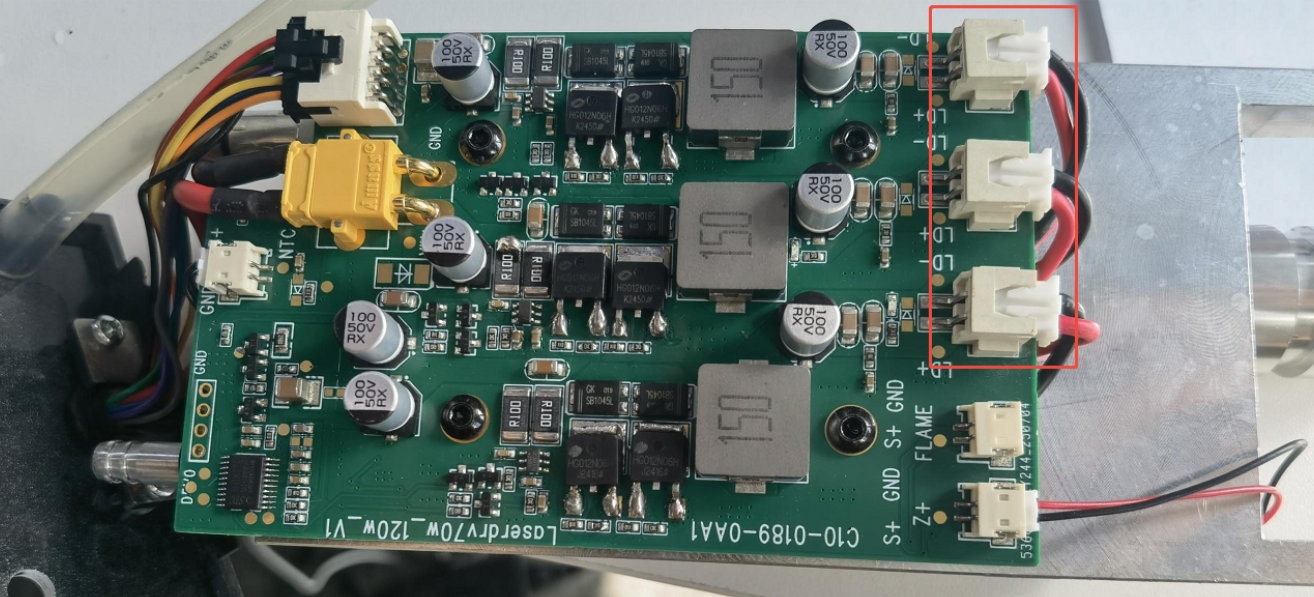
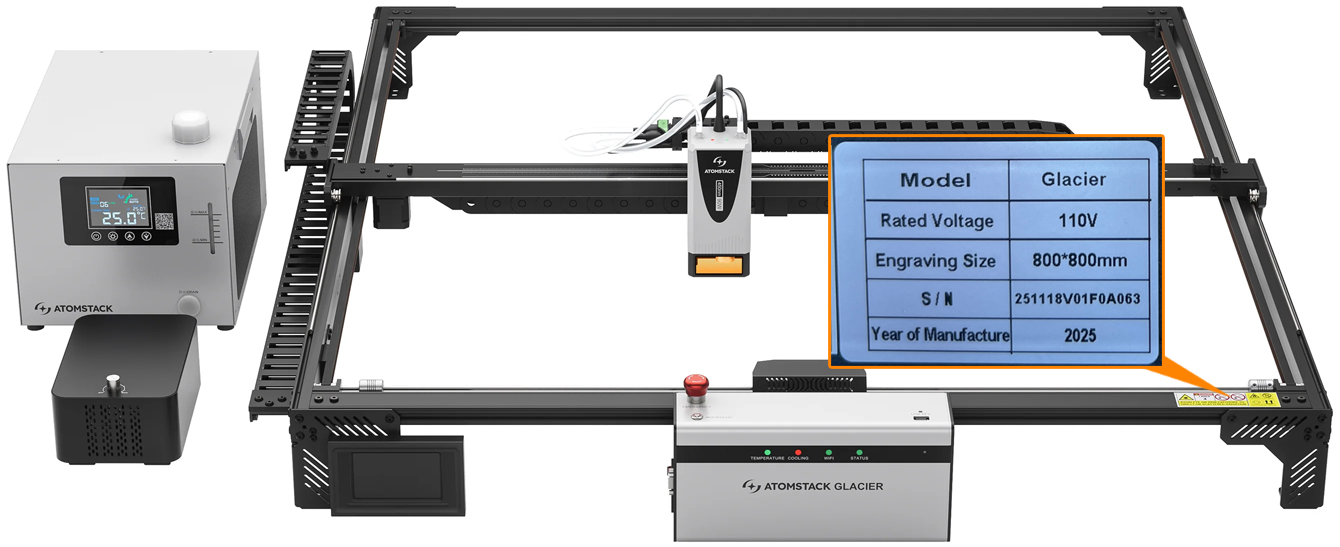
Send customer service a troubleshooting video, the machine's Serial Number and the laser module's engraved code. For replacement procedures see the mainboard connection cable replacement video and the laser module replacement video. For the driver board, contact customer service for the procedure.
¶ 5. The Glacier Will Not Connect to a Computer
-
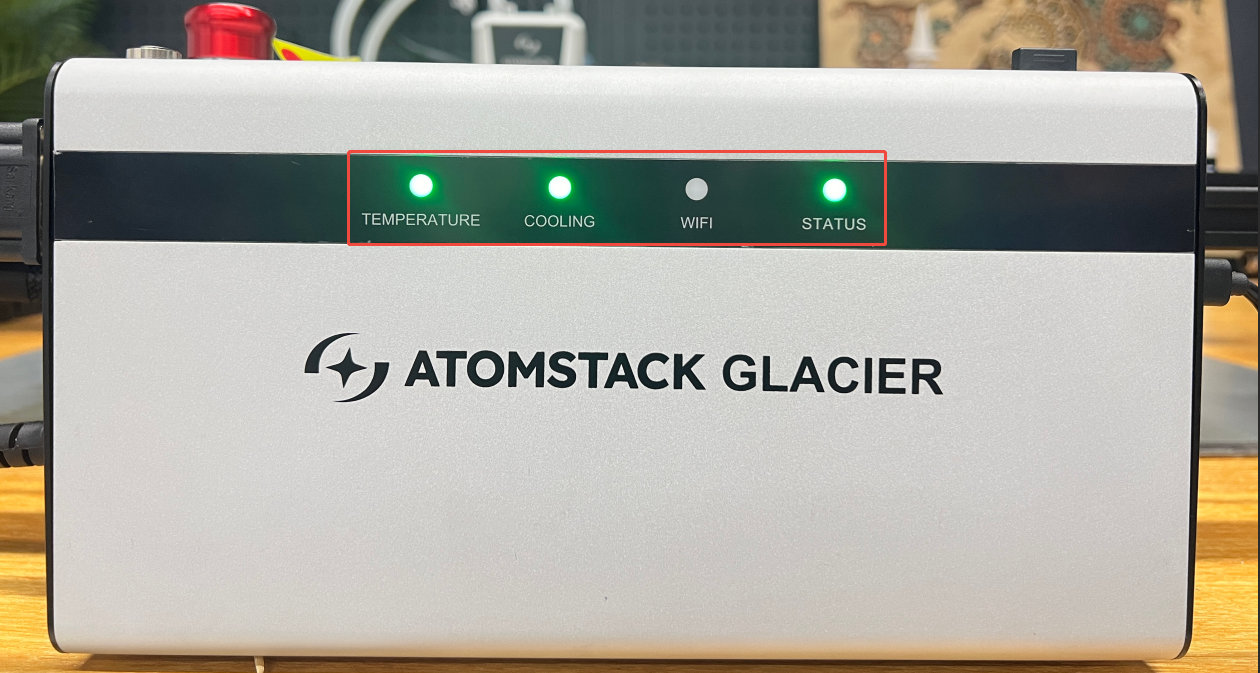
Confirm the control box is powered: check that the three indicator lights on the front are lit. If only the power switch is lit and the front lights are dark, the emergency stop is probably still pressed in — push it down, turn it clockwise and release.
-
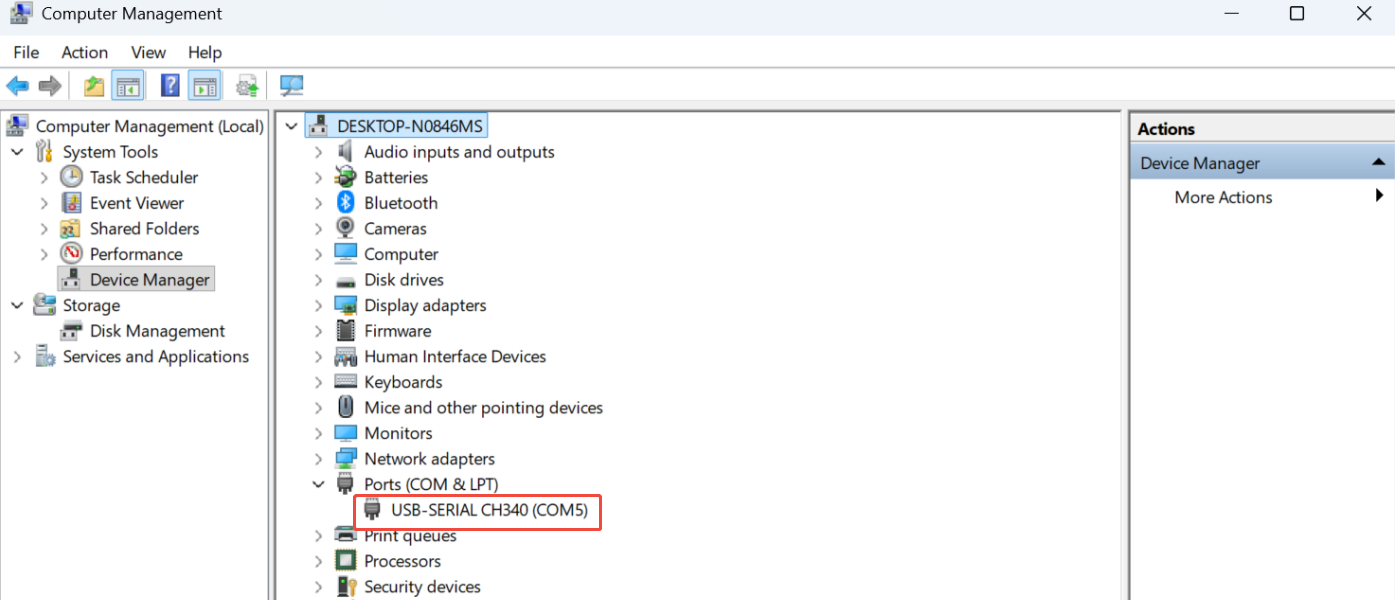
Check the serial port: AtomStack Studio needs no selection. In LightBurn, select the right port — Device Manager shows which COM port the CH340 was given.
-
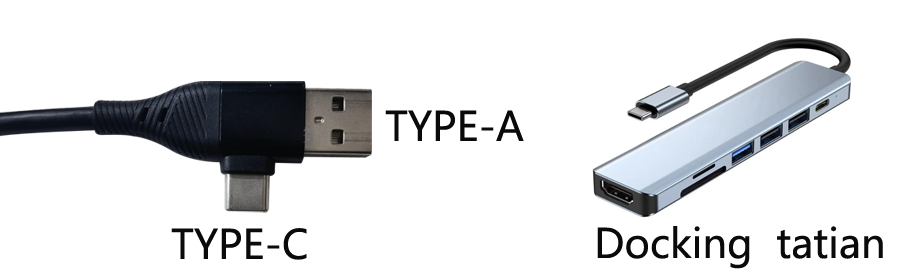
Check the operating system: on Windows you can connect Type-C to USB-A or USB-C directly. On macOS or HarmonyOS you need a hub or docking station for the USB-A end.
-
Make sure nothing else holds the connection: no other software may be connected to the engraver.
-
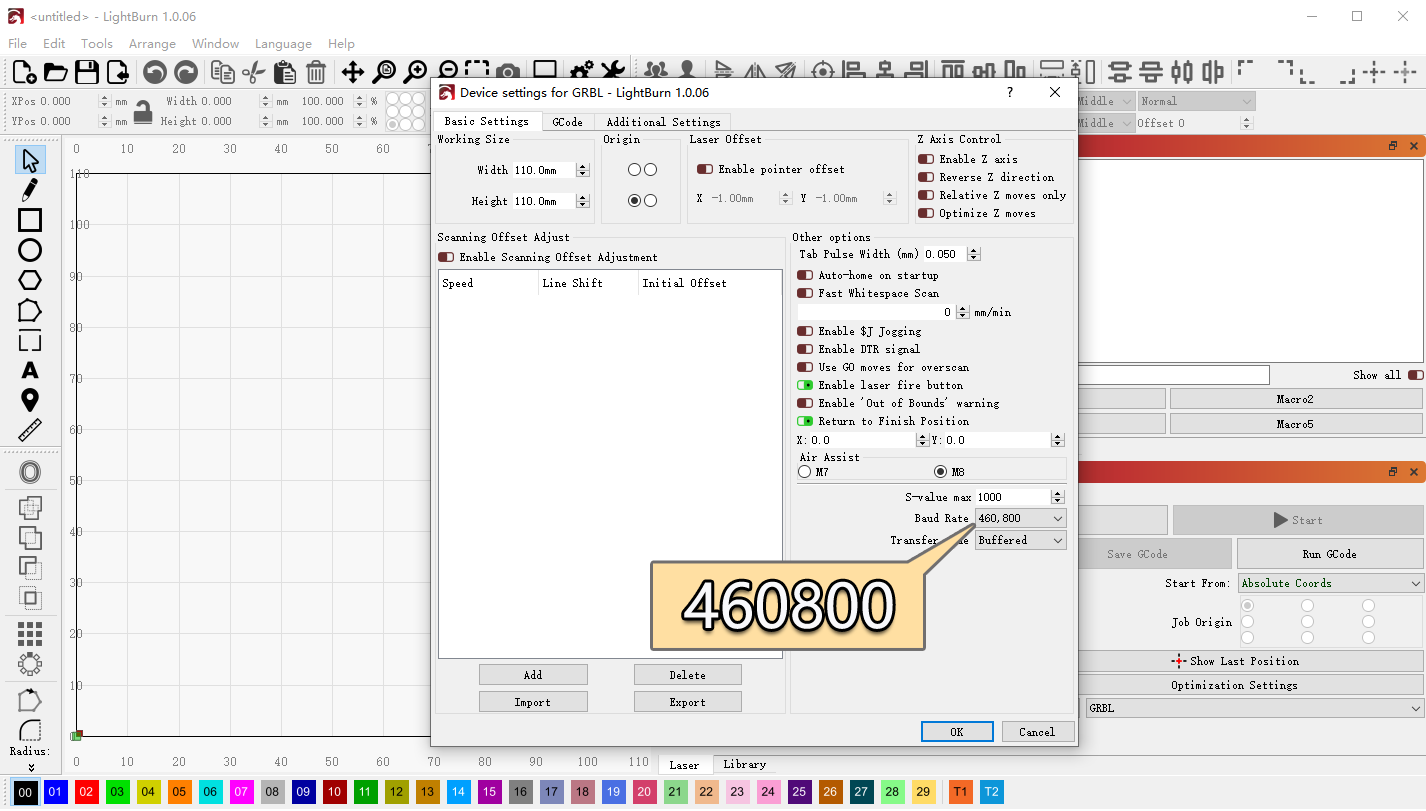
Check the baud rate: not needed for AtomStack Studio; in LightBurn it must be 460800.
-
Check the serial driver: look for a CH340 serial port in Device Manager. If it is missing, install the driver — Windows, Mac — or follow the serial driver installation video.
-
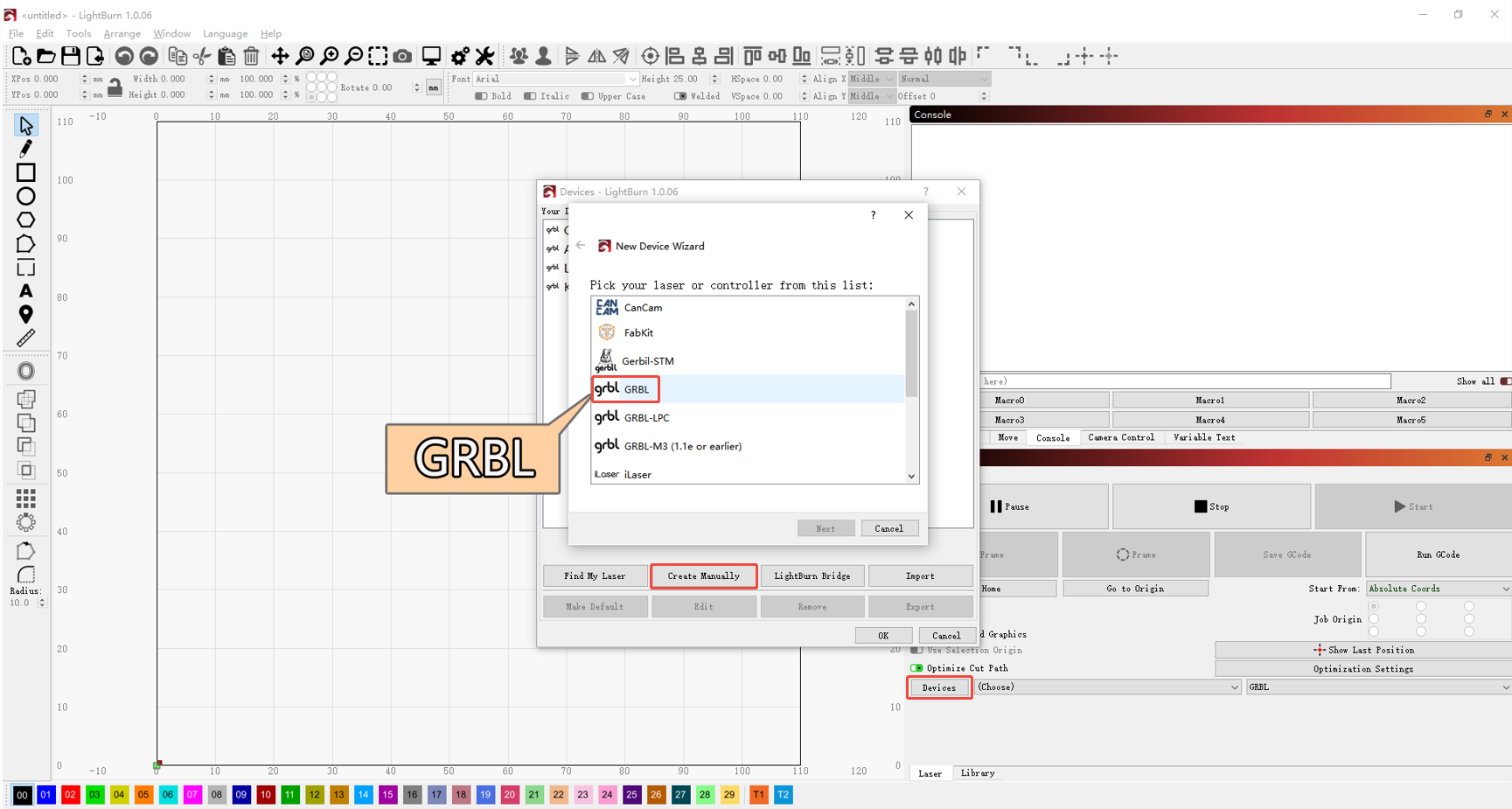
Check the controller: not needed for AtomStack Studio. In LightBurn, add a GRBL controller or import the Glacier factory configuration file; see the Glacier connection video.
-
Check cables and ports: try a different Type-C cable or a different USB port on the computer.
-
Try other software or another computer: AtomStack Studio, LightBurn, or a second computer.
-
If it still fails: send customer service a fault video, the steps you have tried and the machine's Serial Number. For mainboard replacement see the mainboard replacement video.
¶ 6. The Glacier Will Not Connect to a Phone
-
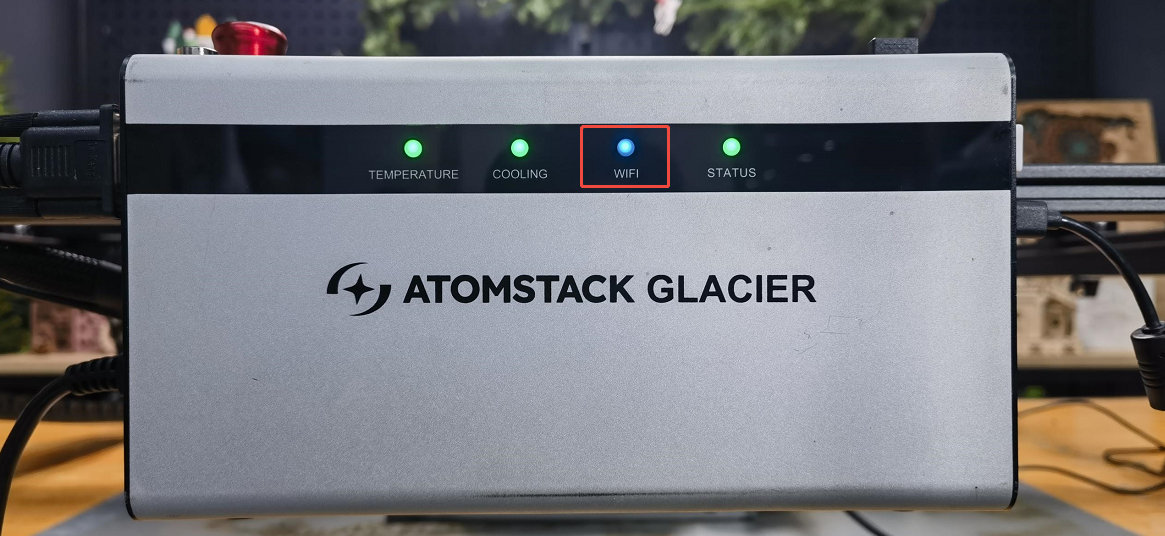
Confirm Wi-Fi mode: press and hold the auto focus button for more than 5 seconds to enter Wi-Fi mode, then check that the Wi-Fi indicator is flashing blue.
-
Confirm the app: use the AtomStack app, from the official website or the QR code on the machine. On iOS, search for "AtomStack" in the App Store.
-
Turn off mobile data and try again.
-
Try another phone: if a second phone connects, tell customer service the brand and operating system of the one that does not.
-
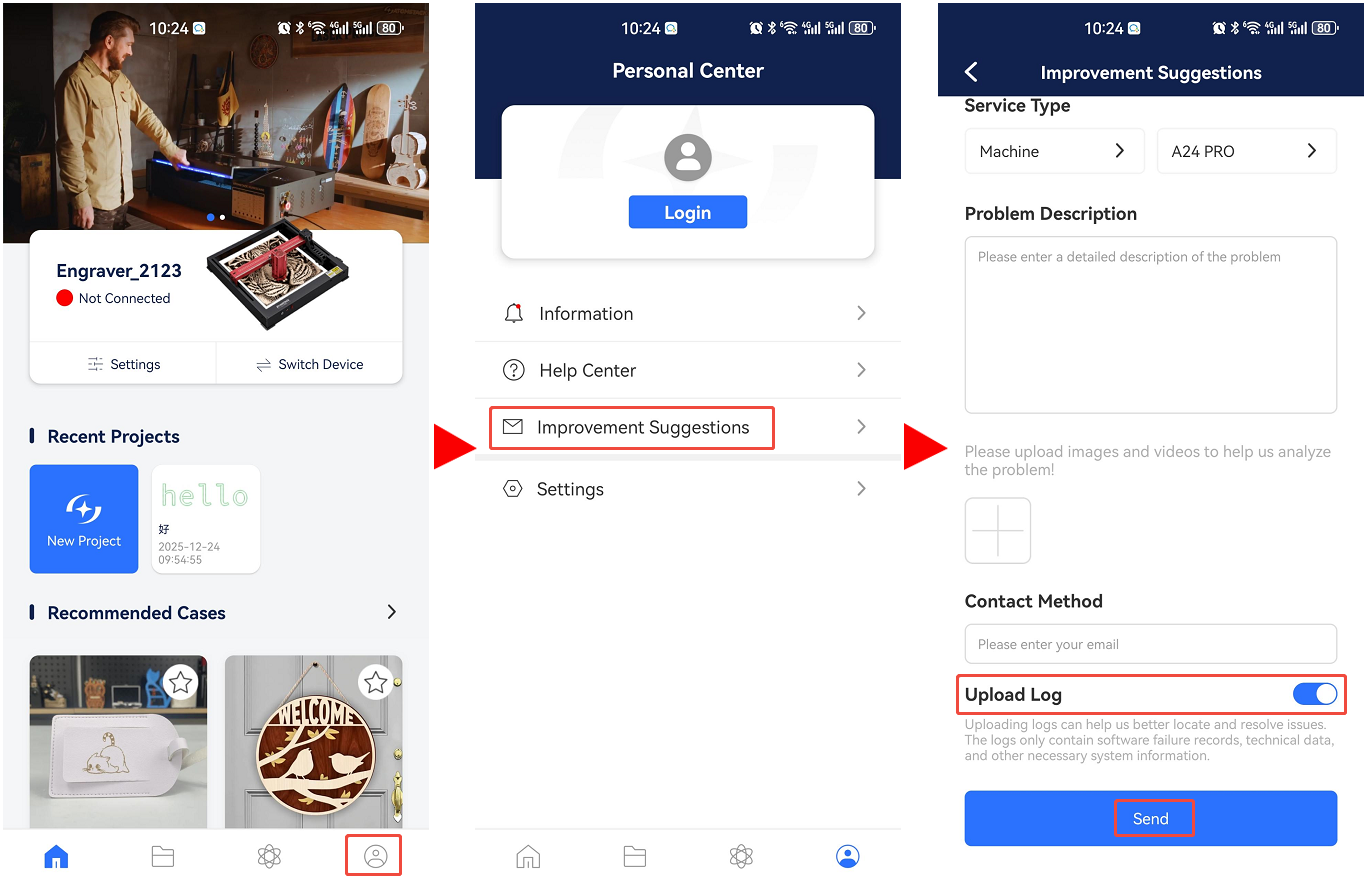
Send the app logs: go to Profile → Improvement suggestions, tick Upload log and submit.
¶ 7. The Glacier Stops During Engraving and Only Reconnects After a Restart
-
Check the Type-C cable: unplug it, plug it back in and try again.
-
Check the operating system: on Windows 11, do not let the software run in the background. Moving it to the background can make the machine stop or run at low power.
-
Check whether a flame alarm was triggered: when a flame alarm fires mid-job, the laser module keeps circling a 50 mm x 50 mm square.
Worth checking
- Whether the material is flammable - balsa, MDF, cotton and the like.
- Turning the flame detection function off and trying again. With it off, someone has to watch the machine so nothing goes wrong.
-
Try AtomStack Studio: download it from https://atomstack.com/pages/atomstack-studio-software.
-
Watch the software when it stops: if the progress bar keeps running while the machine has stopped, the connection is dropping. Clean the USB port on the control box, change the Type-C cable, or use a different USB port on the computer.
-
Reflash the firmware: send customer service the machine's Serial Number to get the right firmware, load it from a USB drive and try again.
-
If it still happens: the mainboard may need replacing. Send customer service the steps you have tried, a fault video and the Serial Number, and see the mainboard replacement video.
¶ 8. Z-axis Auto Focus Fails
-
Confirm the laser module is mounted at the right height: when auto focus runs, the bottom of the laser module has to be able to reach the material. If it cannot even at the lowest Z position, turn the Z-axis knob to bring the slider to a middle position, loosen the laser module mounting screws, move the module down and retighten. See the laser module mounting height video.
-
Check that the Z-axis moves: use the Z up/down buttons in AtomStack Studio or LightBurn and watch the direction of travel.
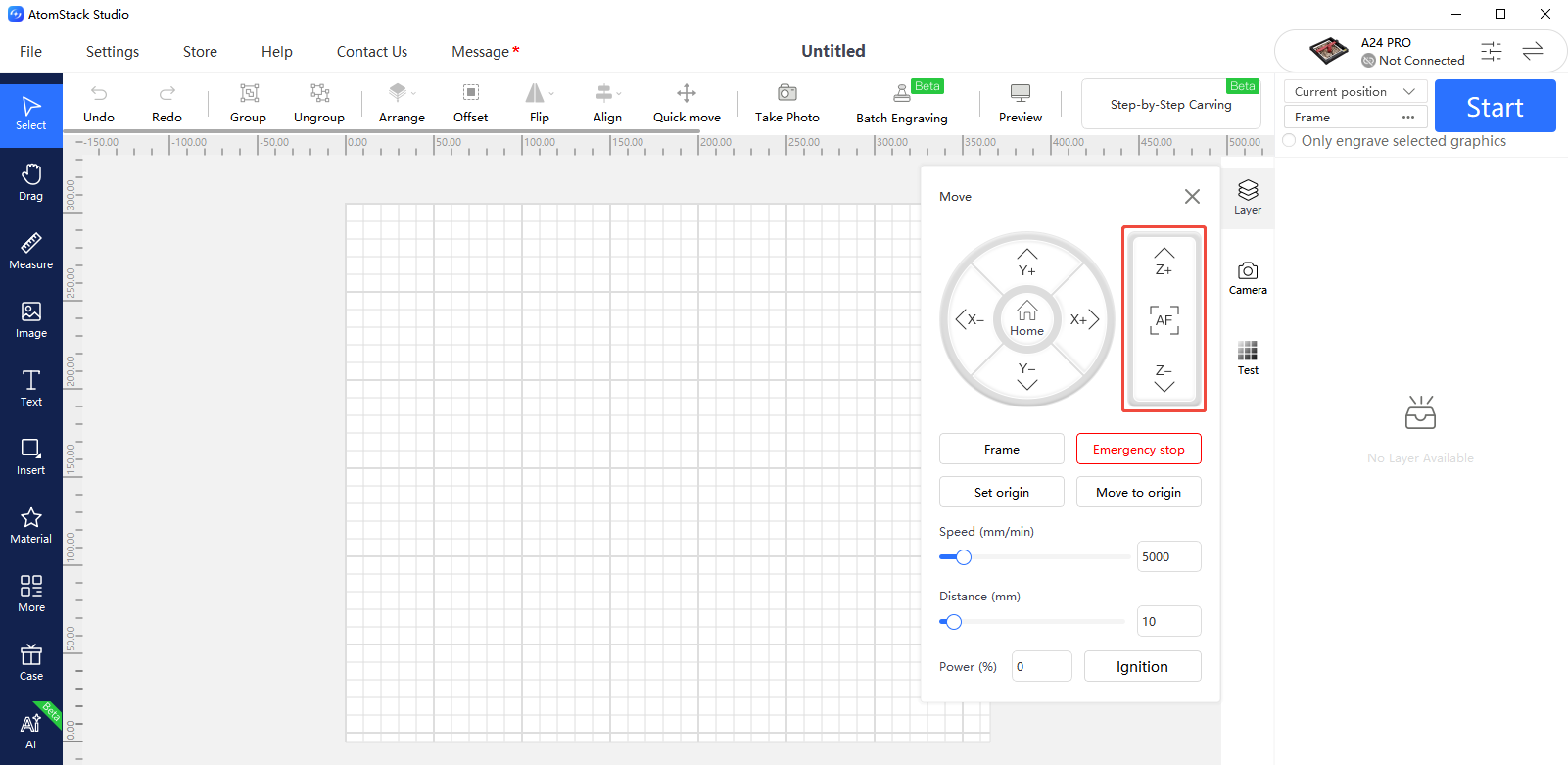
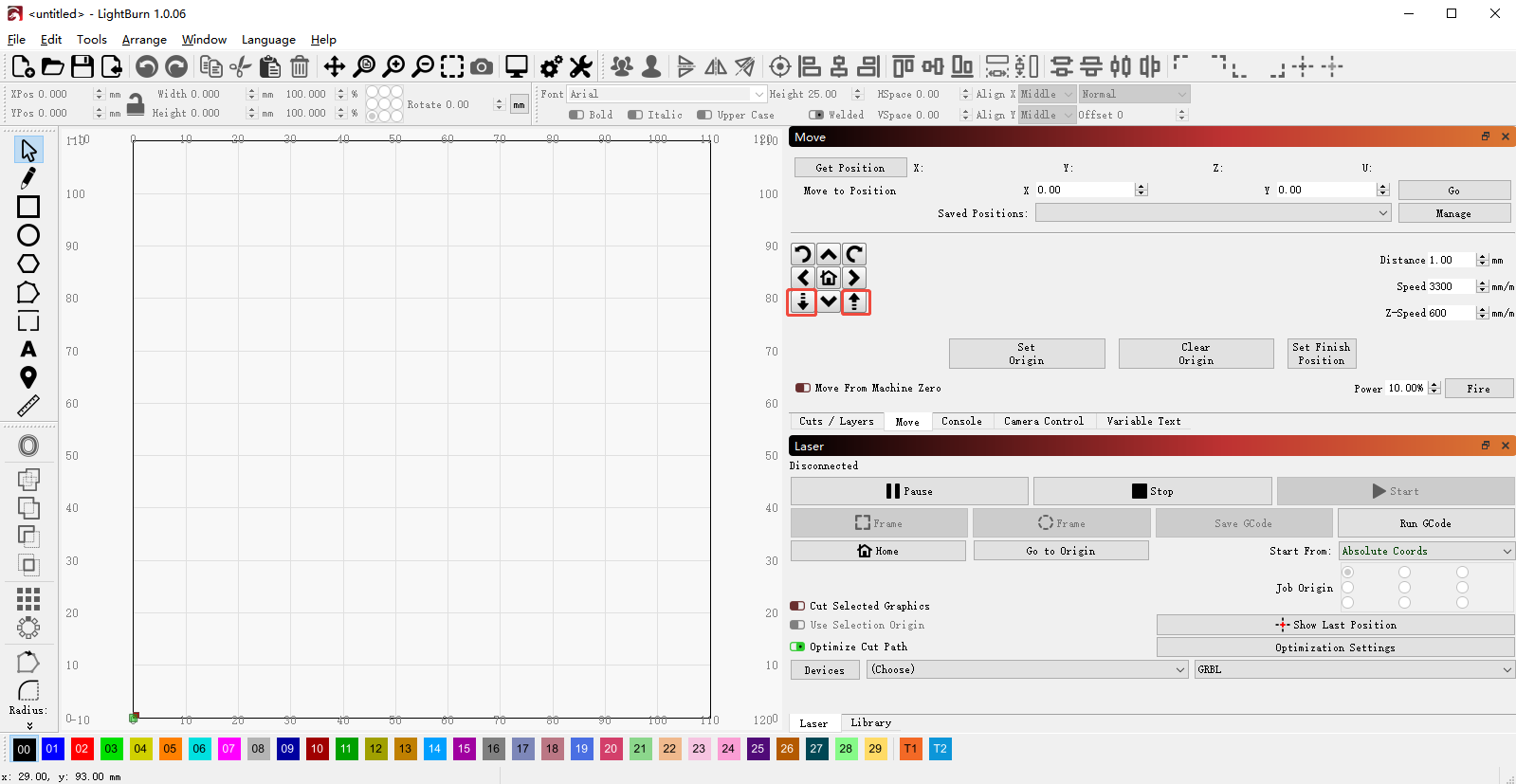
If there is noise but no movement, check the motor wiring and unplug and reconnect the motor cable. If that does not help, the mainboard, the mainboard connection cable or the Z-axis motor may need replacing. Record a clear video and send it with the machine's Serial Number to customer service. See the mainboard replacement video and the mainboard connection cable replacement video; for the Z-axis motor, contact customer service for the procedure.
-
Check the upper and lower limit switches: watch the auto focus run. If the Z-axis reaches the top or bottom and keeps going instead of reversing or stopping, a limit switch is probably faulty. Press the Z-axis upper limit switch and the lower limit switch on the laser module by hand and see whether an alarm is raised.
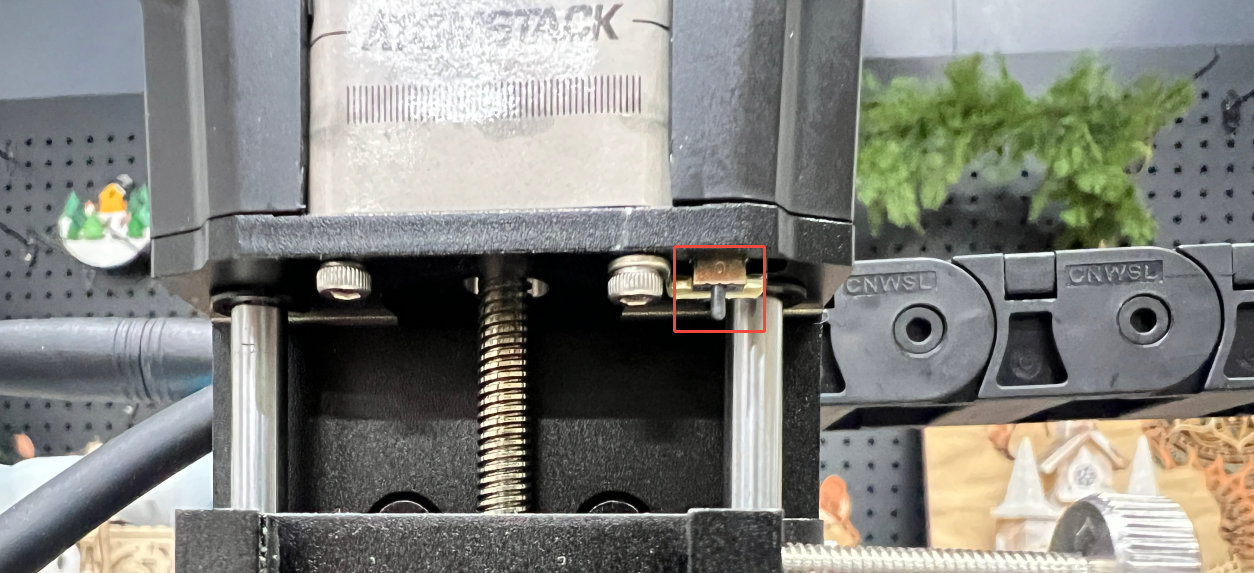
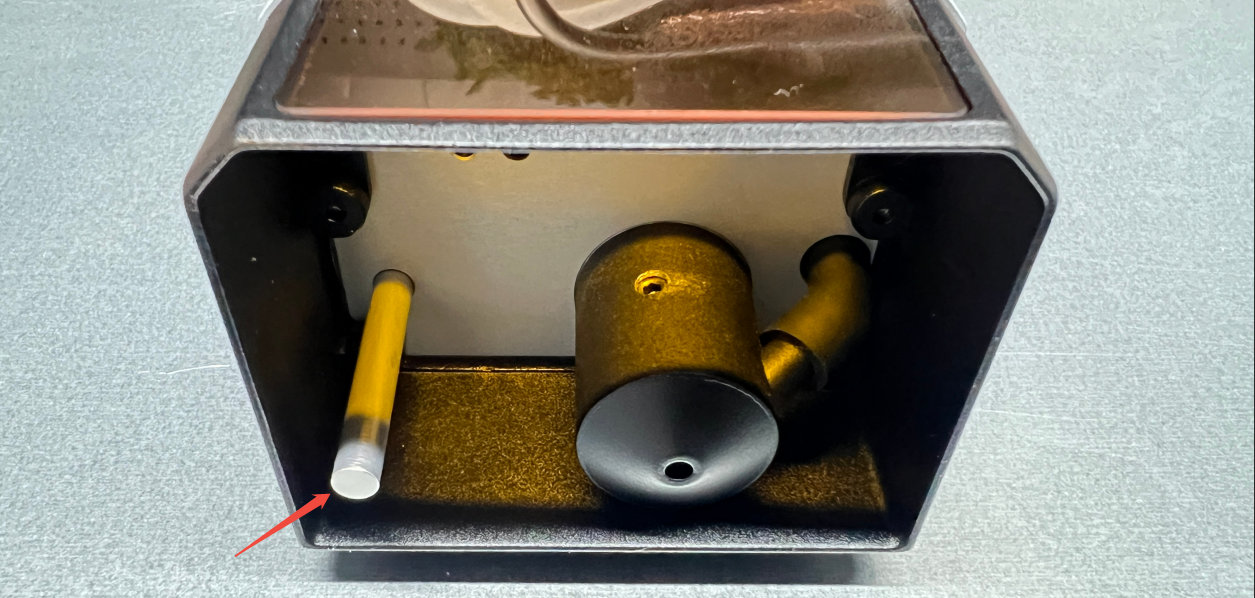
No response from the upper switch: if the trigger lever does not spring back when pressed, the switch is defective — send a short video and the Serial Number to customer service. Otherwise unplug and reconnect the limit switch cable. If that does not help, the mainboard, the mainboard connection cable or the Z-axis upper limit switch needs replacing.
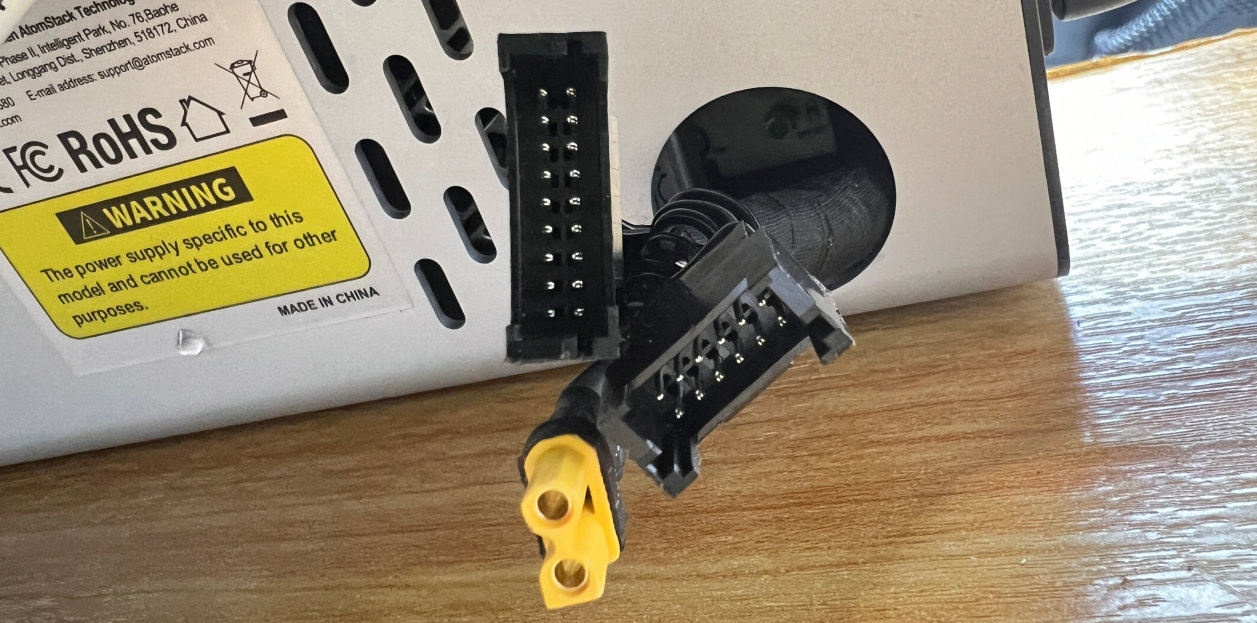
No response from the lower switch: if the trigger lever does not spring back, the switch is defective — record a fault video and send it with the Serial Number. If engraving works but the switch never triggers, check the laser module cable for damage and unplug the connector at the back of the control box to look for bent or broken pins. If nothing is wrong there, the lower limit switch board is the likely fault; see the lower limit switch replacement video.
¶ 9. The X-axis or Y-axis Moves Badly or Makes a Harsh Noise
-
Check the machine structure:
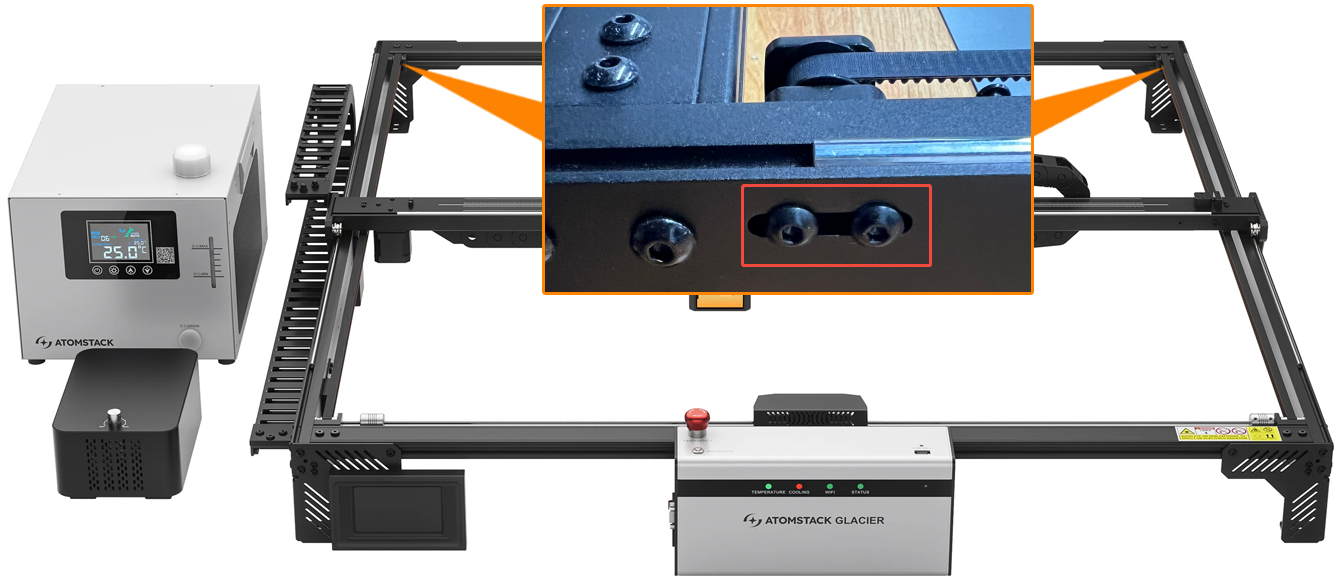
X-axis parallelism: measure from both ends of the X-axis down to the lower crossbeam. If the two distances differ, the X-axis is not parallel to the frame, which tilts the X-axis support and increases friction against the Y-axis rails.
Y-axis timing belts: press both belts with your fingers to judge their tension. If a belt feels slack, loosen the two fixing screws of the belt idler pulley near the upper crossbeam, pull the idler block to tighten the belt, then retighten the screws.
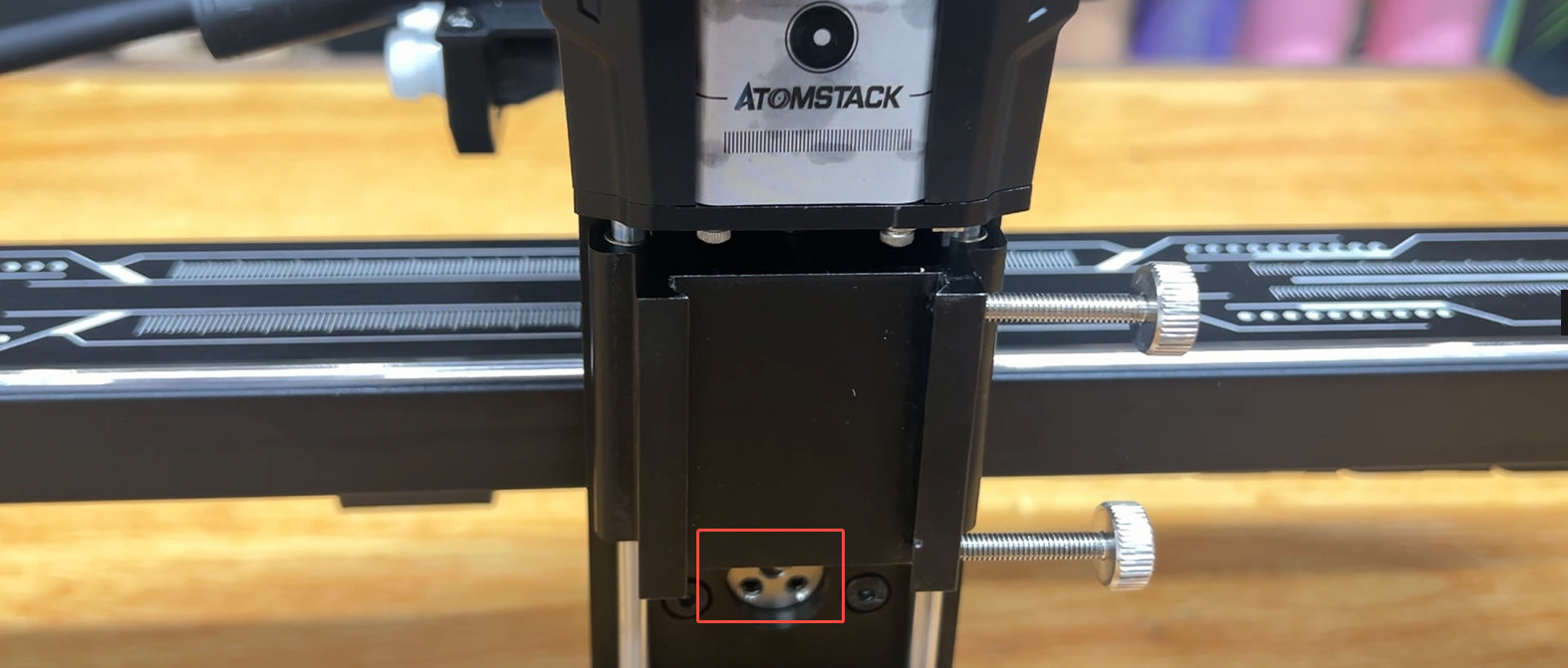
Only the X-axis is noisy: adjust the eccentric wheels on the X-axis guide rail sliders, following the structural adjustment video.
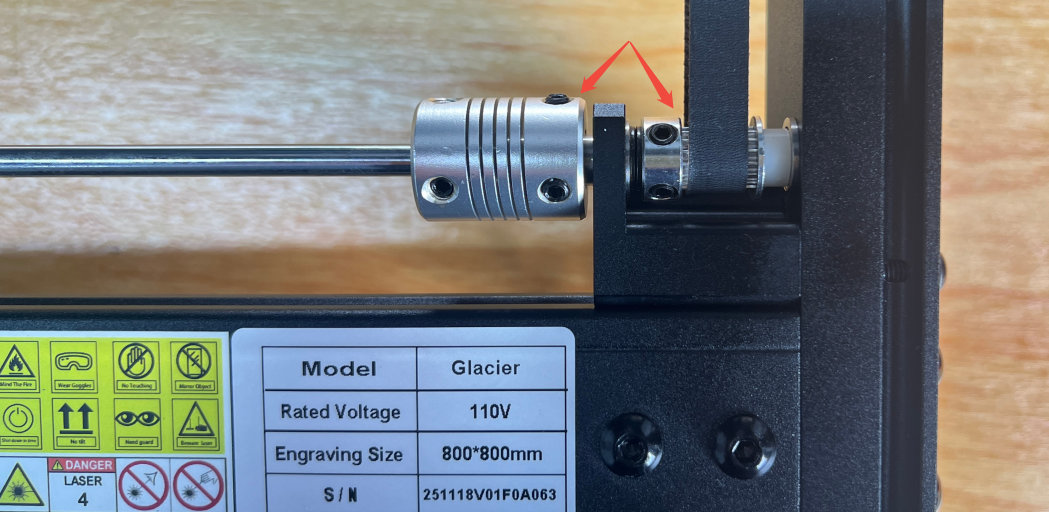
Friction noise at the ends of the guide shaft: make sure the couplers at the shaft ends are not sitting too close to the shaft supports, and adjust the spacing if they are.
-
Check the motor wiring: unplug and reconnect the motor cables.
-
Check the frame: inspect the X and Y profiles for deformation, rust or trapped debris. If you find deformation or rust, photograph it clearly and send it with the machine's Serial Number to customer service.
-
If it still happens: record a fault video and send it with the Serial Number.
¶ 10. The Engraved Output Is Distorted
First, identify the distortion. Engrave a circle and see whether it closes.
-
Closes but comes out as an ellipse — the step settings are probably wrong. Restore the factory settings through the software first, then in LightBurn or LaserGRBL open the machine settings and check that
$100and$101are both 100. If not, set both to 100.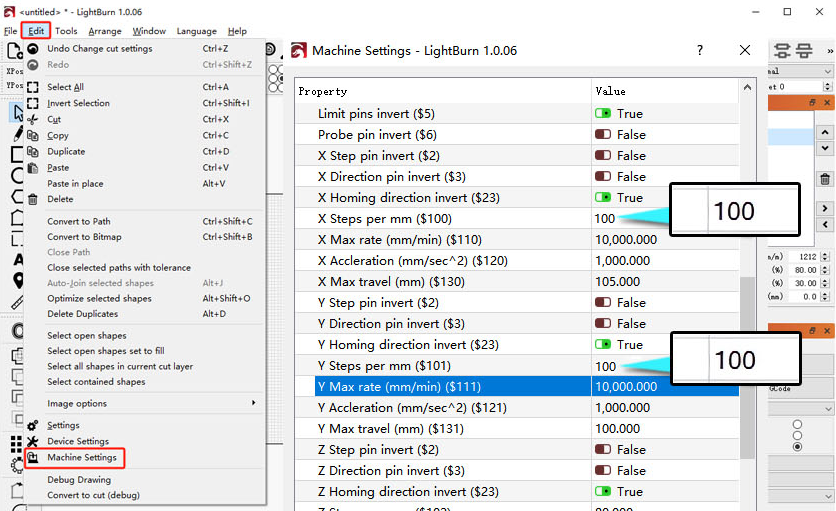
-
Open shapes, misalignment or wavy lines — these point at the machine structure. Work through the adjustments below.
Structural adjustments — see the structural adjustment video.
X-axis parallelism (tool: L2.0 hex key). Near the lower crossbeam, find the Y-axis motor and the two linear shafts. Loosen the set screws of the two shaft couplings on the shafts farther from the motor.
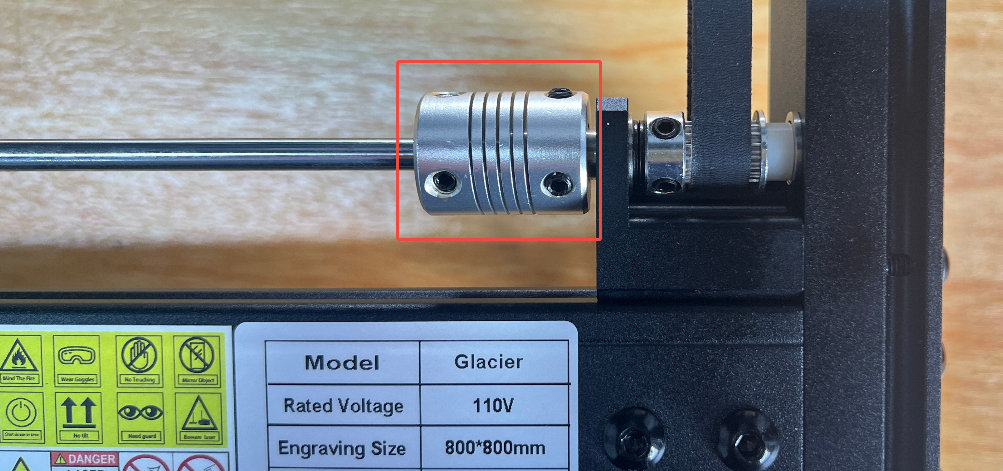
Move the X-axis to the top so the X-axis cable chain lies flush against the upper crossbeam — tie it in place with string if it will not stay — then retighten the set screws. Measure both ends of the X-axis against the crossbeam again, and repeat if they are still unequal.
Timing pulley and coupling screws (tool: L2.0 hex key): check that the set screws on the couplings and timing pulleys are tight.
Y-axis timing belts (tool: L2.5 hex key): press both belts to judge tension. To adjust, loosen the two screws on the belt tensioner near the upper crossbeam, pull the tensioner towards the crossbeam until the belt is properly tight, then retighten. Do the same on the other Y-axis.
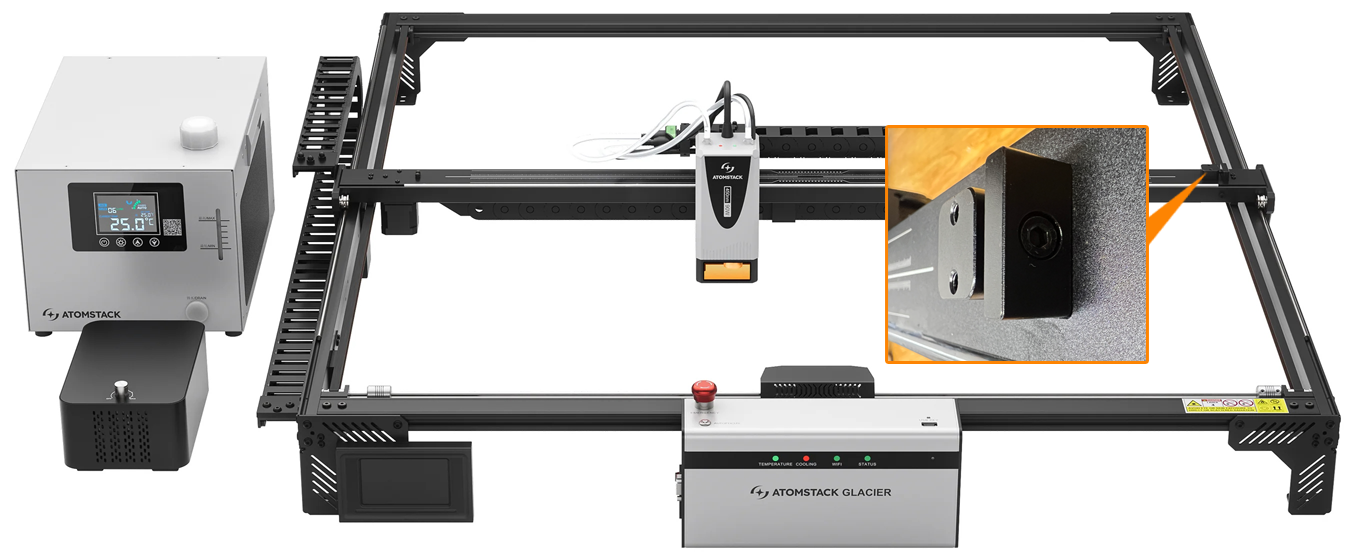
X-axis timing belt (tools: L2.0 and L3.0 hex keys): find the tensioner at the upper right of the X-axis and loosen the two set screws on top with the L2.0 key, then turn the side screw with the L3.0 key to tighten or loosen the belt.
X-axis guide rail slider (tools: L2.0 hex key, needle-nose pliers): shake the laser module gently by hand. If it wobbles, or the X-axis is hard to move, the eccentric wheels need adjusting.
-
Loosen the side fixing screws and remove the laser module.
-
Turn the Z-axis knob to bring the slider to its highest position — two round eccentric wheels are then visible.
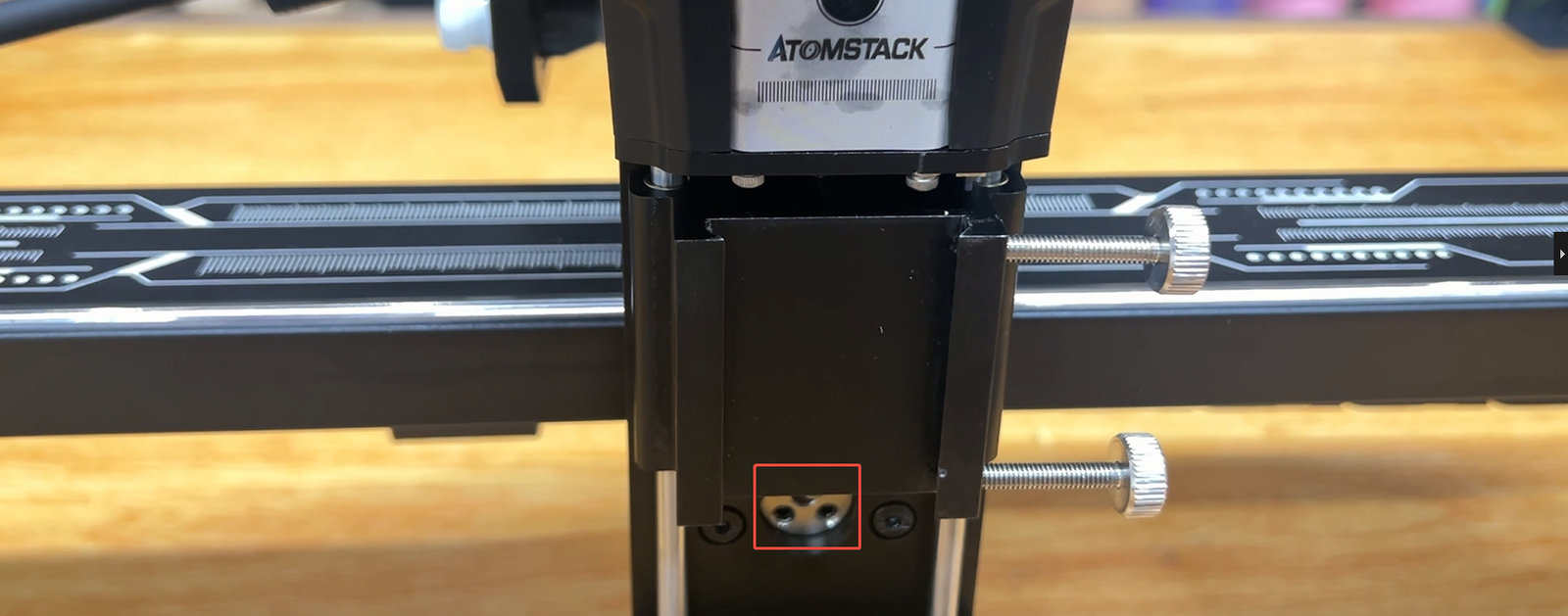
-
Remove the set screws holding the eccentric wheels with the L2.0 key.
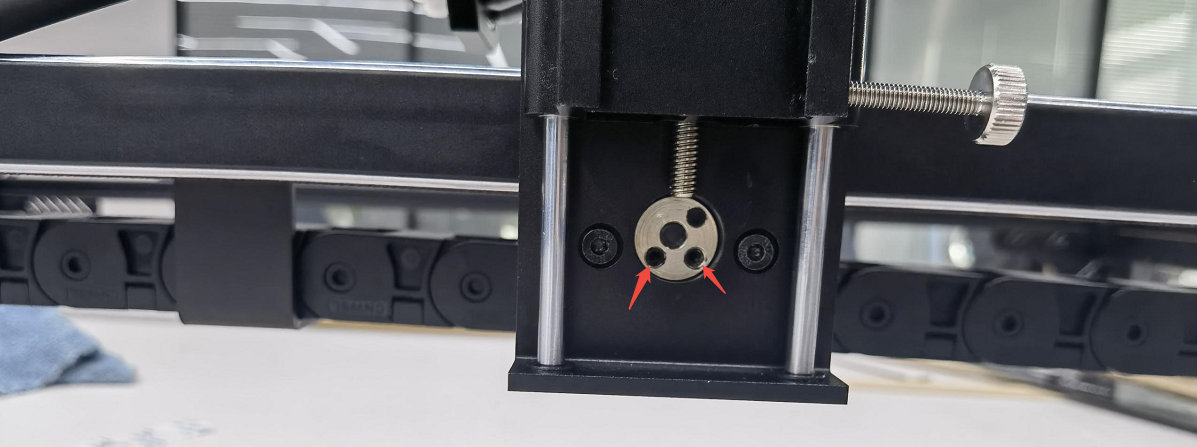
-
Put the pliers into the two holes of the eccentric wheel and turn it — clockwise tightens, anticlockwise loosens. Loosen it first, move the Z-axis gently by hand so it settles naturally, then tighten clockwise and refit the set screws.
-
Move the Z-axis left and right by hand and check that it runs smoothly, without wobble or binding. Readjust if it does not.
-
Refit the laser module.
¶ 11. Flame Alarms Keep Triggering
-
Check the material: flammable materials such as MDF and balsa set off false alarms. You can switch the flame detection function off from the touchscreen, the mobile app or AtomStack Studio. When cutting thick material, raise the cutting speed and use several passes instead.
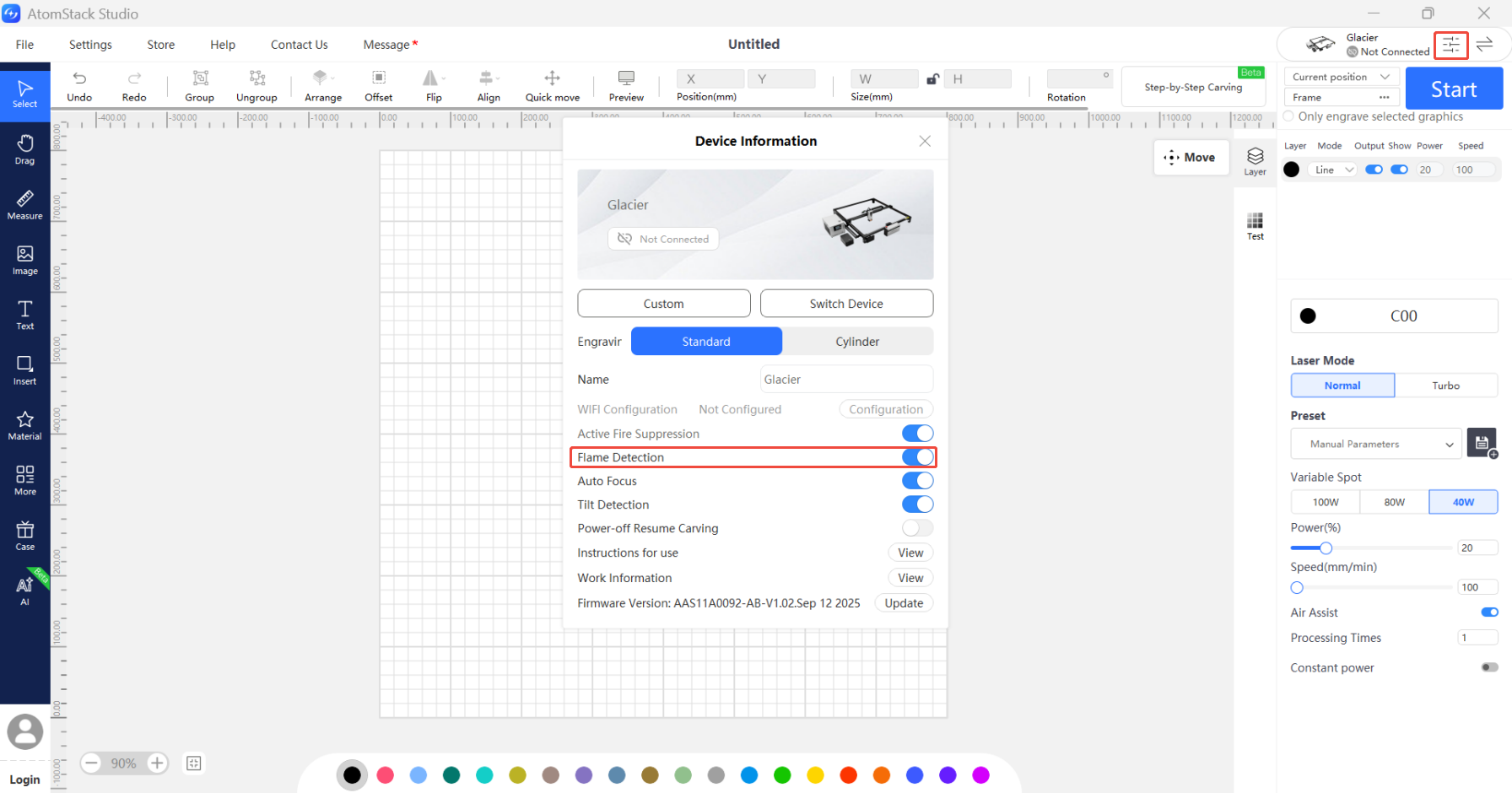
Warning: with flame detection switched off, someone must watch the machine closely the whole time it is running.
-
Check the design: a pattern with very dense lines can trigger false alarms. Increase the speed, add passes, or switch flame detection off — again, only under close supervision.
-
Check the flame detection board: run a job at a lower power. If the alarm still fires frequently at low power the board is probably faulty; see the flame detection board replacement video.
¶ 12. The Machine Hits the Frame While Framing or Engraving
-
Check the file size: the job must fit inside the Glacier working area and must not contain negative coordinates. Reopen the software, draw a small test shape with its own tools and see whether the problem persists.
-
Check the software: try AtomStack Studio to see whether the same thing happens, and make sure your LightBurn is a licensed version.
-
Verify movement: use the direction controls in the software and check that the machine travels the right distance in the right direction. If movement is wrong, inspect the cables for damage and make sure the motor connectors are seated.
-
Restore the factory settings:
- AtomStack Studio (2.20 and above): tap the client version number ("Version Number: V2.20") seven times in a row to enter Developer Mode, go back to the menu bar, open Serial Port Log and click Reset. See the AtomStack Studio factory reset video.
- LightBurn: type
$RST=*in the Console.
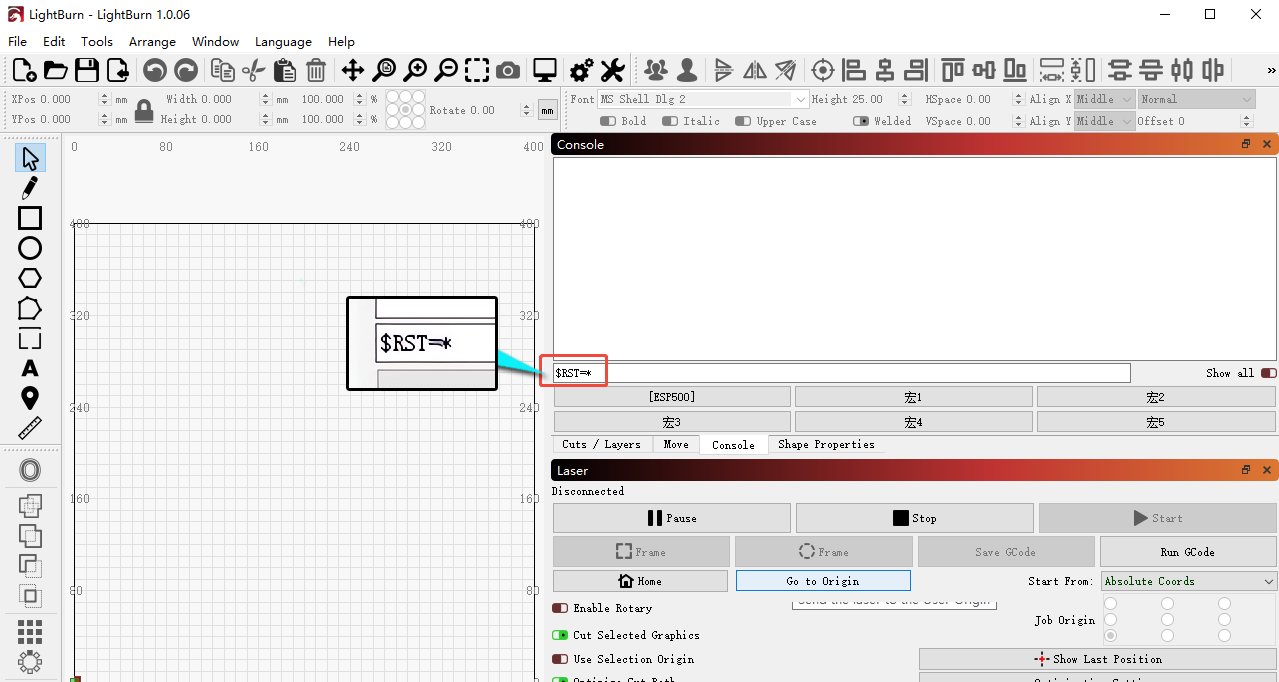
¶ 13. The Laser Module Mounting Bracket Is Loose
Adjust the eccentric wheels on the X-axis guide rail slider. Tools: L2.0 hex key and needle-nose pliers.
-
Loosen the side fixing screws and remove the laser module.
-
Turn the Z-axis knob to bring the slider to its highest position — two round eccentric wheels are then visible.
-
Remove the set screws holding the eccentric wheels with the L2.0 key.
-
Put the pliers into the two holes of the eccentric wheel and turn it — clockwise tightens, anticlockwise loosens. Loosen it first, move the Z-axis gently by hand so it settles naturally, then tighten clockwise and refit the set screws.
-
Move the Z-axis left and right by hand and check that it runs smoothly, without wobble or binding. Readjust if it does not.
-
Refit the laser module.
¶ 14. Engraving From the App Reports That No USB Drive Is Inserted
-
Restart: power the machine off and close the app, then restart both and try again.
-
Try another phone: if a second phone works, send customer service the model of the first one and upload the logs.
-
Check the USB drive: take it out of the control box and put it in a computer to see whether it reads and writes normally.
- Reads normally: try another drive of 32 GB or less. If engraving then works, the original drive is faulty.
- Does not read normally: format it to FAT32 on the computer, put it back and test again. If it still fails, try another drive of 32 GB or less.
- Reads normally and a second drive does not help either: the mainboard USB port may be faulty. Send customer service your troubleshooting steps, a video and the machine's Serial Number, and see the mainboard replacement video.
¶ 15. The Machine Keeps Reporting That No USB Key Is Inserted
-
Reseat the USB key: switch the machine off, pull the key out, put it back in, power on and check.
-
Try the spare key: switch off, swap in the spare USB key supplied with the machine and check again.
-
If the spare does not help either: the mainboard may be faulty. Send customer service the steps you have tried, a video of the problem and the machine's Serial Number, and see the mainboard replacement video.
¶ 16. The Laser Module Cannot Be Moved by Hand After Power-on
-
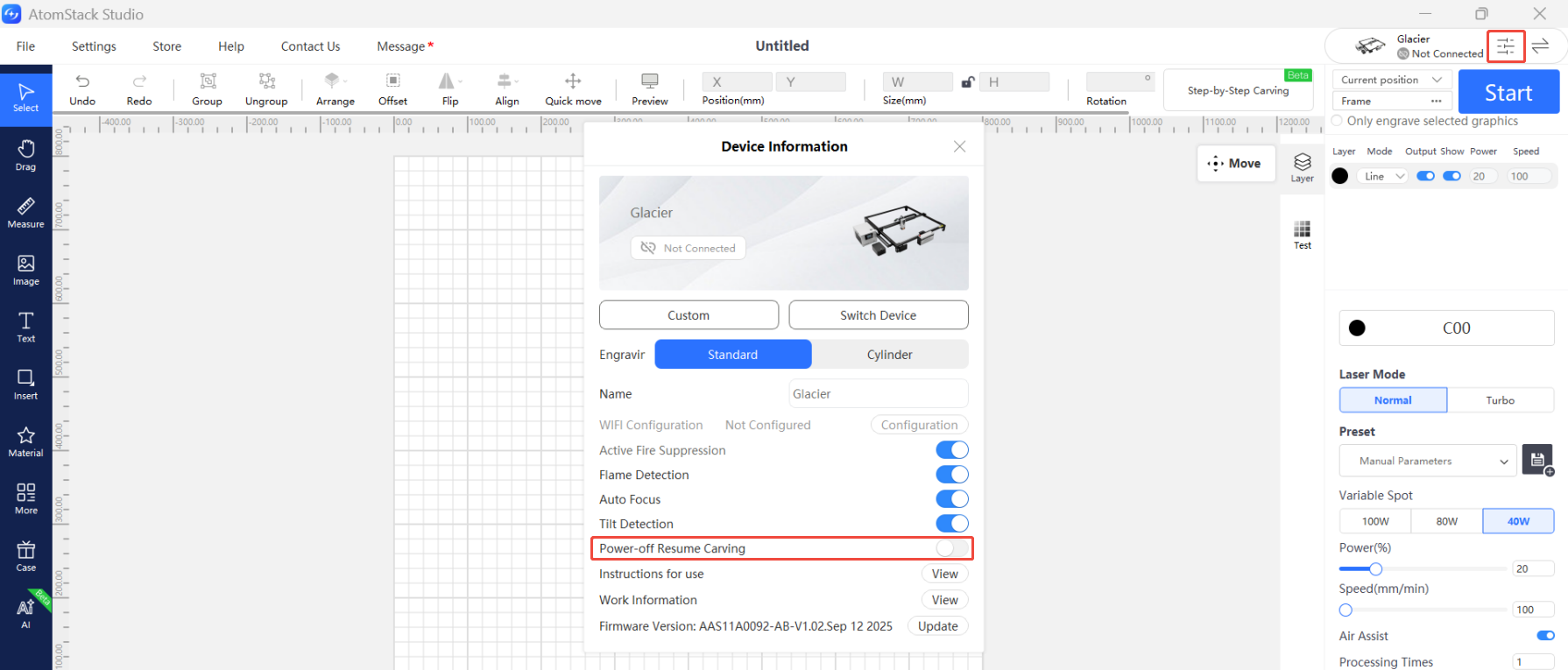
Check Power-off Resume: connect through AtomStack Studio or the app, tap the icon in the top right to open the device information and see whether Power-off Resume is switched on. While it is on, the laser head can only be moved with the direction controls in the software. Switch it off and you will be able to push the laser module to where you want it.
-
If Power-off Resume is off and it still will not move: the mainboard may be faulty. Send customer service a video that includes the check in step 1, together with the machine's Serial Number, and see the mainboard replacement video.
¶ 17. Air Assist Malfunction
-
Confirm the machine is running: air assist connected to the AIR ASSIST port only comes on during engraving or cutting.
-
Check the knob switch: make sure it is on. Turning the knob clockwise switches the air assist on and sets the airflow.
-
Check the power: feed the air assist from a DC 24V supply directly and see whether it starts. If it will not start from the mainboard during a job but does start on an external 24V supply, the fault is in the mainboard or the air pump power cable — test the cable for continuity with a multimeter and send the result to customer service.
-
Check what it does once running: start a job, or power the air assist separately, then turn the knob and feel whether the pump vibrates.
- Nothing at all — the knob switch is probably faulty. Send a video and the machine's Serial Number to customer service; see the air assist knob switch replacement video.
- Vibration but no airflow, or very weak airflow — the pump is probably faulty. Send a video and the Serial Number to customer service; see the air assist pump replacement video.
¶ 18. The Chiller Display Screen Is Cracked
The screen assembly has to be replaced. Send customer service photos of the packaging, photos of the damage and the machine's Serial Number. See the chiller display screen replacement video.
¶ 19. With a Rotary Attachment Fitted, the Machine Turns Continuously at Startup
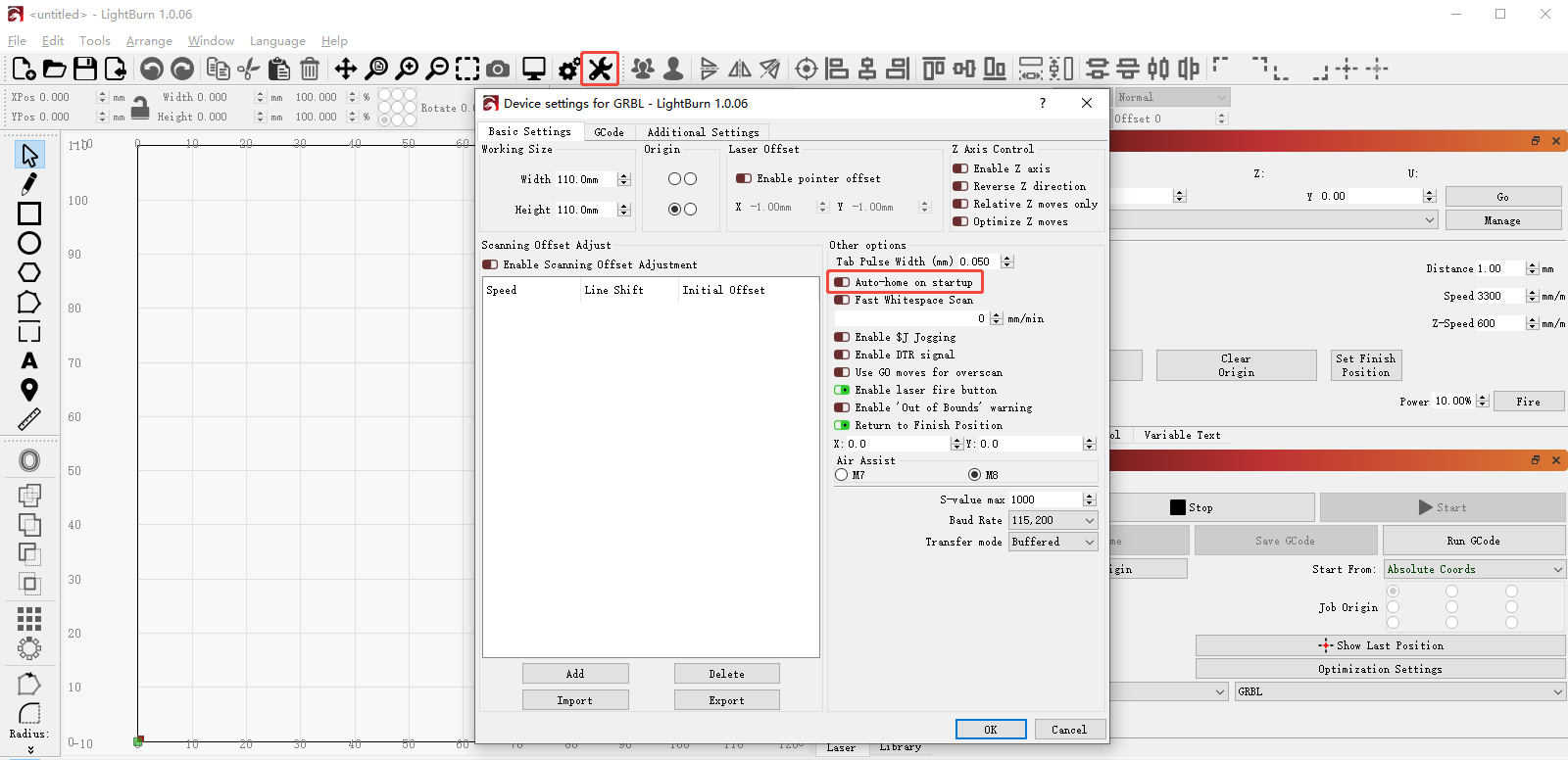
This is normally LightBurn's homing behaviour. Open Device Settings and, under Other options, switch off Auto-home on startup.
¶ 20. Firmware Upgrade
See the Glacier firmware upgrade video.
-
From a USB drive or TF card: copy the Glacier firmware file (
.bin) to the root directory of the drive and insert it into the control box — the upgrade runs automatically.Note: the same firmware version cannot be flashed twice, and a firmware file with a different name will not start the automatic upgrade.
-
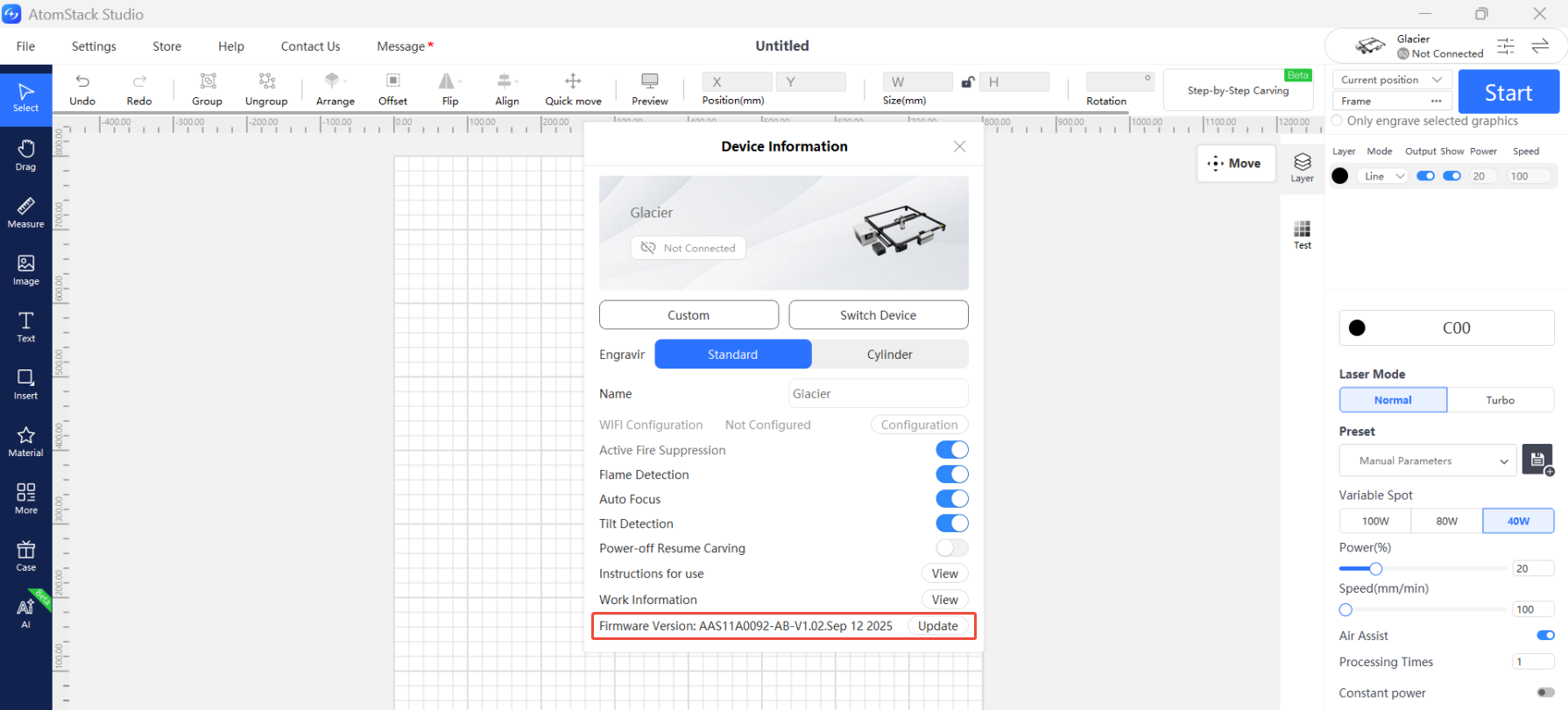
From AtomStack Studio: once connected, click the menu icon at the top right to open the device information. The current firmware version is shown at the bottom. If it says the version is already the latest, there is nothing to do; if an Update button appears, insert a USB drive or TF card, click it and wait.
-
From the mobile app: once connected, the app prompts you automatically when a new version is available. Insert a USB drive or TF card, tap Update and wait.
¶ 21. Alarm Codes
| Code | Name | What to do |
|---|---|---|
| Alarm 1 | Hard limit alarm | Check whether a limit switch has been triggered. Press each switch by hand to confirm it triggers properly, then disconnect the limit switch cable and see whether the alarm still occurs. |
| Alarm 2 | Soft limit alarm | Does not normally occur. |
| Alarm 3 | Abort Cycle | Normal; no action needed. |
| Alarm 4 | Probe Fail Initial | Press the limit switch by hand to confirm it triggers properly. |
| Alarm 5 | Probe Fail Contact | The probe was not triggered within the travel range during auto focus. |
| Alarm 6 | Homing Fail Reset | Homing failed, possibly because a limit switch was already triggered. |
| Alarm 7 | Homing Fail Door | The enclosure door was opened during homing. |
| Alarm 8 | Homing Fail Pulloff | Check the limit switches. Usually follows an auto focus error — confirm by hand that every limit switch triggers. |
| Alarm 9 | Homing Fail Approach | No limit switch was found within the search distance. Confirm by hand that every limit switch works. |
| Alarm 11 | Machine Tilt Alarm | The tilt protection has triggered. |
| Alarm 12 | Flame Detected | Flame detected. Check whether the material is flammable (MDF, balsa), whether the pattern is too dense, or whether direct sunlight is causing a false alarm. |
| Alarm 14 | Safe Lock | The USB key is not inserted, or is making poor contact. |
| Alarm 17 | Bluetooth enabled | The machine is in network configuration mode; everything else is disabled. |
| Alarm 19 | Over temperature alarm | The laser temperature is over the limit. Check the cooling system. |
| Alarm 20 | Chiller alarm | The chiller has raised an alarm. Check its error code. |