Glacier Connection & USB: PC Fails, USB Not Found
The machine will not connect, stops during engraving, reports a missing USB drive or key, or needs a firmware upgrade.
Power off before removing the laser module to inspect the lenses or unplugging and reconnecting the laser cable. With flame detection switched off, someone must watch the machine closely the whole time it is running.
¶ PC Won’t Connect
What you see: The machine will not connect to a computer.
Check in this order:
-
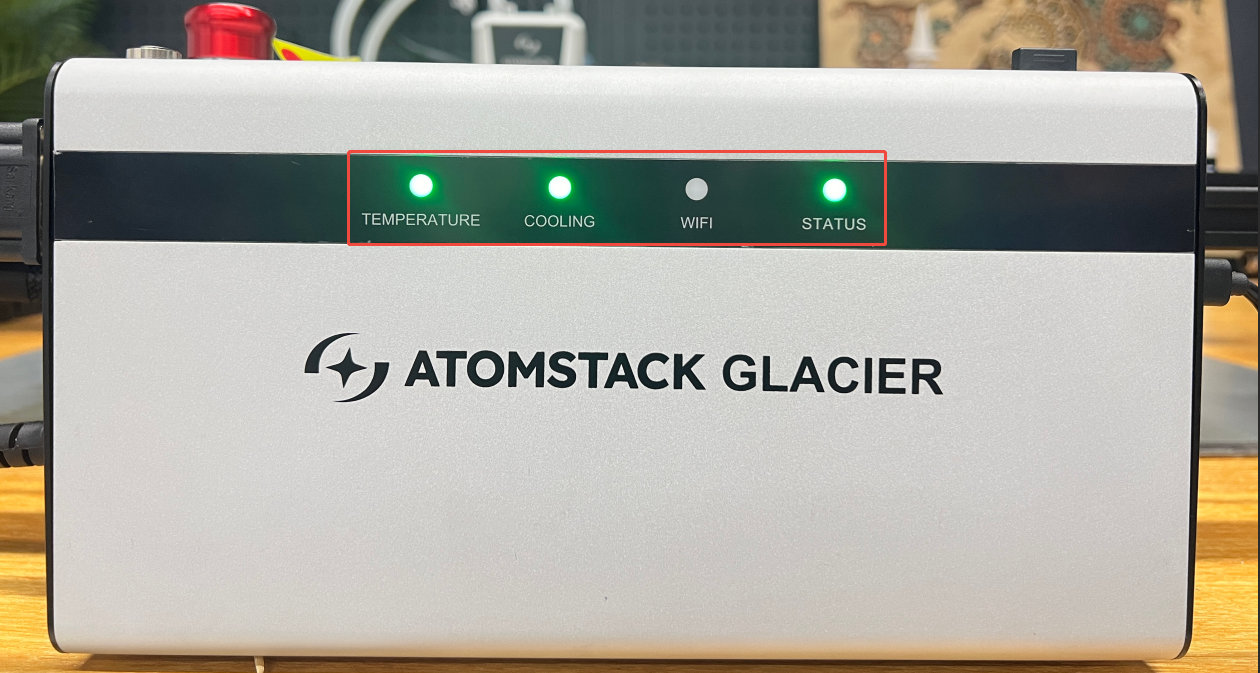
Confirm the control box is powered: check that the three indicator lights on the front are lit. If only the power switch is lit and the front lights are dark, the emergency stop is probably still pressed in — push it down, turn it clockwise and release.
-
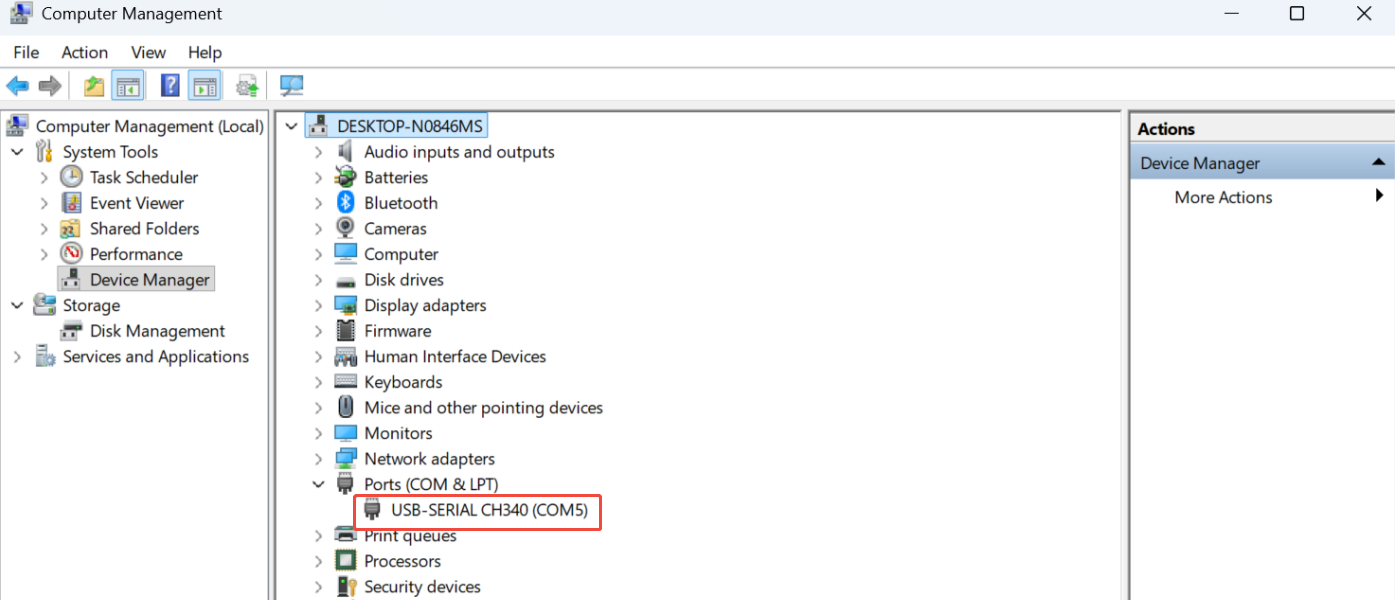
Check the serial port: AtomStack Studio needs no selection. In LightBurn, select the right port — Device Manager shows which COM port the CH340 was given.
-
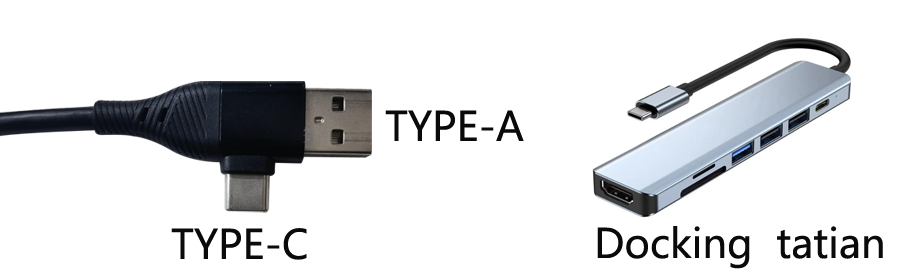
Check the operating system: on Windows you can connect Type-C to USB-A or USB-C directly. On macOS or HarmonyOS you need a hub or docking station for the USB-A end.
-
Make sure nothing else holds the connection: no other software may be connected to the engraver.
-
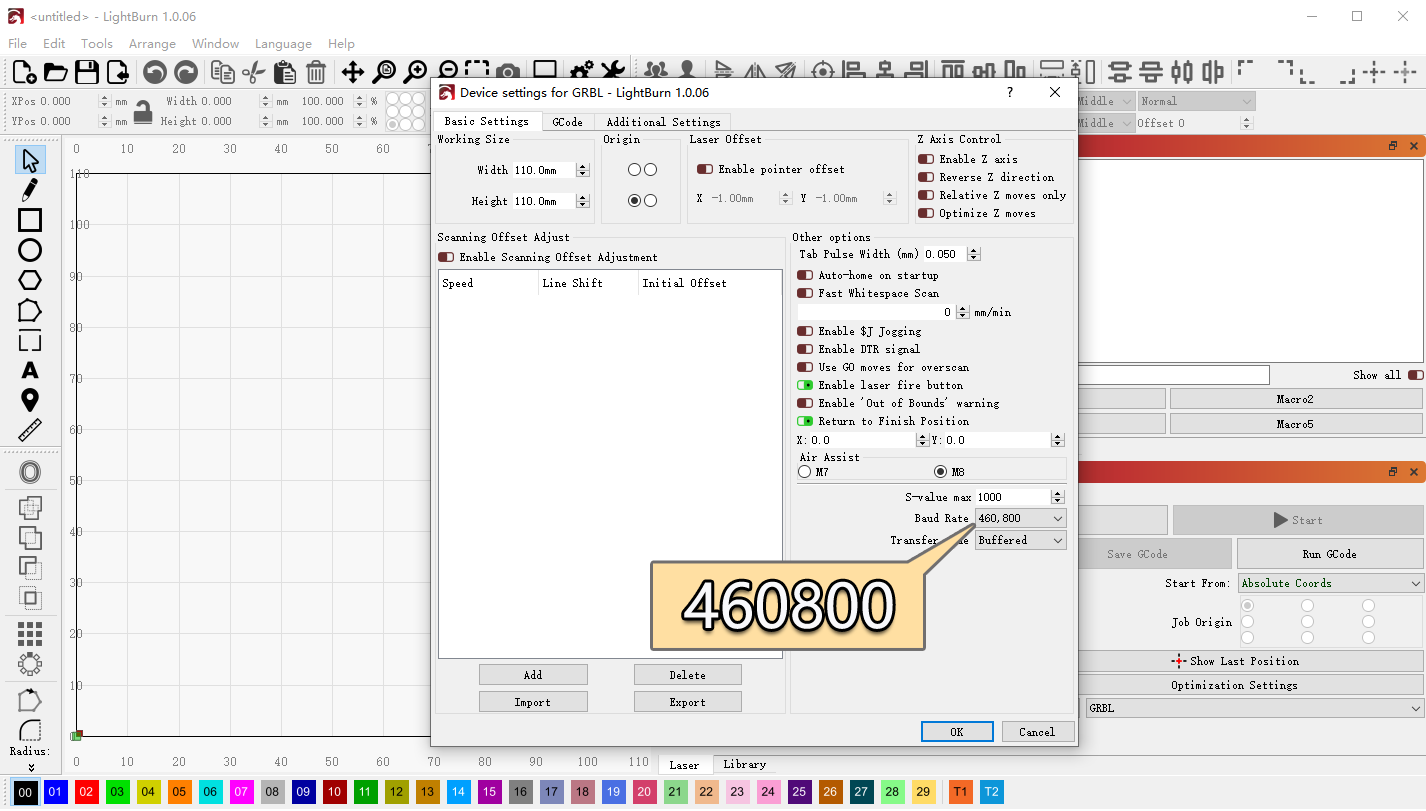
Check the baud rate: not needed for AtomStack Studio; in LightBurn it must be 460800.
-
Check the serial driver: look for a CH340 serial port in Device Manager. If it is missing, install the driver — Windows, Mac — or follow the serial driver installation video.
-
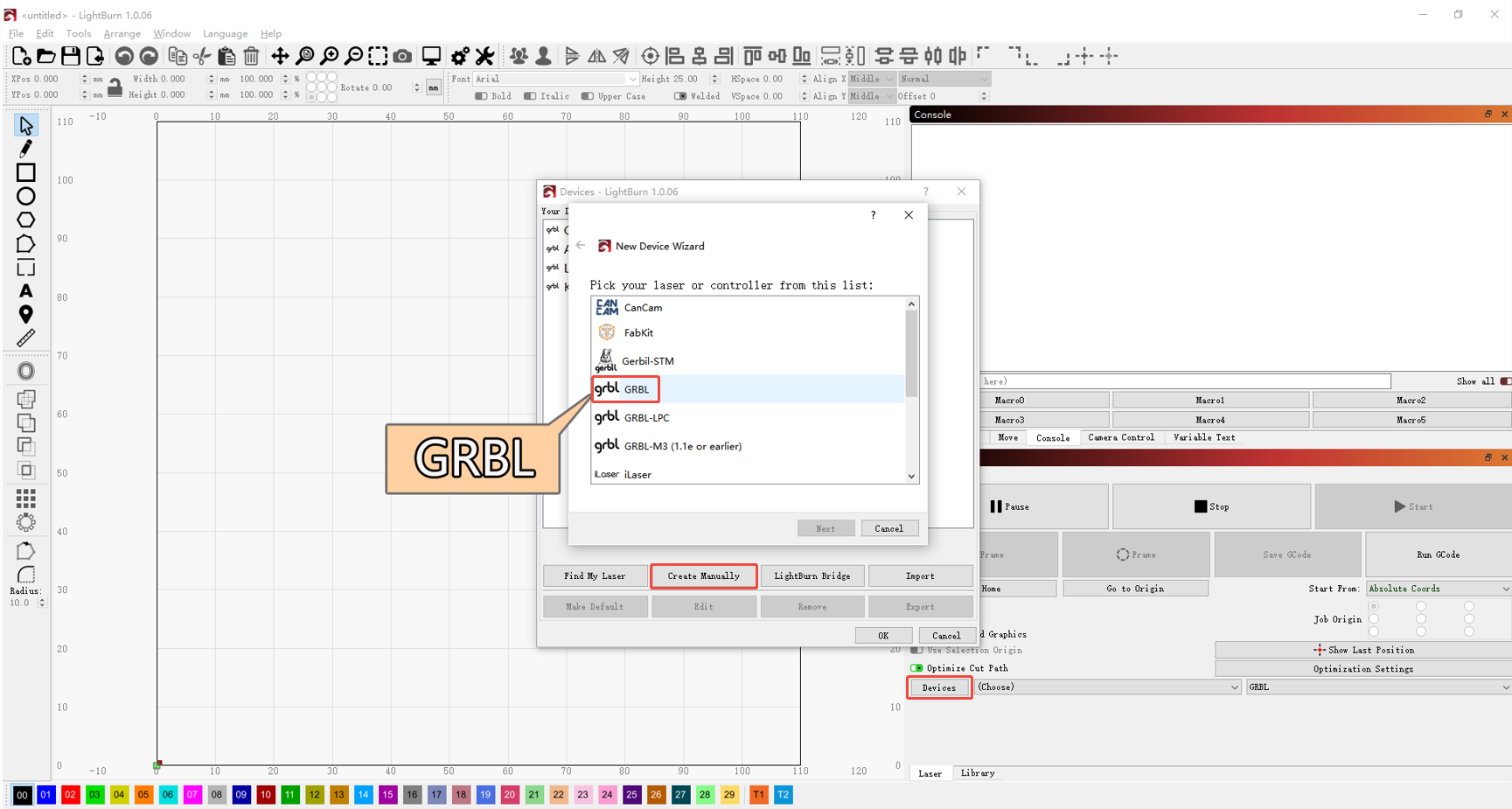
Check the controller: not needed for AtomStack Studio. In LightBurn, add a GRBL controller or import the Glacier factory configuration file; see the Glacier connection video.
-
Check cables and ports: try a different Type-C cable or a different USB port on the computer.
-
Try other software or another computer: AtomStack Studio, LightBurn, or a second computer.
-
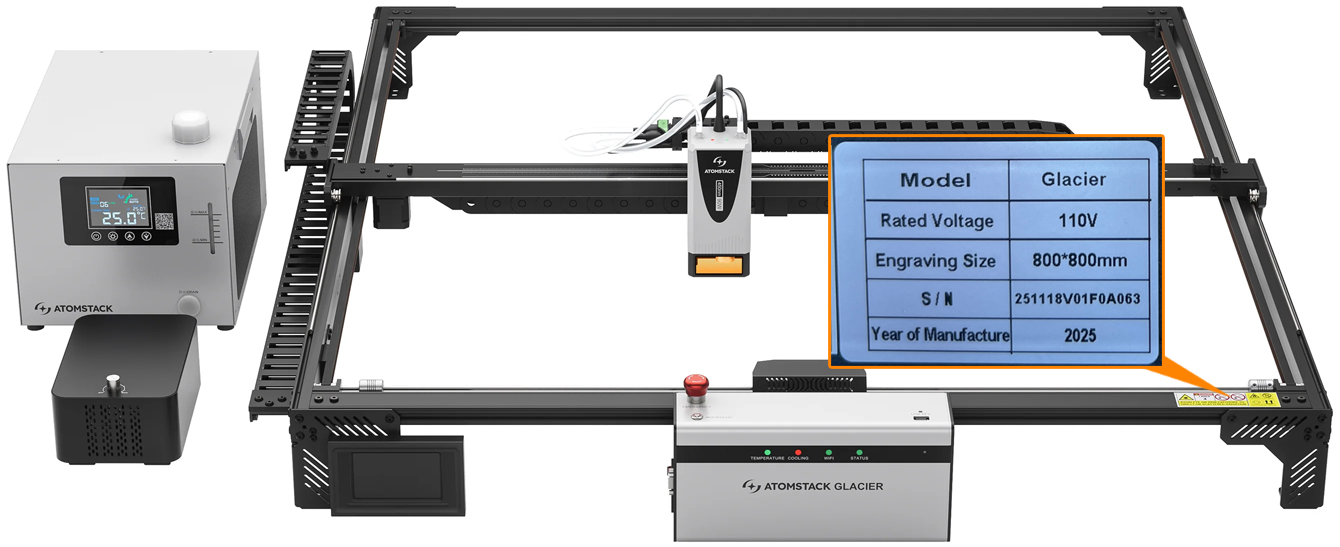
If it still fails: send customer service a fault video, the steps you have tried and the machine's Serial Number. For mainboard replacement see the mainboard replacement video.
Still not fixed? Contact support with the details listed in What to send support.
Related problems: Phone Won’t Connect · Stops Mid-Engraving · Firmware Upgrade
¶ Phone Won’t Connect
What you see: The machine will not connect to a phone.
Check in this order:
-
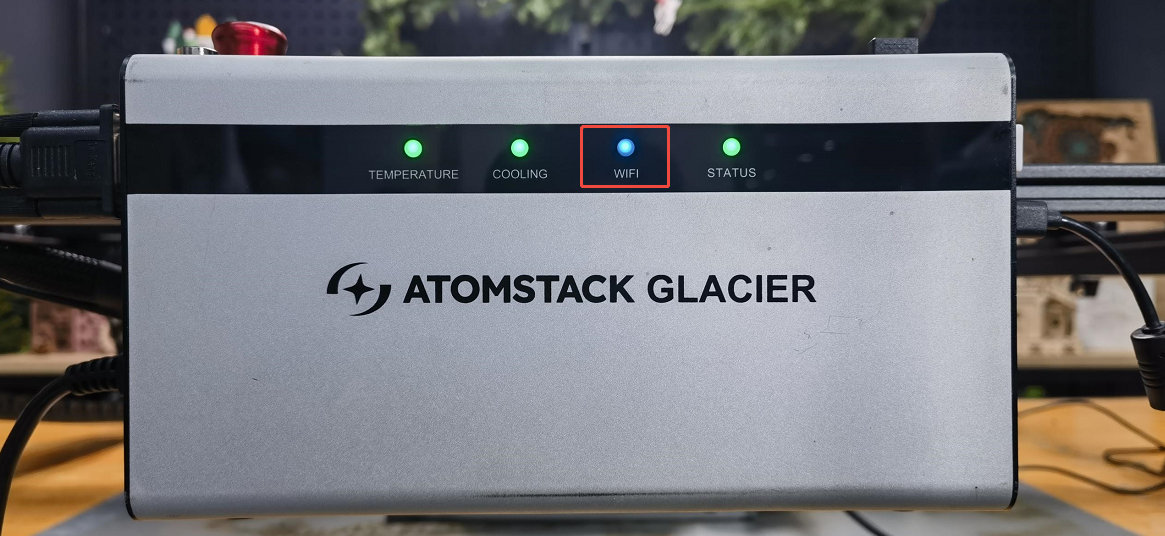
Confirm Wi-Fi mode: press and hold the auto focus button for more than 5 seconds to enter Wi-Fi mode, then check that the Wi-Fi indicator is flashing blue.
-
Confirm the app: use the AtomStack app, from the official website or the QR code on the machine. On iOS, search for "AtomStack" in the App Store.
-
Turn off mobile data and try again.
-
Try another phone: if a second phone connects, tell customer service the brand and operating system of the one that does not.
-
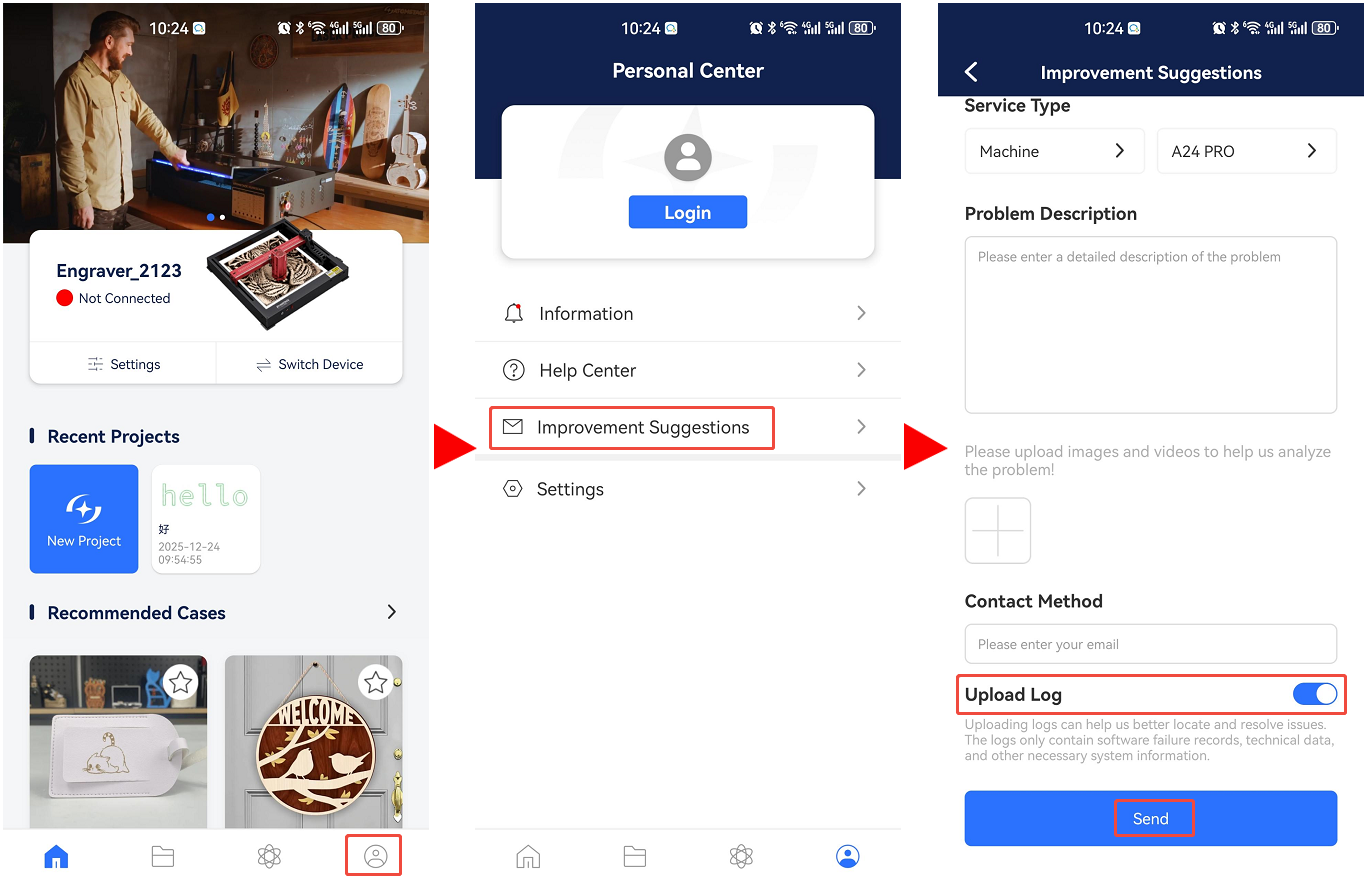
Send the app logs: go to Profile → Improvement suggestions, tick Upload log and submit.
Still not fixed? Contact support with the details listed in What to send support.
Related problems: PC Won’t Connect · App Reports No USB
¶ Stops Mid-Engraving
What you see: The machine stops during engraving and only reconnects after a restart.
Check in this order:
-
Check the Type-C cable: unplug it, plug it back in and try again.
-
Check the operating system: on Windows 11, do not let the software run in the background. Moving it to the background can make the machine stop or run at low power.
-
Check whether a flame alarm was triggered: when a flame alarm fires mid-job, the laser module keeps circling a 50 mm x 50 mm square.
Worth checking
- Whether the material is flammable - balsa, MDF, cotton and the like.
- Turning the flame detection function off and trying again. With it off, someone has to watch the machine so nothing goes wrong.
-
Try AtomStack Studio: download it from https://atomstack.com/pages/atomstack-studio-software.
-
Watch the software when it stops: if the progress bar keeps running while the machine has stopped, the connection is dropping. Clean the USB port on the control box, change the Type-C cable, or use a different USB port on the computer.
-
Reflash the firmware: send customer service the machine's Serial Number to get the right firmware, load it from a USB drive and try again.
-
If it still happens: the mainboard may need replacing. Send customer service the steps you have tried, a fault video and the Serial Number, and see the mainboard replacement video.
Still not fixed? Contact support with the details listed in What to send support.
Related problems: PC Won’t Connect · Repeated Flame Alarms · Firmware Upgrade
¶ App Reports No USB
What you see: Engraving from the app reports that no USB drive is inserted.
Check in this order:
-
Restart: power the machine off and close the app, then restart both and try again.
-
Try another phone: if a second phone works, send customer service the model of the first one and upload the logs.
-
Check the USB drive: take it out of the control box and put it in a computer to see whether it reads and writes normally.
- Reads normally: try another drive of 32 GB or less. If engraving then works, the original drive is faulty.
- Does not read normally: format it to FAT32 on the computer, put it back and test again. If it still fails, try another drive of 32 GB or less.
- Reads normally and a second drive does not help either: the mainboard USB port may be faulty. Send customer service your troubleshooting steps, a video and the machine's Serial Number, and see the mainboard replacement video.
Confirm the fix: Try another USB drive of 32 GB or less: engraving from the app works.
Still not fixed? Contact support with the details listed in What to send support.
Related problems: Phone Won’t Connect · USB Key Not Detected
¶ USB Key Not Detected
What you see: The machine keeps reporting that no USB key is inserted.
Check in this order:
-
Reseat the USB key: switch the machine off, pull the key out, put it back in, power on and check.
-
Try the spare key: switch off, swap in the spare USB key supplied with the machine and check again.
-
If the spare does not help either: the mainboard may be faulty. Send customer service the steps you have tried, a video of the problem and the machine's Serial Number, and see the mainboard replacement video.
Still not fixed? Contact support with the details listed in What to send support.
Related problems: App Reports No USB · Alarm Codes
¶ Firmware Upgrade
See the Glacier firmware upgrade video.
-
From a USB drive or TF card: copy the Glacier firmware file (
.bin) to the root directory of the drive and insert it into the control box — the upgrade runs automatically.Note: the same firmware version cannot be flashed twice, and a firmware file with a different name will not start the automatic upgrade.
-
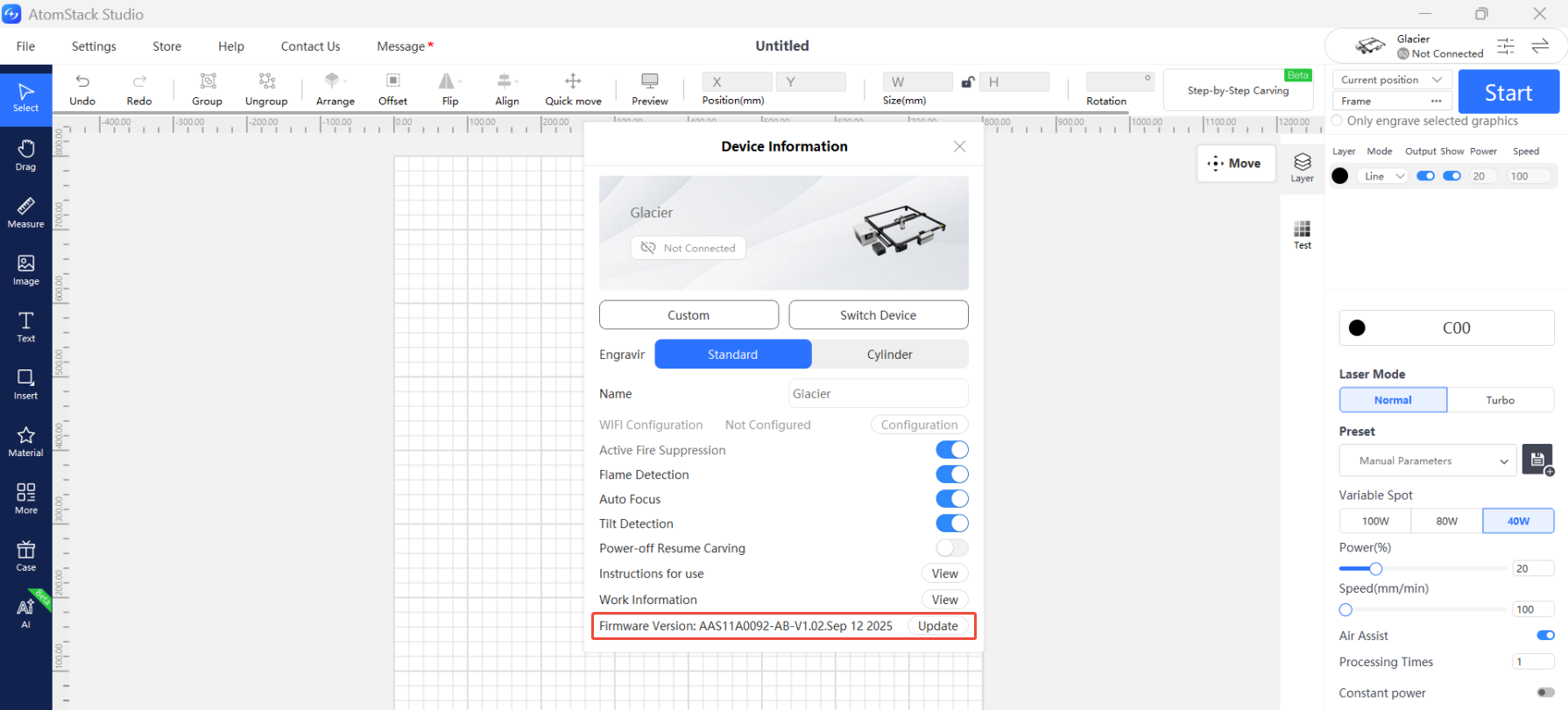
From AtomStack Studio: once connected, click the menu icon at the top right to open the device information. The current firmware version is shown at the bottom. If it says the version is already the latest, there is nothing to do; if an Update button appears, insert a USB drive or TF card, click it and wait.
-
From the mobile app: once connected, the app prompts you automatically when a new version is available. Insert a USB drive or TF card, tap Update and wait.
Related problems: PC Won’t Connect · Phone Won’t Connect · Stops Mid-Engraving