Glacier Device Usage
¶ 1. Glacier Control Interface Description
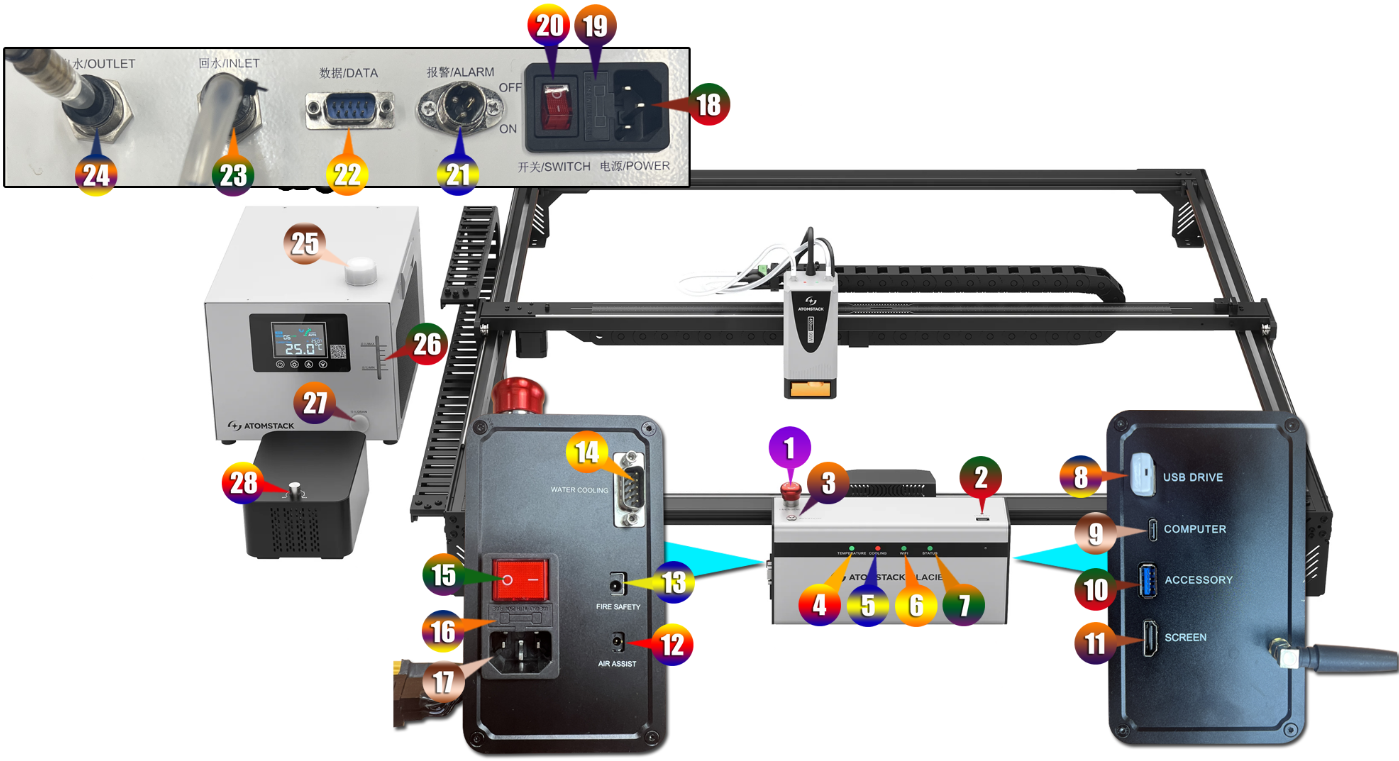
- ① Emergency Stop Switch: in an emergency, press it to cut the power. The machine stops immediately, protecting both the operator and the equipment.
- ② USB Key: USB key port. The machine only works with the USB key inserted (it is inserted at the factory). Without it the laser cannot fire.
- ③ Auto Focus Button:
- Press once to run auto focus.
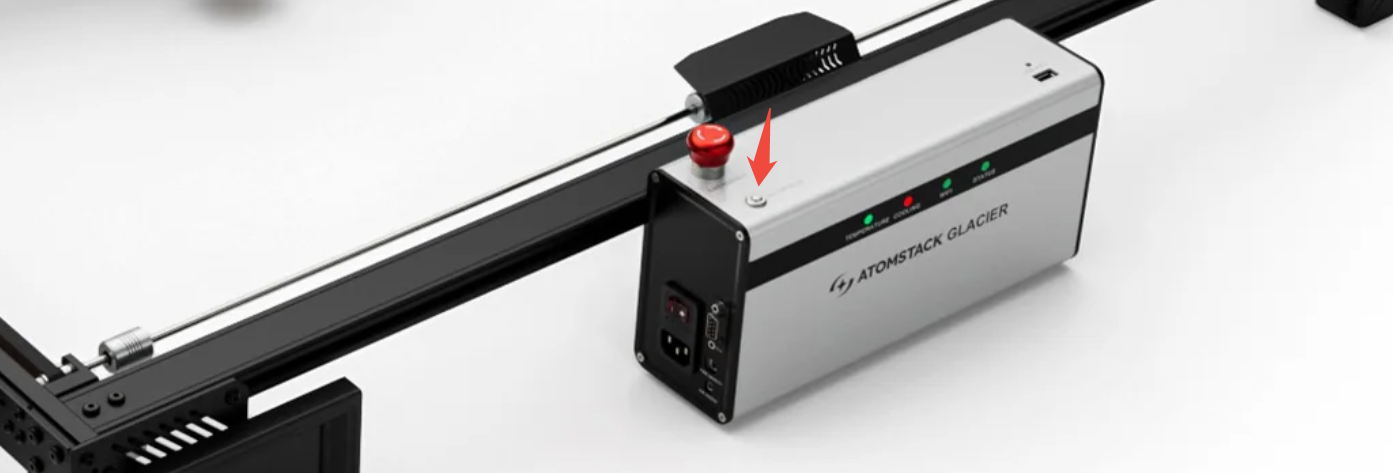
- Press and hold for more than 5 seconds to start Wi-Fi configuration.
- ④ Laser Temperature Indicator:
- Solid green: normal, 16 °C ≤ laser temperature ≤ 40 °C.
- Solid yellow: warning, 40 °C ≤ laser temperature ≤ 50 °C.
- Flashing red: alarm, laser temperature below 16 °C or above 50 °C, with a buzzer.
- ⑤ Chiller Startup Alarm Indicator:
- Solid green: started normally.
- Flashing red: alarm — flow alarm, low water level and so on — with a buzzer.
- ⑥ Wi-Fi Connection Indicator:
- Solid green: Wi-Fi connected.
- Flashing blue: pairing / configuration in progress.
- Flashing red: Wi-Fi connection failed, with a buzzer.
- ⑦ Machine Status Indicator:
- Solid green: standby.
- Flashing green: running.
- Flashing red: alarm — abnormal laser temperature, chiller fault, flame detection, limit switch and so on — with a buzzer.
- ⑧ USB DRIVE: USB flash drive port.
- ⑨ COMPUTER: computer port, connected with a Type-C cable.
- ⑩ ACCESSORY: expansion accessory port with automatic recognition. Takes accessories such as the R6, R8, R8 Pro and R5.
- ⑪ SCREEN: touchscreen port, connected with an HDMI cable.
- ⑫ AIR ASSIST: air assist power output. The machine switches the air assist on and off automatically.
- ⑬ FIRE SAFETY: power output for an active fire extinguisher. If an extinguishing pump is fitted, a flame alarm triggers it automatically.
- ⑭ WATER COOLING: chiller port, connected to the control box with a VGA cable.
- ⑮ Engraver Power Switch: turns the engraver on and off.
- ⑯ Engraver Fuse: blows automatically if the circuit current exceeds 15 A.
- ⑰ Engraver Power Cord Port: connects to the mains. Check that the voltage matches the machine.
- ⑱ Chiller Power Cord Port: connects to the mains. Check that the voltage matches the machine.
- ⑲ Chiller Fuse: blows automatically if the current exceeds 5 A.
- ⑳ Chiller Power Switch: turns the chiller on and off.
- ㉑ ALARM: connection port for alarm devices.
- ㉒ DATA: communication interface between the chiller and the control box, connected with a VGA cable.
- ㉓ INLET: return water port for the circuit.
- ㉔ OUTLET: water outlet port for the circuit.
- ㉕ Water Filling Port: water inlet for the chiller tank.
- ㉖ Water Level Indicator: window for checking the chiller water level. Keep the level above the minimum mark.
- ㉗ Tank Drain Port: drain outlet for the chiller tank.
- ㉘ Rotary Knob Switch: turns the air assist on and sets the airflow level.
Note: the air assist supplied with the engraver does not have the active fire-extinguishing function.
¶ 2. Unboxing and Installation
Refer to the Glacier unboxing and installation video or the user manual.
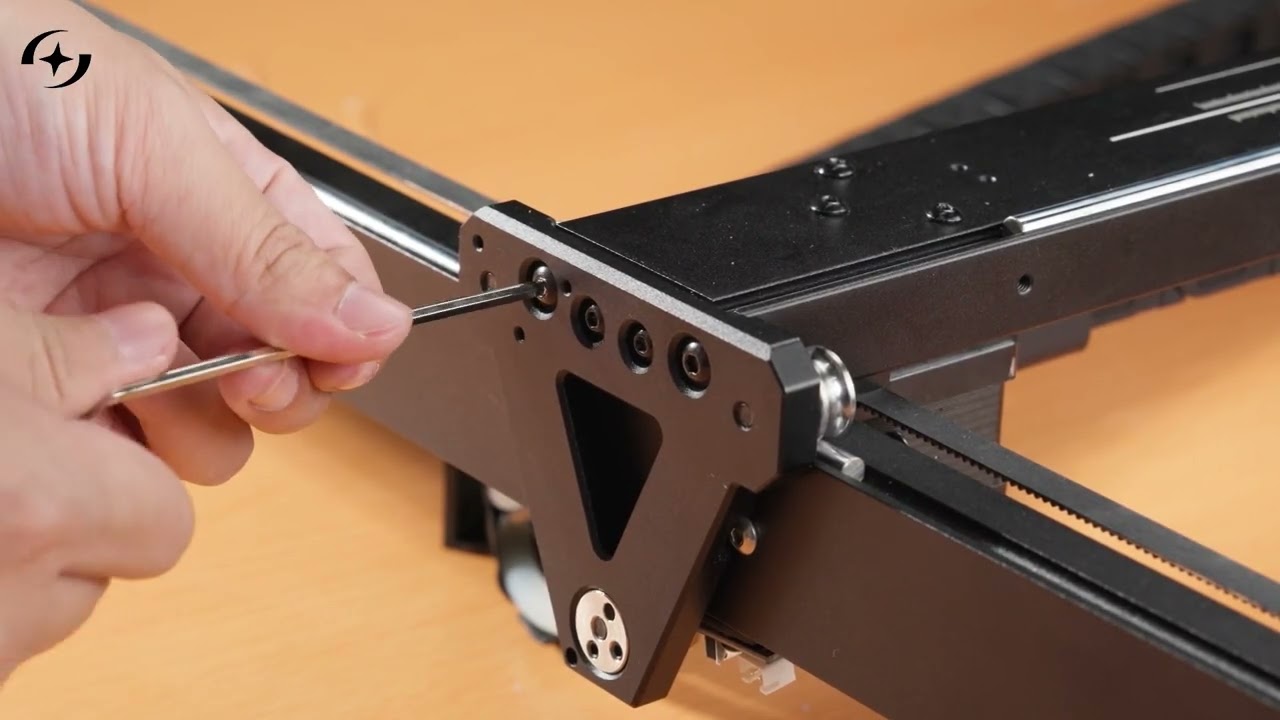
Click to play video on YouTube
Check all of the following before powering the machine on:
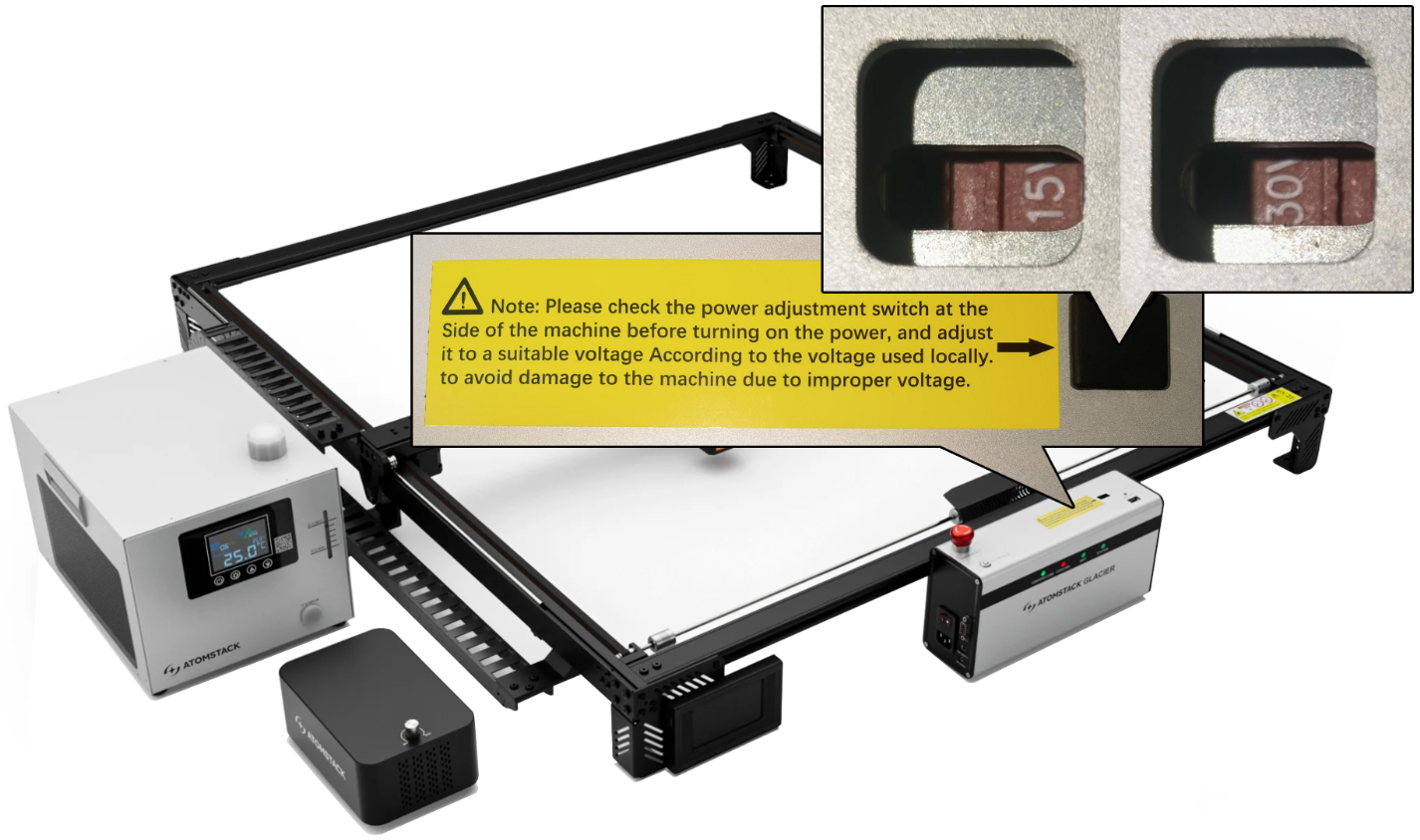
- Voltage: confirm that the voltage specification of the machine you received matches your local mains supply. The Glacier ships in a 230V and a 115V version. If you received the 115V version but your local supply is 220V, move the voltage selector with a screwdriver or tweezers to the correct position, as shown below.
- Water connections: the laser inlet and outlet ports can be connected either way round, but the chiller inlet and outlet must follow the port labels.
- Filling the chiller: fill the chiller with distilled, purified or high-purity water before powering on. The level must be above the minimum mark on the chiller scale.
- Water hoses: check that they are not bent, damaged or leaking. Never put corrosive liquids into the system.
- Working environment: make sure the area is well ventilated and that no flammable material is lying around.
- Placement: the machine must stand level while it runs. Never tilt it, turn it on its side or run it upside down.
- USB Key: make sure it is inserted.
- Laser safety: never look directly at the laser. Wear laser safety goggles while working, and do not leave the machine running unattended.
¶ 3. Glacier Connection and Operation
Refer to the Glacier connection video.
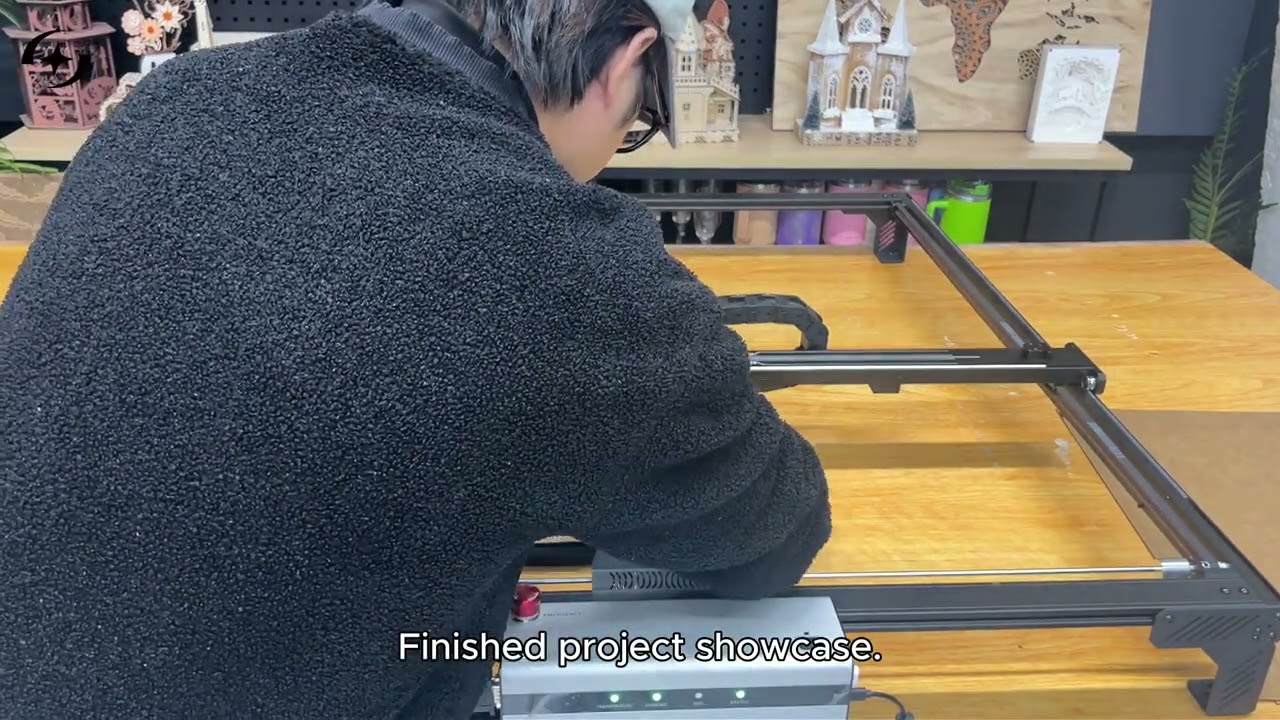
Click to play video on YouTube
- CH340 driver: the first time you use the machine, the computer needs the CH340 serial port driver. See the serial driver installation video.
- AtomStack Studio: connect and work directly, no extra settings needed.
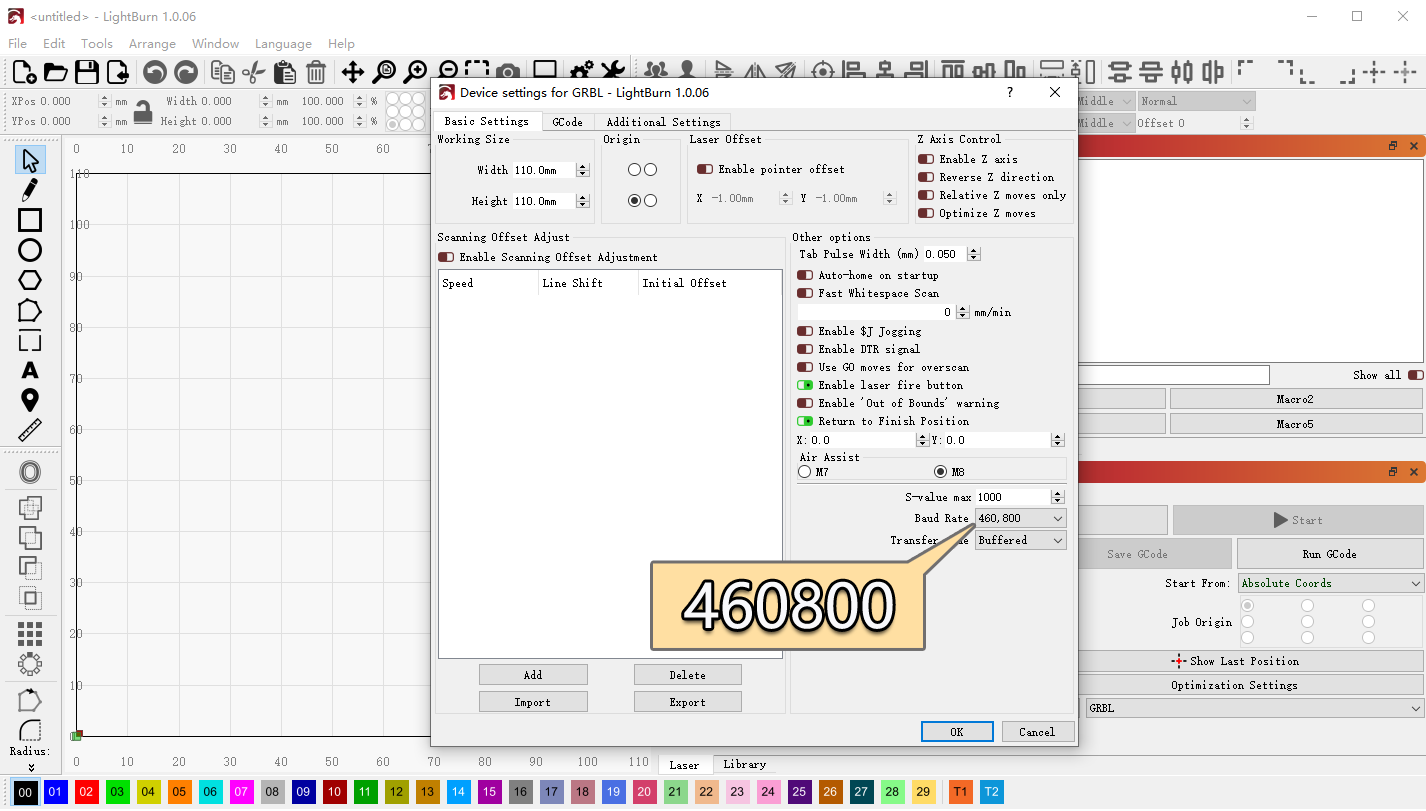
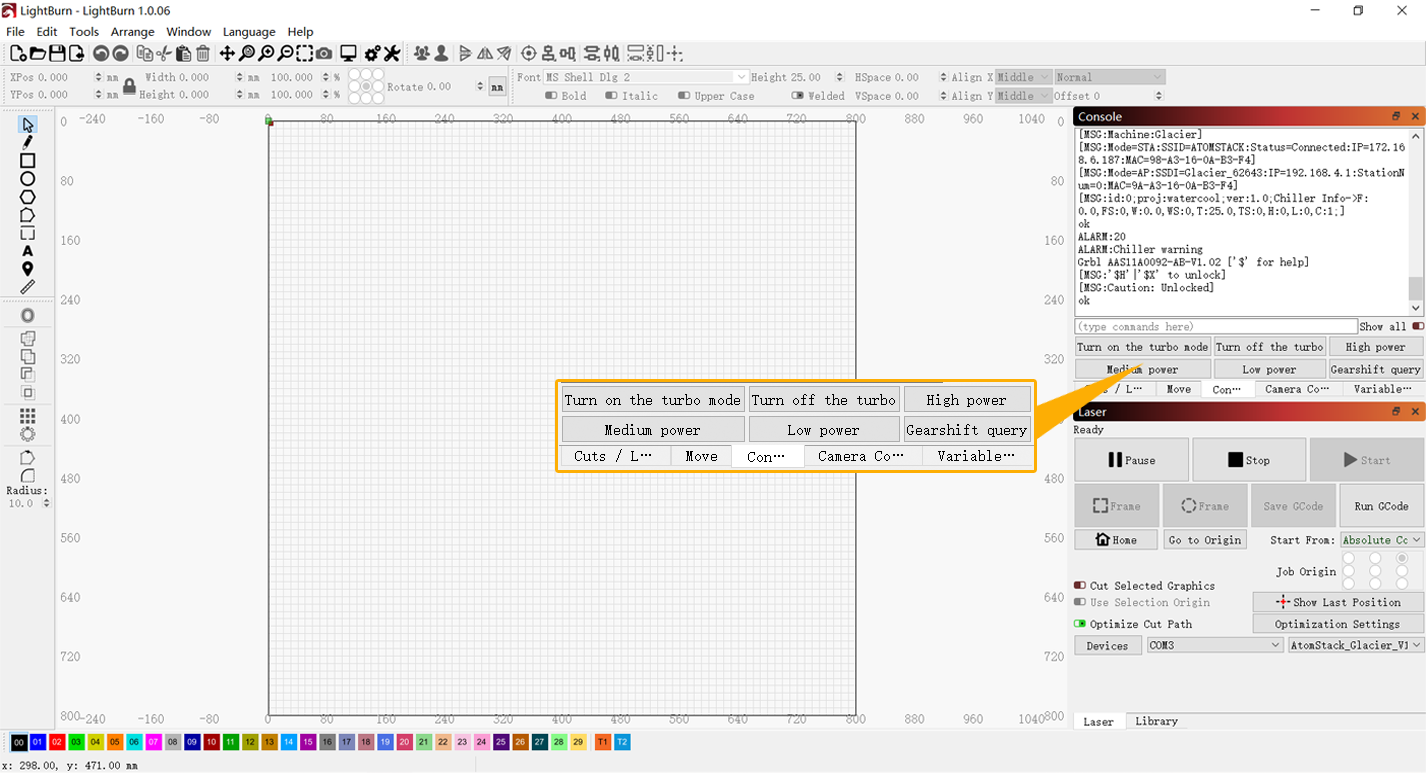
- LightBurn: set the baud rate to 460800, as shown below, or import the machine configuration file.
- Wi-Fi: press and hold the auto focus button for more than 5 seconds to start Wi-Fi pairing, as shown below.
¶ 4. Glacier Laser Power Switching
Refer to the Glacier laser power switching video.
Click to play video on YouTube
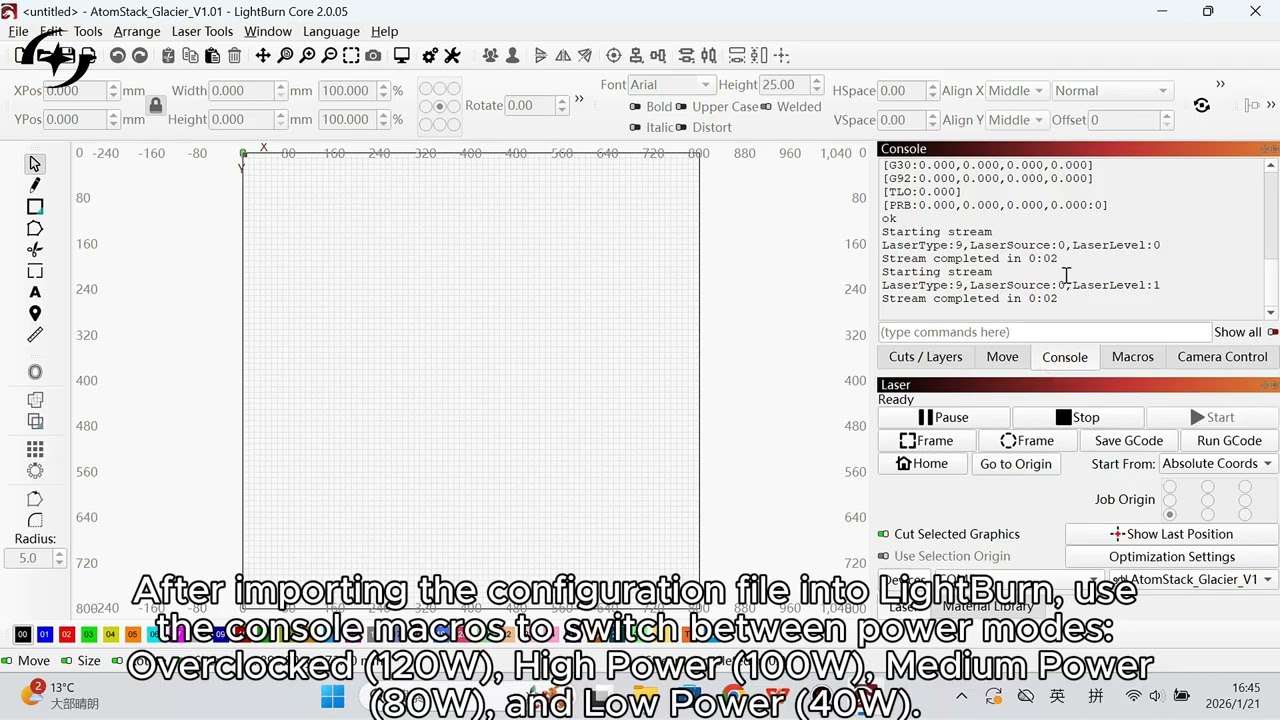
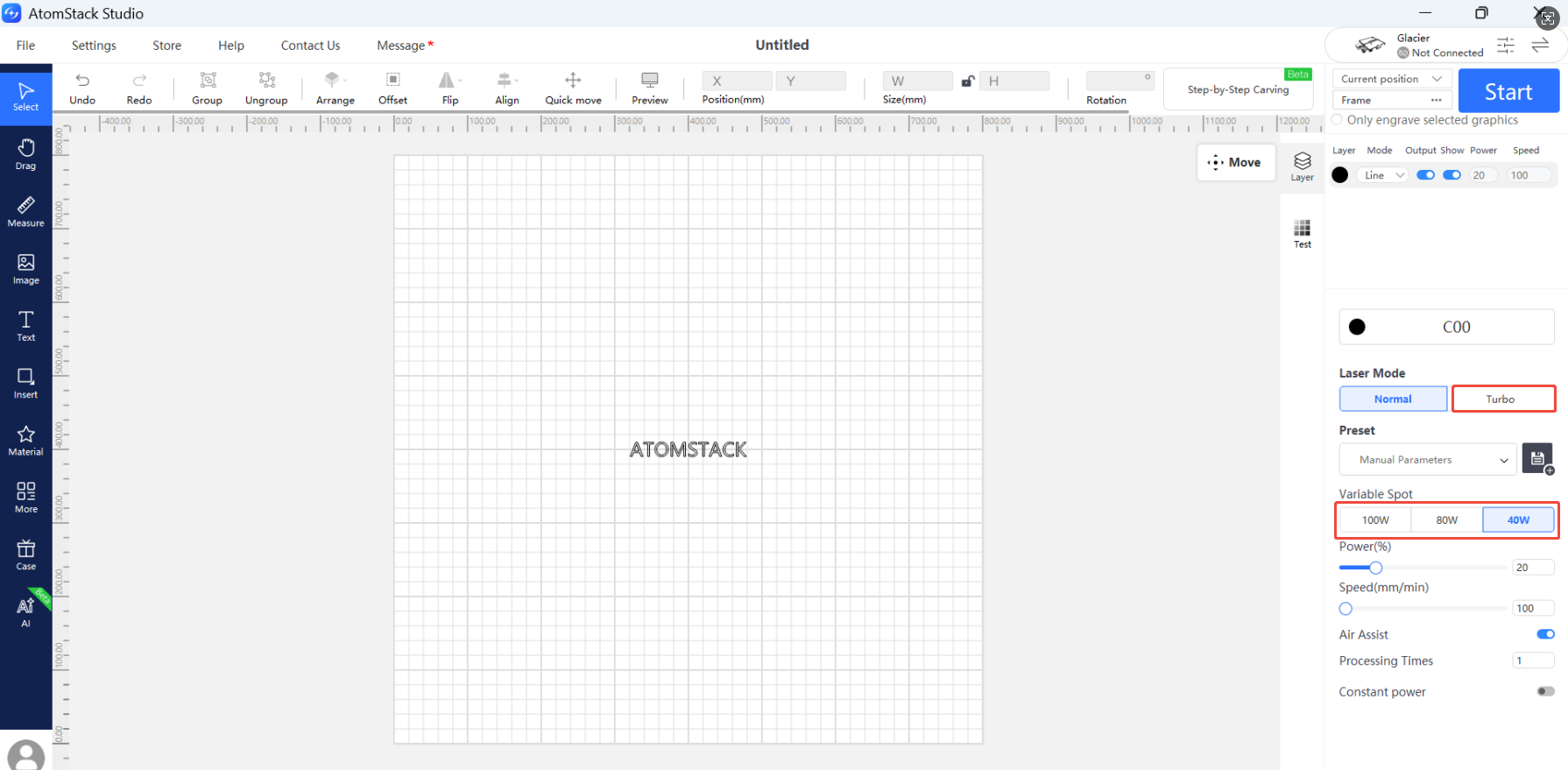
- 120W laser module: in normal mode it switches between 100W, 80W and 40W. Reaching the full 120W requires Overclock Mode, which is not recommended for long-term use.
- 90W laser module: in normal mode it switches between 70W and 35W. Reaching the full 90W requires Overclock Mode, again not recommended for long-term use.
- Where to change it: power switching is done in the software, not on the machine. AtomStack Studio is shown first, LightBurn second.
¶ 5. Auto Focus and Manual Focus
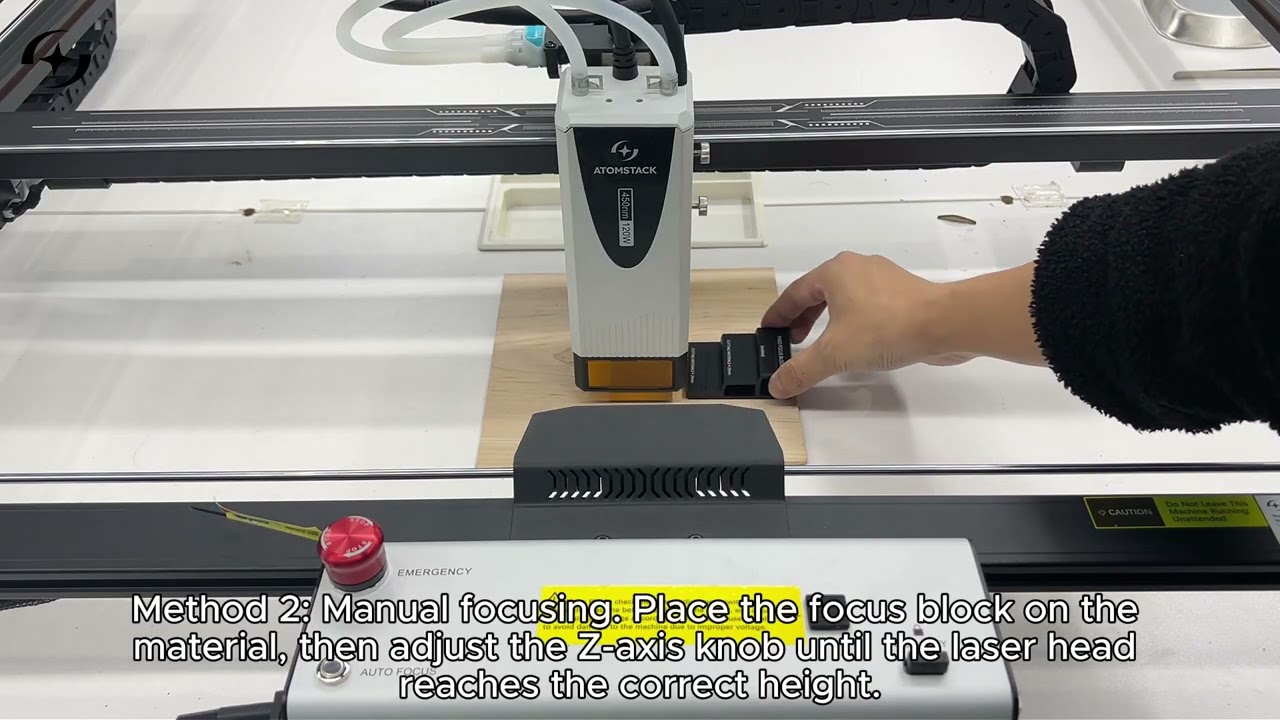
Refer to the Glacier auto focus and manual focus video.
Click to play video on YouTube
- Auto focus: press the focus button once, briefly. Do not hold it down — holding it starts Wi-Fi configuration instead.
- Manual focus: put the 20 mm focus piece between the material and the bottom edge of the laser module frame.
- Focal distance: the recommended cutting focal distance is 16 mm; the minimum is 4 mm.
¶ 6. Adding Antifreeze
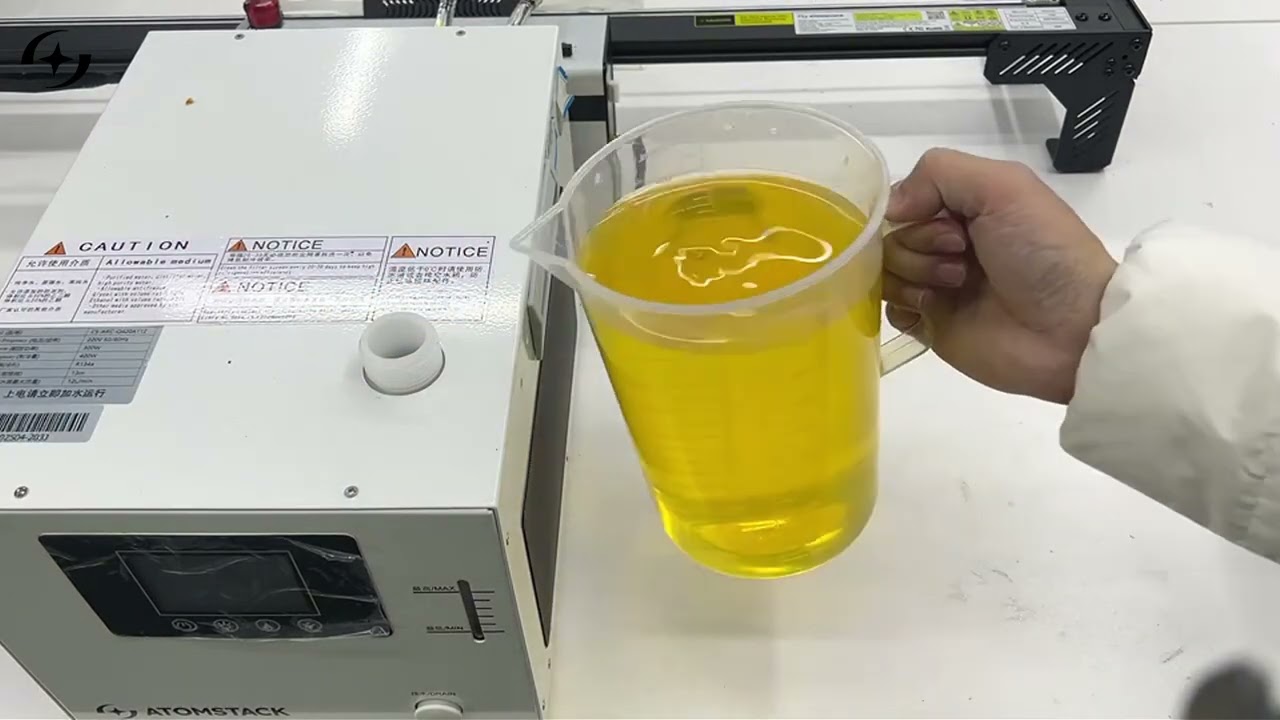
Refer to the Glacier antifreeze video.
Click to play video on YouTube
Antifreeze is not needed while the ambient temperature stays above 5 °C. Below that, mix it with the cooling water as follows.
| Lowest annual ambient temperature | Mixing ratio (concentrate : purified water) | Antifreeze concentrate (mL) | Cooling water (mL) |
|---|---|---|---|
| Above 5 °C | — | 0 | 1800 |
| −10 °C to 5 °C | 2:8 | 360 | 1440 |
| −20 °C to −10 °C | 3:7 | 540 | 1260 |
| −30 °C to −20 °C | 4:6 | 720 | 1080 |
| −40 °C to −30 °C | 5:5 | 900 | 900 |
| −50 °C to −40 °C | 6:4 | 1080 | 720 |
¶ 7. Using the Glacier Rotary Attachment
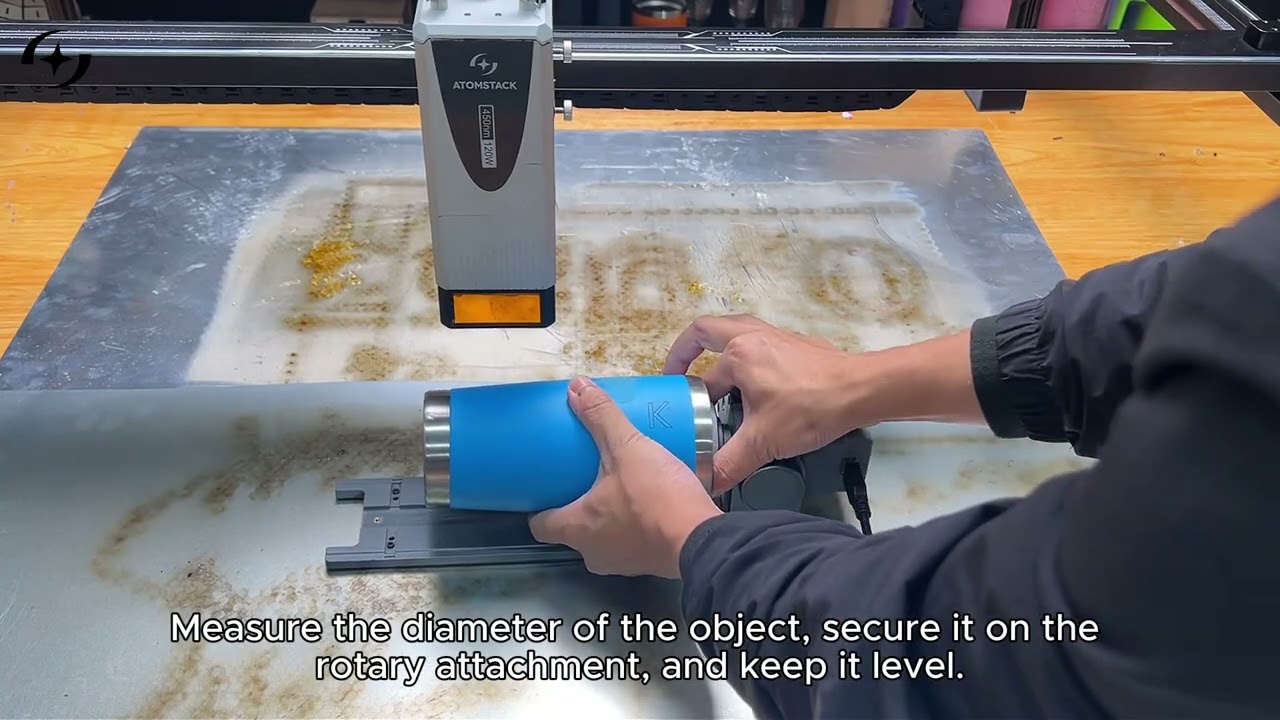
Refer to the Glacier rotary attachment video.
Click to play video on YouTube
The Glacier control box has an ACCESSORY port, so it is compatible with every AtomStack rotary accessory. Because of the risers involved, though, only the R6, R8 and R8 Pro are recommended — the matching risers are sold separately.
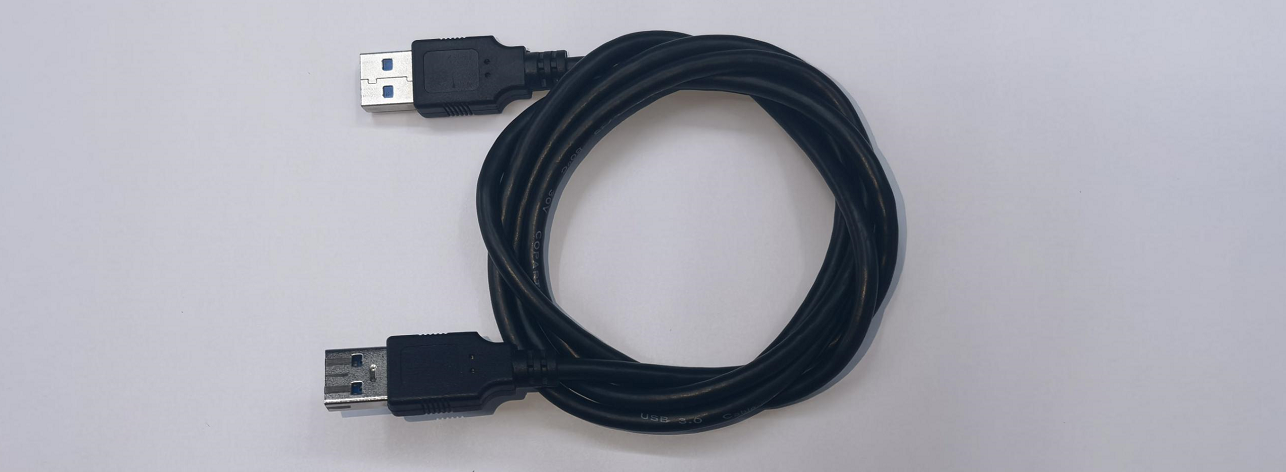
Connect the rotary attachment with the supplied USB cable, shown below.
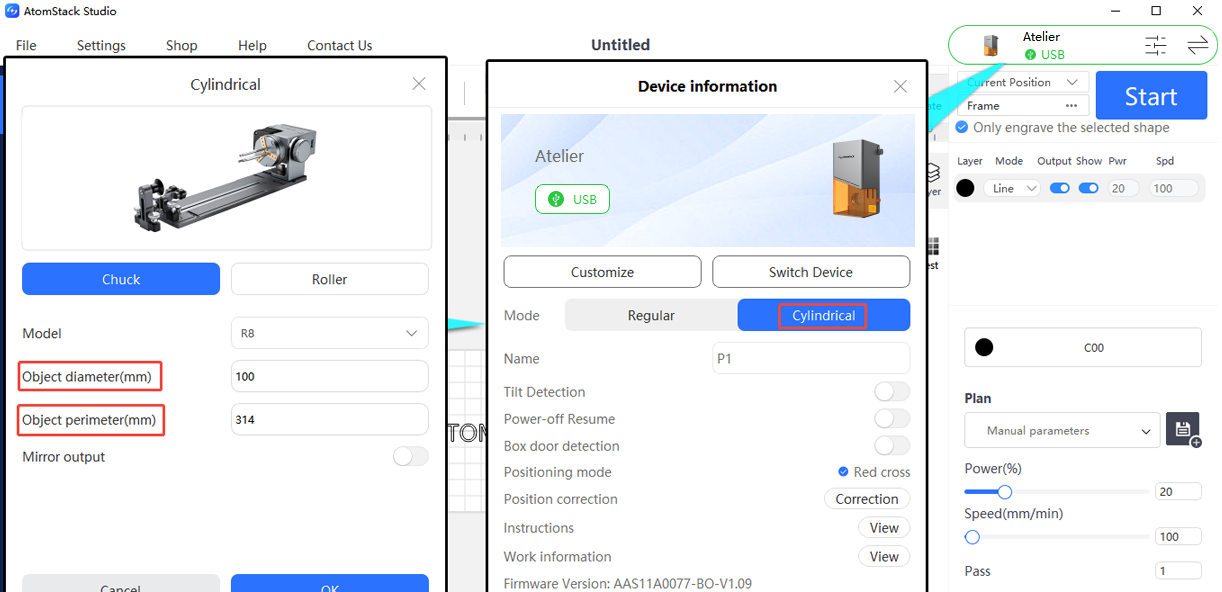
AtomStack Studio: select the detected device in the software.
- Roller (R6): no parameter configuration needed.
- Chuck (R8): enter the circumference or diameter of the material, as shown below.
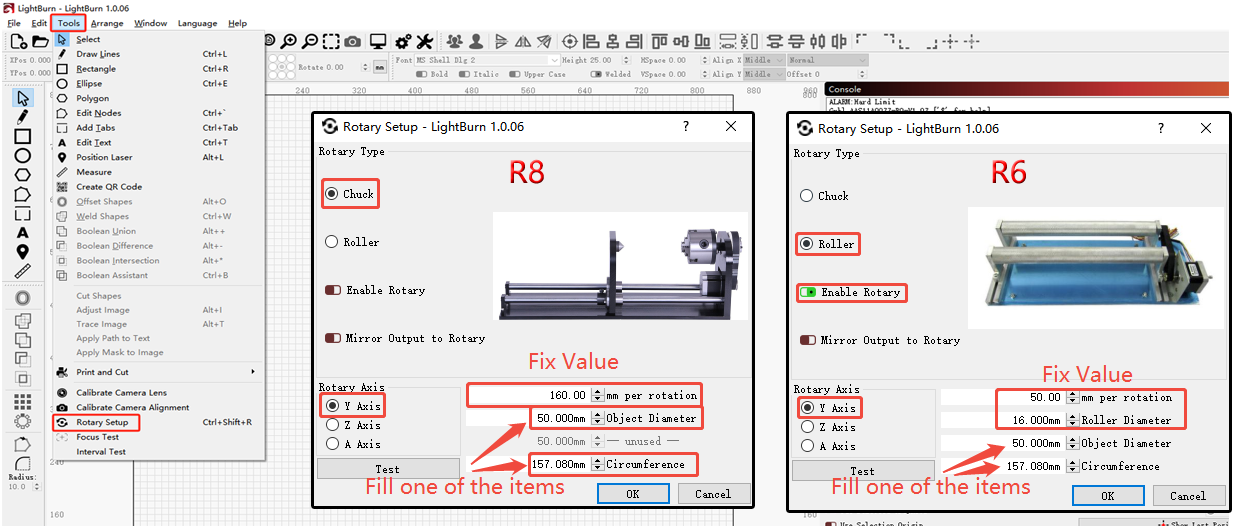
LightBurn: the rotary parameters have to be set by hand.
- Rotary type: Roller for the R6, Chuck for the R8.
- Rotary axis: Y-axis.
- R8 (chuck): steps per rotation 160 mm (fixed); enter either the diameter or the circumference of the material.
- R6 (roller): steps per rotation 50 mm (fixed), rotation diameter 16 mm (fixed); enter either the diameter or the circumference of the material.
Note — R8 chuck limits:
- Cylindrical objects: 0–80 mm diameter
- Spherical objects: 25–80 mm diameter
- Ring-shaped objects: 10–70 mm diameter
- Maximum load: 1.5 kg
¶ 8. Origin Setting and Positioning
Refer to the Glacier origin setting and positioning video.
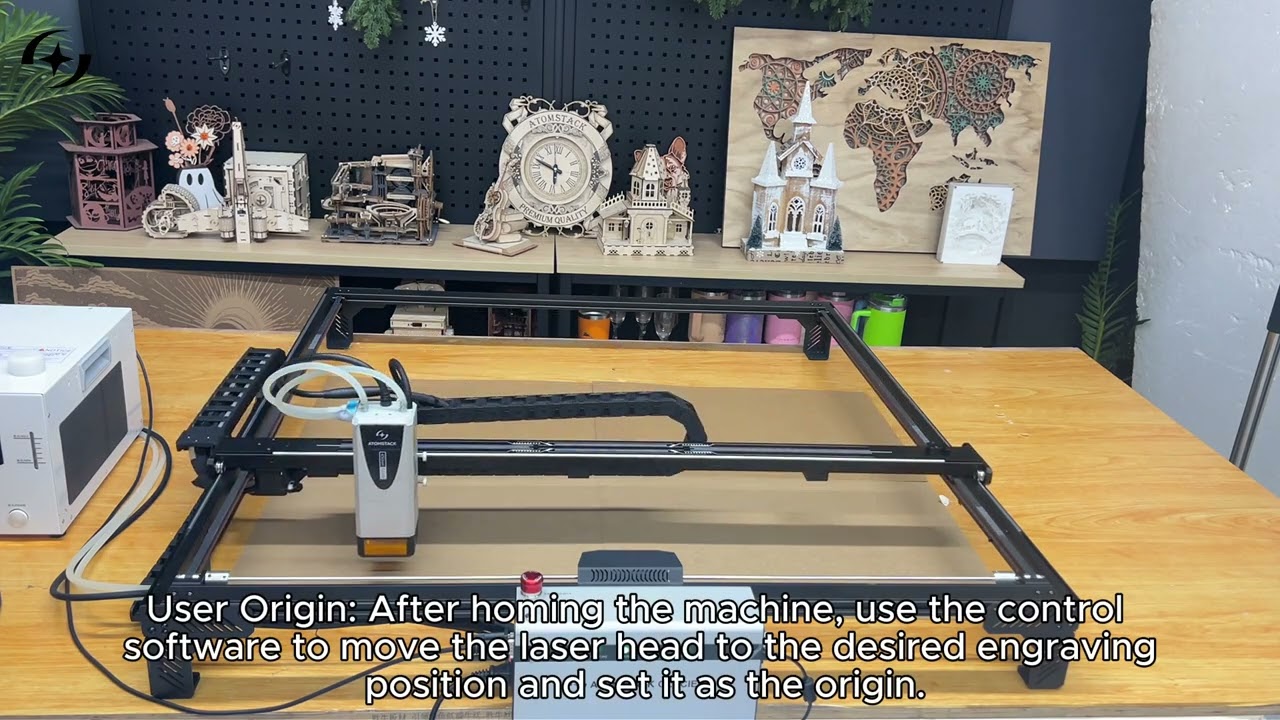
Click to play video on YouTube
- Click Home first, so the machine returns to the 0,0 coordinate.
- Once it has homed, do not move the machine by hand. Every movement has to go through the software, otherwise the machine loses track of its coordinates.
- If the machine does get moved by hand, home it again before positioning.
¶ 9. The Glacier Software Coordinate System
- Current Position: processing starts from wherever the laser module is now. You can move the module by hand to the position you want.
- User Origin: a starting position you define yourself. See the origin setting and positioning video.
- Absolute Coordinates: the 0,0 position after homing is the reference, and the coordinates of the object in the workspace decide where the laser starts.
¶ 10. Engraving Parameter Test
Refer to the Glacier engraving parameter test video.
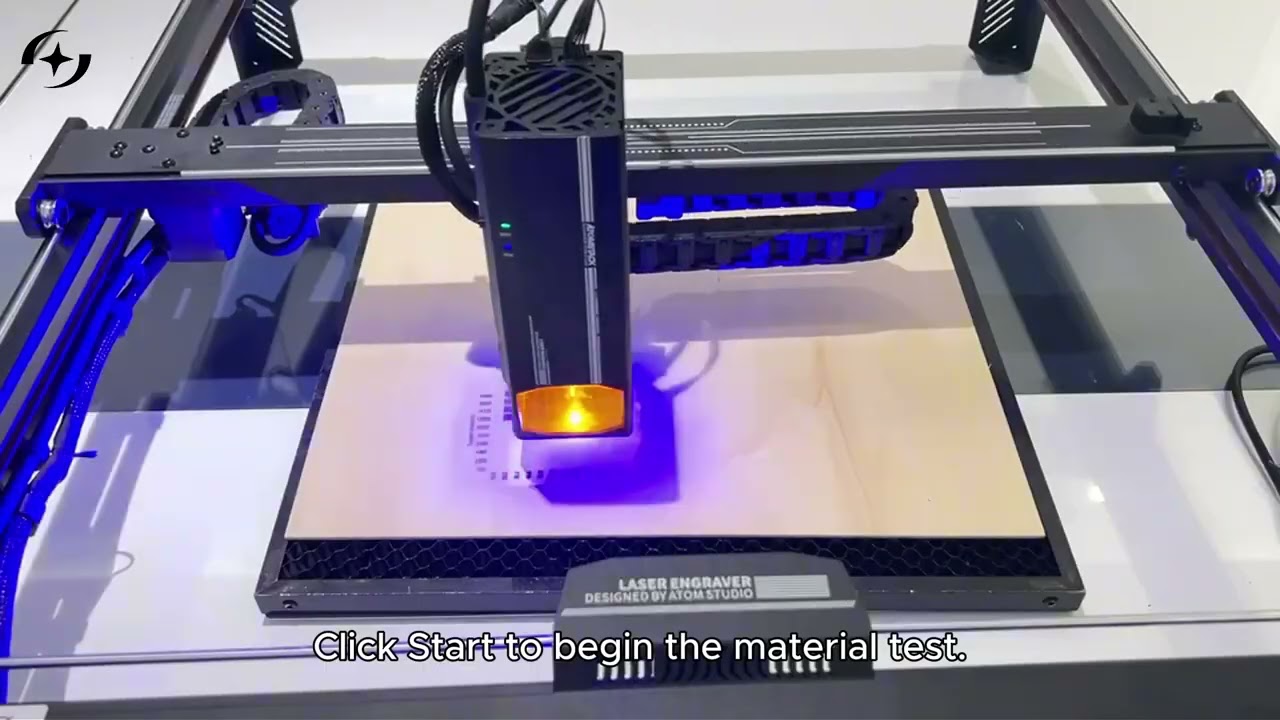
Click to play video on YouTube
Note: this function is only available in LightBurn (licensed version 1.3.01 or later) and in AtomStack Studio.
¶ 11. Precautions for Long Sessions
When working for extended periods, pause for 5–10 minutes after every 2 hours of use. That gives the cooling system time to recover and return to its best operating condition.
¶ 12. Materials You Must Not Process
Warning — never process these:
- PVC — releases chlorine gas when cut
- Any chlorine-containing plastic
- Metals with an unknown coating
- Highly reflective, mirror-like materials — the reflected beam can destroy the laser module
Before processing an unfamiliar material, run a low-power test first.