Kraft Power & Connection: No Power, PC Fails
The machine does not respond, a job stops or will not start, or software, app and USB connections fail.
Power off the machine and disconnect the laser cable before removing the laser module to inspect the lower limit switch. Do not pry apart or disassemble the focusing lens, as this damages the laser sealing structure. Closely monitor the machine during operation; if flame detection is disabled, supervise it at all times and re-enable the function after engraving.
¶ Stops Mid-Job
What you see: The machine stops suddenly in the middle of engraving.
Check in this order:
- When the software shows a prompt:
- Prompt: Disconnected — if the software displays a "disconnected" message, check whether the TYPE-C cable was accidentally touched or loosened, measure the power adapter output to ensure it is between 23V–24V, try using a different USB port on the computer, and try switching to AtomStack Studio software.
- Prompt: Alarm 1 — "Alarm 1" means a limit switch was triggered. Check whether the file size exceeds the working area of the machine, and frame to see if the movement is normal. If framing is fine but engraving triggers the alarm, move the file to the center or reduce its size. Note: the center of the crosshair is the laser firing point; it may not hit the limit during framing, but during actual engraving, the edge of the laser module might come too close and trigger the switch. If the file is small, centered, and starts from absolute coordinates, yet still triggers an alarm, a limit switch fault is likely. Refer to the Kraft Manual Limit Trigger Test Video for troubleshooting.
- When the software shows no prompt: unplug and replug the TYPE-C cable, or try a different TYPE-C cable; switch between AtomStack Studio and LightBurn software; try a different USB port on the computer. If the problem persists, reflash the firmware (Note: you cannot flash the same version of the firmware again — use a different version; contact customer service if needed). If the issue continues even after reflashing, the motherboard is likely faulty and needs to be replaced. Refer to the Kraft motherboard Firmware Flashing Video and Kraft motherboard Replacement Video for guidance.
Still not fixed? Contact support with the details listed in What to send support.
Related problems: Software Won’t Connect · Power-On Unresponsive · Limit Error Persists
¶ Software Won’t Connect
What you see: The machine cannot connect to the software.
Check in this order:
- Check that the serial port is not occupied: ensure that no other engraving software is currently connected to the Kraft machine.
- Confirm the baud rate is set to 460800: it is recommended to use AtomStack Studio or LightBurn software. When using AtomStack Studio, no additional setup is needed — connection should occur automatically. When using LightBurn, you can import the configuration file provided on the included USB drive (see Figure 28).

Figure 28
- Confirm the correct COM port is selected: open Device Manager and check which COM port corresponds to CH340 (see Figure 29). If CH340 does not appear or is not recognized, install the USB-to-Serial (CH340) driver, try a different TYPE-C cable, switch to another USB port on your computer, or try using a different computer altogether.

Figure 29
- Confirm whether you're using a macOS computer: if you are using a Mac operating system, note that you cannot directly connect the C-end of the TYPE-C cable into the Mac. You must use a USB hub or docking station to convert the connection to a USB-A port (see Figure 30).

Figure 30
- If the above steps do not resolve the issue, try reflashing the firmware. Note: the same firmware version cannot be flashed repeatedly — you will need a different version. You can request the appropriate firmware from customer support. If the problem persists after reflashing, the issue is likely due to a faulty motherboard, which will need to be replaced. Refer to the Kraft motherboard Firmware Flashing Video and Kraft motherboard Replacement Video for guidance.
Confirm the fix: The machine connects automatically in AtomStack Studio.
Still not fixed? Contact support with the details listed in What to send support.
Related problems: Stops Mid-Job · App Won’t Connect · Software & Firmware
¶ Power-On Unresponsive
What you see: The machine does not respond after powering on.
Check in this order:
- Verify that the adapter output is normal: use a multimeter set to DC mode to measure the output port of the adapter. A voltage of 20V to 24V should be present, as shown in Figure 31.
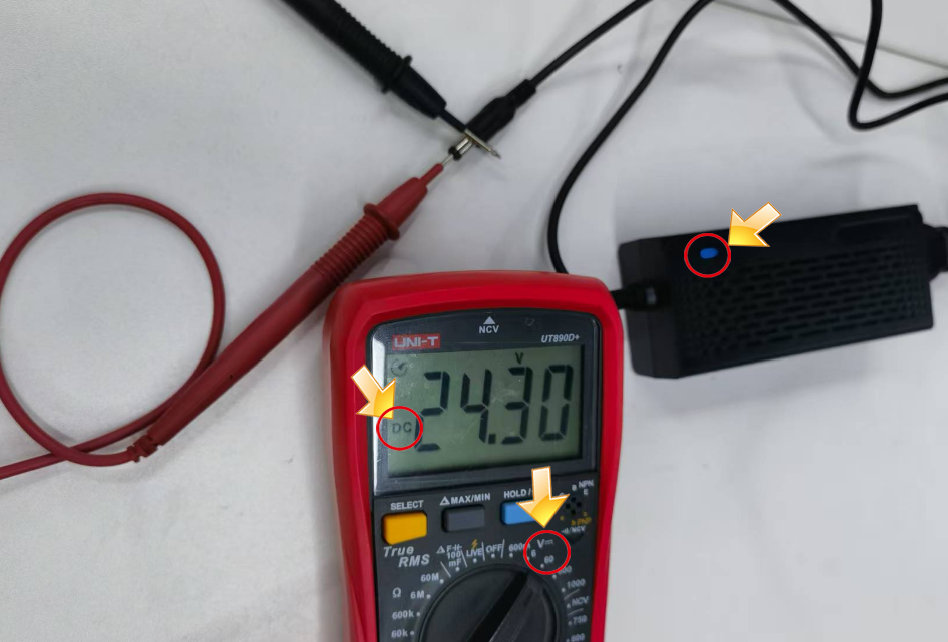
Figure 31
- Check whether the power switch is faulty: first, visually inspect whether the power switch indicator light is on. If it is on, the device is receiving power normally. If the light is off, check the accessory connection ports on the motherboard to see if any indicator lights on the motherboard are on. If the motherboard indicator lights are on, the power switch is functioning properly. If no lights are on, the issue may lie with the power switch or the motherboard. Refer to positions 4 and 12 in the Kraft Panel Function Overview for details.
- If the above steps reveal no issues, the motherboard is likely faulty and needs to be replaced. Refer to the Kraft motherboard replacement video for guidance.
Still not fixed? Contact support with the details listed in What to send support.
Related problems: Stops Mid-Job · Engraving Won’t Start · LED Strip Stays Off
¶ Engraving Won’t Start
What you see: The machine does not respond when an engraving task is started.
Check in this order:
- Confirm all operations are normal: first, check whether the power supply and all connection cables are properly connected, the enclosure door is closed, and whether any limit switches are triggered.
- Check for software prompts: observe whether the software displays any error messages. If so, follow the guidance to troubleshoot accordingly. If no message appears, restart the Kraft power supply and the software, then try reconnecting the device.
- Check whether other software works properly: try switching to AtomStack Studio or LightBurn to test functionality. If neither software works, try replacing the Type-C cable, using a different USB port, or updating the USB driver.
- If the issue persists after all of the above steps, try reflashing the firmware (Note: identical firmware versions cannot be reflashed. Refer to the Kraft motherboard firmware burning video. Please provide your current firmware version to customer support to obtain a usable version). If reflashing the firmware does not solve the issue, the motherboard may be faulty and needs replacement. Please provide the machine's serial number (see Figure 43) to customer service for further assistance.
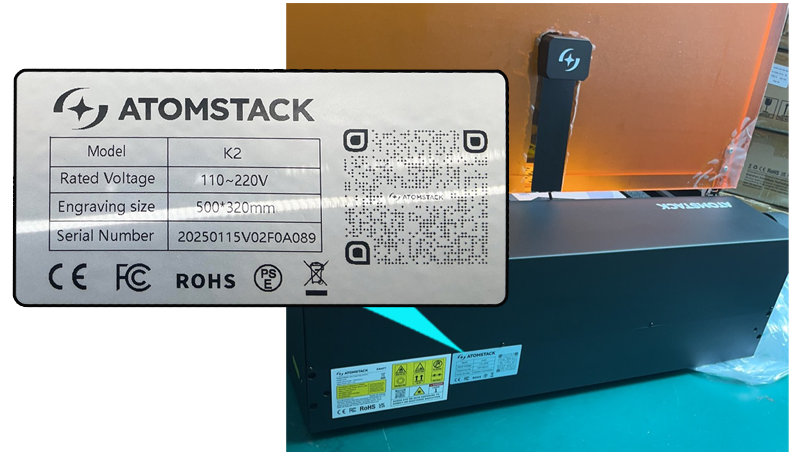
Figure 43
Still not fixed? Contact support with the details listed in What to send support.
Related problems: Power-On Unresponsive · Software Won’t Connect · App Job Won’t Start
¶ App Won’t Connect
What you see: The machine fails to connect to the mobile app.
Check in this order:
- Confirm that the connection method is correct: please refer to the video of unboxing and online use of Kraft.
- Confirm the password is correct: the default password for Kraft is 12345678.
- Ensure the phone is close enough to the machine: when connecting via the app, keep the phone near the machine.
- Check if the machine's Wi-Fi is occupied: if the machine's Wi-Fi is already connected to another device, it cannot connect to a new one. Disconnect other devices before attempting to connect.
- Turn off mobile data on the phone and reconnect to Wi-Fi, or try using a different phone.
- Confirm the Wi-Fi signal strength of the machine: when connecting, check the Wi-Fi signal strength on the phone. If the signal is very weak, the Wi-Fi antenna may be loose. Open the mainboard, check if the Wi-Fi antenna connector is detached, and reseat it before trying again.
Still not fixed? Contact support with the details listed in What to send support.
Related problems: Software Won’t Connect · App Job Won’t Start
¶ App Job Won’t Start
What you see: The machine fails to start engraving after connecting to the app.
Check in this order:
- Confirm usage conditions: when using the APP, a USB KEY and a USB drive must be plugged in. The USB drive should have sufficient storage space.
- Confirm the enclosure door is closed: the door must be fully closed to start engraving. The laser will not emit light if the door is open.
- Check for any error messages in the APP: pay attention to any abnormal prompts in the APP. If there are no messages, try restarting both the engraving machine and the APP. Also, delete the connected machine from the APP and reconnect it.
Still not fixed? Contact support with the details listed in What to send support.
Related problems: App Won’t Connect · USB Drive Not Detected · Engraving Won’t Start
¶ USB Drive Not Detected
What you see: The machine fails to detect the USB drive.
Check in this order:
- Check if the USB drive is damaged: insert the USB drive into a computer to see if it can be read normally. If files can be accessed, the USB drive is considered functional.
- Confirm the USB drive is plugged into the correct port: ensure the USB drive is inserted into the engraving machine's USB DRIVE port. Do not insert it into the USB KEY port.
- Check if the USB DRIVE port is functioning properly: inspect the USB DRIVE port for any damage or defects.
- If all the above checks are normal but the issue persists, the mainboard may need to be replaced. Refer to the Kraft Mainboard Replacement Video.
Still not fixed? Contact support with the details listed in What to send support.
Related problems: App Job Won’t Start · Software & Firmware
¶ Software & Firmware
- AtomStack Studio Update: after opening the software, if a new version is available, an update prompt will appear automatically. If there is no prompt, go to Settings and select Check for Updates. You can also download the latest version from AtomStack.com.
- Firmware upgrade: you can upgrade via AtomStack Studio, AtomStack APP, or USB flash drive.
- After connecting to the AtomStack Studio client or mobile app, directly click Update Firmware, as shown in Figure 72. Note that you need to insert a USB flash drive as storage to upgrade.
- Copy the file to the root directory of the USB flash drive and insert it into the USB flash drive port of the machine to upgrade.
- APP Update: download the latest APP version from AtomStack.com, or open the APP and go to Profile > Settings > About ATOMSTACK to check the software version. If an update is available, you can update directly from there.

Figure 72
Related problems: Software Won’t Connect · App Won’t Connect · USB Drive Not Detected