Kraft Motion: Autofocus Fails, Homing Fails
Autofocus or homing fails, movement is abnormal, limit errors persist, or engraving shapes and rotary output are wrong.
Power off the machine and disconnect the laser cable before removing the laser module to inspect the lower limit switch. Do not pry apart or disassemble the focusing lens, as this damages the laser sealing structure. Closely monitor the machine during operation; if flame detection is disabled, supervise it at all times and re-enable the function after engraving.
¶ Autofocus Hits Material
What you see: During autofocus, the laser head touches the material surface directly and cannot complete focusing.
Check in this order:
- Check if the motherboard is functioning properly: In the software, click the Z-axis control buttons (refer to AtomStack Studio in Figure 22 or LightBurn in Figure 23) and observe whether the Z-axis moves up and down according to the commands. If the Z-axis moves normally in both directions, the motherboard control is functioning correctly. If the Z-axis can only move in one direction (either up or down), check the Z-axis cable connection: ensure the cable is properly inserted, and inspect the connector for damage, bent pins, or broken pins. If no issues are found with the cable or connector, the problem is likely due to a faulty motherboard or a defective connection cable. In that case, replacement of the motherboard or cable is necessary.

Figure 22

Figure 23
- Check for issues with the lower limit switch: While the laser is in standby mode, manually press the trigger block and observe whether the software displays a "limit switch triggered" warning:
- If a trigger warning appears, the issue may lie in the motherboard firmware. Try reflashing the firmware. If that doesn't resolve the issue, the motherboard may need to be replaced. Refer to the Kraft Manual Limit Trigger Test Video and Kraft motherboard Firmware Flashing Video for guidance.
- If the trigger block cannot be pressed down (stuck) during inspection, it may be jammed or misaligned. Adjust it according to the Kraft Lower Limit Trigger Block Adjustment Video.
- If no warning appears after pressing the trigger block, inspect the lower limit switch on the driver board: power off the machine, disconnect the laser cable, and remove the laser module by unscrewing the two screws securing the trigger block. Check if the trigger pin on the driver board's lower limit switch is damaged. If damaged, the laser module must be replaced.
Still not fixed? Contact support with the details listed in What to send support.
Related problems: Autofocus Fails · Limit Switch Won’t Trip
¶ Autofocus Fails
What you see: Autofocus fails.
Check in this order:
- Check if the auto-focus button is faulty: If pressing the auto-focus button on the engraving machine body produces no response and the software shows no error messages, try triggering auto-focus via software: in AtomStack Studio, click the auto-focus button (see Figure 24), or in LightBurn's console input box, enter the command [ESP500] to see if the machine executes auto-focus (see Figure 25). If the machine can perform auto-focus via software but not via the physical button, the auto-focus button on the machine is faulty and needs to be replaced. Refer to the Kraft Auto-Focus Button Replacement Video. If auto-focus cannot be executed through software either, and the Z-axis does not move at all, check the Z-axis motor cable connection for proper insertion, bent or broken pins, and manually rotate the adjustment knob behind the Z-axis to confirm if it can move up and down smoothly. If no issues are found with the cable or movement, the problem may lie with the motherboard or its connection cable.

Figure 24

Figure 25
- Check if the upper and lower limit switches are faulty: If the machine can execute the auto-focus command but moves only upward or downward until it hits a mechanical limit and cannot reverse, the issue may be with a limit switch failure. To test this, remove the laser module, then rotate the manual adjustment knob downward to expose the upper limit switch (see Figure 26). Manually press the upper and lower limit switches (see Figure 27) to see if they can both be triggered. If the upper limit switch cannot be triggered, refer to the Kraft Limit Switch Replacement Video and check whether its connection cable is properly inserted. Unplug and reconnect the cable. If it still fails to trigger, the switch is likely faulty and needs to be replaced. If the lower limit switch cannot be triggered, refer to the solution titled "During auto-focus, the Kraft laser head touches the material surface directly and cannot complete the focusing process". For further guidance on testing the switches, see the Kraft motherboard firmware burning video and Kraft Manual Limit Trigger Test Video.

Figure 26
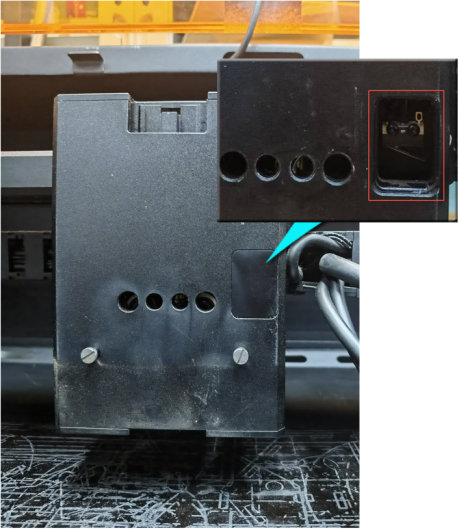
Figure 27
- Check the motor operation status: If the motor behaves abnormally during auto-focus — such as erratic movement, unusual noise, or vibration without actual movement — this indicates a motor driver failure on the motherboard or a faulty connection cable. In this case, the motherboard and connection cable need to be replaced. Refer to the Kraft motherboard Replacement video and Kraft Cable Replacement video.
Still not fixed? Contact support with the details listed in What to send support.
Related problems: Autofocus Hits Material · Limit Switch Won’t Trip
¶ Limit Error Persists
What you see: The machine malfunctions and a limit switch triggered error persists.
Check in this order:
- Confirm the file size: Kraft's working range is 500mm*320mm. If the file size exceeds this range, it will prompt that the travel is exceeded.
- Confirm the coordinates used: if the current position is used, it may be that the remaining engraving range of the current position cannot meet the engraving requirements. It is recommended to frame the file first, confirm that the range is met, and then engrave, or set it to "Absolute Coords".
- Confirm the limit switch: check whether each limit switch is triggered by other objects; if so, move the triggering object away. Use software prompts to locate and troubleshoot — AtomStack Studio software will directly prompt; if LightBurn software is used, you can enter "?" after the alarm message in the code box to get a prompt (as shown in Figure 32), then follow the prompts to troubleshoot. If it can be triggered normally by pressing it manually, you can unplug the limit switch to check whether the prompt continues to trigger. Confirm the fault and replace it. Refer to the Kraft limit switch replacement video.

Figure 32
- If a Z-axis limit switch error is indicated: start by checking the upper limit switch. Try unplugging the upper limit switch connector to rule out a fault. If the issue is confirmed to be with the laser module's lower limit switch, press the trigger block gently by hand to check whether it moves freely. If the trigger block is stuck, refer to the Kraft Laser Module Lower Limit Trigger Block Adjustment video to make the necessary adjustments. If the trigger block moves normally, the laser module likely needs to be replaced. Please provide the following to customer support for further assistance: a clear troubleshooting video, the machine's serial number (see Figure 33), and the laser module's engraved code (see Figure 34).
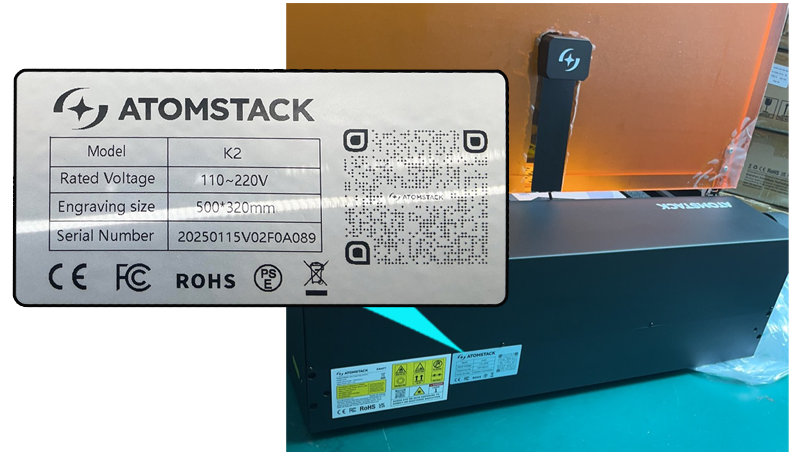
Figure 33

Figure 34
Still not fixed? Contact support with the details listed in What to send support.
Related problems: Homing Fails · Limit Switch Won’t Trip · Stops Mid-Job
¶ Distorted Engraving
What you see: Engraving results are distorted.
Check in this order:
-
Check whether the speed setting is too high: set appropriate parameters according to the reference parameter table. How to view the Kraft parameter table:
① Enter to view by scanning the QR code on the engraving machine.
② Enter the official website to view https://atomstack.com/pages/product-support.
③ Contact customer service staff to request it.
-
Inspect the X and Y axis dual shafts for dirt or damage: carefully examine the guide rails and dual shafts to ensure there is no dirt, damage, or other abnormalities.
-
Identify which axis is malfunctioning: in the software, create a test file with both a circle and a square outline. For example, use a cutting mode with a speed of 10,000 mm/min and 30% power to output the lines on plywood. Observe whether the issue is caused by abnormal movement on one axis or both. Refer to the Kraft Mechanical Adjustment Video to focus on adjusting the relevant parts. Important: after each adjustment, perform a test to determine whether the issue improves. If there is improvement, continue fine-tuning. If not, proceed to adjust other positions.

Click to play video on YouTube
- Check whether the X-axis is parallel to the lower crossbeam: if the engraved lines are slanted but not wavy or curved, the issue is likely that the X-axis is not parallel to the lower crossbeam. Adjust the X-axis to ensure it is parallel. Refer to the Kraft Mechanical Adjustment Video for guidance.
- Verify whether the step settings have been altered: in LightBurn or LaserGRBL, open the machine settings and check whether the values for $100 and $101 are set to 100 (see Figure 35).

Figure 35
- Confirm that there are no abnormalities in the firmware: try reflashing the firmware (Note: identical firmware versions cannot be reflashed. Please provide your current firmware version to customer support to request an appropriate version). Refer to the Kraft motherboard firmware burning video.
- If all the above steps fail to resolve the issue and structural adjustments have no effect, the motherboard is likely faulty and needs to be replaced. Refer to the Kraft Motherboard Replacement Video for detailed instructions.
Still not fixed? Contact support with the details listed in What to send support.
Related problems: Abnormal Movement · Rotary Output Reversed
¶ Abnormal Movement
What you see: Machine movement is abnormal.
Check in this order:
- Confirm that the factory fixings have been removed: in order to protect the X-axis structure from changes during transportation, we will install a fixing module when it leaves the factory. After receiving the product, please unscrew the screws of the fixing module and remove the fixing modules at both ends of the X-axis, as shown in Figure 38.
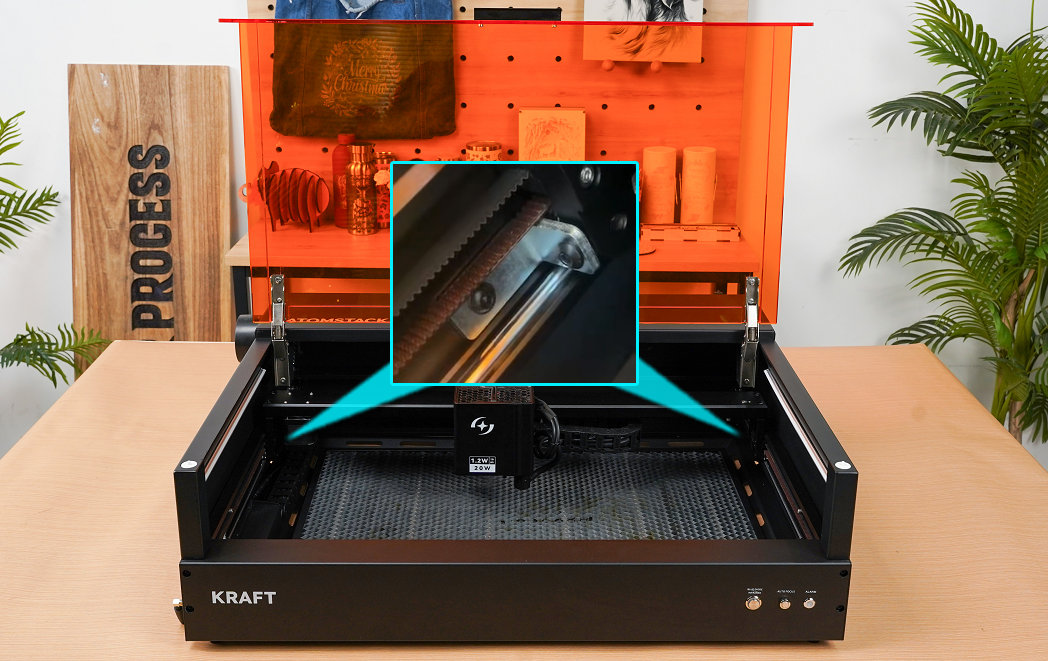
Figure 38
- Check whether reverse movement is enabled: if the abnormal movement is consistent or patterned — such as reversed motion — it may indicate that the Kraft motherboard parameters have been modified. You can check this by going to the machine settings in LightBurn or LaserGRBL (see Figure 39), or restore the factory settings in the software, or re-burn the firmware. Note that the same firmware cannot be re-burned; contact customer service to request a different firmware version. For flashing instructions, refer to the Kraft motherboard firmware burning video. The method of factory reset is as follows:
- Restore factory settings in AtomStack Studio: for version 2.20 or later, tap the Version Number (e.g., V.2.20) seven times consecutively to enter Developer Mode (see Figure 40). In the menu, open Serial Port Log, then click Reset to restore factory settings (see Figure 41).

Figure 39

Figure 40

Figure 41
- In LightBurn software: enter the command $RST=* in the command box to reset to factory defaults (see Figure 42).

Figure 42
- Check for damaged or deformed components: inspect the timing belts, dual-axis guide rails, and couplings for any looseness, breakage, damage, or deformation. Also verify that the motor cables are securely connected and that there are no bent or broken pins.
- If none of the above steps resolve the issue, try replacing the motherboard, connection cables, and motors. Refer to the following videos for guidance: Kraft Motherboard Replacement, Kraft Motor Replacement, Kraft Motherboard Cable Replacement.
Still not fixed? Contact support with the details listed in What to send support.
Related problems: Distorted Engraving · Homing Fails · Rotary Output Reversed
¶ Homing Fails
What you see: The machine fails to reset.
Check in this order:
- Confirm that the factory fixings have been removed: in order to protect the X-axis structure from changes during transportation, we will install a fixing module at the factory. After receiving the product, please unscrew the fixing module screws and remove the fixing modules at both ends of the X-axis, as shown in Figure 54.
Figure 54
- Confirm that the step length is correct: use LightBurn or LaserGRBL to enter the machine settings to check whether the values of $100 and $101 are 100, as shown in Figure 55:

Figure 55
- Confirm that the laser is installed correctly: if the Y-axis limit switch triggers normally, but the laser hits the frame, reinstall the laser. Refer to the Kraft laser replacement video.
- Confirm that the X-axis is on the horizontal line: use a ruler to measure the distance from both ends of the X-axis (the axis where the laser is installed) to the frame to see if they are consistent. If not, refer to the Kraft X-axis horizontal adjustment video for adjustment.
- Confirm the information prompted by the software: if there is a prompt that the maximum stroke has been reached, it is a faulty X-axis or Y-axis limit switch. Press the limit switch manually (as shown in Figure 56) to see if a "beep" sound is emitted and the software prompts an information message. If there is no prompt, it is a limit switch fault; if there is a prompt, it is normal. For replacement, please refer to the Kraft limit switch replacement video.
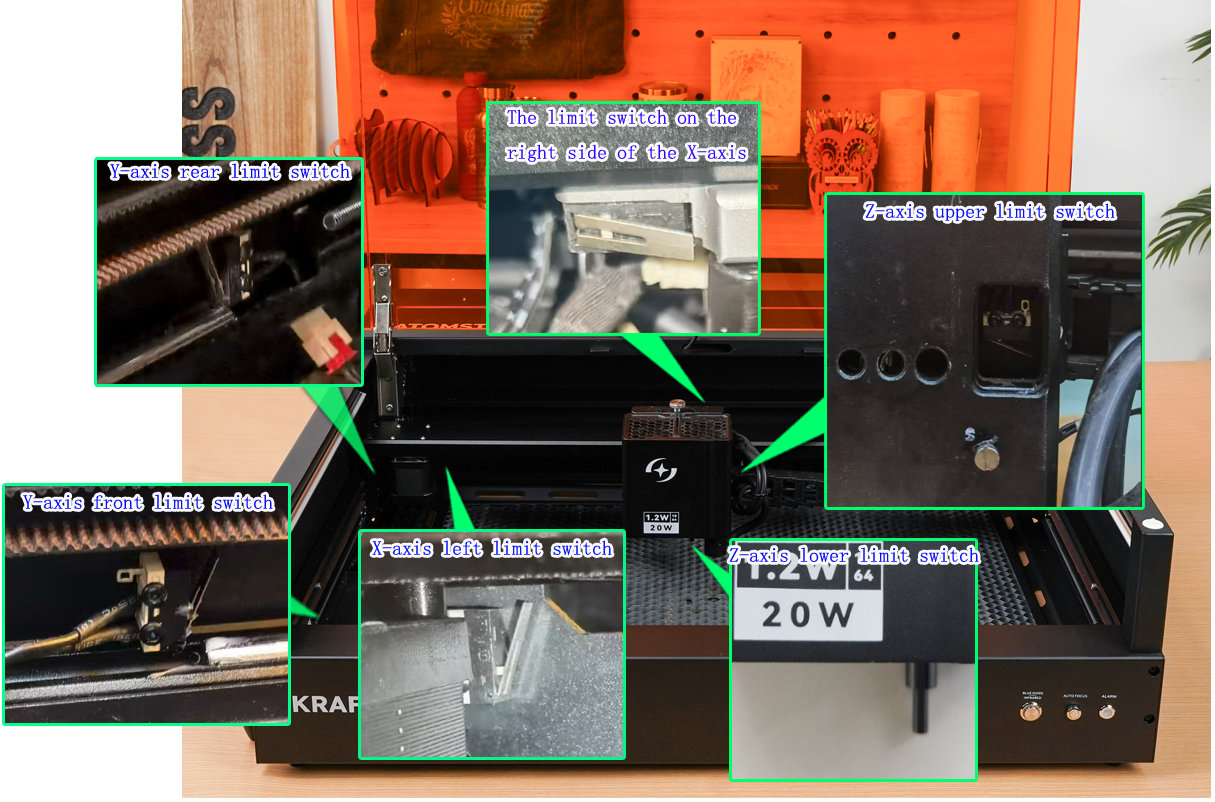
Figure 56
- Confirm whether the X-axis and Y-axis movement are normal: if only one axis can move normally during reset, then you can plug the Y-axis motor cable into the X-axis motor to see if the normal axis and the faulty axis are swapped. If the same, it is judged to be a motor fault. If the problem is transferred, it is judged to be a motherboard driver fault or a motor connection cable fault. Refer to the Kraft motor cable swap video, Kraft motor replacement video, Kraft motherboard replacement video, and Kraft motor cable replacement video.
- Confirm the firmware problem: if the above cannot solve your problem, please try to upgrade the firmware. You can upgrade through AtomStack Studio, AtomStack APP or USB flash drive.
- Connect to the AtomStack Studio client or mobile app and directly click Update Firmware, as shown in Figure 57. Note that you will need to insert a USB drive as storage for the update.
- Copy the file to the root directory of a USB drive and insert it into the USB port on the machine to update.

Figure 57
Still not fixed? Contact support with the details listed in What to send support.
Related problems: Limit Error Persists · Limit Switch Won’t Trip · Abnormal Movement
¶ Limit Switch Won’t Trip
What you see: The machine cannot trigger the limit switch.
Check in this order:
- The X-axis limit switch cannot be triggered: in standby mode, manually press the two limit switches on the X-axis (as shown in Figure 58).
- If a "beep" sound is heard after pressing and the software has a trigger alarm prompt, then the limit switch itself is normal. Please carefully check whether there are obstacles blocking the ends or whether the trigger rod is skewed, as shown in Figure 59.
- If no prompt is heard after pressing and there is no beep, it may be a limit switch failure. Please provide a photo of the machine's serial number (as shown in Figure 60) and a video of the failure to trigger to the customer service staff for processing. For replacement, please refer to the Kraft limit switch replacement video.
Figure 58
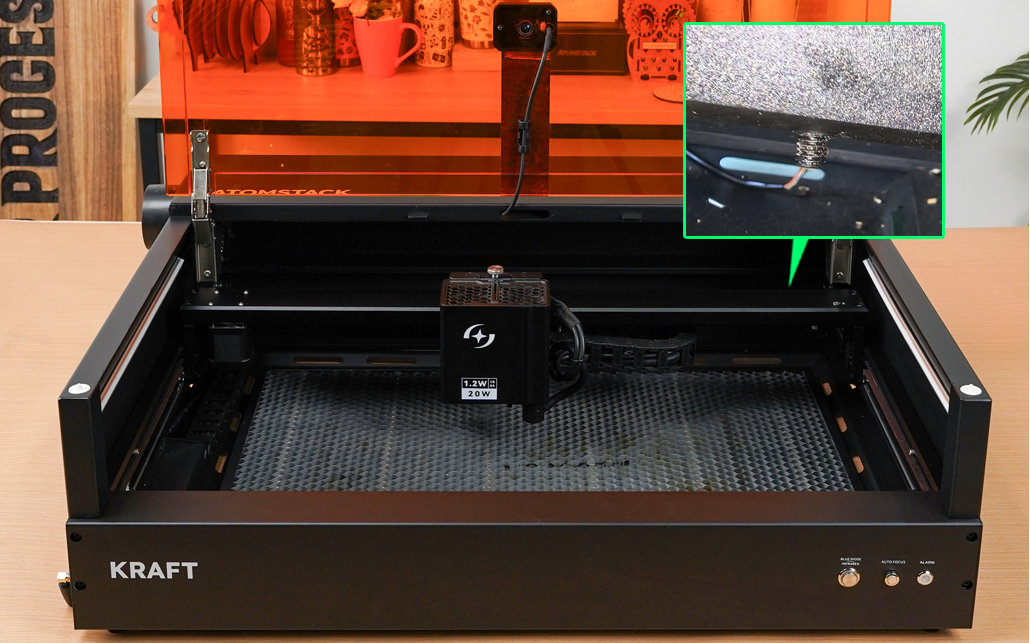
Figure 59
Figure 60
- The Y-axis limit switch cannot be triggered: in standby mode, manually press the two limit switches on the front and rear of the left Y axis (as shown in Figure 58).
-
If a "beep" sound is heard after pressing and the software has a trigger alarm prompt, then the limit switch itself is normal. Please carefully check the following points:
① The laser is not installed properly: remove the laser and reinstall it, making sure the two grooves at the bottom of the laser are aligned with the two limit posts on the slider, as shown in Figure 61.

Figure 61② The X-axis is not horizontal: measure the distances from both ends of the X-axis to the front frame to see if they are consistent. If not, refer to the Kraft X-axis horizontal adjustment video.
-
If no prompt appears after pressing and no beeping sound occurs, it may be a limit switch failure. Please provide a photo of the machine's serial number and a video of the failure to trigger to the customer service staff for processing.
-
- The Z-axis limit switch cannot be triggered: in standby mode, manually press the Z-axis upper limit switch and the trigger lever under the laser.
- If no "beeping" sound appears when pressing the upper limit switch and there is no alarm prompt on the software, it may be a limit switch failure. Please carefully check whether the limit switch plug is properly connected. If it is confirmed that there is no abnormality in the connection line, it may be a limit switch failure. Please provide a photo of the machine's serial number and a video of the failure to trigger to the customer service staff for processing.
- If there is no "beep" sound when pressing the lower limit switch and there is no alarm prompt in the software, please unscrew the screws of the flame detection board and check whether the trigger pin of the lower limit switch on the driver board is broken. If it is broken, please provide a clear photo and a photo of the serial number to the customer service staff for processing. If it is not broken, please provide a video of the failure to trigger and a photo of the serial number to the customer service staff for processing.
- If the lower limit switch does not move when pressed, it may be that the trigger rod is stuck. Please refer to the Kraft laser lower limit trigger rod adjustment video for adjustment.
- All limit switches can be manually pressed to issue a prompt but cannot control the movement of the laser: this situation may be caused by an abnormality in the mainboard firmware. Please provide a video of the failure and a photo of the serial number to the customer service staff for processing.
Still not fixed? Contact support with the details listed in What to send support.
Related problems: Limit Error Persists · Homing Fails · Autofocus Hits Material
¶ Rotary Output Reversed
What you see: Output is reversed when using the rotary device.
Check in this order:
- Confirm whether the output pattern is mirrored: if yes, check if the mirror function is enabled in the software settings. If it is enabled, disable it; if it is disabled, enable it. Refer to AtomStack Studio (see Figure 66) and LightBurn (see Figure 67).

Figure 66

Figure 67
- Confirm whether the engraving pattern is reversed: if so, try reversing the motor direction to fix the issue. See Figure 68.

Figure 68
- If the above steps do not resolve the issue: restore factory settings in AtomStack Studio — for version 2.20 or later, tap the Version Number (e.g., V.2.20) seven times consecutively to enter Developer Mode (see Figure 69). In the menu, open Serial Port Log, then click Reset to restore factory settings (see Figure 70). Alternatively, in LightBurn software, enter the command $RST=* in the command box to reset to factory defaults (see Figure 71).
Figure 69
Figure 70
Figure 71
Still not fixed? Contact support with the details listed in What to send support.
Related problems: Abnormal Movement · Distorted Engraving