Kraft Laser: No Laser Output, Weak Cutting
The laser does not emit a beam, cutting is weaker, or engraved lines and cut edges look wrong.
Power off the machine and disconnect the laser cable before removing the laser module to inspect the lower limit switch. Do not pry apart or disassemble the focusing lens, as this damages the laser sealing structure. Closely monitor the machine during operation; if flame detection is disabled, supervise it at all times and re-enable the function after engraving.
¶ Dirty or Damaged Lens
What you see: The laser protective glass or focusing lens is dirty or damaged.
Check in this order:
- Clean the protective glass:
- Cleaning method: Use 99% pure anhydrous ethanol to clean. Use a dust-free cloth to wipe gently to avoid scratches caused by friction. When cleaning the exhaust fan, you need to disassemble the fan. Do not disassemble it violently. For screw removal operations, refer to the Kraft enclosure cleaning and maintenance video.
- Cleaning frequency: Users with high frequency of use are recommended to clean it once a week, and users with low frequency of use are recommended to clean it once a month.
- Reference video: Kraft laser cleaning video.
Note: If the stains on the protective glass cannot be wiped off or it is damaged, it needs to be replaced in time.
- The focusing lens cannot be disassembled. If the focusing lens is dirty, please wipe it according to the protective glass cleaning method. If it is damaged, you can only replace the laser. It is strictly forbidden to try to pry or disassemble it yourself, otherwise it will damage the laser sealing structure. If it is damaged and the laser needs to be replaced, please provide the customer service staff with a clear picture of the broken (damaged) protective glass or focusing lens, the machine's serial number (as shown in Figure 14), and the laser's engraving code (as shown in Figure 15) so that the customer service staff can handle it.
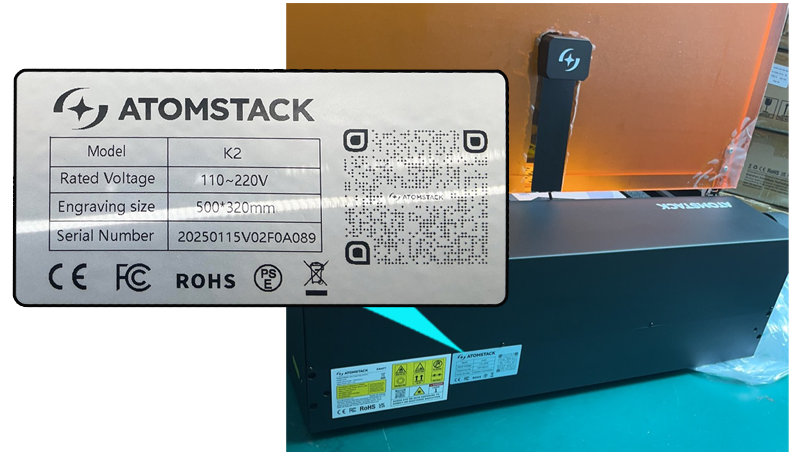
Figure 14

Figure 15
Still not fixed? Contact support with the details listed in What to send support.
Related problems: Weaker Cutting Power · Engraved Lines Too Wide
¶ Weaker Cutting Power
What you see: Cutting performance has significantly deteriorated, and engraving quality is poor.
Check in this order:
-
Check the focal distance: If you did not refocus after switching to materials of different thicknesses, press the auto-focus button to refocus automatically; or use the included fixed-focus piece and adjust the knob behind the Z-axis to set the focal distance to 40 mm.
-
Confirm usage duration: Laser modules naturally degrade over time with extended use. Try increasing the power or reducing the speed to compensate for the loss.
-
Check software parameter settings: Ensure the engraving parameters set in the software match or are close to the recommended values for the material, as specified in the parameter table. How to view the Kraft parameter table:
① Enter to view by scanning the QR code on the engraving machine.
② Enter the official website to view https://atomstack.com/pages/product-support.
③ Contact customer service staff to request it.
-
Check the laser mode selected in Kraft (dual-laser Kraft only): The 1.2W infrared laser has no cutting capability and should not be selected for cutting tasks.
-
Check S-value max: If you are using LightBurn software, note that the S-value max is fixed at 1000 and cannot be modified (see Figure 16).

Figure 16
- Check the power adapter: If the adapter voltage is abnormal, use a multimeter set to the DC voltage range to measure whether the adapter's output is between 20V and 24V (see Figure 17).
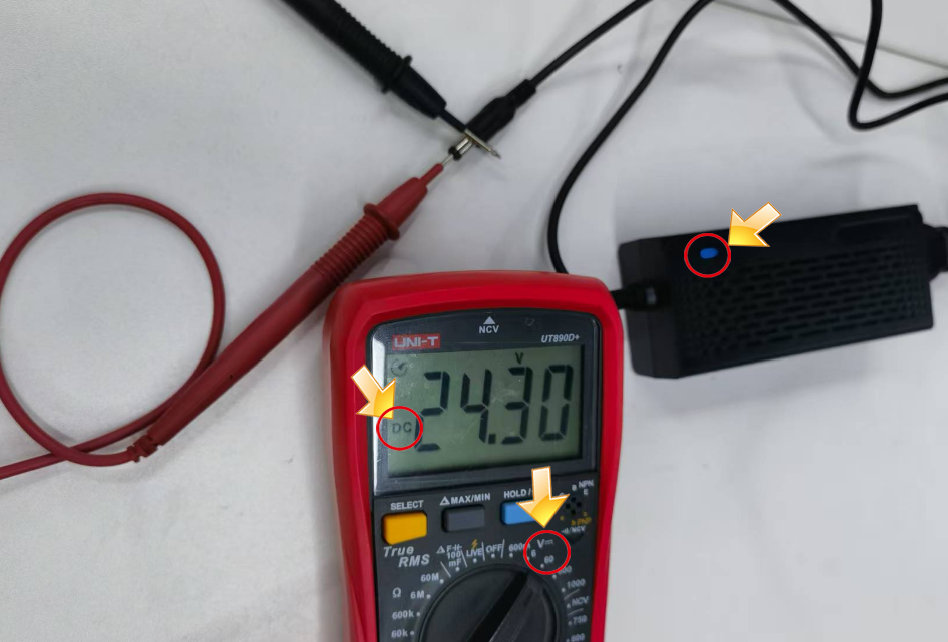
Figure 17
- Check the voltage at the laser module connector: Disconnect the laser connector, then run a cutting program at 100% power and 1 mm/min speed. Using a multimeter set to the DC voltage range, measure the following: between Pin 2 (24V) and Pin 3 (GND), the voltage should be between 20V and 25V; between Pin 4 (GND) and Pin 5 (Blue Light PWM), the voltage should be between 1V and 6V. Refer to the Kraft laser connector voltage measurement video for guidance.
- If all of the above checks are normal, the laser module is likely experiencing a power failure and needs to be replaced. Please provide the full troubleshooting process, the machine's serial number (see Figure 18), and the laser module's laser-engraved code (see Figure 19) to customer service for assistance. If the measured voltage at the laser connector is below 20V, the issue lies with the motherboard or connection cable. In that case, please submit a troubleshooting video and the machine's serial number to customer service. When replacing components, refer to the Kraft laser replacement video, Kraft motherboard replacement video, and Kraft motherboard cable replacement video.

Click to play video on YouTube
Figure 18
Figure 19
Still not fixed? Contact support with the details listed in What to send support.
Related problems: Dirty or Damaged Lens · Yellow, Incomplete Cuts · Moves but No Laser
¶ Infrared Beam Missing
Note
The following applies only to the dual-laser Kraft, not the Kraft Lite.
What you see: The blue laser works normally, but the infrared laser does not emit a beam.
Check in this order:
- Check if the laser is not emitting a beam only during the initial seconds: The infrared laser requires a preheating time of 2–20 seconds. Ensure that the mode has been switched to Infrared or Dual-laser mode, and allow time for the laser to warm up.
- Check the engraving material: The infrared laser is mainly used for engraving materials like metal and leather. It does not work on wood and similar materials.
- Check the focal distance: Infrared laser focus is highly sensitive. If you haven't refocused after changing materials, do so now. Use auto-focus first and confirm the focal distance is set to 40 mm.
- Focal distance verification: If the focal distance is confirmed to be 40 mm but there's still no visible laser, set the power to 20%, press the "Fire" button, then slowly adjust the Z-axis knob or move the material up/down to see if the surface burns or sparks. If sparks or burning appear at a certain height, that is your effective focal distance. Continue using it at that height and report the issue to customer service along with your troubleshooting results, the newly found focal distance, and your machine's Serial Number. Refer to the Kraft infrared laser focus verification video for guidance.
- If all checks above are normal, the laser module may be faulty. Please provide a video of your troubleshooting process, the machine's Serial Number (see Figure 20), and the laser module's engraved code (see Figure 21) to customer service. They will assist you with further steps.
Figure 20
Figure 21
Still not fixed? Contact support with the details listed in What to send support.
Related problems: Moves but No Laser · Weaker Cutting Power
¶ Moves but No Laser
What you see: The laser module moves correctly but does not emit a laser beam during engraving.
Check in this order:
-
Check whether the laser cable is properly connected: ensure the laser module's cable is securely plugged in. Unplug and reconnect it to confirm a stable connection.
-
Verify the software parameter settings: check if the settings match the recommended material parameter table. If using LightBurn, confirm whether the S-value Max has been altered. Ensure that S-value Max is set to 1000 (see Figure 44). How to view the Kraft parameter table:
① Enter to view by scanning the QR code on the engraving machine.
② Enter the official website to view https://atomstack.com/pages/product-support.
③ Contact customer service staff to request it.

Figure 44
- Check whether the focal distance is set to 40mm.
- Switch to another laser mode to test functionality (dual-laser Kraft only): if the infrared mode is currently in use, try switching to blue laser mode or dual-laser mode to see whether the blue laser functions correctly. If the blue laser works but the infrared does not, refer to the troubleshooting guide for "The blue laser of the Kraft module works normally, but the infrared laser does not emit a beam." If no mode works, proceed to measure the voltage output of the laser cable: unplug the laser cable, run a cutting task at 100% power and 10mm/min speed, and use a multimeter (DC mode) to measure the voltage. Between Pin 2 and Pin 3, the normal value should be 20V–24V; between Pin 4 and Pin 5, the normal value should be 1V–6V (see Figure 45). If the voltage readings are within the normal range, the laser module is faulty and needs to be replaced. If the voltage is 0V or below the normal range, the issue lies with the motherboard or its connection cables. Refer to the following videos for detailed instructions: Kraft Laser Cable Voltage Testing Video, Kraft Motherboard Replacement Video, Kraft Motherboard Cable Replacement Video, Kraft Laser Module Replacement Video.
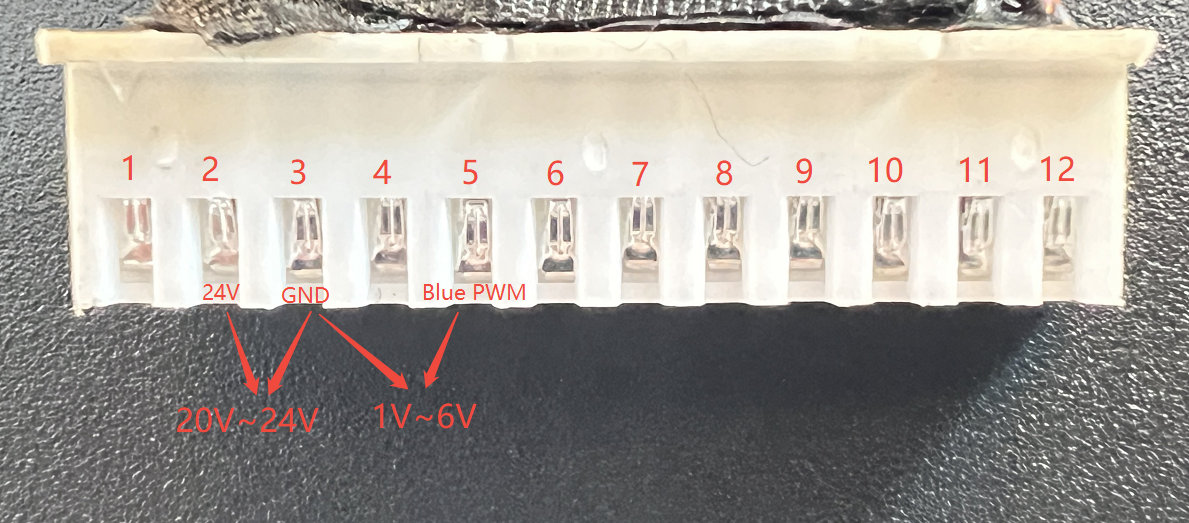
Figure 45
Still not fixed? Contact support with the details listed in What to send support.
Related problems: Infrared Beam Missing · Weaker Cutting Power · Engraving Won’t Start
¶ Incomplete Lines
What you see: Engraved lines are incomplete or broken.
Check in this order:
- Check the laser focus: after changing to materials with different thicknesses, you need to refocus the laser. Simply press the auto-focus button to complete the process. You can also manually measure the distance from the bottom edge of the laser module (not the air-assist hood) to the material surface. It should be 40 mm.
- Check the power settings in the software: if the power setting is too low, try increasing the power or reducing the speed.
- Ensure "Constant Power Mode" is enabled: in AtomStack Studio (see Figure 46) or LightBurn (see Figure 47), make sure the Constant Power Mode is turned on.

Figure 46

Figure 47
- Adjust the minimum power value ($31): if enabling Constant Power Mode doesn't fix the issue, go to the machine settings in LightBurn or LaserGRBL, and increase the $31 value until the lines appear complete (see Figure 48). Note: if Constant Power Mode solves the problem, there's no need to modify $31.

Figure 48
Confirm the fix: Repeat the engraving: the lines appear complete.
Still not fixed? Contact support with the details listed in What to send support.
Related problems: Engraved Lines Too Wide · Weaker Cutting Power
¶ Engraved Lines Too Wide
What you see: Engraved lines are too wide.
Check in this order:
-
Check the laser focus: if the laser has not been refocused after switching to materials of different thicknesses, the beam may become unfocused and cause wider lines. Press the auto-focus button to refocus the laser.
-
Check the protective glass and air-assist hood: ensure that the protective glass and air-assist hood are clean and undamaged. Refer to the Kraft Laser Cleaning Video for inspection and cleaning instructions.
-
Check the parameter settings: if the power setting is too high, it can cause the laser beam to widen. Make sure the settings match the recommended material parameter table. How to view the Kraft parameter table:
① Enter to view by scanning the QR code on the engraving machine.
② Enter the official website to view https://atomstack.com/pages/product-support.
③ Contact customer service staff to request it.
Still not fixed? Contact support with the details listed in What to send support.
Related problems: Incomplete Lines · Dirty or Damaged Lens · Weaker Cutting Power
¶ Yellow, Incomplete Cuts
What you see: Cut edges appear yellow and the laser fails to cut through the material.
Check in this order:
-
Check cutting conditions: make sure air assist is enabled during cutting, verify that the power adapter output voltage is within the normal range (23V–24V), and ensure the material thickness does not exceed the machine's cutting capability.
-
Check the laser focus: after changing to a material with a different thickness, refocus the laser by pressing the auto-focus button. Inspect the protective glass and air-assist hood to make sure they are clean and undamaged. Refer to the Kraft Laser Cleaning Video for proper inspection and cleaning instructions.
-
Verify software parameter settings: if the power is too low or the speed too high, the laser may not cut through the material. Try increasing the power or decreasing the speed. If using LightBurn, ensure that the S-value Max is set to 1000 and has not been changed (see Figure 49). How to view the Kraft parameter table:
① Enter to view by scanning the QR code on the engraving machine.
② Enter the official website to view https://atomstack.com/pages/product-support.
③ Contact customer service staff to request it.
Figure 49
- If there are no abnormalities in the above, it is judged that the laser is faulty and needs to be replaced. Please provide the customer service staff with the Serial Number (as shown in Figure 50), the fault video (including parameter settings), and the laser engraving code (as shown in Figure 51).
Figure 50
Figure 51
Still not fixed? Contact support with the details listed in What to send support.
Related problems: Weaker Cutting Power · Air Assist Not Working · Dirty or Damaged Lens