A70 Motion: Autofocus Fails, Homing Fails
Autofocus or homing fails, an axis moves wrongly, shapes come out distorted, or the head hits the frame.
Before you start. Switch off the machine and unplug the power supply before you open the laser module or control box, or unplug any cable. Let the laser module cool down first. Wear laser safety goggles whenever the laser can fire, including test burns: the A70 is an open-frame laser with no enclosure. Do not aim the laser at reflective surfaces.
¶ Autofocus Fails
What you see: During autofocus the Z axis stops partway, moves in only one direction, or does not turn back at the top or bottom.
Check in this order:
-
Check whether the Z-axis can move: in AtomStack Studio or LightBurn software, click the Z-axis movement control buttons and observe whether the Z-axis of the machine moves correctly in the indicated direction.


-
Check Z-axis operation during autofocus: if the Z-axis gets stuck midway, first perform Z-axis mechanical adjustment. If the issue persists after adjustment, it indicates a Z-axis motor failure, and the Z-axis motor needs to be replaced. Refer to the Z-axis mechanical adjustment video and the Z-axis motor replacement video for guidance.

Click to play video on YouTube

Click to play video on YouTube
-
Inspect upper and lower limit switches: during the autofocus process, if the Z-axis reaches the top or bottom limit but does not reverse, this may be caused by a limit switch malfunction. Manually press the Z-axis upper limit switch and the laser lower limit switch, and observe whether an alarm or warning is triggered. If no warning appears, check for broken wires on the limit switch and inspect the PCB board near the mounting screw for paint loss or scratches, which may cause a short circuit. If no visible issues are found, the limit switch is likely faulty and needs to be replaced. Refer to the Z-axis upper limit switch replacement video and the 70W driver board and fan replacement video for detailed steps.


Click to play video on YouTube
- Check the Z-axis motor: if the Z-axis motor vibrates slightly but the laser module does not move, this indicates a Z-axis motor failure. Refer to the Z-axis motor replacement video for repair instructions.
- If the Z-axis can only move up or only down, this suggests a mainboard or mainboard connection cable failure. Refer to the 70W mainboard replacement video and the mainboard cable replacement video for further troubleshooting and replacement steps.

Click to play video on YouTube
Still not fixed? Contact support with the details listed in What to send support.
Related problems: Alarm 9 During Homing · Laser Module Loose
¶ Alarm 9 During Homing
What you see: Homing fails and the software shows Alarm 9.
Check in this order:
Alarm 9 typically occurs when the homing process fails. The main causes and troubleshooting steps are:
- Check limit switches: manually press the limit switches on the machine frame, the Z-axis upper limit switch, and the lower limit switch on the laser module. Observe whether a trigger notification appears. If one of them does not respond, check the limit switch wiring and whether the insulating coating on the mounting screw hole is damaged. If no issues are found, the limit switch may be faulty and needs to be replaced.
- Identify when the alarm occurs: the homing sequence starts with auto-focus on the Z-axis, then moves on to homing. If the alarm appears before auto-focus completes, it indicates a Z-axis malfunction — refer to the troubleshooting steps under "Autofocus Failure."
- If multiple alarms or errors occur, try refreshing the firmware. If the issue persists even after switching to AtomStack Studio software, it may be a mainboard failure — replace the mainboard if necessary (refer to the 70W mainboard replacement video).
Confirm the fix: Click Home: the machine finishes homing at the lower-left corner without an alarm.
Still not fixed? Contact support with the details listed in What to send support.
Related problems: Autofocus Fails · Homes the Wrong Way
¶ Homes the Wrong Way
What you see: When homing, the machine moves away from the lower-left corner and does not stop at (0,0).
Check in this order:
-
Verify motor direction settings: modify the value of $23 in the Machine Settings of the control software. If it is currently enabled, set it to disabled; if it is disabled, set it to enabled.

-
Confirm that no other parameters were modified: if the above settings do not resolve the issue, try restoring the factory defaults by entering $RST=* in the console command box. If restoring to factory settings does not solve the problem, reflash the firmware (contact customer support with the Serial Number to obtain the correct firmware version).

Confirm the fix: Click Home: the machine finishes at (0,0) in the lower-left corner.
Still not fixed? Contact support with the details listed in What to send support.
Related problems: Alarm 9 During Homing · Head Hits the Frame
¶ X or Y Axis Moves Wrong
What you see: One axis does not move, or moves wrongly, when you jog the machine.
Check in this order:
-
Check axis movement via software: use AtomStack Studio, LightBurn, or LaserGRBL software to click the directional movement buttons (up, down, left, right) and observe whether the other axis moves normally.


-
Inspect motor cable connection: if the other axis moves correctly, check the motor cable of the abnormal axis for issues such as bent pins, broken pins, or other visible damage. If no abnormalities are found, reconnect the motor cable securely and test again.
-
Check for motor damage: if the issue persists after reconnecting, the motor itself may be faulty. Remove the X-axis cable track (tank chain) and swap the motor cable of the X-axis with the Y-axis motor port on the mainboard, then test the movement. Refer to the 70W motor swap test video for detailed instructions. The following table provides a detailed troubleshooting guide:

Click to play video on YouTube
| Situation | Troubleshooting method |
|---|---|
| X-axis normal, Y-axis malfunctioning | Insert the X-axis motor cable into the Y-axis motor: if the Y-axis still cannot move, the Y-axis motor is faulty; if the Y-axis can move, the issue lies with the motor driver on the mainboard or the mainboard connection cable. Refer to: 70W Motor Replacement Video, 70W Mainboard Replacement Video, 70W Mainboard Connection Cable Replacement Video. |
| Y-axis normal, X-axis malfunctioning | Insert the X-axis motor cable into the Y-axis motor: if the Y-axis motor does not move, the issue is with the motor driver on the mainboard or the mainboard connection cable; if the Y-axis motor still moves, the X-axis motor is faulty. Refer to: 70W Motor Replacement Video, 70W Mainboard Replacement Video, 70W Mainboard Connection Cable Replacement Video. |
| Both X-axis and Y-axis cannot move | Check the mainboard connection cables for any breakage or pinching inside the drag chain. If no abnormalities are found, the issue is likely with the mainboard. After connecting the machine, enter $RST=* in the code box of the software console and execute it. If this does not resolve the issue, try reflashing the firmware (contact customer service with the Serial Number to obtain the correct firmware version). Refer to the firmware flashing video for guidance. |

Click to play video on YouTube
- If re-flashing the firmware does not resolve the issue, the mainboard and mainboard connection cable both need to be replaced. Refer to the 70W Mainboard Replacement Video and 70W Mainboard Connection Cable Replacement Video.
Confirm the fix: Jog each axis from the software: both move smoothly in the direction you press.
Still not fixed? Contact support with the details listed in What to send support.
Related problems: Distorted Shapes · Head Hits the Frame
¶ Distorted Shapes
What you see: Squares and circles come out bent, wavy, skewed or scaled wrongly.
Check in this order:
-
Identify the faulty axis: engrave a square and a circle outline to determine which axis is malfunctioning (or if both are). For example, use 10,000 mm/min speed, 30% power, and cutting mode on plywood to test square and circle patterns.
-
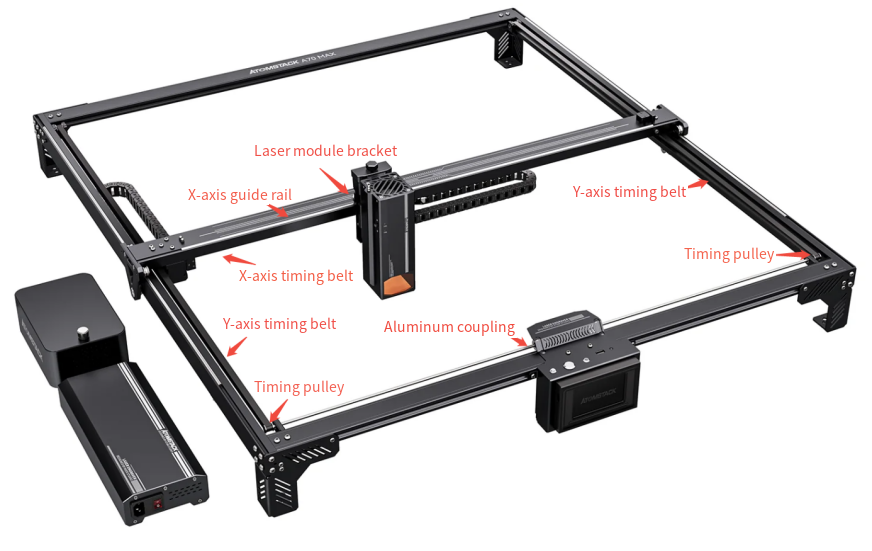
Inspect components for damage: carefully check the guide rails and rollers on the faulty axis for any damage. Ensure the timing belt tension is appropriate (refer to the 70W Structure Adjustment Video). Also check if the laser module bracket on the X-axis is loose or wobbly.
-
Check structural alignment: adjust the structure of the malfunctioning axis. After each adjustment, engrave a square and circle to see if the output improves. If there is improvement, continue adjusting; if not, no further adjustment is needed in that area. Refer to the 70W series Structure Adjustment Video.

Click to play video on YouTube
- Verify the X-axis alignment: if the lines are tilted but not wavy or curved, the issue is likely that the X-axis is not parallel to the lower beam. Adjust the X-axis to ensure it is parallel. Refer to the 70W series X-axis Parallel Adjustment Video.

Click to play video on YouTube
-
Confirm the step length settings: if the output is just proportionally incorrect (with no bending, deformation, or offset), check whether the step values $100 and $101 have been changed from the default 133.33. Open LightBurn or LaserGRBL, go to the Edit menu, select Machine Settings, and check the values in the Outputs Setup section.

-
If the step values are correct, contact customer support to obtain the appropriate firmware and reflash it.
-
If none of the above steps resolve the issue, the problem may be due to a mainboard control failure, and the mainboard may need to be replaced. Refer to the 70W Mainboard Replacement Video for guidance.
Confirm the fix: Engrave the test square and circle again: straight edges, round circle, correct size.
Still not fixed? Contact support with the details listed in What to send support.
Related problems: X or Y Axis Moves Wrong · Laser Module Loose
¶ Head Hits the Frame
What you see: While framing or engraving, the laser head runs into the frame.
Check in this order:
- Check file size: ensure that the file is within the engraving area and does not contain negative coordinates.
- Confirm actual engraving range: note that if auxiliary positioning (using the crosshair center as the laser start point) is enabled, the engraving area will be reduced.
- Check for software issues: try connecting with AtomStack Studio to see if the issue persists. If using LightBurn, make sure you are using a licensed version.
- Confirm correct machine movement: use the software to move the machine up, down, left, and right, and check whether the distance and direction are correct. If not, try flashing new firmware (contact customer support with the machine's Serial Number to obtain the correct firmware).
- Verify firmware status: if the movement distance and direction are correct, try reflashing the firmware anyway, using the correct version. Refer to the Firmware Flashing Video for guidance.
- If none of the above solutions work, the issue may be caused by a faulty mainboard. Contact customer support and provide the Serial Number to confirm the correct mainboard version. Refer to the 70W Mainboard Replacement Video for instructions.
Confirm the fix: Frame the job: the head traces the outline without touching the frame.
Still not fixed? Contact support with the details listed in What to send support.
Related problems: Homes the Wrong Way · Crosshair Off Target
¶ Laser Module Loose
What you see: The laser module and its mount wobble on the X axis.
Check in this order:
- Check the slider assembly: first try tightening all screws, including those on the guide wheels and the eccentric nuts on the slider. Refer to the 70W X-axis Slider Adjustment Video for guidance.
- If the issue cannot be fixed by adjustment, or if it persists after adjustment, the X-axis slider needs to be replaced. Refer to the 70W X-axis Slider Replacement Video for instructions.

Click to play video on YouTube
Confirm the fix: Hold the module and try to rock it: there is no play.
Still not fixed? Contact support with the details listed in What to send support.
Related problems: Distorted Shapes · Autofocus Fails
¶ Head Stuck at Power-On
What you see: After power-on you cannot move the laser head to where you want to engrave.
Check in this order:
- Confirm that power-off resume engraving is not enabled: when the power-off resume engraving function is enabled and you want to move the machine manually, turn off the "power-off resume engraving" function after connecting to the AtomStack APP or AtomStack Studio software. Refer to the 70W series engraving machine function on/off tutorial video.

Click to play video on YouTube
- Check wiring connection status: if you cannot move the machine through the software, first inspect whether the mainboard connection cables are properly plugged in, and check for any bent or broken pins at the connector ports. If everything appears normal, the issue may be with the mainboard — try flashing the firmware first (contact customer support with the Serial Number to obtain the correct firmware version). If reflashing does not resolve the issue, the mainboard may need to be replaced. Refer to the 70W Mainboard Replacement Video for guidance.
Still not fixed? Contact support with the details listed in What to send support.
Related problems: Alarm 9 During Homing
¶ Rotary Keeps Spinning
What you see: With a rotary attachment connected, the roller keeps turning instead of following the job.
Check in this order:
-
Check if auto-homing is enabled: ensure that the "Auto-home on startup" setting is disabled in the software.

-
Check if return to finish position is enabled: ensure that "Return to finish position" is also disabled when using a rotary roller.
-
Check if "Start from Absolute Coordinates" is selected: the engraving mode in the software should not use absolute coordinates when operating with the rotary.

Confirm the fix: Start a rotary job: the roller turns with the job and stops when it ends.
Still not fixed? Contact support with the details listed in What to send support.
Related problems: Homes the Wrong Way