A70 Laser: No Laser Output, Weak Cutting
The laser does not fire, cuts weaker than before, or the beam and crosshair do not line up.
Before you start. Switch off the machine and unplug the power supply before you open the laser module or control box, or unplug any cable. Let the laser module cool down first. Wear laser safety goggles whenever the laser can fire, including test burns: the A70 is an open-frame laser with no enclosure. Do not aim the laser at reflective surfaces.
¶ Moves but No Laser
What you see: The laser head follows the job path, but there is no laser light and no mark on the material.
Check in this order:
-
Check software parameters: verify that the parameter settings in the software are correct, referring to the official parameter table.
-
Ensure the material is not reflective: do not process reflective materials directly. Such materials must be coated black before use to prevent reflections from damaging the laser.
-
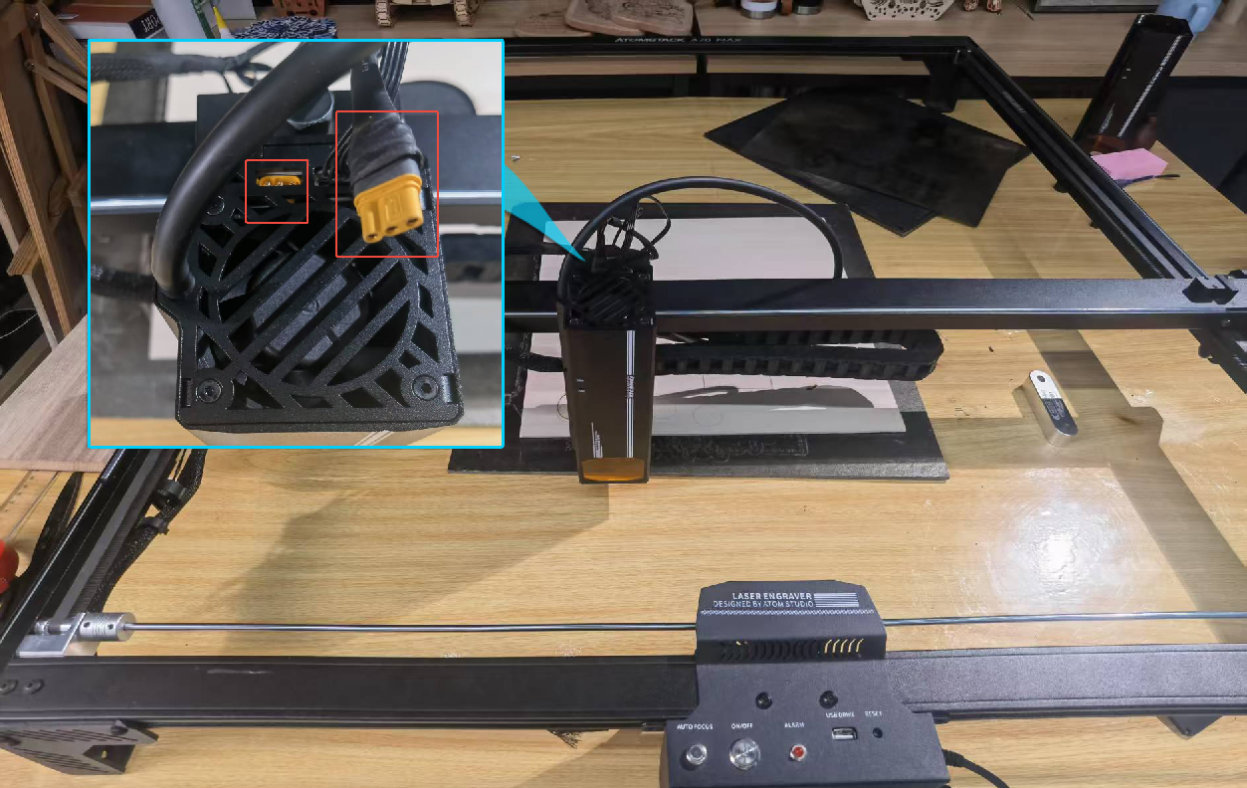
Check laser cable connection: confirm that the laser's cable is properly connected. Turn off the power, unplug the laser cable, and then plug it back in securely.
-
Measure cable voltage: turn off the power and unplug the 3-pin laser cable. Set a multimeter to DC mode, then run a cutting program at 100% power. Measure the voltage at the 3-pin connector: if the reading between pins 1 and 2 is 30V–37V, and between pins 2 and 3 is 1V–6V, the mainboard and cable are functioning normally. If the voltage between pins 1 and 2 is less than 30V, this indicates a power supply component failure. If the voltage between pins 2 and 3 is 0.1V–1V, this indicates a mainboard failure. Refer to the 70W laser cable voltage measurement video and the 70W mainboard replacement video for further instructions.

Click to play video on YouTube

Click to play video on YouTube
- If the laser cable voltage test shows no issues: open the back cover of the laser and remove the driver board. Unplug the two diode wires from the driver board. Then run an engraving program and observe the LED indicator next to the diode terminals on the driver board: if the LED lights up, the issue is a laser diode failure; if it does not light up, the issue is a driver board failure. Refer to the 70W laser driver board troubleshooting video and the 70W driver board and fan replacement video for detailed guidance.

Click to play video on YouTube
Confirm the fix: Run a short low-power test on scrap material: the laser fires and leaves a mark.
Still not fixed? Contact support with the details listed in What to send support.
Related problems: Laser Cuts Out in Spots · Power Mode Light Off · Weaker Cutting Power
¶ Weaker Cutting Power
What you see: Cuts that used to go through no longer do, with the same material and settings.
Check in this order:
-
Normal power attenuation: after being used for a period of time, the laser may experience power attenuation within a normal range. Try increasing the power or reducing the speed to see if it can still operate properly.
-
Check operating environment: verify whether the ambient temperature exceeds 35°C. High temperatures can cause the laser to automatically reduce power during operation. Avoid continuous full-power operation for more than 4 hours; pause for 15 minutes every 2 hours when running at full power.
-
Check software settings: ensure that the engraving or cutting parameters in the software are set according to the parameter table. The S-value max in the software must remain at 1000 and should not be changed.

-
Inspect the protective window and focusing lens: check whether they are dirty or damaged. Refer to the "Protective window or focusing lens has stains or damage" section for detailed handling instructions.
-
Check for dust accumulation: examine whether the laser's fan and driver board have accumulated dust. Use a soft brush to clean off the dust. Refer to the 70W laser fan and driver board cleaning video.

Click to play video on YouTube
- Check air hood installation: verify whether the air hood is misaligned. Remove the laser from its mount and aim it at a wall more than 2 meters away. Use the fire button in the software to observe the laser spot — check if any part of the beam is blocked (a normal beam should display 7 rectangular strips).
- If none of the above issues are found, the laser is likely faulty and needs to be replaced. Provide customer service with clear photos or videos of the troubleshooting process, along with the engraver's Serial Number and the laser's engraved code.
Confirm the fix: Run the same cut with the recommended parameters: it goes through again.
Still not fixed? Contact support with the details listed in What to send support.
Related problems: Dirty or Damaged Lens · Module Fan Not Spinning
¶ Dirty or Damaged Lens
What you see: You can see stains, marks or cracks on the protective window, or on the focusing lens behind it.
Check in this order:
- Inspect the protective window: after removing the protective window, wipe it with 99% pure anhydrous ethanol or a professional optical lens cleaner (avoid solvents containing ammonia or acetone). If stains or marks cannot be cleaned off, the protective window must be replaced. Refer to the 70W laser lens cleaning video for guidance.

Click to play video on YouTube
- Inspect the focusing lens: the focusing lens of the 70W series is non-removable. Do not attempt to pry or disassemble it yourself, as this may damage the laser's sealed structure. If the lens cannot be cleaned with alcohol and a lint-free cloth, or if the focusing lens is damaged, the entire laser unit must be replaced.
Note:
- Regular cleaning of the protective window helps prevent damage. If the focusing lens has uncleanable stains, marks, or damage, please provide clear photos of the damaged lens, the engraver's Serial Number, and the laser's engraved code to customer service for assistance.
Confirm the fix: Check the cleaned window under strong light from the side: no water marks or fibres remain.
Still not fixed? Contact support with the details listed in What to send support.
Related problems: Weaker Cutting Power · Moves but No Laser
¶ Laser Cuts Out in Spots
What you see: At some positions the laser goes out, but the head keeps moving along the job path.
Check in this order:
Check whether the laser resumes emitting when the machine moves back from that position. If the laser emits normally after returning, this indicates a mainboard connection cable fault. In this case, the mainboard connection cable needs to be replaced.
Confirm the fix: Run the job again: the laser fires over the whole working area.
Still not fixed? Contact support with the details listed in What to send support.
Related problems: Moves but No Laser · X or Y Axis Moves Wrong
¶ Module Fan Not Spinning
What you see: The laser fires, but the cooling fan on the laser module stays still.
Check in this order:
- Check for obstructions: inspect the fan for any physical blockages or foreign objects. Manually spin the fan blades to check if dust, tangled wires, or a seized bearing is preventing movement. Clean the fan, and if it uses an oil-bearing type, apply a small amount of lubricant.
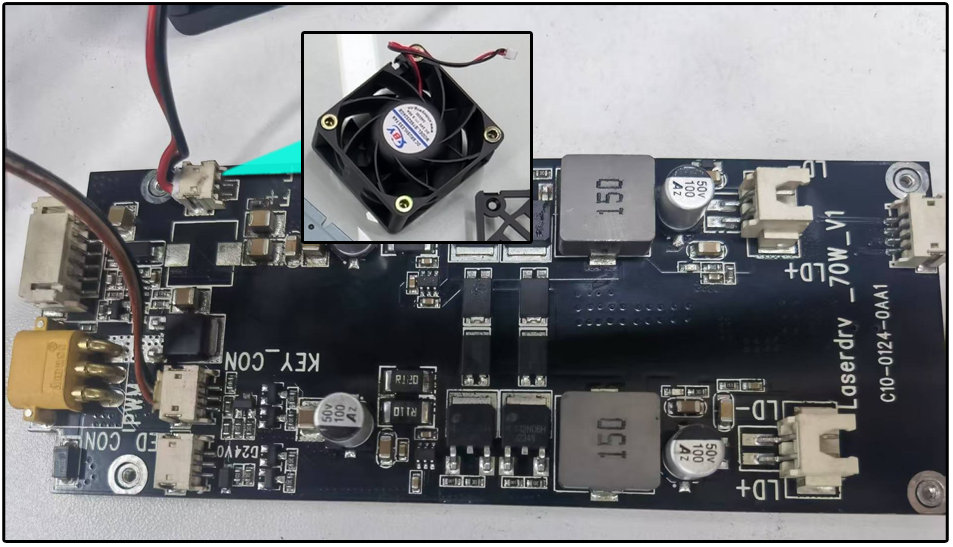
- Check fan wiring connection: open the laser module's rear cover and inspect whether the fan connector is properly plugged in. Unplug and replug the fan cable to see if it resumes operation. Refer to the 70W Driver Board and Fan Replacement Video for disassembly guidance.

Click to play video on YouTube
- Check for component failure: remove the fan and use two extra wires to connect it directly to a 24V adapter. If the fan still does not spin, the fan is faulty; if the fan spins normally, the driver board is faulty. Refer to the 70W Driver Board and Fan Replacement Video for instructions.
Confirm the fix: Fire the laser: the module fan spins.
Still not fixed? Contact support with the details listed in What to send support.
Related problems: Weaker Cutting Power · Power Mode Light Off
¶ Power Mode Light Off
What you see: The power mode indicator on the laser module stays dark. It normally lights only while engraving or cutting.
Check in this order:
- Check operating status: the power mode indicator light only turns on when engraving or cutting is in progress.
- Check switch functionality: if the power switch itself functions normally (i.e., it successfully changes power modes), the indicator light may be faulty, and the power mode switch should be replaced. Refer to the 70W Power Mode Switch Replacement Video. If the power switch does not function, continue with the following steps.

Click to play video on YouTube
-
Check wiring connection: inspect whether the power switch cable is properly connected. Open the laser module's rear cover, unplug the power switch cable from the driver board, then plug it back in. If the issue persists, the switch may be faulty — use a multimeter to test continuity between the two switch positions. If both the switch and cable are normal, the issue may be with the driver board. Refer to: 70W Driver Board and Fan Replacement Video, 70W Power Mode Switch Replacement Video.
Confirm the fix: Start a job: the indicator lights, and the switch changes the power mode.
Still not fixed? Contact support with the details listed in What to send support.
Related problems: Moves but No Laser · Module Fan Not Spinning
¶ Crosshair Off Target
What you see: The red crosshair is more than 1 mm away from where the laser actually marks.
Check in this order:
Check the offset distance: all AtomStack products are calibrated at the factory. If the crosshair and laser dot are misaligned by more than 1 mm, recalibration is required. Refer to the 70W Crosshair Calibration Video for guidance.

Click to play video on YouTube
Confirm the fix: Mark a dot on scrap material: the crosshair centre is within 1 mm of it.
Still not fixed? Contact support with the details listed in What to send support.
Related problems: Head Hits the Frame