Kraft Camera: Not Detected, Positioning Errors
The camera is not recognized, positioning is inaccurate, or LightBurn camera calibration fails.
Power off the machine and disconnect the laser cable before removing the laser module to inspect the lower limit switch. Do not pry apart or disassemble the focusing lens, as this damages the laser sealing structure. Closely monitor the machine during operation; if flame detection is disabled, supervise it at all times and re-enable the function after engraving.
¶ Camera Not Recognized
What you see: The machine fails to recognize the camera.
Check in this order:
- Check whether the camera is disabled: open Device Manager to see if the camera is restricted or disabled. If so, remove the restriction and grant the necessary permissions, as shown in Figure 36.

Figure 36
- Check whether the computer's USB port is damaged: try a different USB port on the computer, and use the built-in camera or video app to verify if the image can be displayed.
- Check whether the camera cable on the mainboard is loose: if the camera fails to capture an image, inspect the camera connection cable (see Figure 37). Use tweezers or a similar tool to carefully unplug and reinsert the cable, then test the camera again.
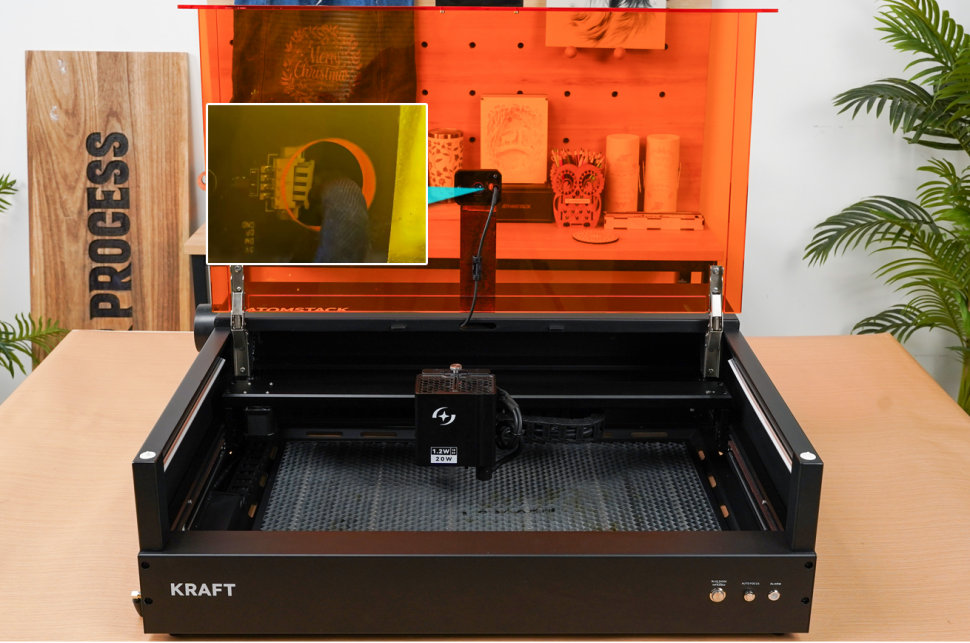
Figure 37
- If none of the above steps resolve the issue, the camera is likely faulty and needs to be replaced. Refer to the Kraft Camera Replacement Video for instructions.
Confirm the fix: The built-in camera or video app displays the camera image.
Still not fixed? Contact support with the details listed in What to send support.
Related problems: Camera Positioning Off · Camera Calibration Fails
¶ Camera Positioning Off
What you see: Camera positioning is inaccurate, with significant deviation.
Check in this order:
- Check whether the coordinate settings are correct: for camera positioning to work properly, "Start From" should be set to Absolute Coordinates, not Current Position or User Origin.
- Ensure the camera is calibrated: after switching to materials with different thicknesses, recalibration is required. If the error is too large during calibration, redo the machine model calibration.
- Check whether the internal lighting is sufficient: inadequate lighting inside the Kraft enclosure may cause significant camera algorithm errors. Improve internal brightness and try again.
- Avoid using the edges of the camera view: it is recommended to perform engraving near the center of the working area. The closer to the edges, the higher the potential positioning error.
Still not fixed? Contact support with the details listed in What to send support.
Related problems: Camera Not Recognized · Camera Calibration Fails · LED Strip Stays Off
¶ Camera Calibration Fails
What you see: The camera works normally in AtomStack Studio but cannot be calibrated in LightBurn.
Check in this order:
- Check the lighting conditions of the working environment: AtomStack Studio has relatively low lighting requirements when using the camera. However, LightBurn requires significantly better lighting conditions for successful calibration. If calibration fails, try using external lighting to assist with the process.
- Ensure the software has the necessary permissions: if calibration still fails even with additional lighting, it may be due to insufficient system permissions granted to LightBurn or an issue with the LightBurn software itself. In such cases, it is recommended to use AtomStack Studio for camera operations instead.
Still not fixed? Contact support with the details listed in What to send support.
Related problems: Camera Not Recognized · Camera Positioning Off