Glacier Motion: Autofocus Fails, Head Hits Frame
Autofocus fails, axes move badly, engraving is distorted, the machine hits the frame, the bracket is loose, the head resists pushing, or the rotary keeps turning.
Power off before removing the laser module to inspect the lenses or unplugging and reconnecting the laser cable. With flame detection switched off, someone must watch the machine closely the whole time it is running.
¶ Autofocus Fails
What you see: Z-axis autofocus fails.
Check in this order:
-
Confirm the laser module is mounted at the right height: when auto focus runs, the bottom of the laser module has to be able to reach the material. If it cannot even at the lowest Z position, turn the Z-axis knob to bring the slider to a middle position, loosen the laser module mounting screws, move the module down and retighten. See the laser module mounting height video.
-
Check that the Z-axis moves: use the Z up/down buttons in AtomStack Studio or LightBurn and watch the direction of travel.
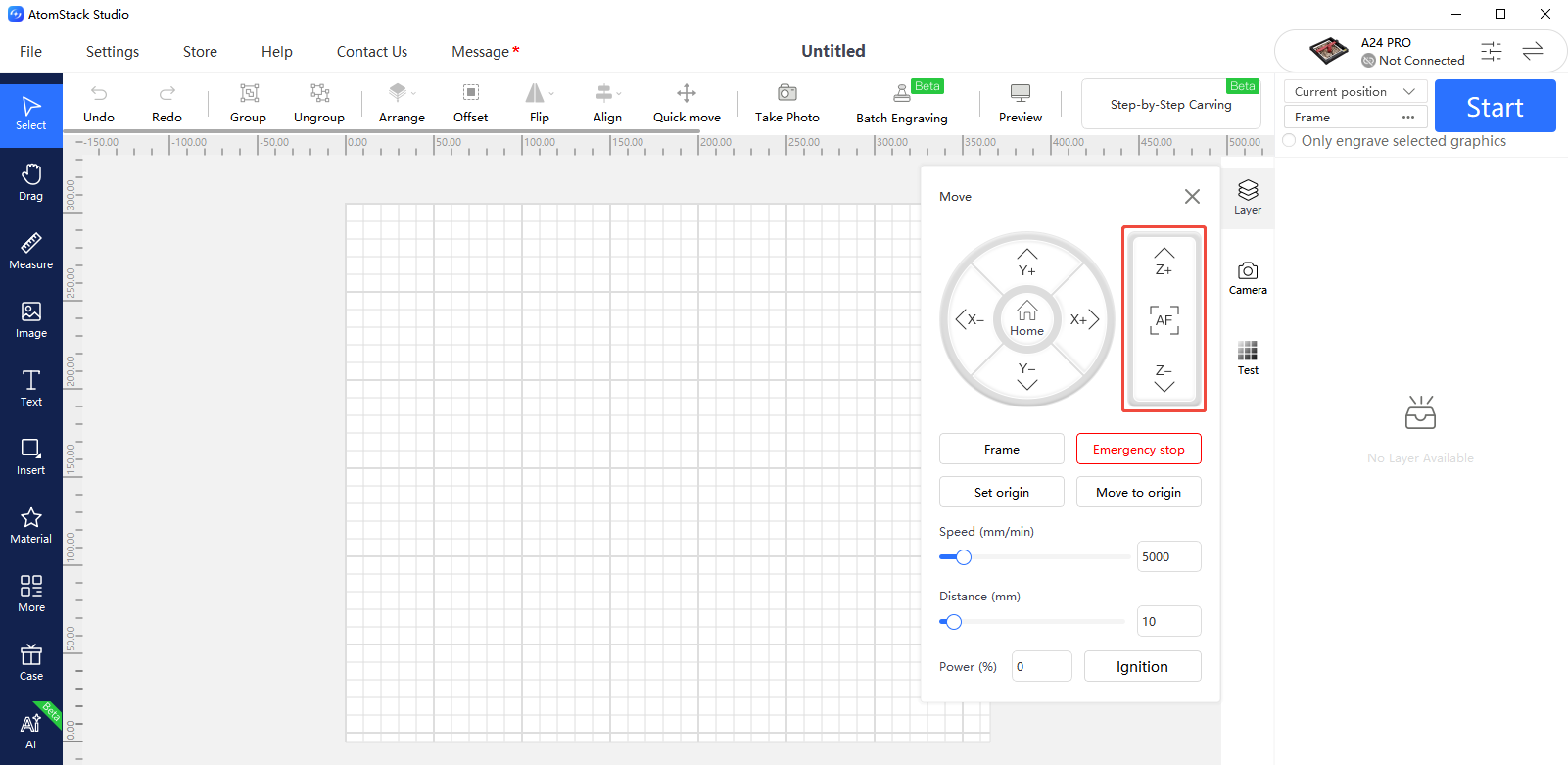
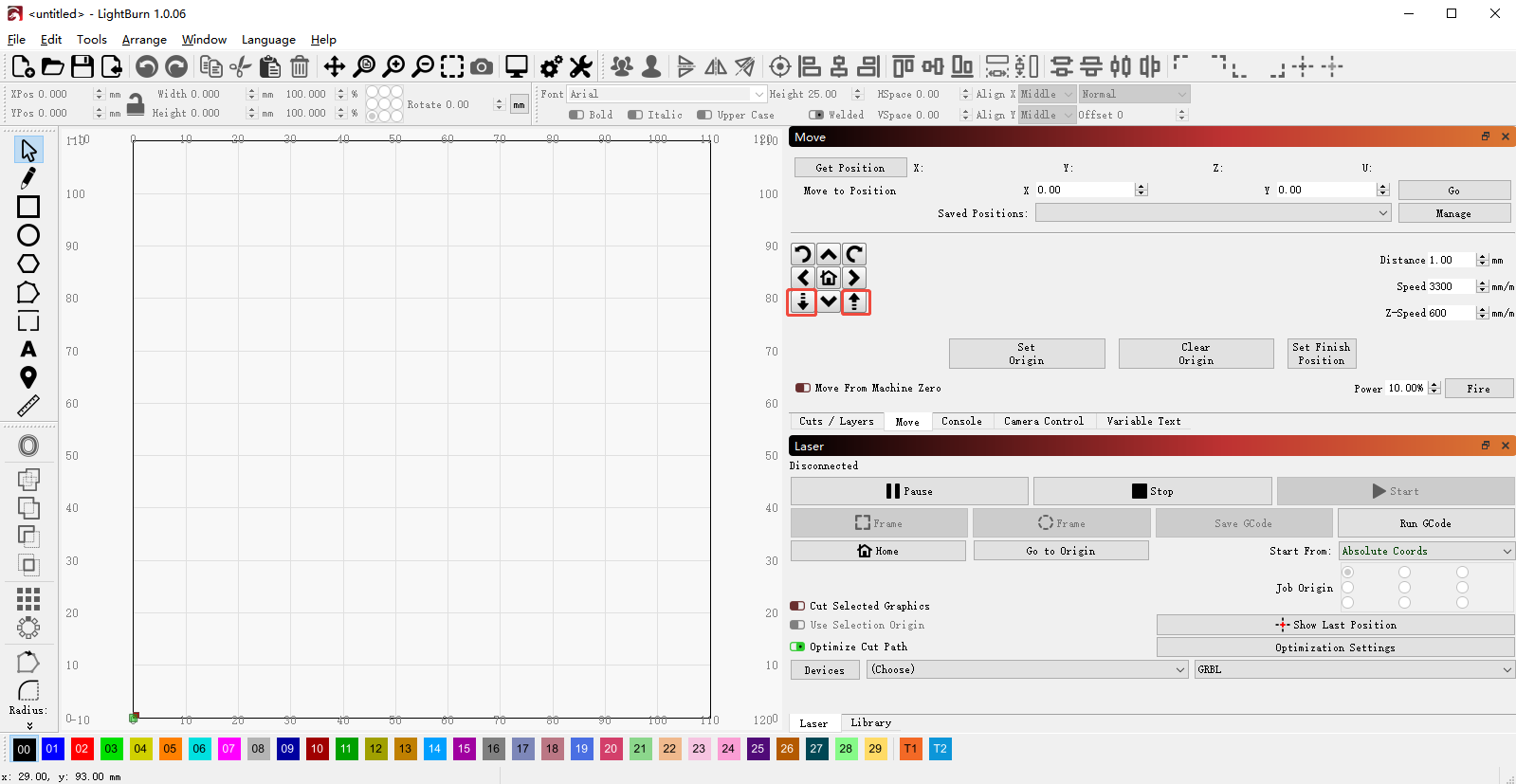
If there is noise but no movement, check the motor wiring and unplug and reconnect the motor cable. If that does not help, the mainboard, the mainboard connection cable or the Z-axis motor may need replacing. Record a clear video and send it with the machine's Serial Number to customer service. See the mainboard replacement video and the mainboard connection cable replacement video; for the Z-axis motor, contact customer service for the procedure.
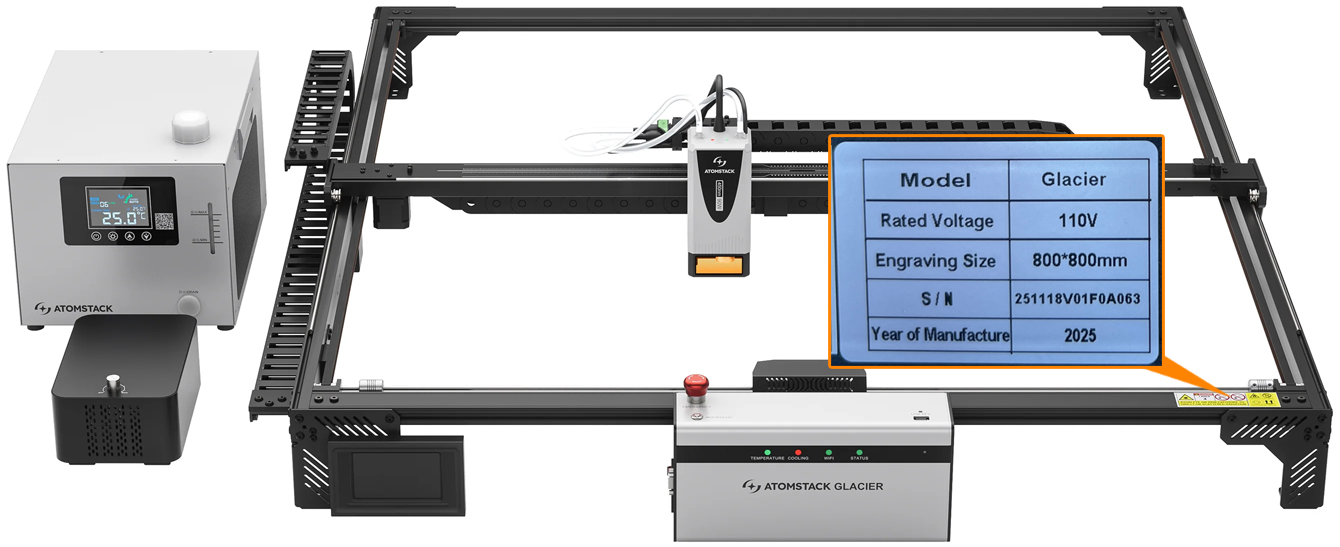
-
Check the upper and lower limit switches: watch the auto focus run. If the Z-axis reaches the top or bottom and keeps going instead of reversing or stopping, a limit switch is probably faulty. Press the Z-axis upper limit switch and the lower limit switch on the laser module by hand and see whether an alarm is raised.
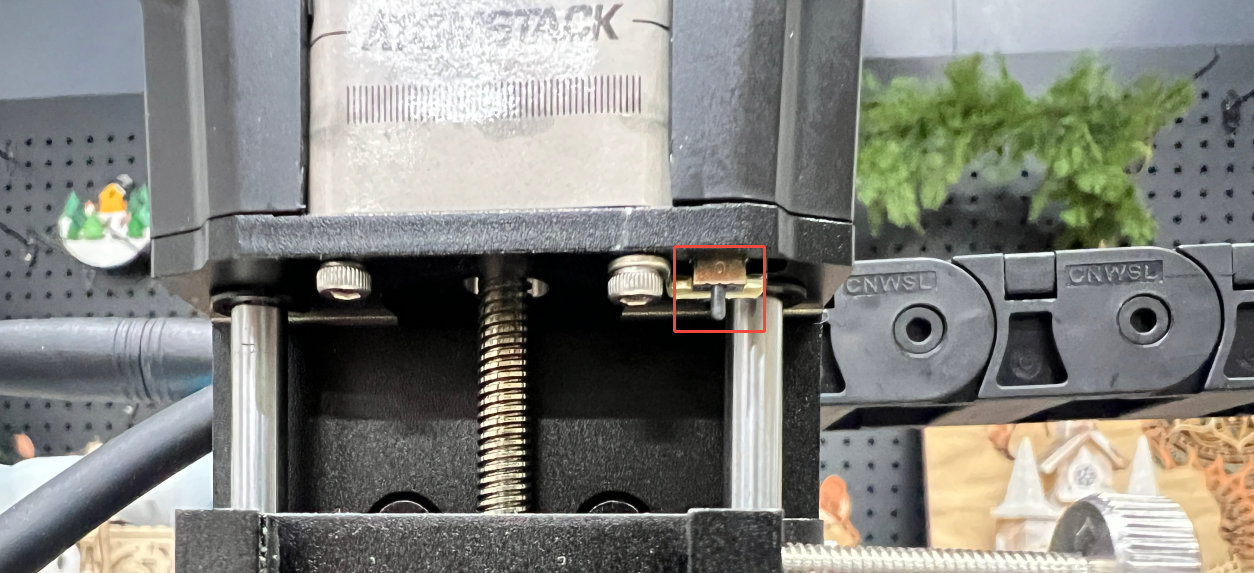
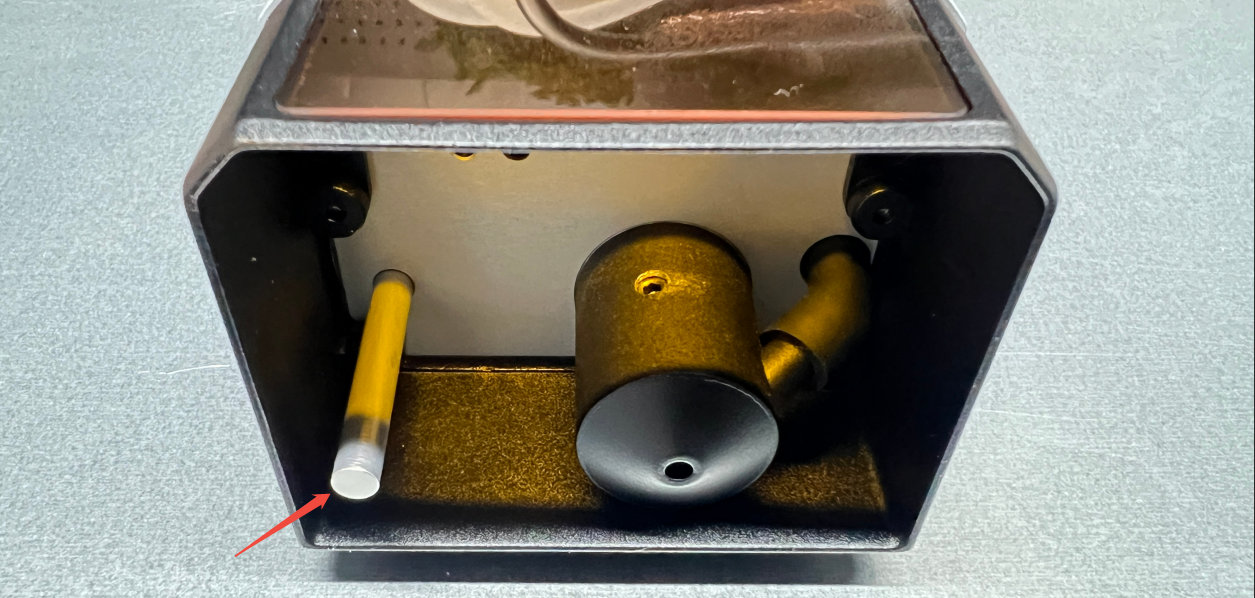
No response from the upper switch: if the trigger lever does not spring back when pressed, the switch is defective — send a short video and the Serial Number to customer service. Otherwise unplug and reconnect the limit switch cable. If that does not help, the mainboard, the mainboard connection cable or the Z-axis upper limit switch needs replacing.
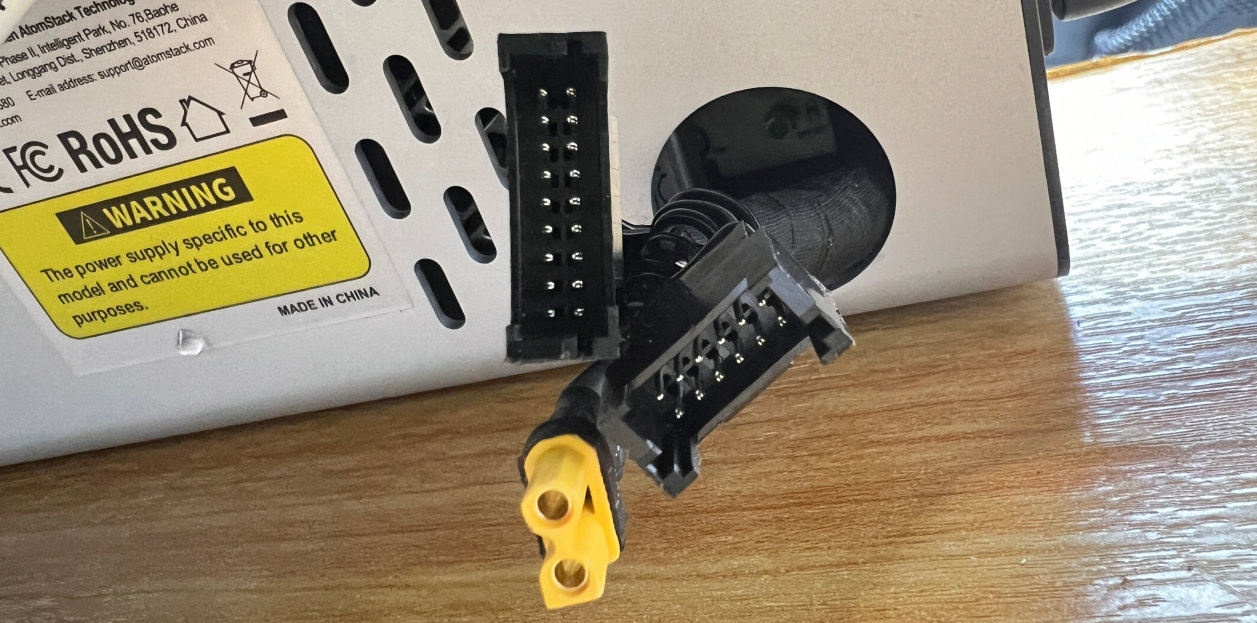
No response from the lower switch: if the trigger lever does not spring back, the switch is defective — record a fault video and send it with the Serial Number. If engraving works but the switch never triggers, check the laser module cable for damage and unplug the connector at the back of the control box to look for bent or broken pins. If nothing is wrong there, the lower limit switch board is the likely fault; see the lower limit switch replacement video.
Still not fixed? Contact support with the details listed in What to send support.
Related problems: Axis Motion or Noise · Laser Bracket Loose · Alarm Codes
¶ Axis Motion or Noise
What you see: The X-axis or Y-axis moves badly or makes a harsh noise.
Check in this order:
-
Check the machine structure:
X-axis parallelism: measure from both ends of the X-axis down to the lower crossbeam. If the two distances differ, the X-axis is not parallel to the frame, which tilts the X-axis support and increases friction against the Y-axis rails.
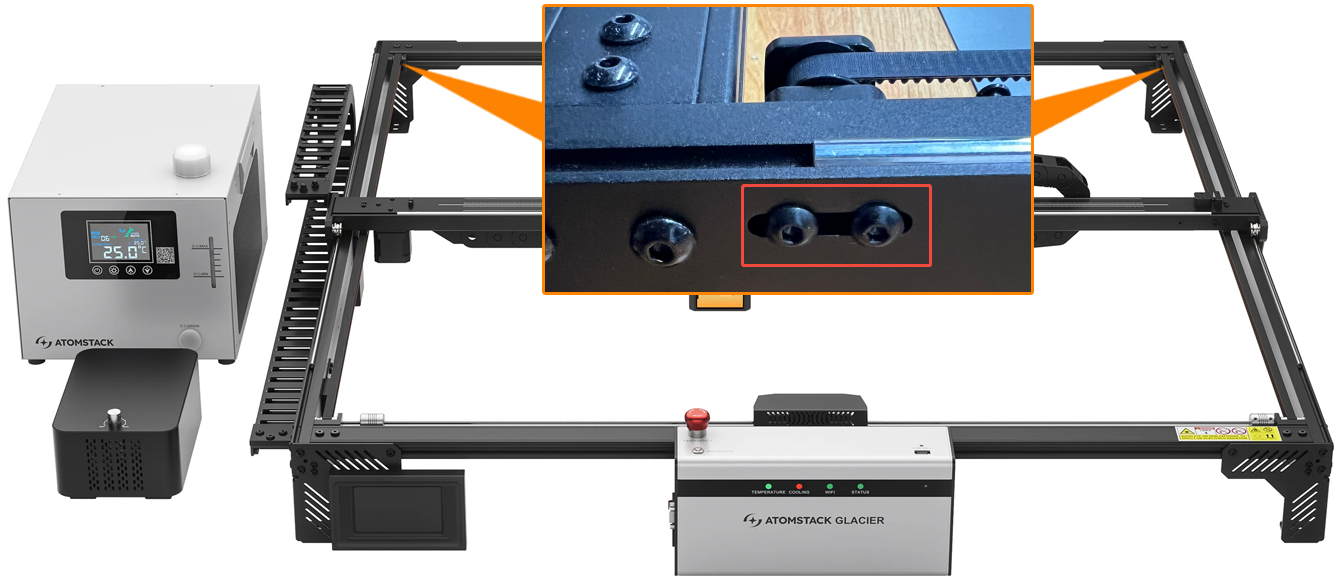
Y-axis timing belts: press both belts with your fingers to judge their tension. If a belt feels slack, loosen the two fixing screws of the belt idler pulley near the upper crossbeam, pull the idler block to tighten the belt, then retighten the screws.
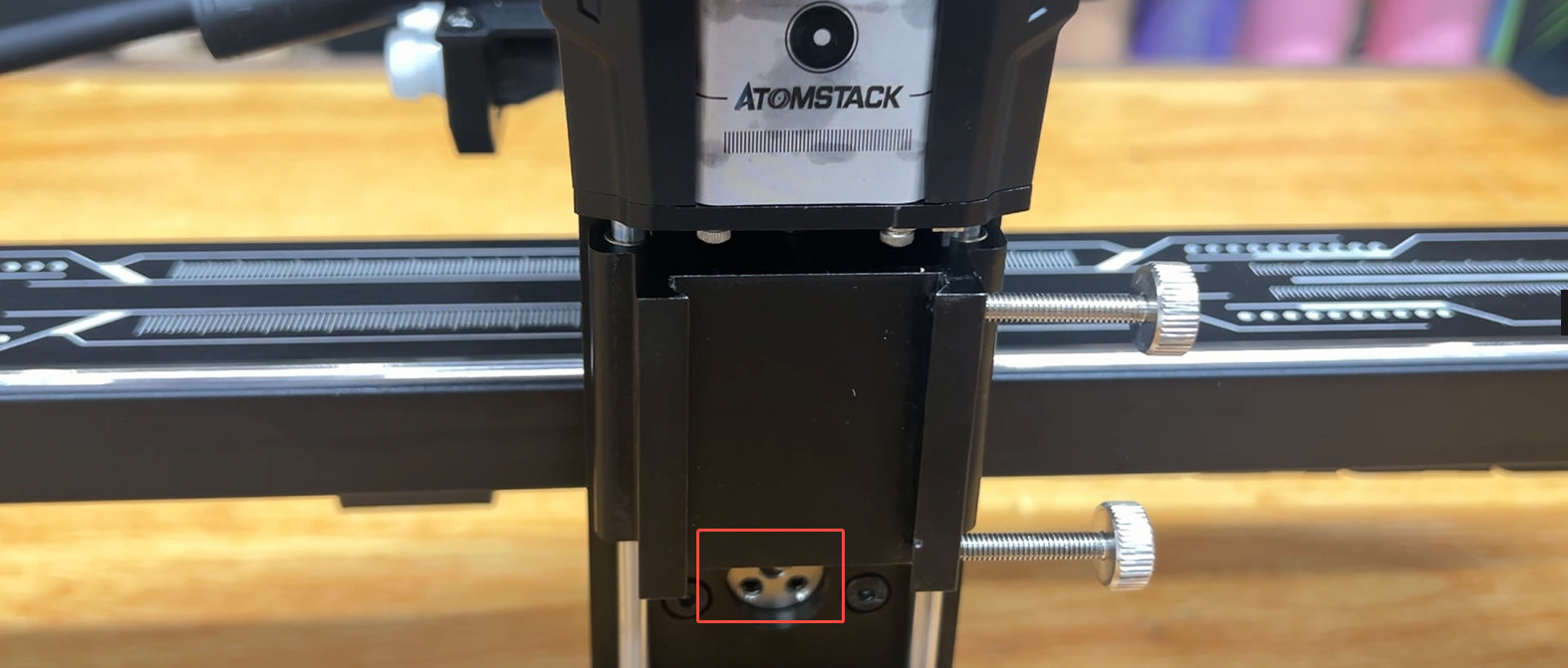
Only the X-axis is noisy: adjust the eccentric wheels on the X-axis guide rail sliders, following the structural adjustment video.
Friction noise at the ends of the guide shaft: make sure the couplers at the shaft ends are not sitting too close to the shaft supports, and adjust the spacing if they are.
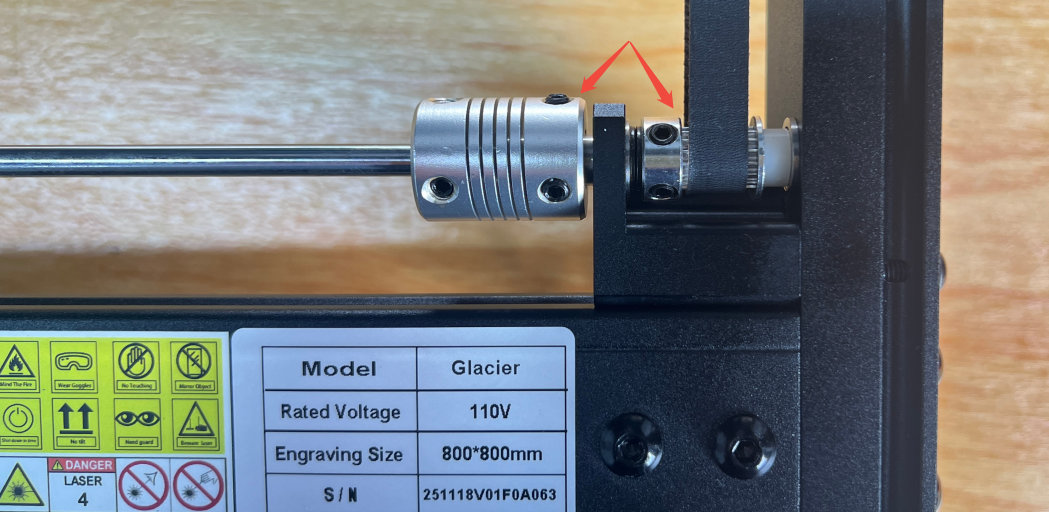
-
Check the motor wiring: unplug and reconnect the motor cables.
-
Check the frame: inspect the X and Y profiles for deformation, rust or trapped debris. If you find deformation or rust, photograph it clearly and send it with the machine's Serial Number to customer service.
-
If it still happens: record a fault video and send it with the Serial Number.
Still not fixed? Contact support with the details listed in What to send support.
Related problems: Distorted Engraving · Laser Bracket Loose · Head Hits the Frame
¶ Distorted Engraving
What you see: The engraved output is distorted.
Check in this order:
First, identify the distortion. Engrave a circle and see whether it closes.
-
Closes but comes out as an ellipse — the step settings are probably wrong. Restore the factory settings through the software first, then in LightBurn or LaserGRBL open the machine settings and check that
$100and$101are both 100. If not, set both to 100.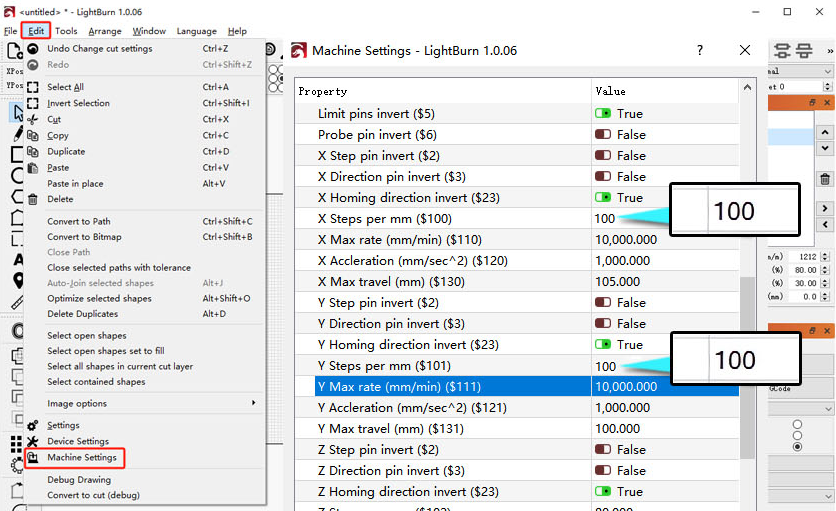
-
Open shapes, misalignment or wavy lines — these point at the machine structure. Work through the adjustments below.
Structural adjustments — see the structural adjustment video.
X-axis parallelism (tool: L2.0 hex key). Near the lower crossbeam, find the Y-axis motor and the two linear shafts. Loosen the set screws of the two shaft couplings on the shafts farther from the motor.
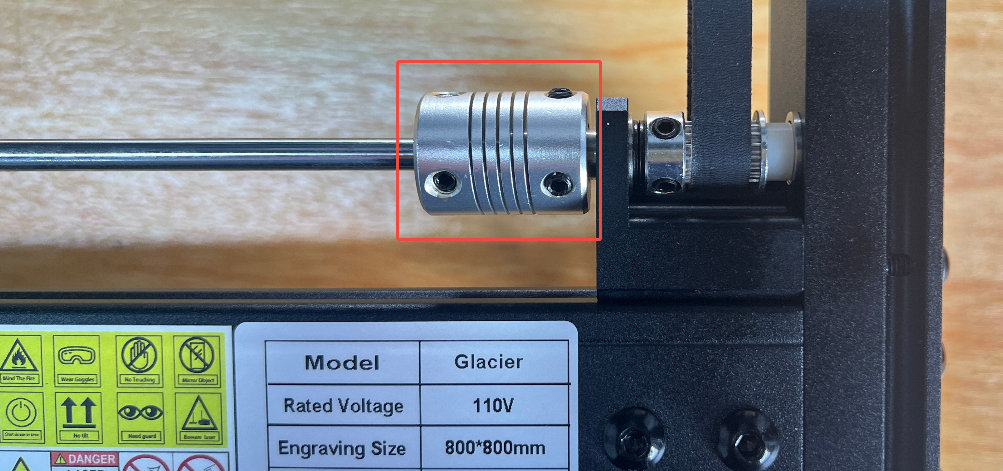
Move the X-axis to the top so the X-axis cable chain lies flush against the upper crossbeam — tie it in place with string if it will not stay — then retighten the set screws. Measure both ends of the X-axis against the crossbeam again, and repeat if they are still unequal.
Timing pulley and coupling screws (tool: L2.0 hex key): check that the set screws on the couplings and timing pulleys are tight.
Y-axis timing belts (tool: L2.5 hex key): press both belts to judge tension. To adjust, loosen the two screws on the belt tensioner near the upper crossbeam, pull the tensioner towards the crossbeam until the belt is properly tight, then retighten. Do the same on the other Y-axis.
X-axis timing belt (tools: L2.0 and L3.0 hex keys): find the tensioner at the upper right of the X-axis and loosen the two set screws on top with the L2.0 key, then turn the side screw with the L3.0 key to tighten or loosen the belt.
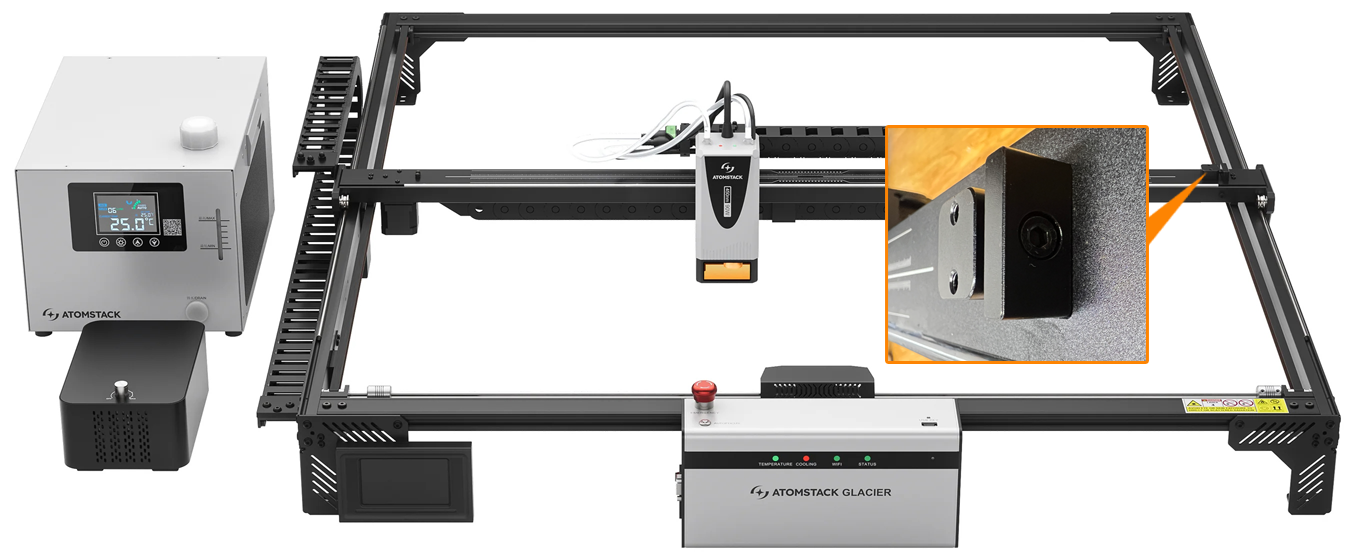
X-axis guide rail slider (tools: L2.0 hex key, needle-nose pliers): shake the laser module gently by hand. If it wobbles, or the X-axis is hard to move, the eccentric wheels need adjusting.
-
Loosen the side fixing screws and remove the laser module.
-
Turn the Z-axis knob to bring the slider to its highest position — two round eccentric wheels are then visible.
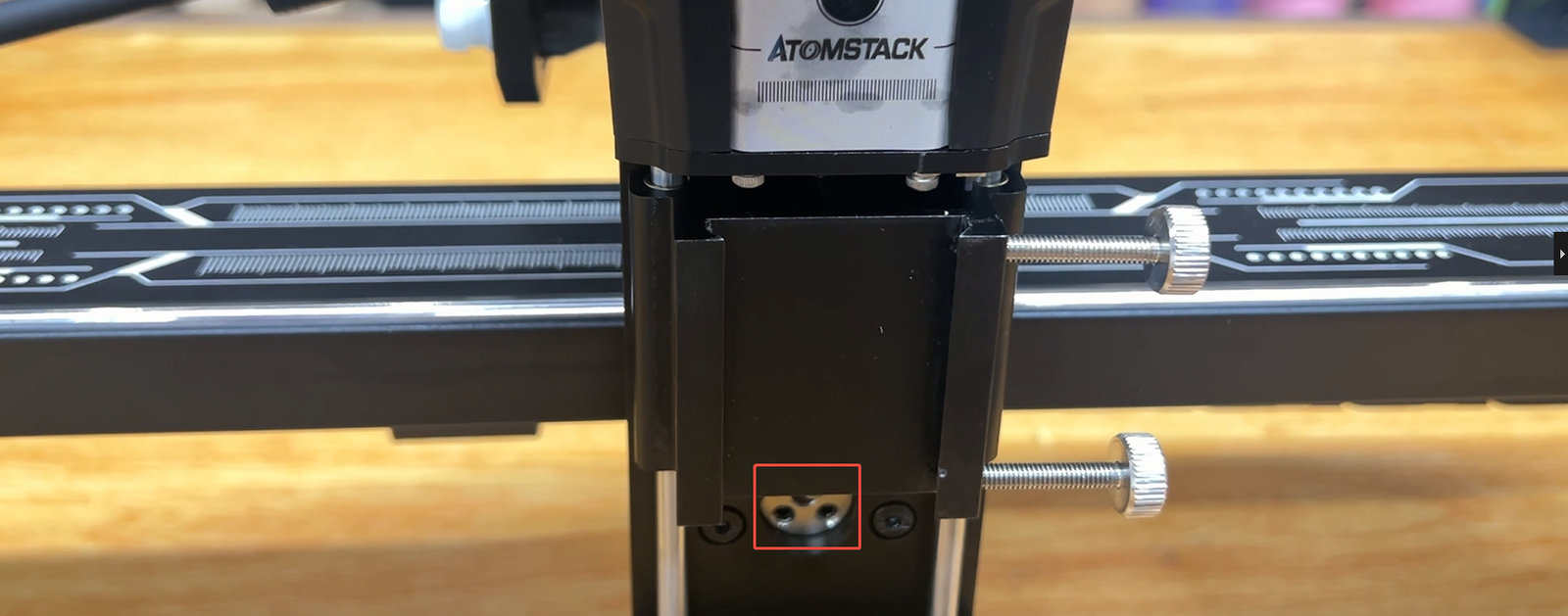
-
Remove the set screws holding the eccentric wheels with the L2.0 key.
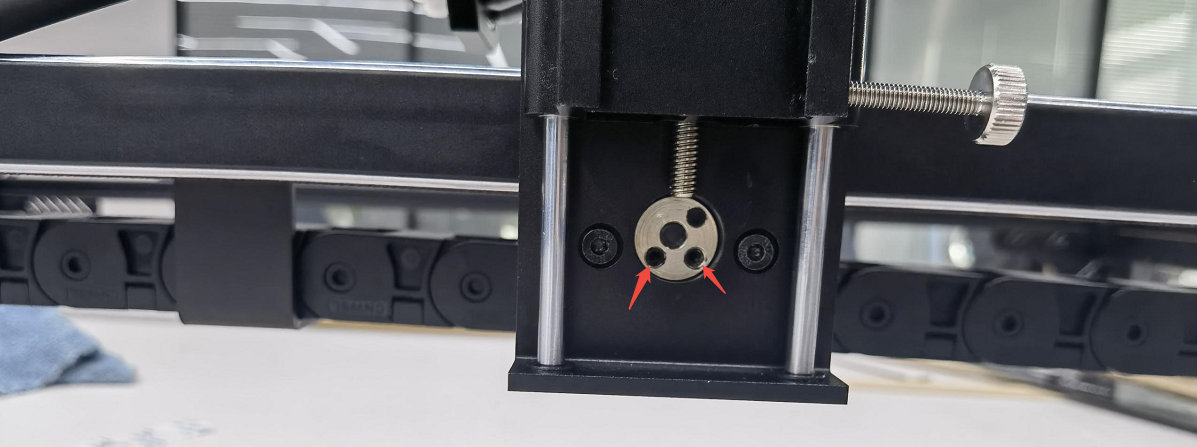
-
Put the pliers into the two holes of the eccentric wheel and turn it — clockwise tightens, anticlockwise loosens. Loosen it first, move the Z-axis gently by hand so it settles naturally, then tighten clockwise and refit the set screws.
-
Move the Z-axis left and right by hand and check that it runs smoothly, without wobble or binding. Readjust if it does not.
-
Refit the laser module.
Still not fixed? Contact support with the details listed in What to send support.
Related problems: Axis Motion or Noise · Laser Bracket Loose
¶ Head Hits the Frame
What you see: The machine hits the frame while framing or engraving.
Check in this order:
-
Check the file size: the job must fit inside the Glacier working area and must not contain negative coordinates. Reopen the software, draw a small test shape with its own tools and see whether the problem persists.
-
Check the software: try AtomStack Studio to see whether the same thing happens, and make sure your LightBurn is a licensed version.
-
Verify movement: use the direction controls in the software and check that the machine travels the right distance in the right direction. If movement is wrong, inspect the cables for damage and make sure the motor connectors are seated.
-
Restore the factory settings:
- AtomStack Studio (2.20 and above): tap the client version number ("Version Number: V2.20") seven times in a row to enter Developer Mode, go back to the menu bar, open Serial Port Log and click Reset. See the AtomStack Studio factory reset video.
- LightBurn: type
$RST=*in the Console.
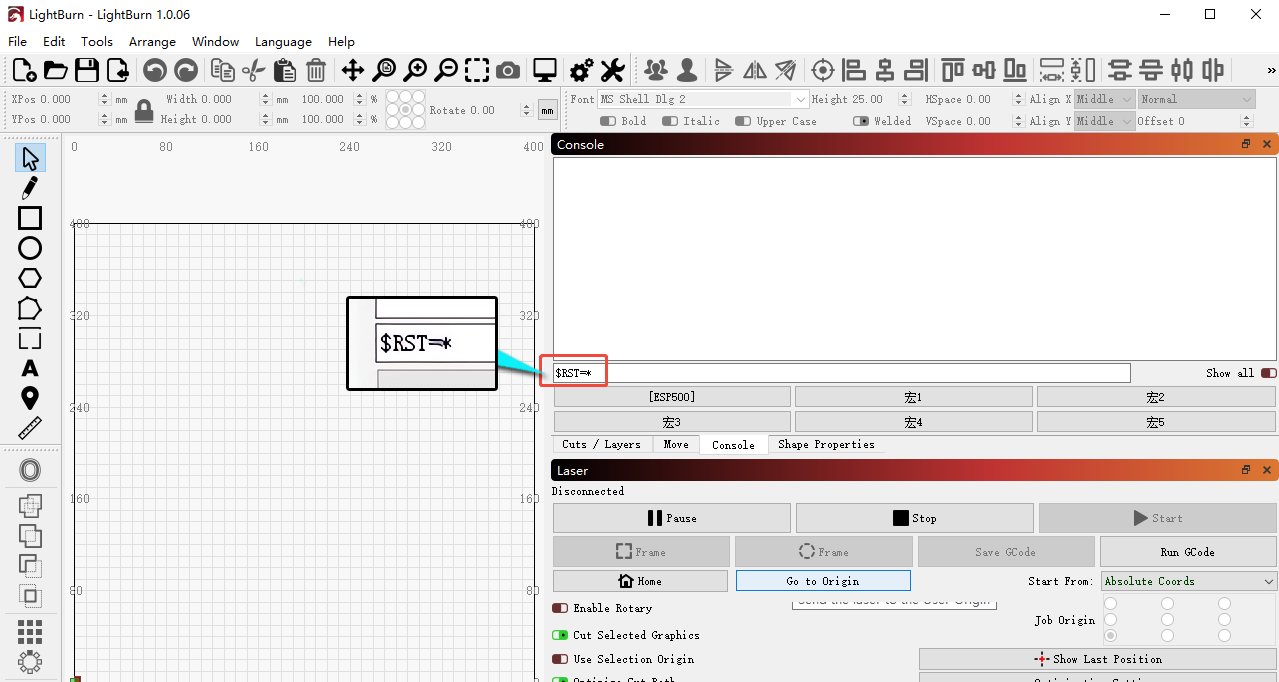
Still not fixed? Contact support with the details listed in What to send support.
Related problems: Axis Motion or Noise · Distorted Engraving
¶ Laser Bracket Loose
What you see: The laser module mounting bracket is loose.
Check in this order:
Adjust the eccentric wheels on the X-axis guide rail slider. Tools: L2.0 hex key and needle-nose pliers.
-
Loosen the side fixing screws and remove the laser module.
-
Turn the Z-axis knob to bring the slider to its highest position — two round eccentric wheels are then visible.
-
Remove the set screws holding the eccentric wheels with the L2.0 key.
-
Put the pliers into the two holes of the eccentric wheel and turn it — clockwise tightens, anticlockwise loosens. Loosen it first, move the Z-axis gently by hand so it settles naturally, then tighten clockwise and refit the set screws.
-
Move the Z-axis left and right by hand and check that it runs smoothly, without wobble or binding. Readjust if it does not.
-
Refit the laser module.
Confirm the fix: After adjusting the eccentric wheels, move the Z-axis left and right by hand: it runs smoothly, without wobble or binding.
Still not fixed? Contact support with the details listed in What to send support.
Related problems: Axis Motion or Noise · Distorted Engraving · Autofocus Fails
¶ Head Won’t Move by Hand
What you see: The laser module cannot be moved by hand after power-on.
Check in this order:
-
Check Power-off Resume: connect through AtomStack Studio or the app, tap the icon in the top right to open the device information and see whether Power-off Resume is switched on. While it is on, the laser head can only be moved with the direction controls in the software. Switch it off and you will be able to push the laser module to where you want it.
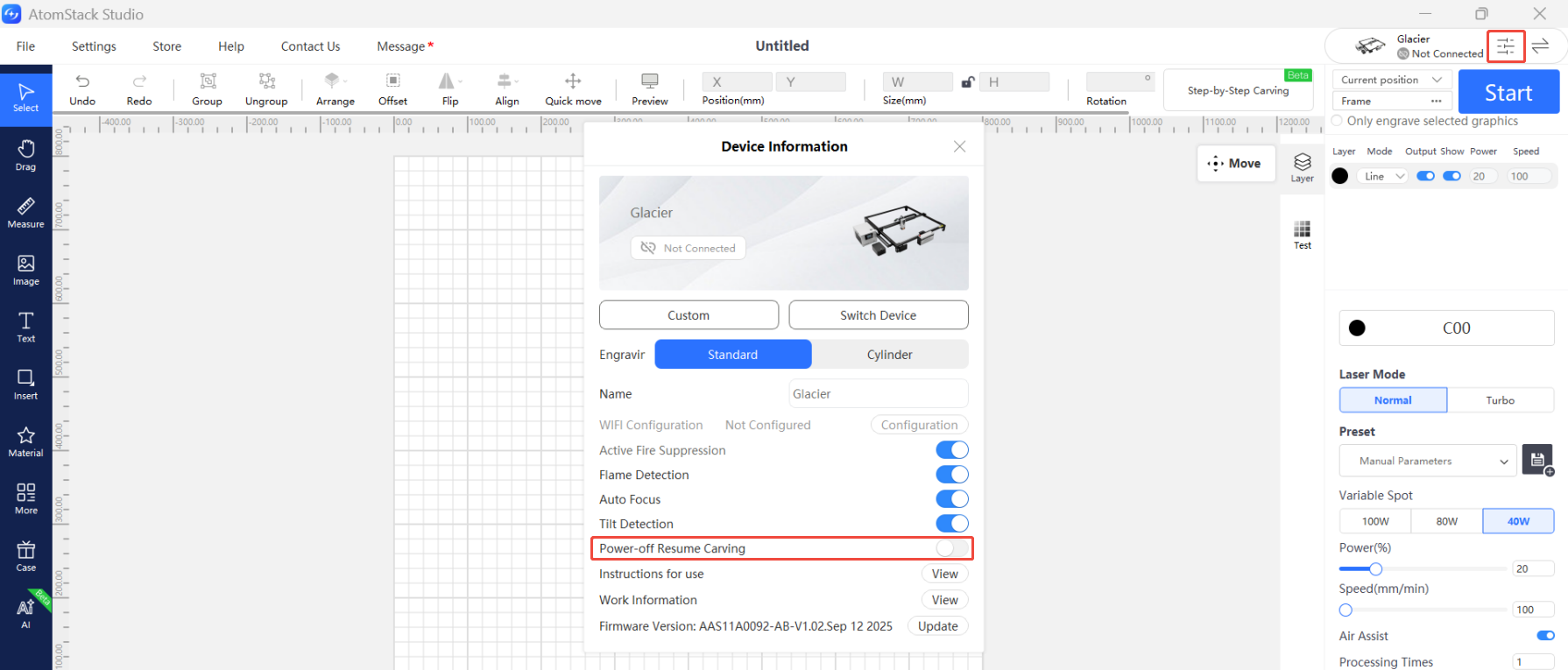
-
If Power-off Resume is off and it still will not move: the mainboard may be faulty. Send customer service a video that includes the check in step 1, together with the machine's Serial Number, and see the mainboard replacement video.
Confirm the fix: With Power-off Resume switched off, you can push the laser module to where you want it.
Still not fixed? Contact support with the details listed in What to send support.
Related problems: Laser Bracket Loose · Axis Motion or Noise
¶ Rotary Keeps Turning
What you see: With a rotary attachment fitted, the machine turns continuously at startup.
Check in this order:
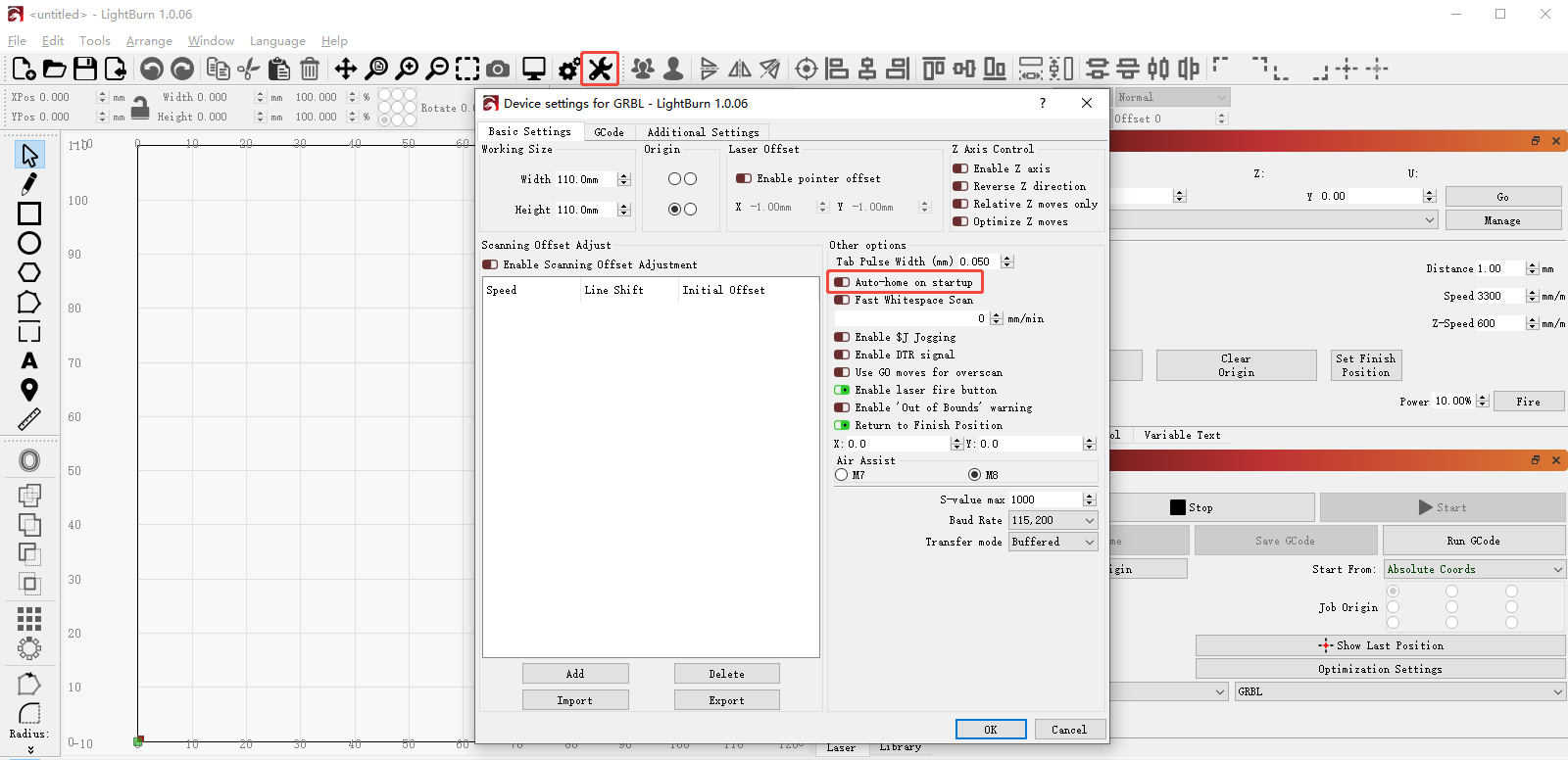
This is normally LightBurn's homing behaviour. Open Device Settings and, under Other options, switch off Auto-home on startup.
Still not fixed? Contact support with the details listed in What to send support.
Related problems: Head Won’t Move by Hand · Head Hits the Frame