A70 Power & Connection: No Power, PC Won't Connect
The machine does not power on, stops mid-job, will not connect to the computer or app, or the USB drive or screen does not work.
Before you start. Switch off the machine and unplug the power supply before you open the laser module or control box, or unplug any cable. Let the laser module cool down first. Wear laser safety goggles whenever the laser can fire, including test burns: the A70 is an open-frame laser with no enclosure. Do not aim the laser at reflective surfaces.
¶ No Power Output
What you see: The machine does not power on. The power switch light may be on or off.
Check in this order:
-
Confirm the correct input voltage setting: there is a voltage switch on the side of the power supply unit, used to toggle between different input voltages. This must be adjusted according to the local mains voltage. If the switch is set to 110V but connected to a 220V power source, the power supply may be permanently damaged.

-
Confirm if there is output: after turning on the power switch, if the power indicator light turns on but there is no 30V–37V and 20V–25V DC output, the power supply module may be faulty. When measuring output, use a multimeter set to the DC voltage range.
-
Check the fuse and cable connections: if the power switch indicator does not light up after turning it on, first check whether the power cable is properly plugged into the power module, then inspect the fuse inside the power supply. If the fuse is damaged, replace it with the same type locally. The fuse specification is 15A, 250V.

-
If the power switch indicator does not light up after turning on the power, and both the power cable and fuse are confirmed to be normal, the power supply module is faulty. Please contact customer service for a replacement.
Confirm the fix: The switch light is on, and the outputs measure 30–37 V and 20–25 V DC.
Still not fixed? Contact support with the details listed in What to send support.
Related problems: Keeps Stopping Mid-Job · Control Screen Blank
¶ Keeps Stopping Mid-Job
What you see: The machine stops during engraving. After a restart it works again, then stops again partway through a job.
Check in this order:
-
Check TYPE-C cable connection: unplug and reconnect the TYPE-C cable to ensure it is securely connected.
-
Verify computer operating system: are you using Windows 11? If so, note that the control software must not be allowed to run in the background, as this can lead to interruptions or low-power operation.
-
Check software status: when the machine stops, check if the progress bar in the software is still moving. If yes, this could be caused by a disconnection issue — try cleaning the USB port on the engraver's control box, replacing the TYPE-C cable, trying a different USB port on the computer, or testing with AtomStack Studio software (official download: https://atomstack.com/pages/atomstack-studio-software).
-
Measure power supply voltage: use a multimeter in DC mode to check whether the power supply outputs voltages of 20V–25V and 30V–37V.

-
Check firmware: try re-flashing the firmware. Please contact customer service to obtain the correct firmware version, providing the Serial Number of the engraving machine. Refer to the firmware flashing video for step-by-step instructions.

Click to play video on YouTube
- If none of the above issues are resolved, the mainboard may be faulty and needs to be replaced. Refer to the 70W mainboard replacement video for guidance.
Confirm the fix: Run a long job: it finishes without stopping.
Still not fixed? Contact support with the details listed in What to send support.
Related problems: PC Won’t Connect · No Power Output
¶ PC Won’t Connect
What you see: The software does not connect to the machine.
Check in this order:
-
Check whether the correct COM port is selected in the software. You can find the COM port number of the engraver (USB-CH340) in the Device Manager on your computer.

-
Check the baud rate settings: the baud rate in the software must be set to 115200, and the added controller must be set to GRBL.


-
Verify COM port recognition: in Device Manager, plug and unplug the USB cable to check whether a COM port appears or disappears accordingly. If the engraver's COM port is not detected, install the appropriate driver (e.g., CH340 or FTDI).
-
Check if the machine is functioning properly: if both LightBurn and LaserGRBL cannot connect, try downloading and using the AtomStack Studio client.
-
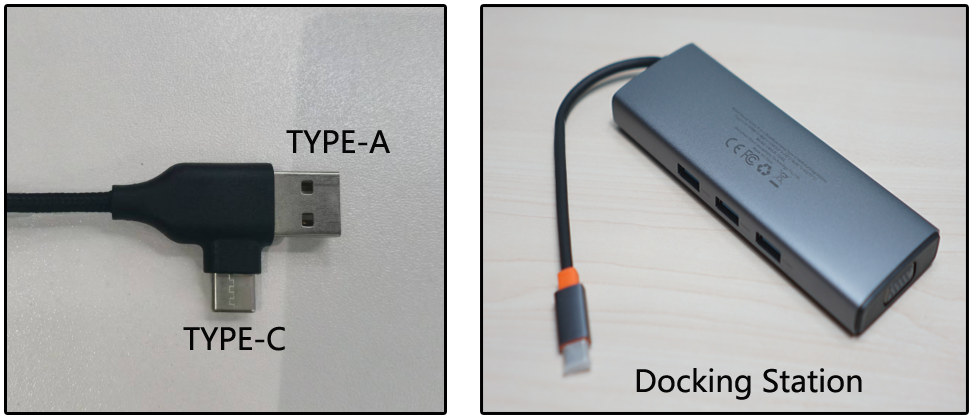
Check the computer system: Mac computers cannot directly connect to the Type-C port on the Type-C cable — they must use a docking station or USB hub to convert and connect through the Type-A port on the Type-C cable.
-
Check the connection cable and ports: try replacing the Type-C cable, switching to a different USB port on the computer, or using a different computer.
-
Verify the firmware status: try reflashing the firmware and attempt to reconnect.
-
If none of the above solutions work, the issue may be a mainboard failure, and the mainboard may need to be replaced. Refer to the 70W Mainboard Replacement Video for guidance.
Confirm the fix: The software shows the machine as connected, and clicking Home moves the machine.
Still not fixed? Contact support with the details listed in What to send support.
Related problems: Keeps Stopping Mid-Job · App Won’t Connect
¶ App Won’t Connect
What you see: The phone cannot find or join the Engraver_*** Wi-Fi, or the AtomStack app does not connect to the machine.
Check in this order:
- Check the operation procedure: ensure that the connection process in the mobile app is performed correctly. Refer to the Mobile App Connection Video for guidance.

Click to play video on YouTube
- Confirm the app version is up to date: you can update the app within the software itself or download the latest version from the official website: AtomStack.com.
- Check the mainboard Wi-Fi: ensure your phone can detect the engraver's Wi-Fi network, which should appear as Engraver_***.
- Try a different mobile device: disable mobile data or use a different phone to attempt the connection. The engraver's Wi-Fi can only connect to one device at a time.
- If none of the above work, the issue may be with the mainboard, and it may need to be replaced. Refer to the 70W Mainboard Replacement Video for instructions.
Confirm the fix: The app shows the machine and can move it.
Still not fixed? Contact support with the details listed in What to send support.
Related problems: PC Won’t Connect · “USB Drive Not Inserted”
¶ USB Drive Not Read
What you see: The machine cannot read the USB drive.
Check in this order:
- Check if the USB drive is damaged: insert the USB drive into a computer to see if it is recognized and accessible. If it cannot be recognized, the USB drive is faulty — you can purchase a replacement locally or contact customer support.
- Check the USB drive format: if the included USB drive is not recognized, try formatting it (if possible). FAT32 is the recommended format.
- If the above checks are normal, the issue may be a USB port failure on the mainboard. In that case, the mainboard needs to be replaced. Refer to the 70W Mainboard Replacement Video for guidance.
Still not fixed? Contact support with the details listed in What to send support.
Related problems: “USB Drive Not Inserted”
¶ “USB Drive Not Inserted”
What you see: A job started from the app stops with the message “USB Drive Not Inserted”.
Check in this order:
This issue is likely caused by a faulty USB drive. It is recommended to replace the USB drive — you may purchase one locally or contact customer support to request a replacement.
Confirm the fix: With a new USB drive, the same job runs to the end from the app.
Still not fixed? Contact support with the details listed in What to send support.
Related problems: USB Drive Not Read · App Won’t Connect
¶ Control Screen Blank
What you see: The machine is on, but the control screen stays blank.
Check in this order:
- Check machine status: ensure the engraving machine powers on normally and can connect to the computer or app as usual.
- Check HDMI cable connection: if the machine powers on correctly, unplug and replug the HDMI cable connected to the control screen, or try replacing it with a new HDMI cable.
- Check control screen functionality: tap the screen and listen for touch sound feedback. If you hear sound but see no display, shine a flashlight on the screen to check for faint text or images — if something is visible, the issue is likely with the mainboard or HDMI cable; if there is no display at all, it could be a touchscreen or HDMI cable fault. Note: replacing the touchscreen requires contacting customer support and providing the Serial Number, as different touchscreen versions may be incompatible. Refer to the 70W Touchscreen Replacement Video for guidance.
Confirm the fix: After power-on, the control screen shows its home screen and responds to touch.
Still not fixed? Contact support with the details listed in What to send support.
Related problems: No Power Output
¶ Firmware & Software
- AtomStack Studio Software Update (PC): when opening the software, it will automatically prompt you if a new version is available. If no prompt appears, go to "Settings" > "Check for Updates". You can also download the latest version from the official website: AtomStack.com.
- Firmware Update: you can update the firmware directly through the AtomStack mobile app, or take a clear photo of your machine's Serial Number and send it to customer support to request the correct firmware, then copy the firmware file to the root directory of a USB drive to perform the update.
- Mobile App Update: download the latest version of the AtomStack app from AtomStack.com, or in the app, go to "Personal Center" > "Settings" > "About ATOMSTACK" to check the version — if an update is available, follow the prompts to update directly.
Related problems: PC Won’t Connect · App Won’t Connect